Open Google Docs Directly in ChatGPT: A Complete Guide
ChatGPT can now pull up Google Docs, Sheets, and Slides right inside your conversation—letting you analyze documents without the tab-switching hassle. It's a genuine workflow improvement for anyone juggling multiple tools.
Once you connect the Google Drive plugin to ChatGPT, your Drive files and folders appear directly in ChatGPT's library, including anything shared with you. You can drag files into conversations or reference them with the @ symbol—no re-uploading needed. The document then opens alongside your chat while ChatGPT summarizes, analyzes, compares, or drafts new content based on what you're viewing. Here's how to get it set up.
Connecting Google Drive to ChatGPT
Note: This feature rolls out to Plus, Pro, Business, and Enterprise accounts. Free users can still upload files to ChatGPT manually, but can't open documents in the side-by-side view.
Step 1:
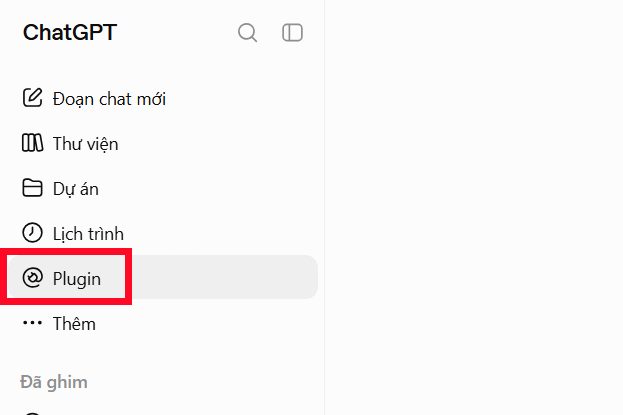
In ChatGPT, click the Plugins section on the left side of your screen.
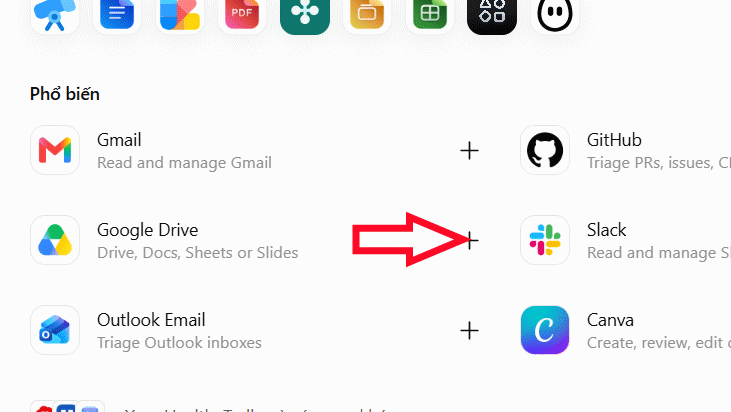
Find Google Drive in the plugin list, then tap the plus icon to activate it.
Step 2:
A connection screen appears showing all Google services that will connect to ChatGPT. Click Connect with Google.
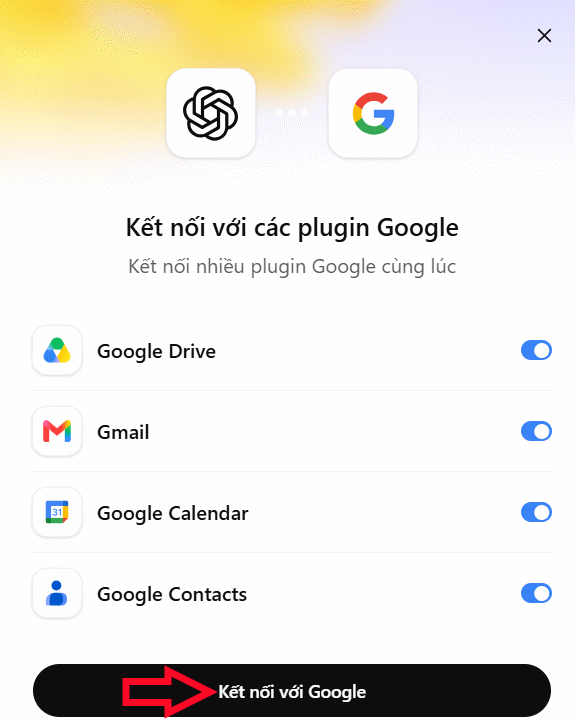
You'll be directed to a permissions page for ChatGPT to access your Google Drive.
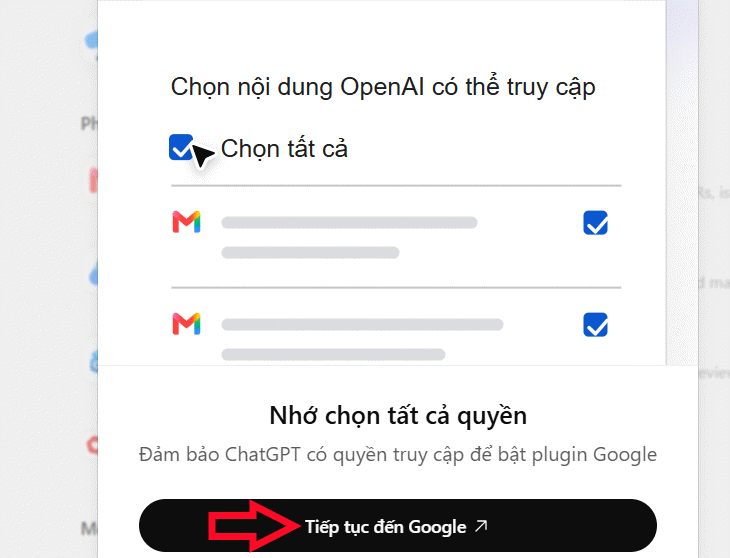
Step 3:
Select the Google account you want to link to ChatGPT, then click Continue.
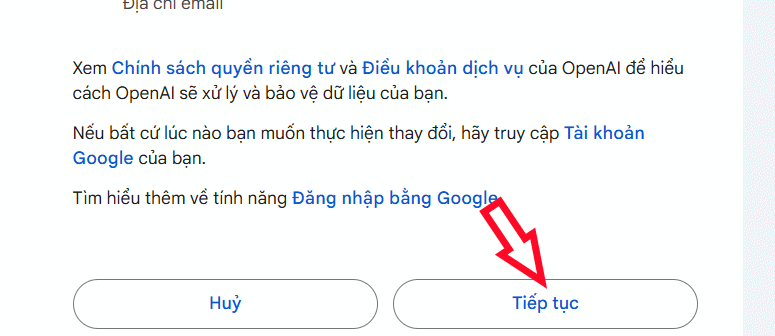
Review the permissions ChatGPT is asking for, check the boxes, and hit Continue.
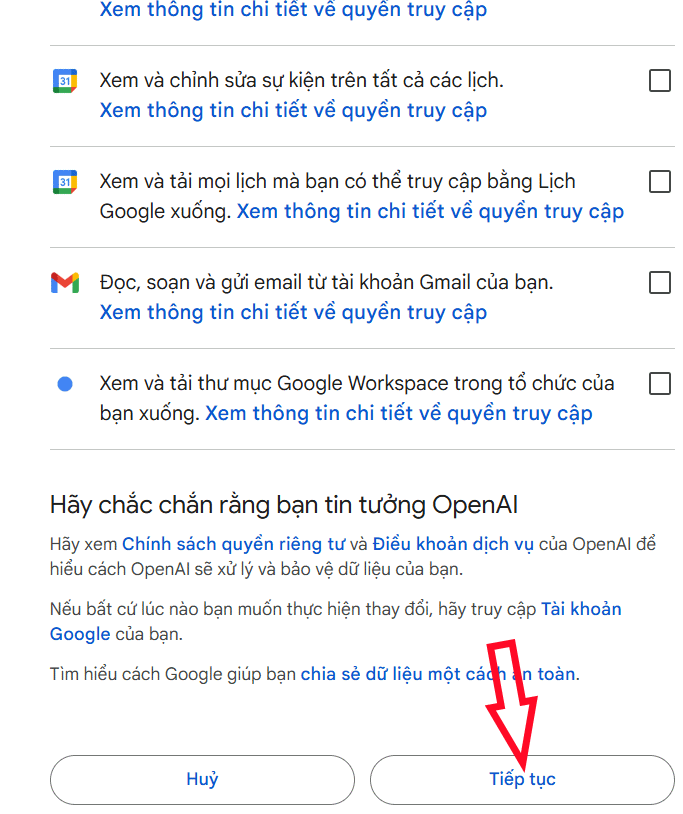
Done. Your Google Drive is now connected to ChatGPT.
Accessing Google Docs Inside ChatGPT
Step 1:
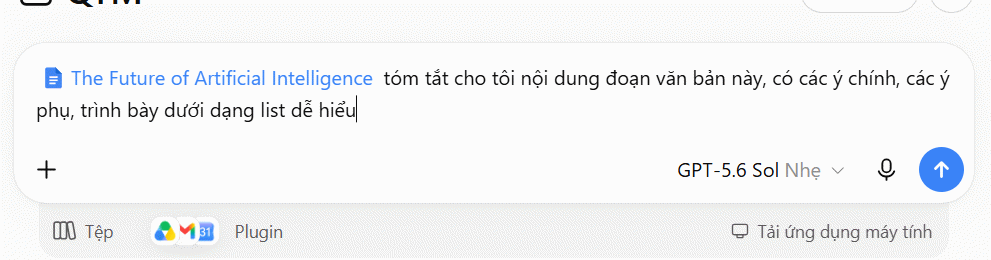
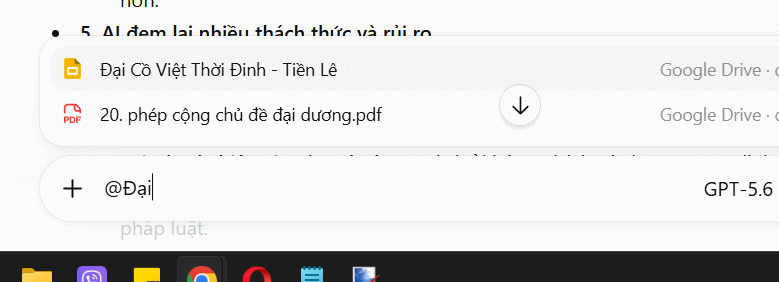
After successfully connecting Google Drive, type @ in the chat box. ChatGPT will show available documents from your Google Docs, Sheets, and Slides. You can search by document name or email.
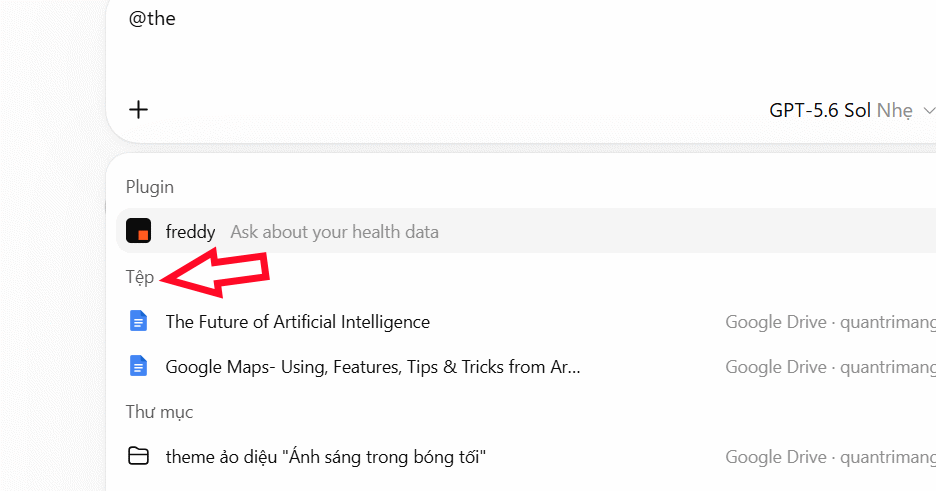
Now type your request in the chat—ask ChatGPT to summarize, edit, or analyze the document as you normally would.
Step 2:
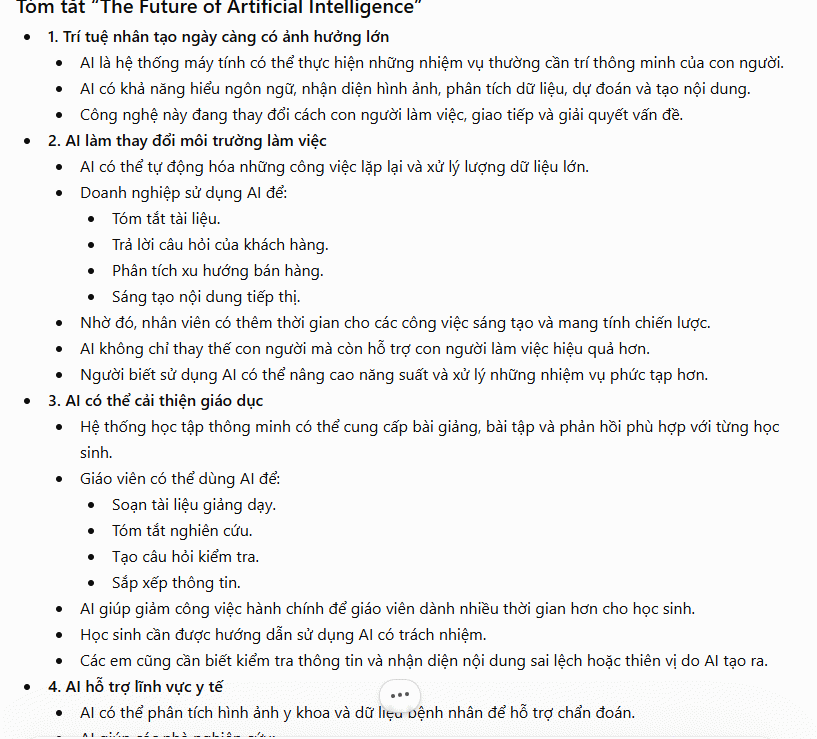
ChatGPT generates its analysis of your document.
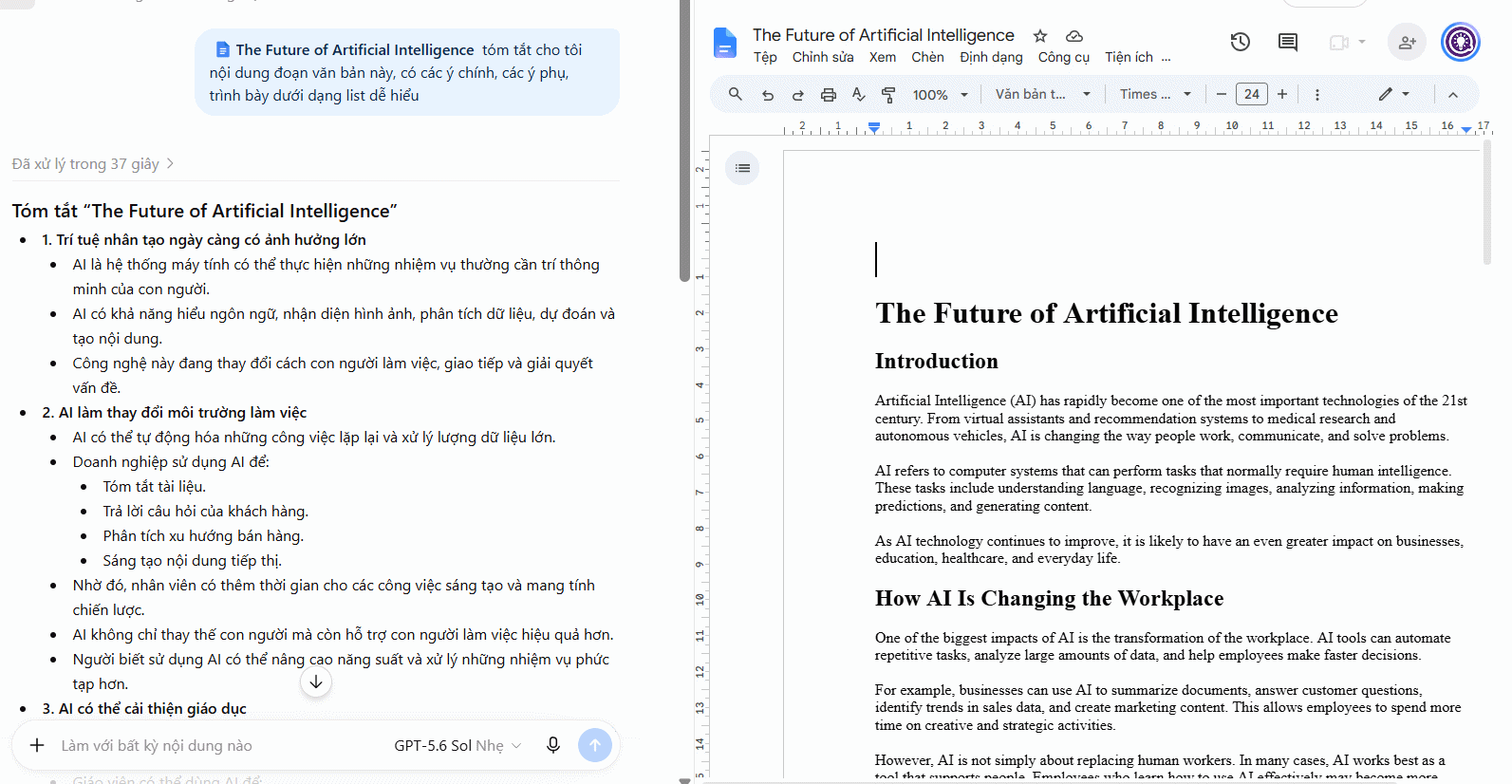
Click the document name in the chat, and the Doc opens on the right side of your screen. This is where things get useful—you can read the original while ChatGPT's suggestions appear on the left.
Step 3:
You can work with other files the same way. Let's say you want to analyze a presentation.
Ask ChatGPT to summarize slides, extend content, make edits—whatever you need. Your presentation opens on the right, and you chat on the left, all in one view.
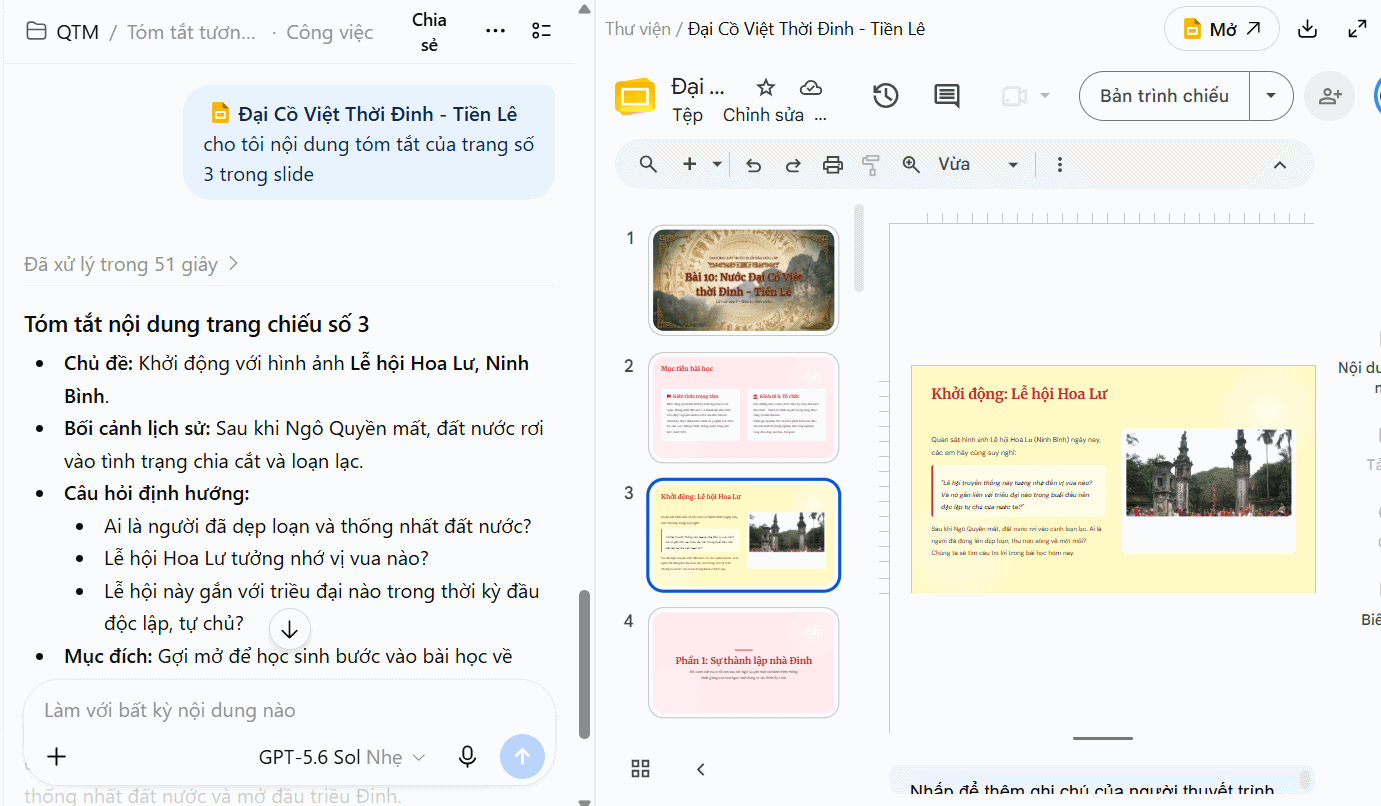
Pair the right document with a clear prompt, and ChatGPT becomes a much more effective partner for working with Google Docs, Sheets, and Slides.
Managing Your Google Drive Connection
You can modify or disconnect your Google Drive access anytime.
Step 1:
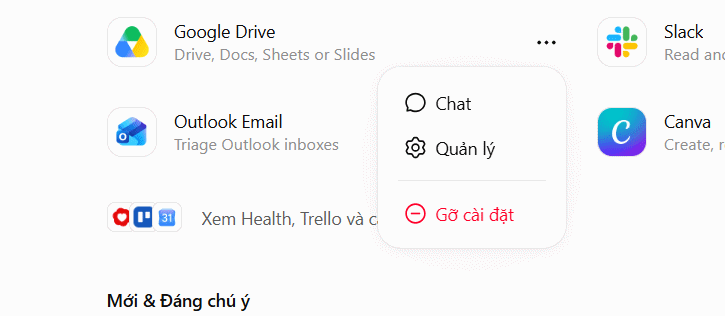
Go to Plugins and click the three dots next to Google Drive. Select Uninstall to disconnect, or Manage to adjust settings.
Step 2:
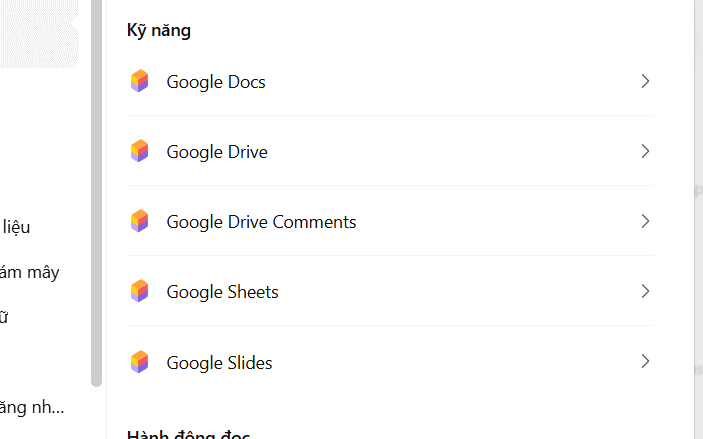
The Google Drive management screen shows your connected apps. You can toggle off ChatGPT's access to specific Google services from here.
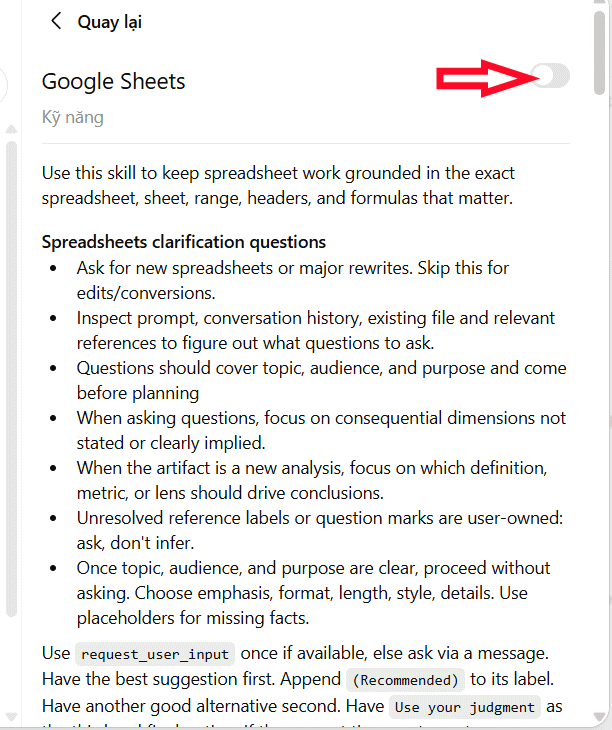
To disable access, slide the toggle to the left.
Step 3:
Scroll to the Permissions section to adjust ChatGPT's default access levels.
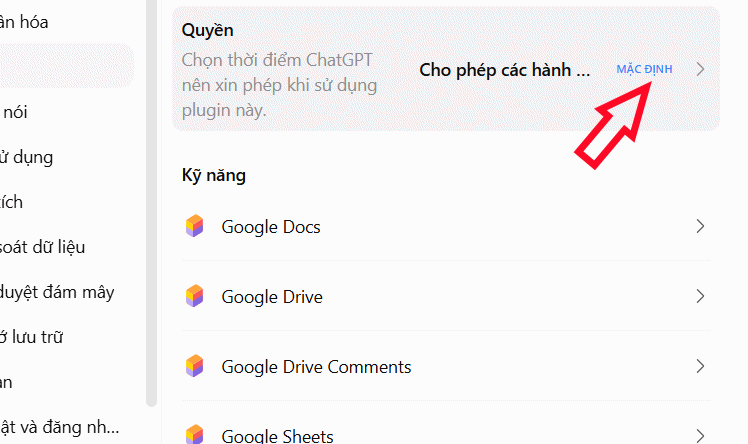
Fine-tune what ChatGPT can do with your Google Drive files based on your preferences.
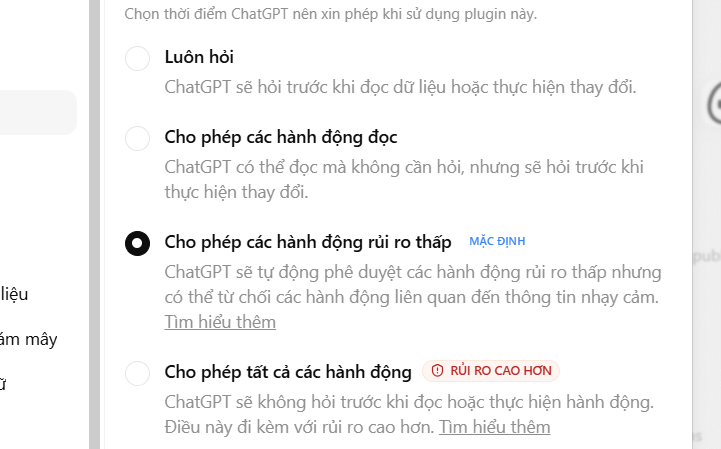
Common Questions
Do I need ChatGPT Plus to open Google Docs in ChatGPT?
Yes. The side-by-side document view requires a paid account. The feature currently supports Plus, Pro, Business, and Enterprise tiers on the web version.
Can ChatGPT edit Google Docs directly?
Not yet. ChatGPT can read your document and draft content in the chat, but you'll typically need to copy and paste results back into your Doc manually.
Does this work on the ChatGPT mobile app?
Not yet. This feature is currently limited to the web version.
Can ChatGPT see all my Google Drive files after connecting?
ChatGPT can access files in your My Drive and files explicitly shared with you when you reference them in conversation. Team Drives aren't supported yet.
Uploading Google Drive Files on Android
Step 1:
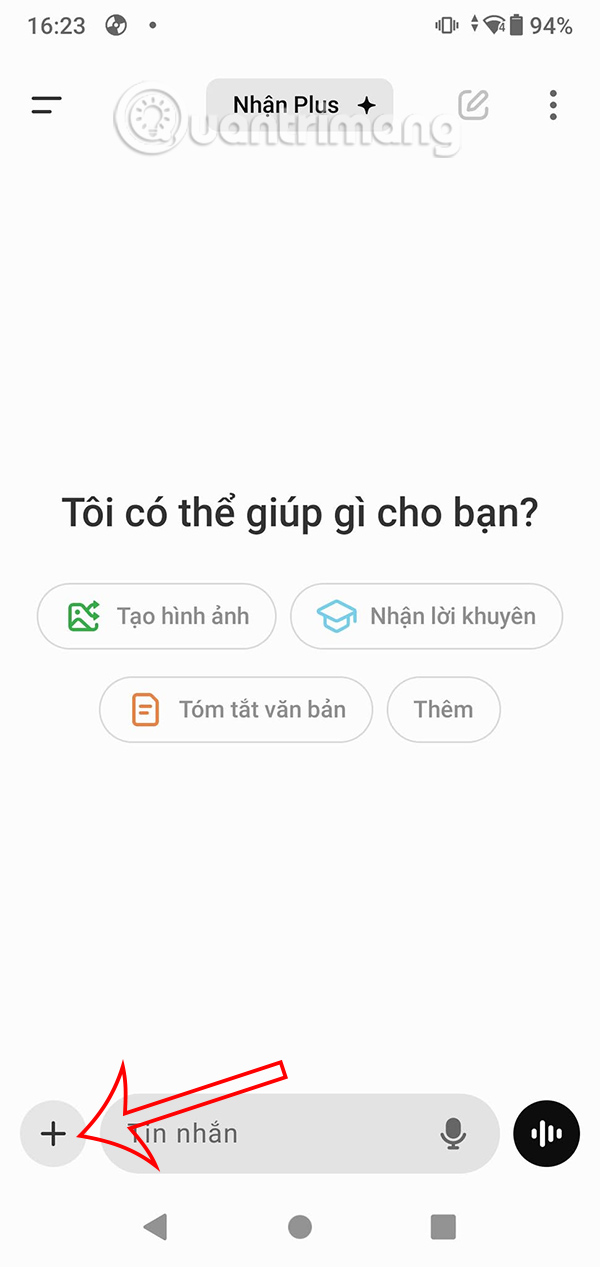
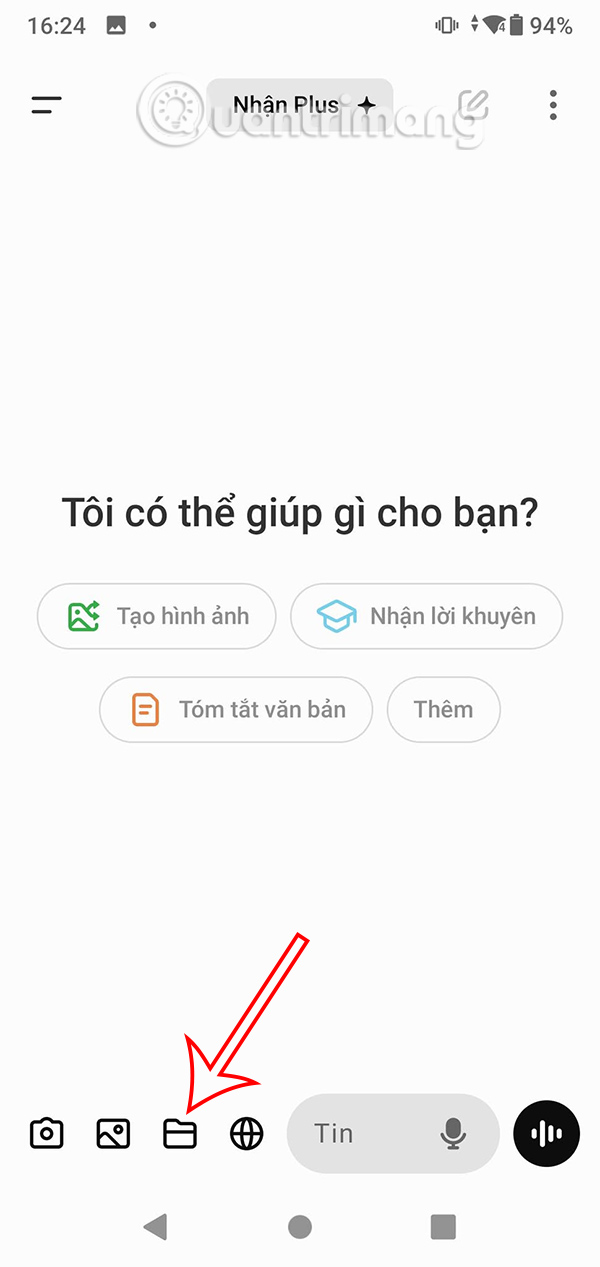
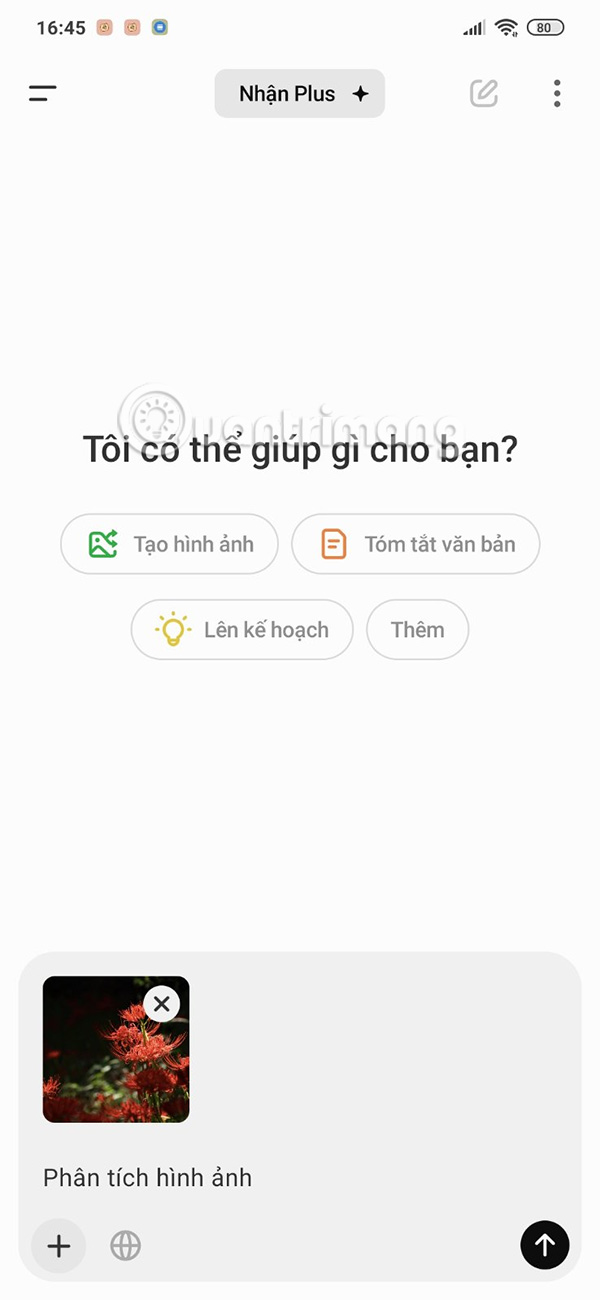
In the ChatGPT Android app, tap the plus icon next to the message box, then tap the folder icon.
Step 2:
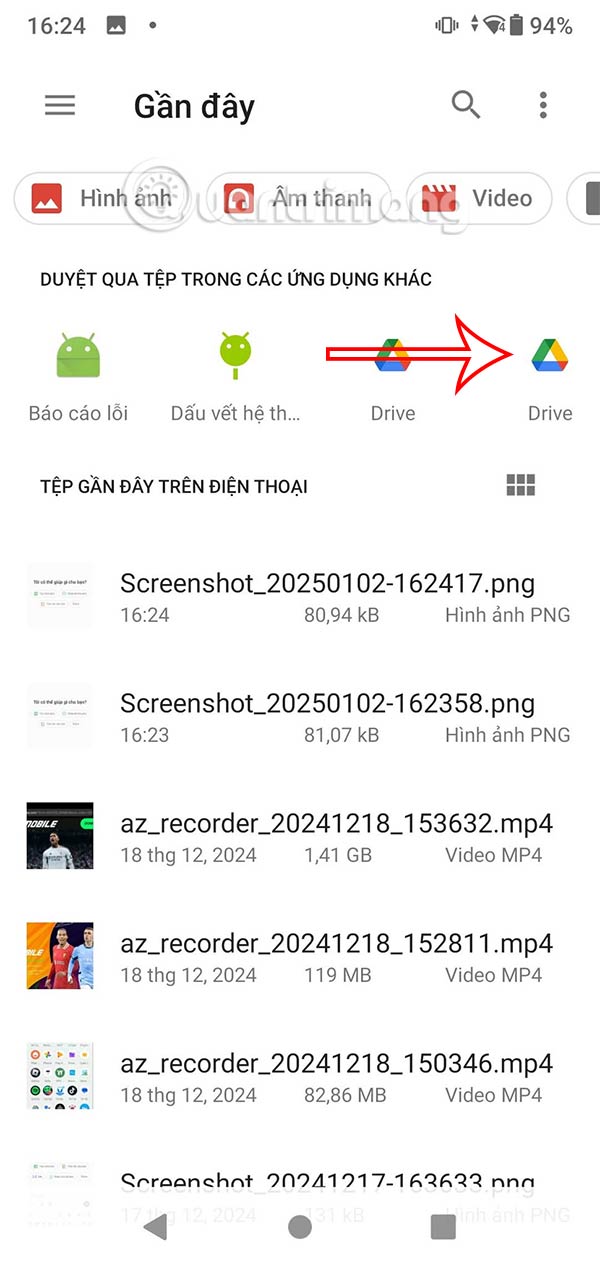
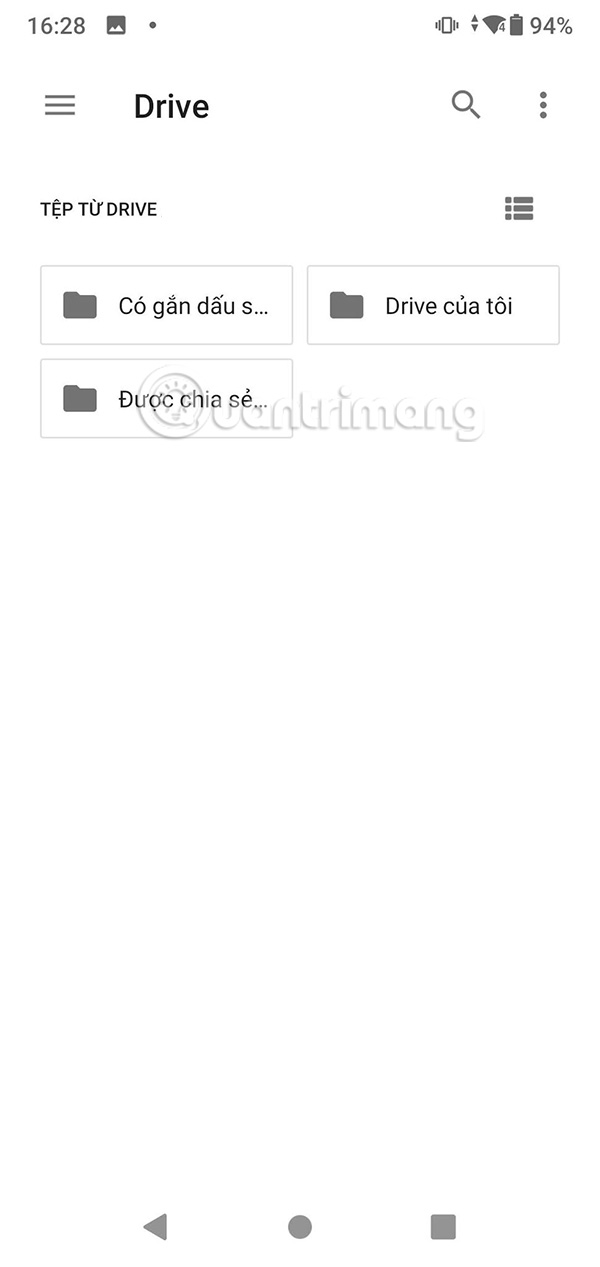
You'll see options for files stored on your phone. Tap the Drive icon to access your cloud storage. You're now in Drive's file browser.
Step 3:
Navigate to the folder containing the file you want to upload, then select it. Your Google Drive file is now ready to use in ChatGPT.
Uploading Google Drive Files on iPhone
Step 1:
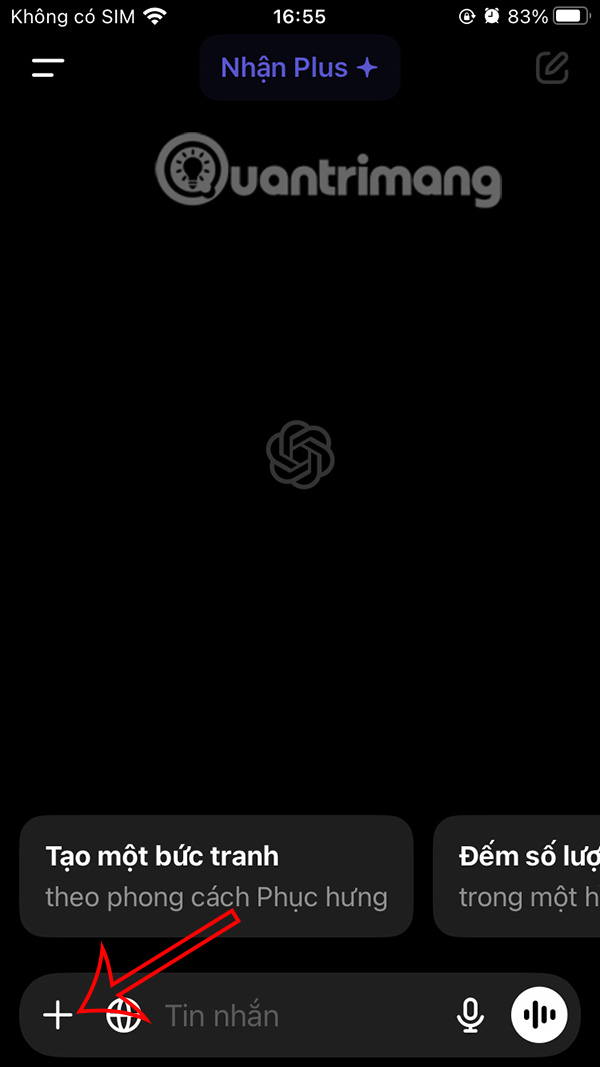
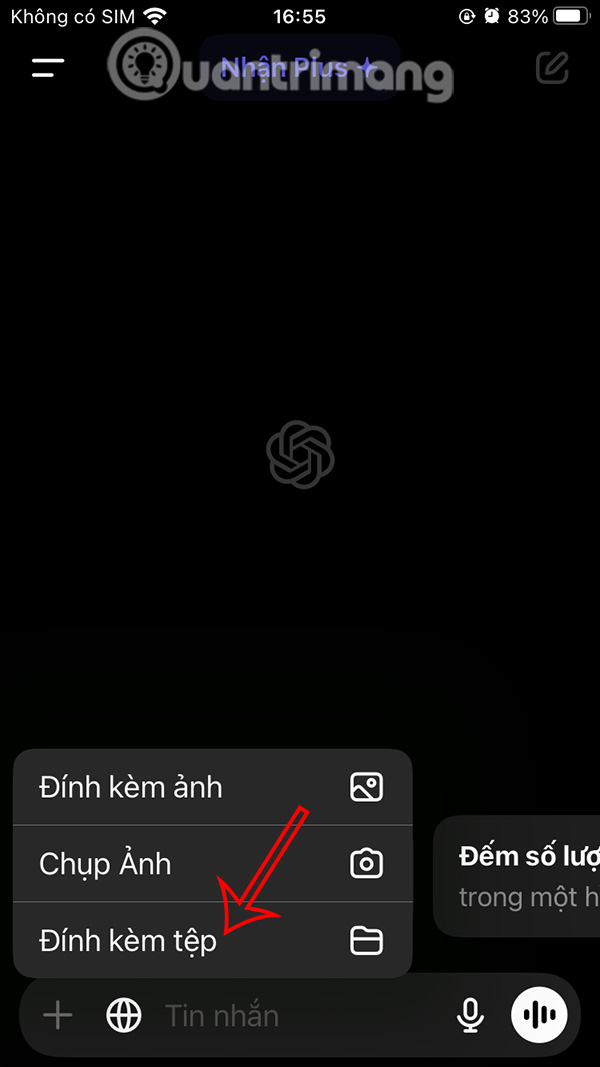
In the ChatGPT iPhone app, tap the plus icon, then select Attach File.
Step 2:
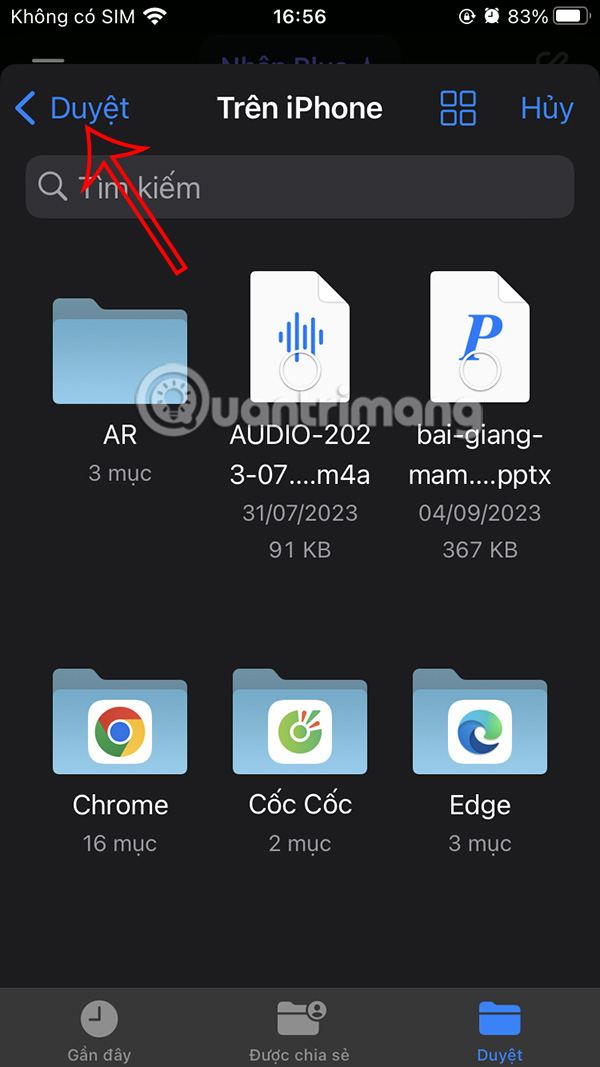
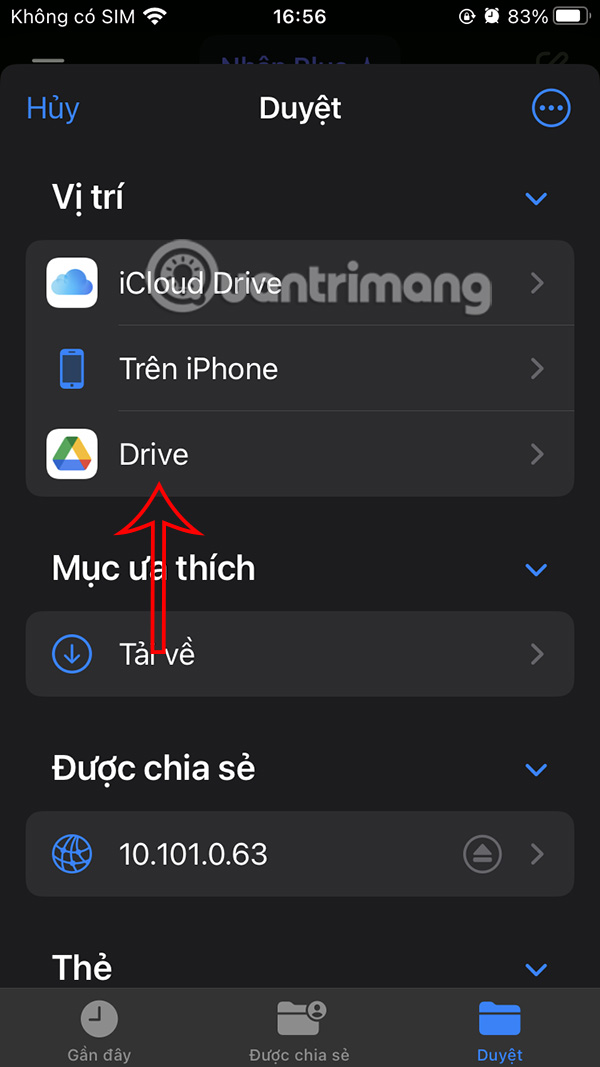
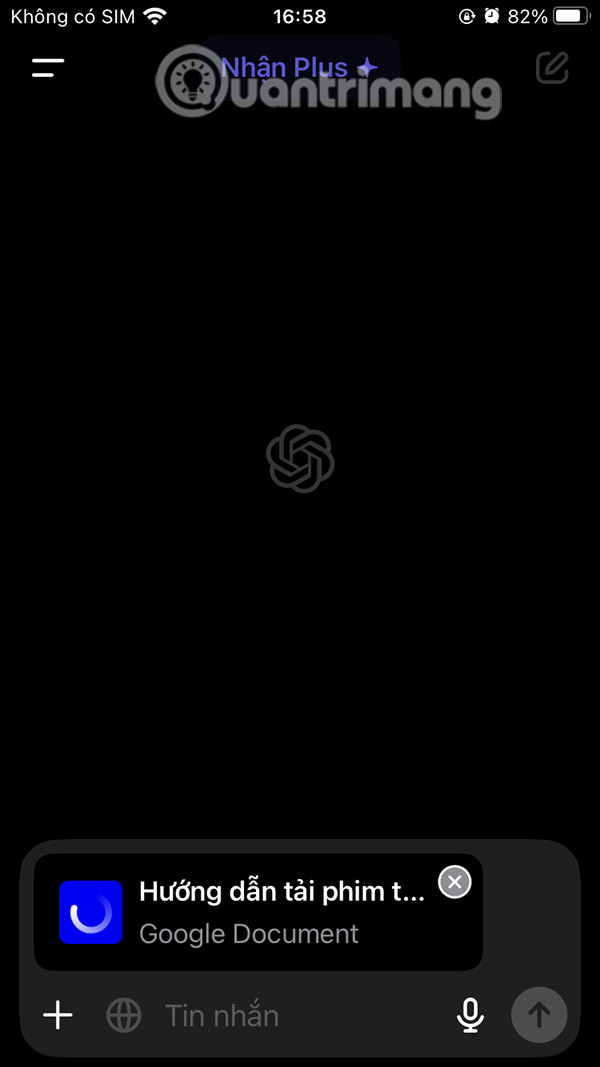
The Files app opens on your iPhone. Tap Browse to access your storage locations. Then tap Drive to open your cloud files.
Step 3:
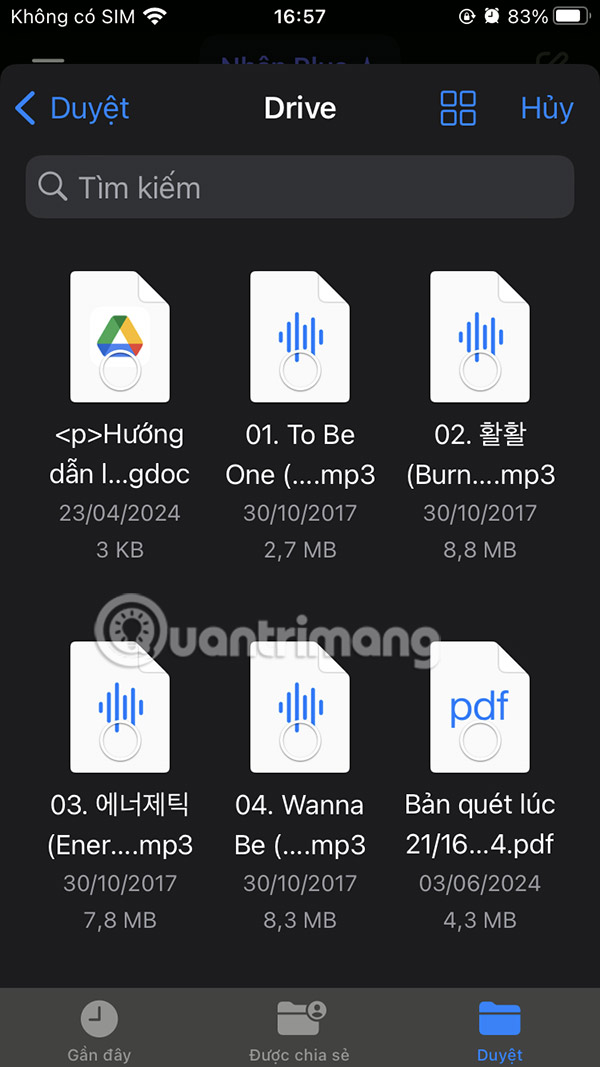
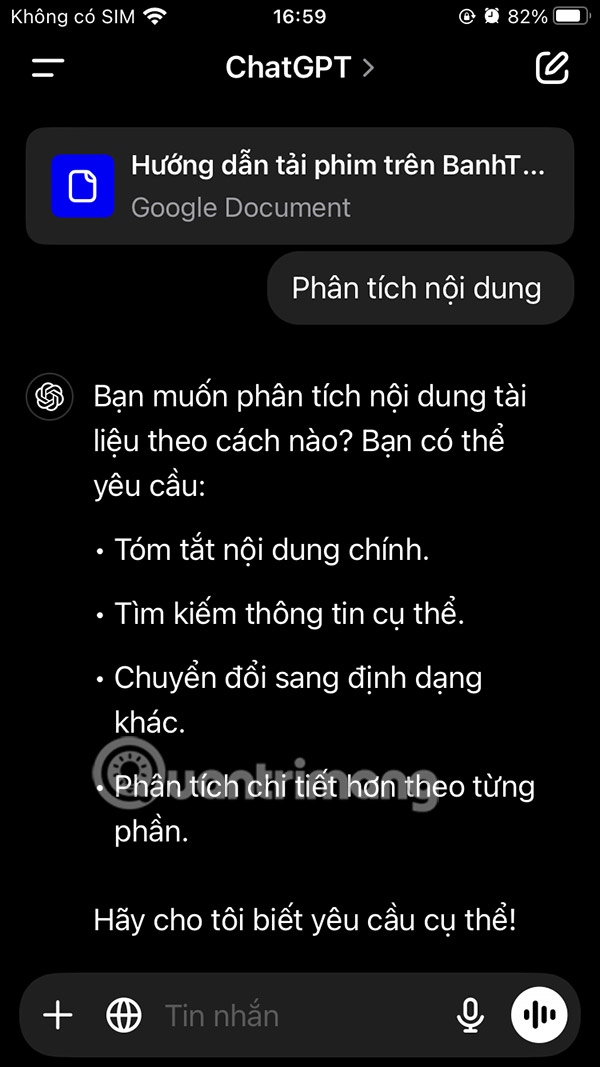
You'll see your Drive files. Choose the one you want to upload to ChatGPT.
Your Google Drive file uploads to ChatGPT. Now type your question or request for what you want to do with it.
Video Tutorial: Uploading Google Drive Files to ChatGPT
Description: Learn how to access Google Docs, Sheets, and Slides within ChatGPT conversations without switching tabs. Step-by-step setup guide included.
Related Articles
- Claude vs ChatGPT: Which AI Chatbot Should You Actually Use?
- Meet Muse Glimmer: Meta's Open-Source Agent AI That Runs Entirely on Your Device
- How to Send WhatsApp Messages Directly from Google Gemini
- Four Hidden Token Drains Quietly Eating Your Claude Code Budget
- The Best AI Meeting Assistants: 5 Tools That Actually Save You Time

No Comment to " Open Google Docs Directly in ChatGPT: A Complete Guide "