How to Customize Gemini's Responses in Google Docs, Gmail, and Slides

Google has rolled out a new personalization feature for Gemini across its Workspace suite—including Docs, Gmail, and Slides. Instead of repeatedly telling Gemini how you want it to write, what tone to use, or how to format content, you can now set custom instructions once and have Gemini apply them automatically. It's a genuinely useful time-saver for anyone using these apps regularly.
You can give Gemini specific instructions about its role, writing tone, content style, or presentation format. For example, you might ask it to always respond in a particular language, adopt a professional tone, or present information as bullet points. Below, we'll walk you through adding, editing, and disabling custom instructions for Gemini across supported Google Workspace apps.
How Gemini Instructions Differ Between Apps and Workspace
In the standalone Gemini app, you can set up personalized preferences that shape how Gemini responds during conversations. These instructions live in your Gemini app settings and only affect your direct experience with Gemini.
With Gemini in Google Workspace, you set up instructions to get AI assistance directly within Docs, Gmail, and Slides as you work.
Here's the key thing to understand: instructions in the Gemini app and instructions for Gemini in Workspace are completely separate systems. Instructions you create in Gemini won't automatically carry over to Docs, Gmail, or Slides—and vice versa. You need to set them up independently for each ecosystem.
How to Add Custom Instructions for Gemini in Google Docs
The process is identical across Google Slides and Gmail, so once you learn it in Docs, you can apply it everywhere.
Step 1:
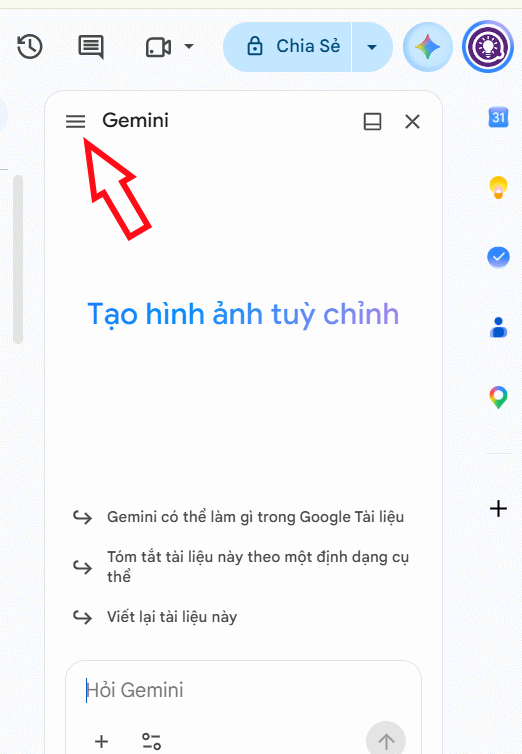
Click the Gemini icon in the bottom right corner of your screen to open the chat panel. Then tap the three-line menu icon.
Step 2:
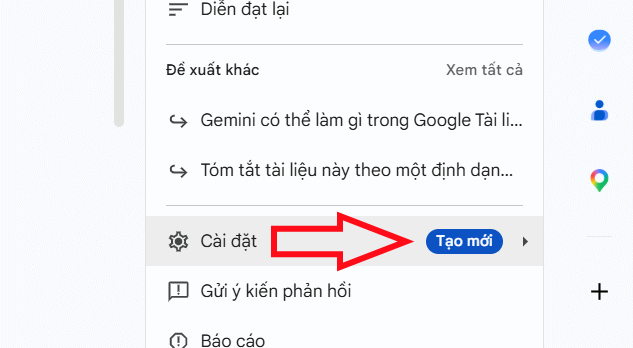
In the menu that appears, select Settings to adjust how Gemini should behave.
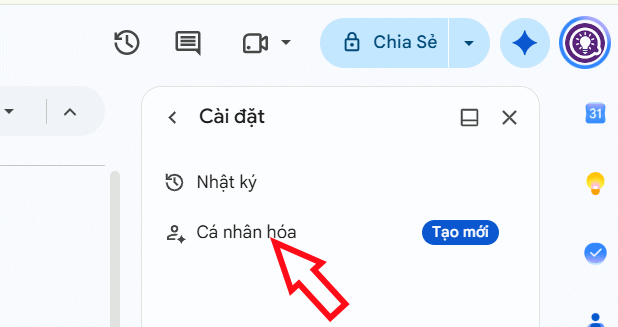
You'll see a Personalization option. Select it to proceed.
Step 3:
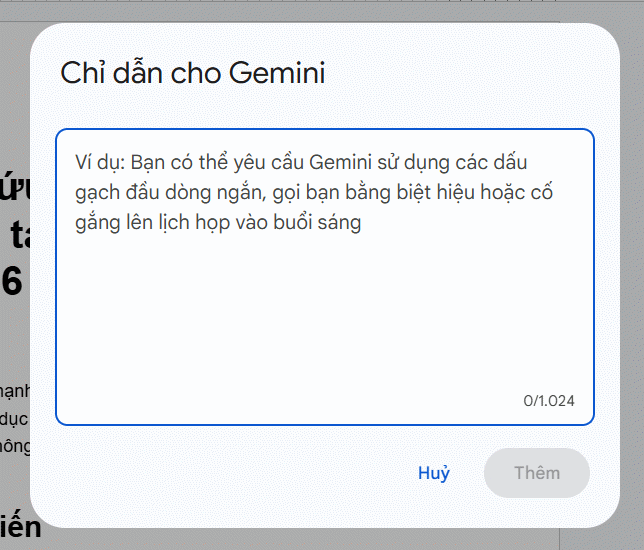
Now you'll see the interface for adding custom instructions to Gemini in Google Docs. Click Add to create a new instruction.
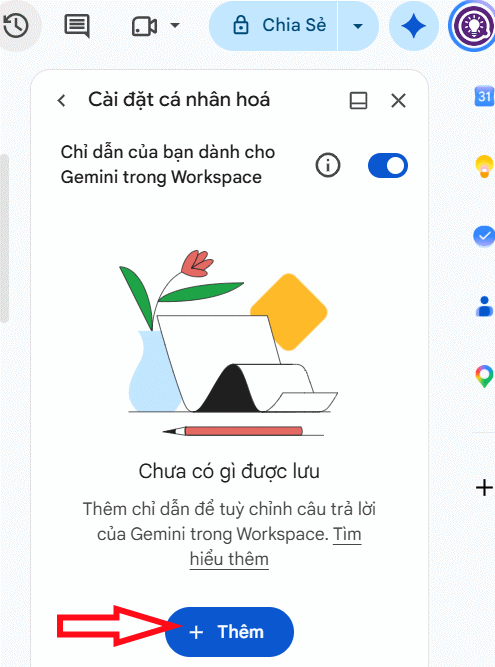
Type out your custom instruction—describe exactly how you want Gemini to behave when generating content in Google Docs. Note that instructions for Slides or Gmail should be tailored to those specific apps. Once you've written your instruction, click Add to save it.
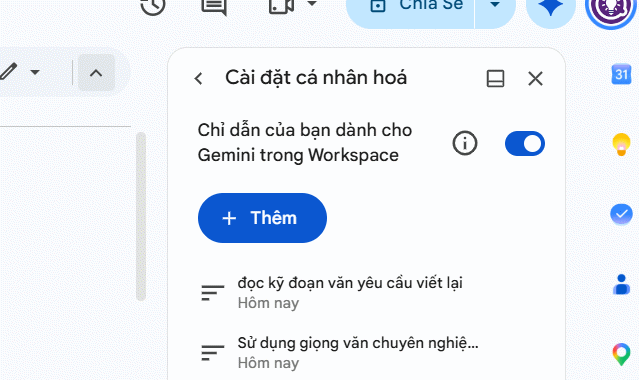
You can add multiple instructions, and you'll see them all listed together.
Step 4:
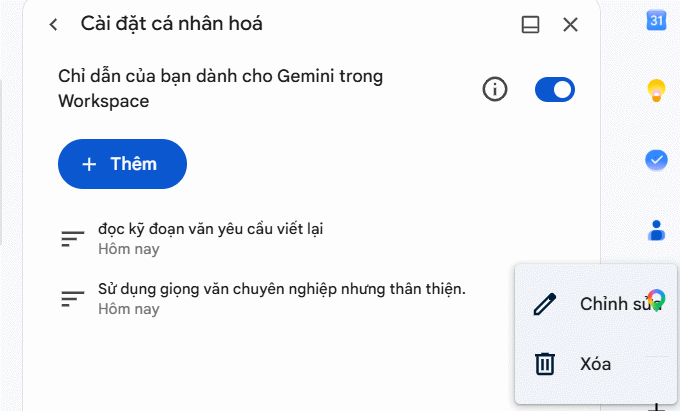
Click the three-dot menu next to any instruction to edit or delete it as needed.
Step 5:
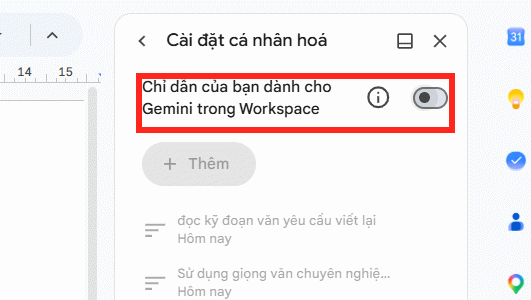
If you want to temporarily pause your instructions, simply toggle off "Your guidelines for Gemini in Workspace" at the top.
Sample Custom Instructions for Google Docs, Gmail, and Slides
You should tailor your instructions to match the type of work you actually do in each app. Generic requests won't cut it—be specific about Gemini's role, how it should respond, and what format you want.
Custom Instructions for Google Docs
Google Docs is where you write, edit, summarize, and develop content. So your instructions should focus on writing tone, editing approach, and content structure. Here are some examples:
Example instructions:
- When helping me write, use a professional, natural, and clear tone. Prefer short sentences and avoid overly academic language.
- When editing text, preserve my main ideas, fix clarity issues, and improve flow. Don't add new information unless I ask you to.
If you consistently write a specific type of content, assign Gemini a clear role:
- Act as a content editor. When revising my work, prioritize clarity, logical flow, and readability for online audiences.
Custom Instructions for Gmail
In Gmail, focus your instructions on email composition and tone—particularly how formal or casual you want to be, and how long your emails should be.
Example instructions:
- When writing work emails, use professional, courteous, and concise language. Get straight to the point and skip unnecessary opening lines.
If you frequently email clients:
- When composing client emails, use a friendly but professional tone. Present information clearly and always end with an offer to help if relevant.
Or if you want quicker email responses:
- When drafting email replies, keep them under 150 words, address the specific points raised, and maintain a polite tone.
Custom Instructions for Google Slides
With Slides, focus on concise presentation, readability, and what actually works on a slide format.
Example instructions:
- When creating presentation content, write short titles and present key points as bullet points. Each slide should focus on a single main message.
If you're preparing slides for a meeting:
- Prioritize concise content focused on key data and conclusions. Avoid cramming too much text onto one slide.
- When suggesting slide content, use professional language and clear formatting. For each key point, provide a short title and maximum three bullet points.
Write Different Instructions for Each App
Even though Gemini instructions in Google Workspace technically work across all supported products, you should craft instructions specific to your actual workflow in each app. What's interesting here is that the same underlying concept—professional tone, for example—can mean different things in different contexts.
Consider how the same tone plays out differently:
- Google Docs: When editing, preserve my intent and improve readability.
- Gmail: When writing emails, be concise, courteous, and direct.
- Google Slides: When creating slide content, distill information into clear, skimmable points.
This way, Gemini doesn't just know your preferred style—it understands how to apply that style appropriately to each type of task.
Description: Learn how to set up custom instructions for Google's Gemini AI in Workspace apps so it remembers your preferences for tone, format, and style.
Related Articles
- Create a National Day Celebration Video: A Step-by-Step Guide
- The Upload Button Paradox: How AI Tools Became Your Company's Biggest Security Risk
- The Best AI Apps for iPhone in 2026
- Best AI Image Upscaling Tools to Boost Your Photo Resolution in 2026
- Meet Muse Glimmer: Meta's Open-Source Agent AI That Runs Entirely on Your Device

No Comment to " How to Customize Gemini's Responses in Google Docs, Gmail, and Slides "