Convert Images and PDFs to Excel Using LightPDF AI
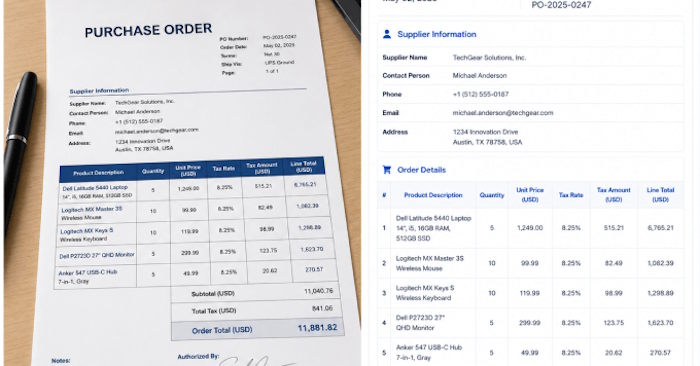
Manually retyping data from images or PDF documents into Excel? That's a productivity killer. LightPDF AI eliminates this tedious workflow by automatically extracting content and transforming it into editable Excel files. What's interesting here is how the tool handles structured data like invoices and tables without requiring manual entry.
This guide walks you through converting image and PDF data into Excel format using LightPDF AI—a straightforward process that saves hours and keeps your workflow efficient.
How to Extract Images and PDFs to Excel on LightPDF AI
Step 1: Upload Your File
Head over to the LightPDF AI document extraction tool. Sign up for a new account or log into your existing one. On the main interface, upload your image or PDF file—invoices work particularly well here. One heads-up: the platform performs best with English-language documents. Vietnamese text may experience font rendering issues during export, so keep that in mind if you're working with localized content.

Step 2: Analyze and Review the Extraction
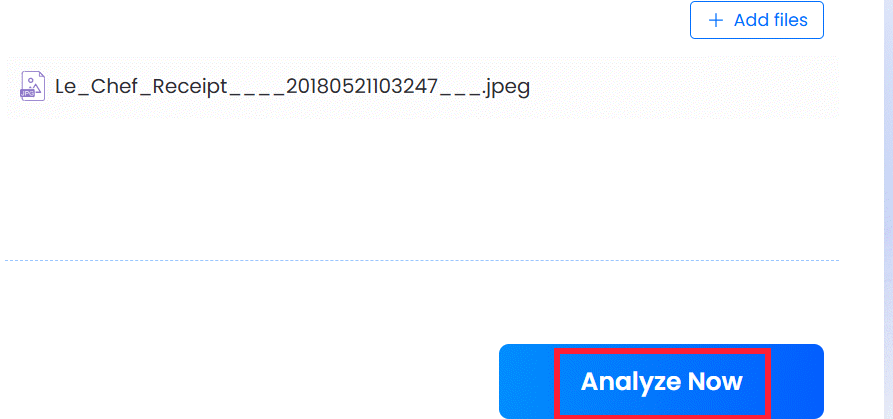
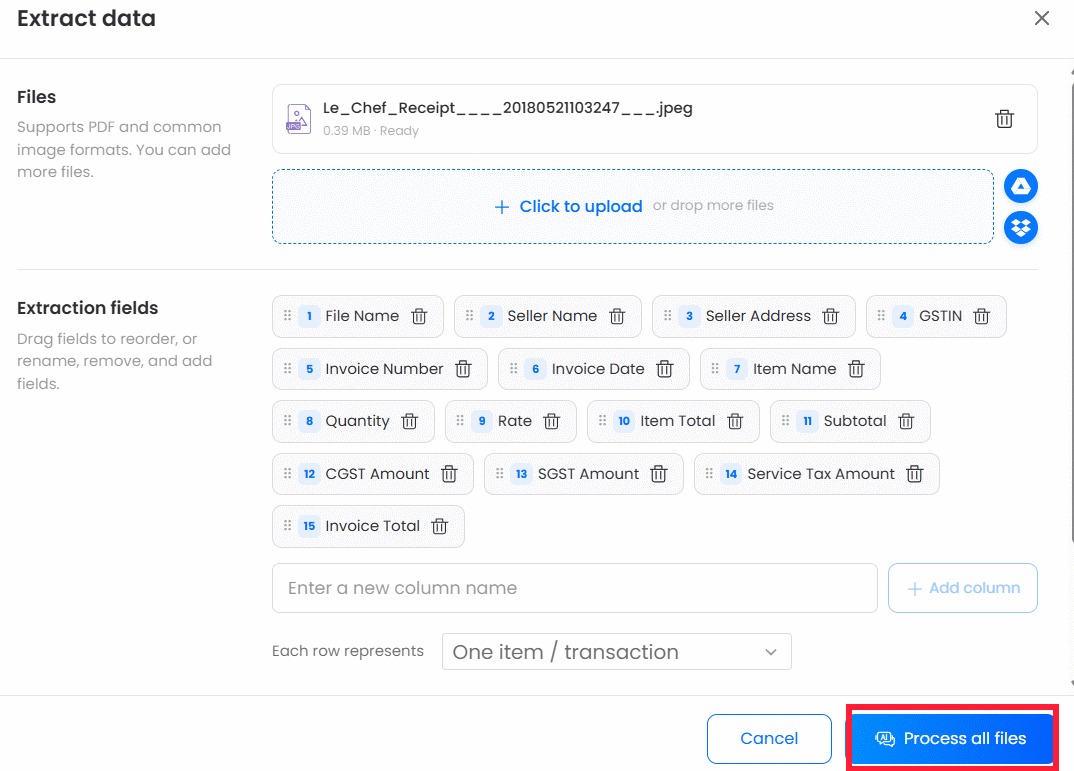
Once your file uploads, click the Analyze Now button. The tool springs into action, scanning your document and preparing the data for conversion. You'll see a preview table showing all detected fields and their extracted values. Take a moment to review this against your original document—flag any items that need adjustment or removal. When you're satisfied, hit Process all files to proceed.
Step 3: View Your Extracted Data Table
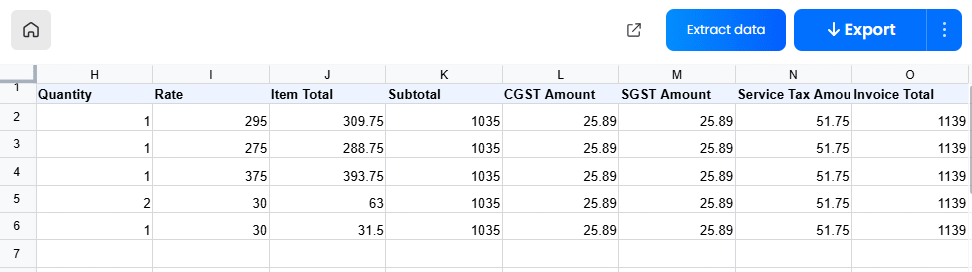
Your data transformation is now complete. LightPDF AI generates a structured data table from your uploaded image or PDF—in this example, an invoice. Here's the original invoice image:

And here's the extracted Excel table generated by LightPDF AI:
Step 4: Download and Refine in Excel
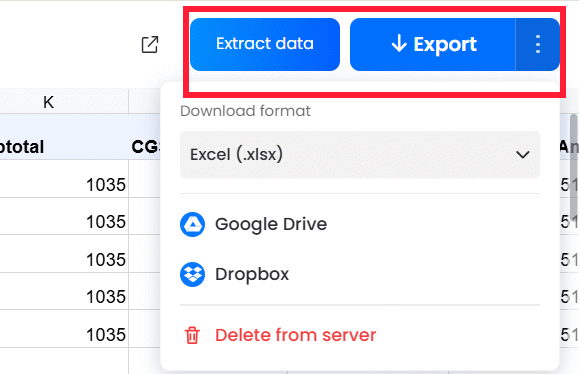
Double-check all the extracted content for accuracy. When everything looks good, grab your Excel file using the download button in the upper right corner. From there, you can open it in Excel and make any final adjustments to formatting, layout, or content as needed. The real benefit? All your data is already structured and ready to work with.
Description: Learn how to extract data from images and PDFs directly into Excel spreadsheets using LightPDF AI in just a few simple steps.
Related Articles
- Four Hidden Token Drains Quietly Eating Your Claude Code Budget
- 80+ ChatGPT Image Prompts: Transform Any Photo Into Any Style
- How to Use Whimsical's AI to Generate Diagrams Instantly
- How to Continuously Improve Your AI Agent's Performance
- Create a Brand Context Folder to Make Every AI Output Feel Authentically Yours

No Comment to " Convert Images and PDFs to Excel Using LightPDF AI "