How to Use Whimsical's AI to Generate Diagrams Instantly
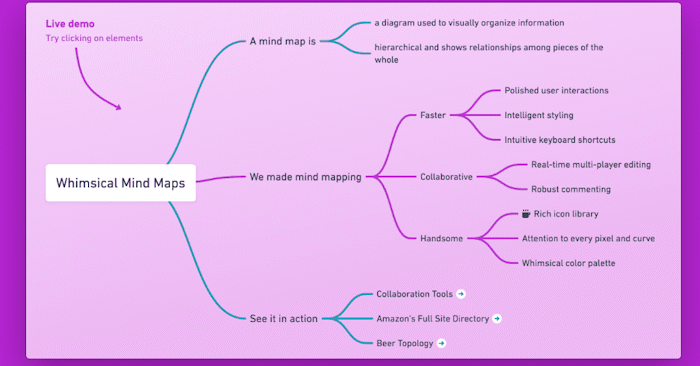
Creating mind maps and flowcharts used to be tedious work. But AI-powered tools like Whimsical have changed the game entirely—suddenly you can go from concept to finished diagram in minutes instead of hours.
Whimsical is an AI-driven platform that lets you generate diagrams from simple text prompts, then refine the layout and content however you want. It supports multiple diagram types—mind maps, flowcharts, process diagrams—perfect for educational content, project planning, or work documentation. In this guide, we'll walk you through using Whimsical to create diagrams powered by AI.
Step-by-Step: Creating AI Diagrams with Whimsical
Step 1: Access Whimsical's AI Features
Head to the link below and sign up for a Whimsical account:
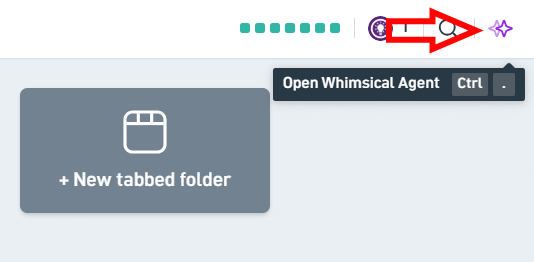
https://whimsical.com/aiOnce you're in Whimsical's main interface, click the AI icon in the top-right corner to open the Whimsical Agent (see image below).
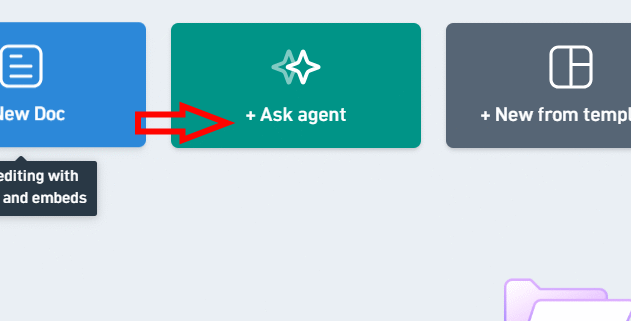
Alternatively, click Ask agent to launch the AI diagram creation window.
Step 2: Describe Your Diagram
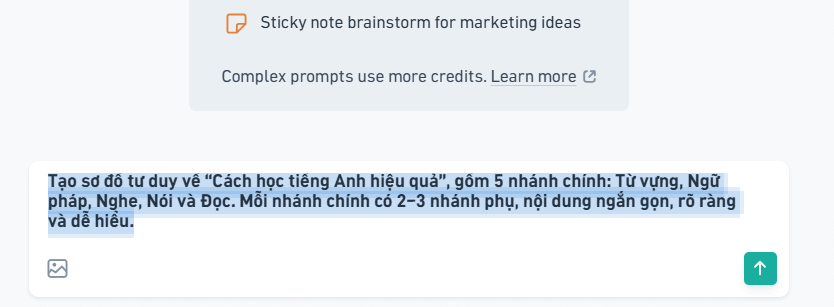
In the chat window, type out what you want your diagram to look like. Be specific about content, main branches, sub-branches, and structure. You can even upload images to use as source material for the diagram layout.
Step 3: Review and Customize the Generated Diagram
After a moment, Whimsical will generate your diagram based on your description. You'll see it instantly on screen.
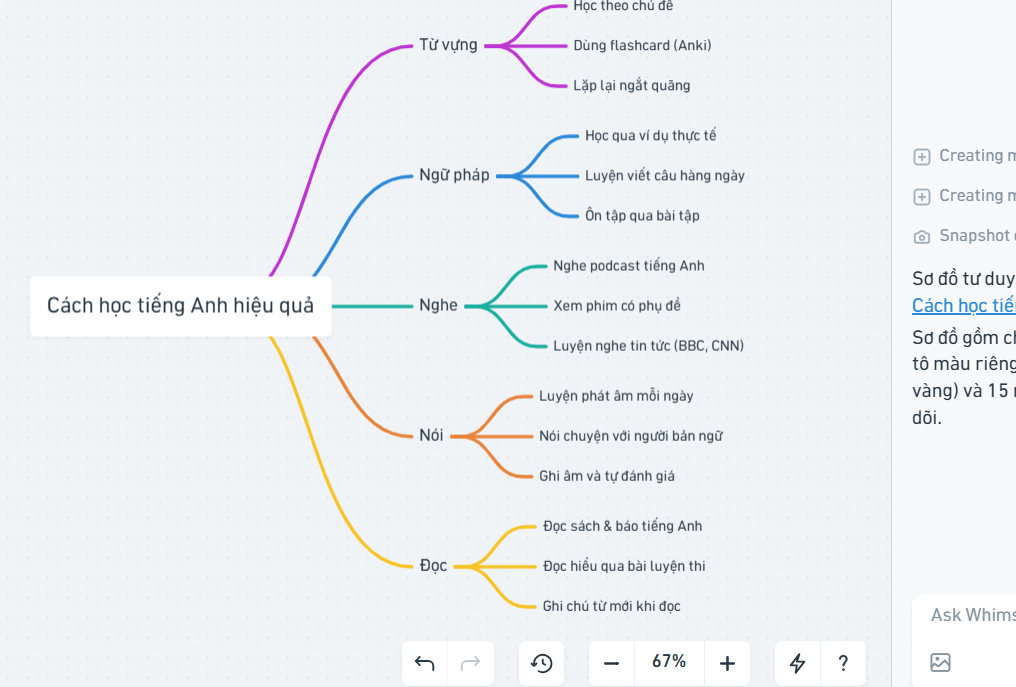
Click on any text in the diagram to edit and modify it to match your exact needs.
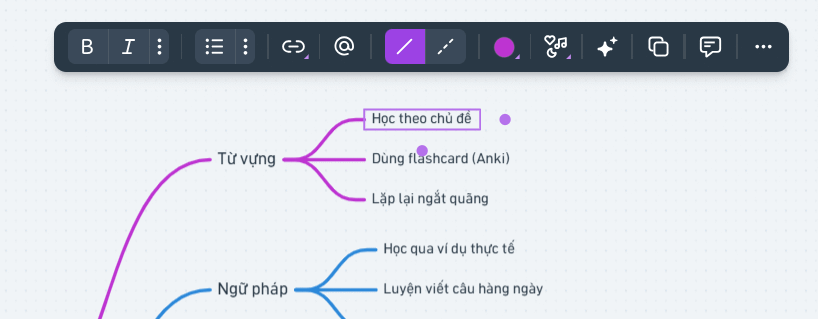
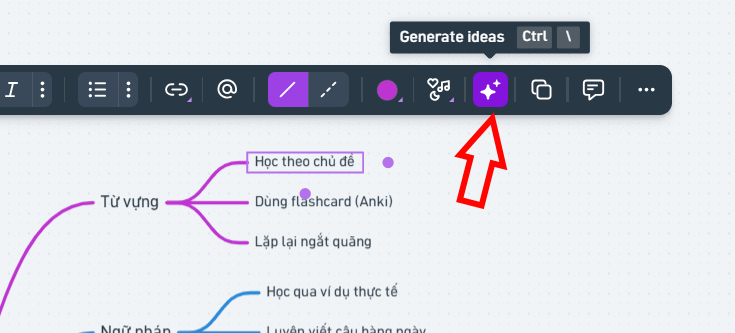
Here's what's interesting: you can expand the diagram's content using AI. Click the Generate ideas icon to have AI add more detail to any branch.
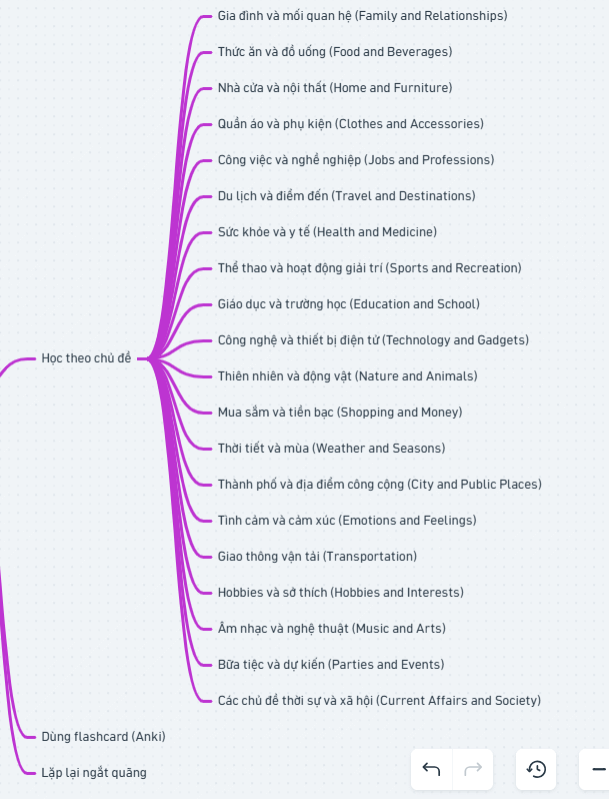
You'll see the sub-branches get filled in with AI-generated content. If you don't like something, just delete it—no harm done.
Step 4: Export Your Diagram
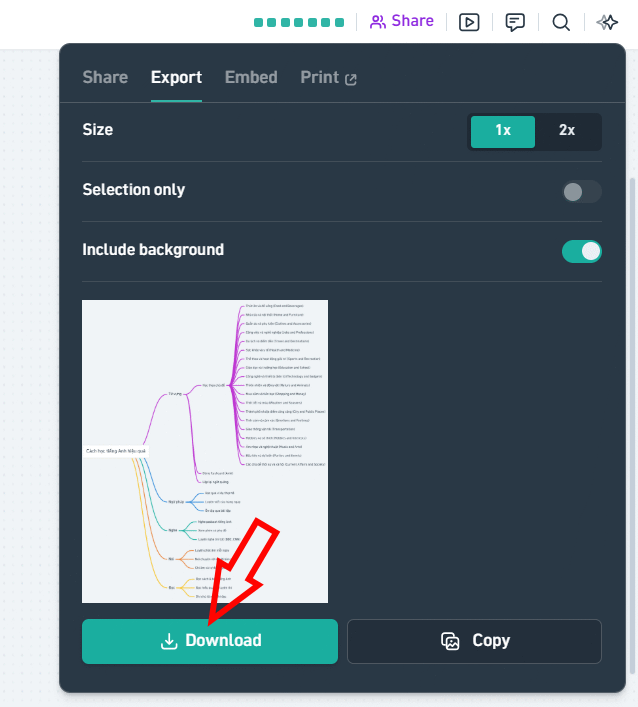
When your diagram is ready, hit Share in the top-right corner. From the menu, select Export to download your diagram as a PNG image.
Want it as a PDF instead? Choose Print from the Share menu. Or pick Embed to insert the diagram directly into a webpage.
Pro Tips: Writing Better Prompts for Accurate Diagrams
The quality of your AI-generated diagram depends heavily on how well you describe what you want. Don't just throw a topic at Whimsical—give it real detail about diagram type, content, number of branches, and layout preferences. The more specific you are, the better the result.
Try these techniques:
- Specify the diagram type: Tell Whimsical exactly what you need—mind map, flowchart, organizational chart, or something else.
- Define your main topic: Describe the core subject and what the diagram should communicate.
- List key points: Provide the specific branches or steps you want included.
- Set branch limits: If you want a clean, uncluttered diagram, specify how many main branches and sub-branches you need.
- Request a format: Ask for concise text, a specific sequence, or any layout preferences.
- Plan for iteration: If the first result isn't quite right, ask Whimsical to add, remove, or condense content in a follow-up prompt.
For example, instead of writing "Create a diagram about a Hanoi trip," be explicit:
Create a mind map for a Hanoi vacation plan with 5 main branches: attractions, transportation, accommodation, dining, and budget. Each branch should have 2–3 sub-points. Keep text brief, clear, and easy to scan.
The real concern is vagueness. Give Whimsical actual parameters to work with, and you'll be amazed at how much better the output becomes.
Description: Learn how to create mind maps, flowcharts, and diagrams with AI using Whimsical. Complete step-by-step guide plus prompt-writing tips.
Related Articles
- Getting Started with Gemini Live: Your Guide to Voice Conversations with Google's AI
- Resolving the Gemini Error 1076: A Complete Troubleshooting Guide
- The Upload Button Paradox: How AI Tools Became Your Company's Biggest Security Risk
- Four Missing Features That Would Make NotebookLM Even Better
- The 5 Best AI Recruitment Tools to Transform Your Hiring Process

No Comment to " How to Use Whimsical's AI to Generate Diagrams Instantly "