Create Short AI Videos with Google Vids: A Complete Gemini Omni Guide
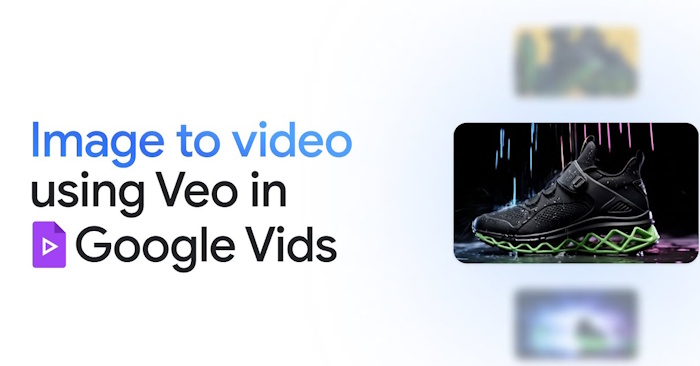
Google Vids is rapidly emerging as one of the most powerful AI-powered video generators available today. The platform just integrated Gemini Omni, which fundamentally changes how you create videos. Instead of writing scripts from scratch, hunting for stock footage, and manually editing everything together, you simply describe what you want—or upload reference images—and Gemini Omni handles the heavy lifting. It generates layouts, adds visuals, and fine-tunes content, cutting production time dramatically.
This guide walks you through using Gemini Omni within Google Vids to generate short videos from text descriptions and images, plus shares effective AI prompts that actually work.
How to Generate AI Videos with Google Vids and Gemini Omni
Step 1:
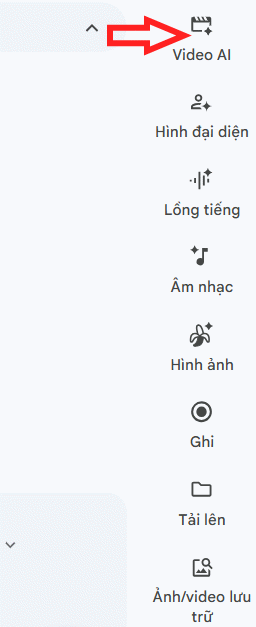
Open Google Vids and look for the Video AI option on the right side of your screen.
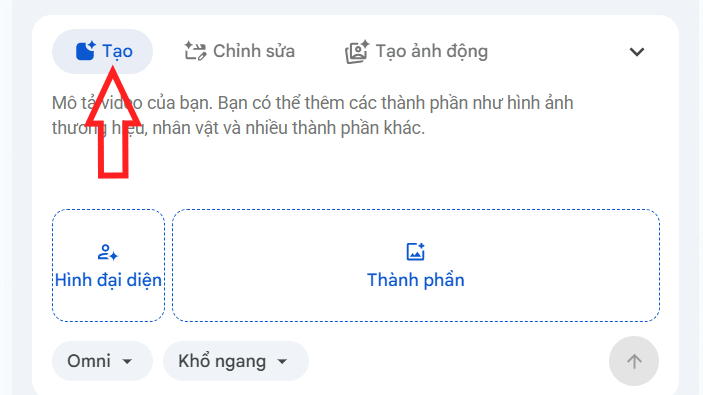
A panel appears below with video creation options. Under the Create section, you'll upload your images and then enter a text prompt describing how you want the video to look. Keep in mind: you're limited to 3 images maximum per video.
Step 2:
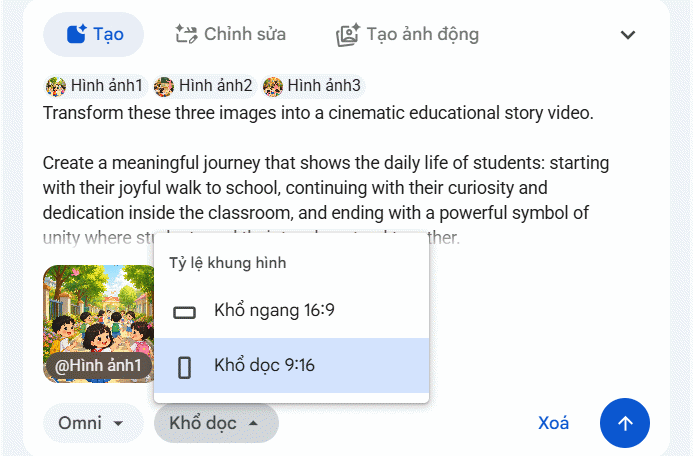
After uploading your images, select the video dimensions that match your content. Type your prompt in English, then hit submit to generate your AI video.
Step 3:
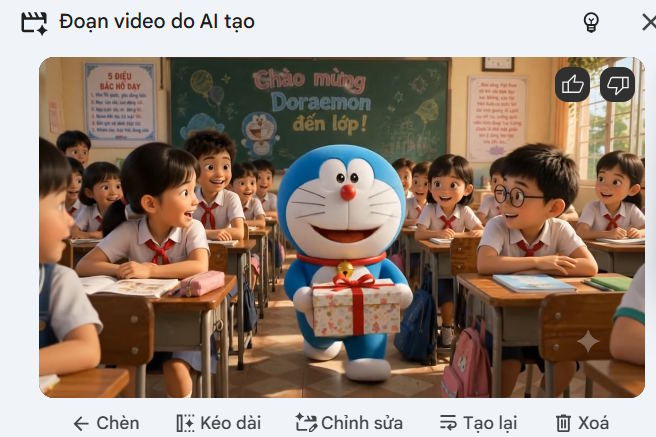
Google Vids processes your request—this takes a moment. You'll get a 10-second AI video once it's done. Review the result: if you're not happy, click Regenerate. Otherwise, click Edit to refine it.
In the editing interface, type your requested changes, upload any new files, and hit submit again to generate an updated version.
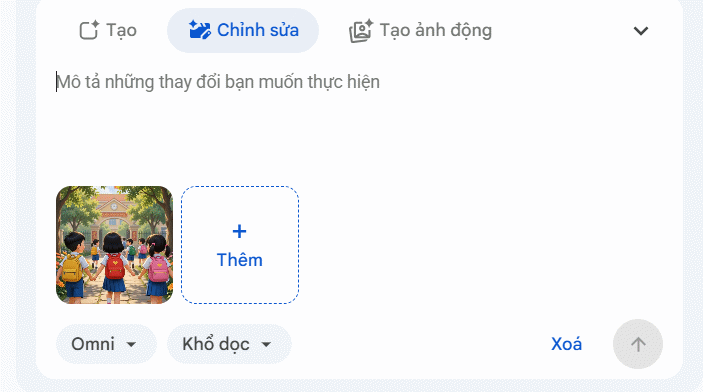
Want a longer video? Click Extend and describe how you'd like the video developed. If you're satisfied, click Insert into Google Vids.
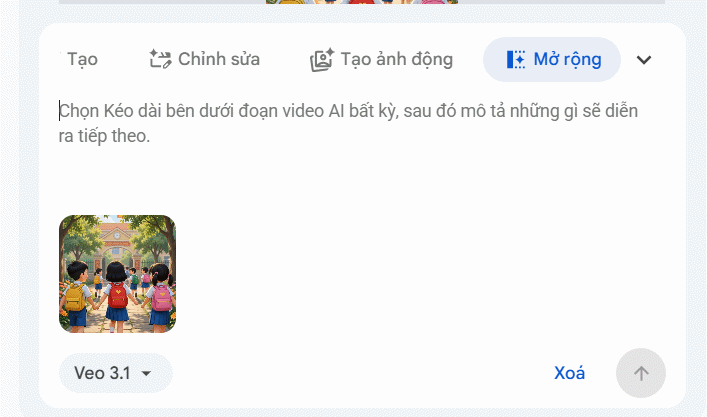
Step 4:
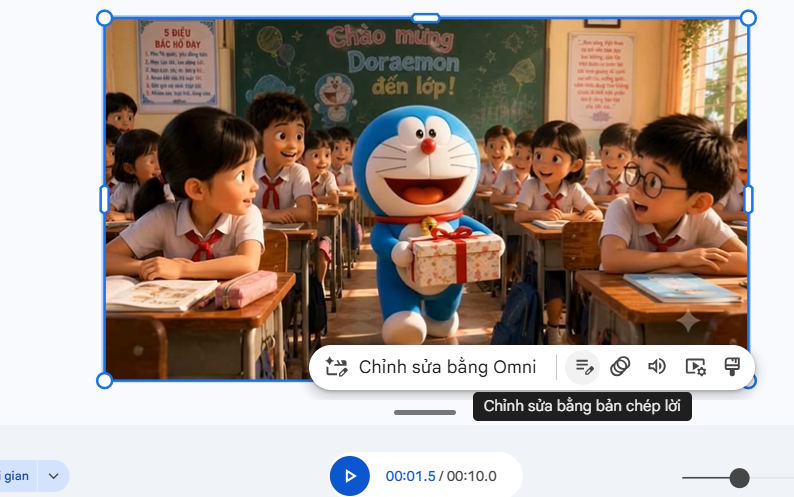
Once your video lands on the timeline in Google Vids, click it to reveal additional editing tools—like adding audio or adjusting visuals.
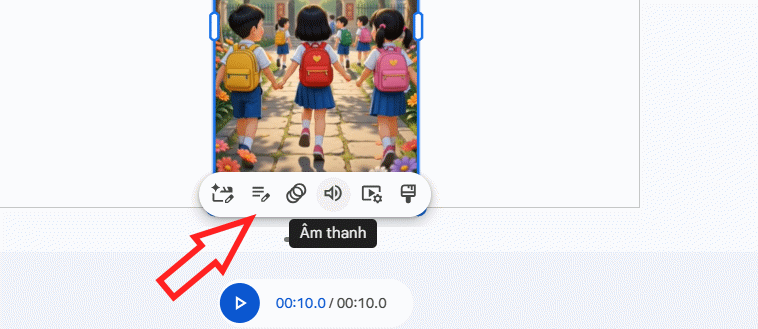
Animating Single Images on Google Vids
You don't need multiple images to create video content. Google Vids can animate a single static image into motion.
Step 1:
In the Video AI section, click Create Animated Image and then upload your photo.
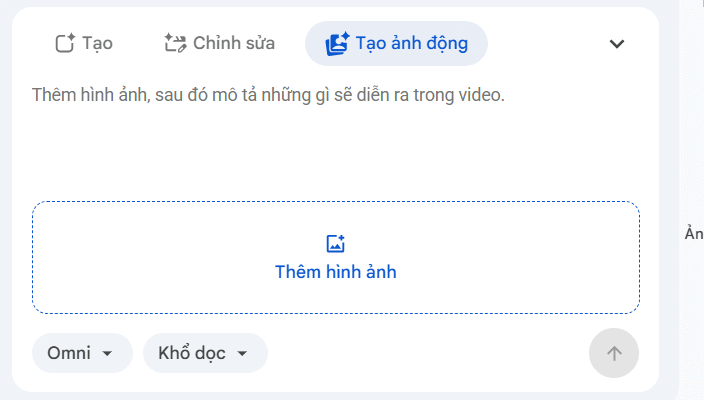
Step 2:
Next, choose your video dimensions, write your animation prompt, and hit submit to generate the video. What's interesting here is how specific you can be—describe the exact movements you want, and Gemini Omni tries to match your vision.
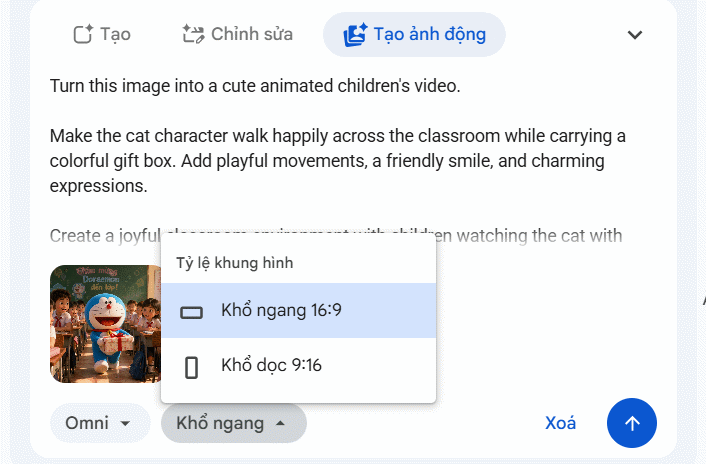
Processing takes a moment. Once done, you'll see customization options below the preview. Click Insert to add it to your project.
Step 3:
Google Vids automatically adds background music to your animated video. Click on the video in the timeline to access editing controls for further customization.
Effective AI Prompts for Google Vids Videos
Natural Image Animation
Animate this image into a realistic video with natural movements and smooth transitions.Bringing Images to Life
Bring this image to life with realistic motion, subtle animations, and cinematic effects.Cinematic Video Style
Turn this image into a cinematic video with smooth camera movement and realistic animation.Dynamic Camera Effects
Create a dynamic video from this image with camera zoom, panning, and smooth motion effects.Character and Scene Consistency
Animate this image while keeping the original characters, details, and background consistent.Lifelike Motion
Add realistic movements and natural expressions to this image to create an engaging video.Professional Video Output
Transform this image into a professional video with cinematic lighting and smooth animation.Short Engaging Videos
Create a short engaging video from this image with realistic motion and visual effects.Smooth Scene Transitions
Convert this image into a video with smooth transitions and natural animated elements.Cartoon Style Animation
Animate this image in a creative cartoon style with smooth movements and expressive details.Promotional Video
Turn this image into a promotional video with cinematic visuals and attractive animations.Storytelling Video
Transform this image into a storytelling video with emotional motion and cinematic scenes.Enhanced Image Quality
Enhance this image and create a high-quality video with realistic details and smooth animation.3D Animation Effects
Convert this image into a 3D animated video with depth, movement, and realistic effects.AI-Generated Video Style
Create an AI-generated video from this image with realistic motion and cinematic style.Sample AI Video Created on Google Vids
Description: Learn how to generate professional short videos using Google Vids and Gemini Omni. Upload images, write prompts, and let AI handle the rest.
Related Articles
- Bases: Obsidian's New Plugin Finally Closes the Gap Notion Left Behind
- Claude Cowork for Windows: What's New and How to Install It
- Getting Started with Gemini Live: Your Guide to Voice Conversations with Google's AI
- Claude Code vs Cursor: Which AI Coding Assistant Should You Choose in 2025?
- 7 Surprising Tasks AI Assistants Can Actually Handle for You Right Now

No Comment to " Create Short AI Videos with Google Vids: A Complete Gemini Omni Guide "