Creating AI Flowcharts with NoteGPT: A Step-by-Step Guide
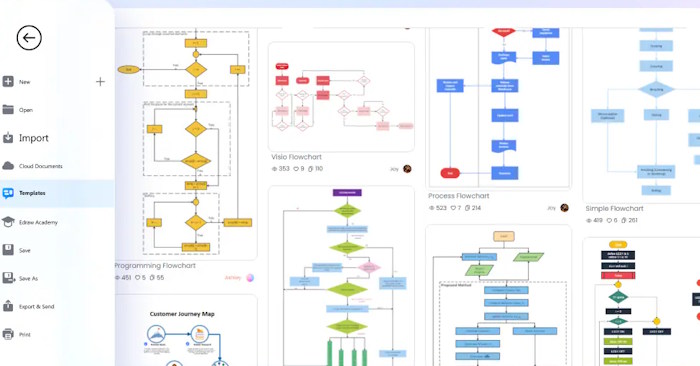
Sketching out your ideas visually before diving into workflow development or project planning is far more effective than jumping straight in. NoteGPT's AI Flowchart tool changes the game—just describe what you need in plain language, and the AI generates a logical, clear, and fully editable diagram. Better yet, the platform includes pre-built templates you can grab immediately for whatever you're working on.
This guide walks you through creating an AI flowchart on NoteGPT step by step. You'll save time, improve your planning accuracy, analyze processes more clearly, and present your ideas with more polish.
How to Build a Flowchart on NoteGPT
Step 1:
Start by visiting the link below, then click the More button to expand NoteGPT's AI tools. Click More again to reveal all available features.
https://notegpt.io/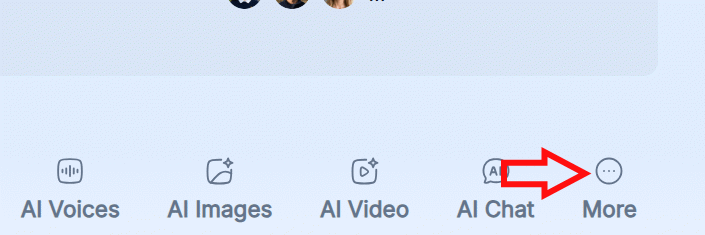
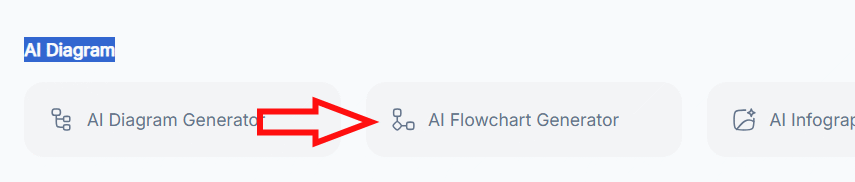
Scroll down to find the AI Diagram tools section, then select the AI Flowchart Generator option.
Step 2:
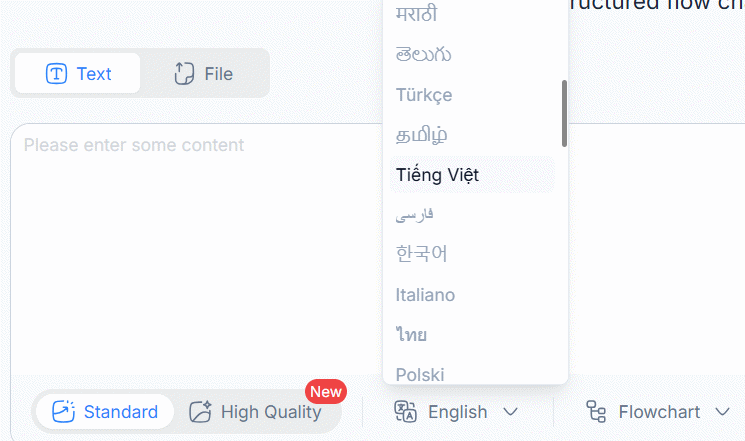
You're now in the main interface. First, choose how you want to create your flowchart—either from a text description or by uploading an existing file. If you pick File, upload the document to NoteGPT. Next, select your language preference (Vietnamese, English, etc.).
Step 3:
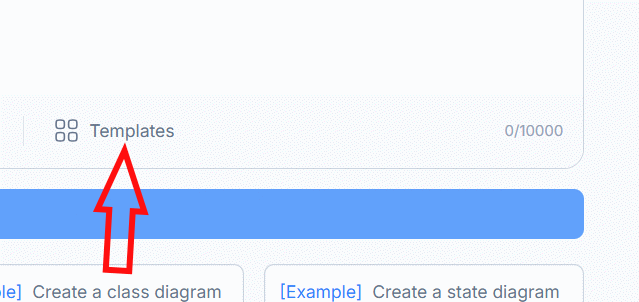
NoteGPT provides plenty of templates to work with. Click Templates to browse options that match your needs.
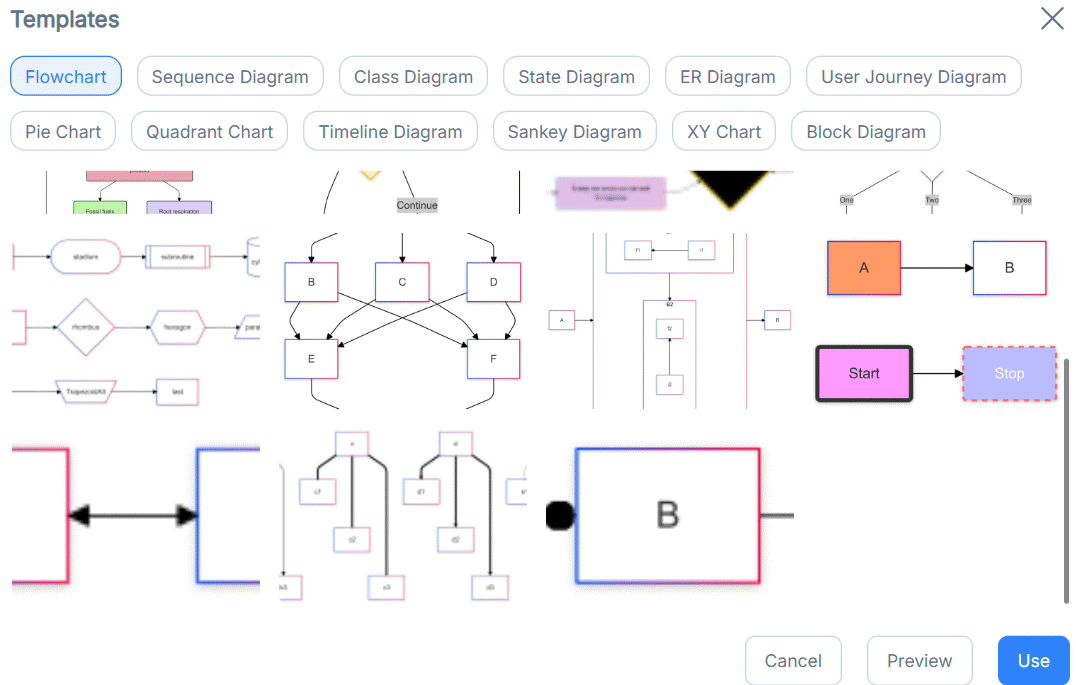
Pick a flowchart template from the selection. You can click preview to see how it looks before clicking Use to apply it. Skip this step if you prefer—NoteGPT will automatically select an appropriate template based on your content anyway.
Step 4:
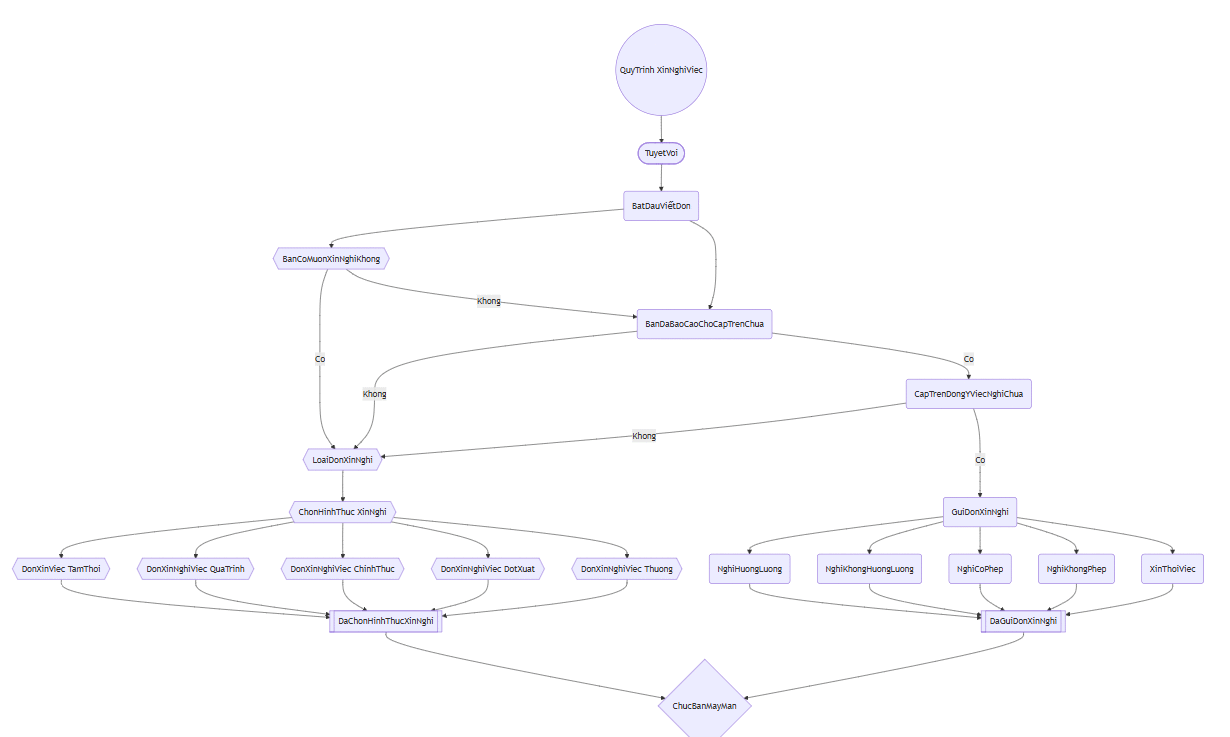
Enter the description for your flowchart, then hit Generate to create it. Wait a moment and your diagram appears.
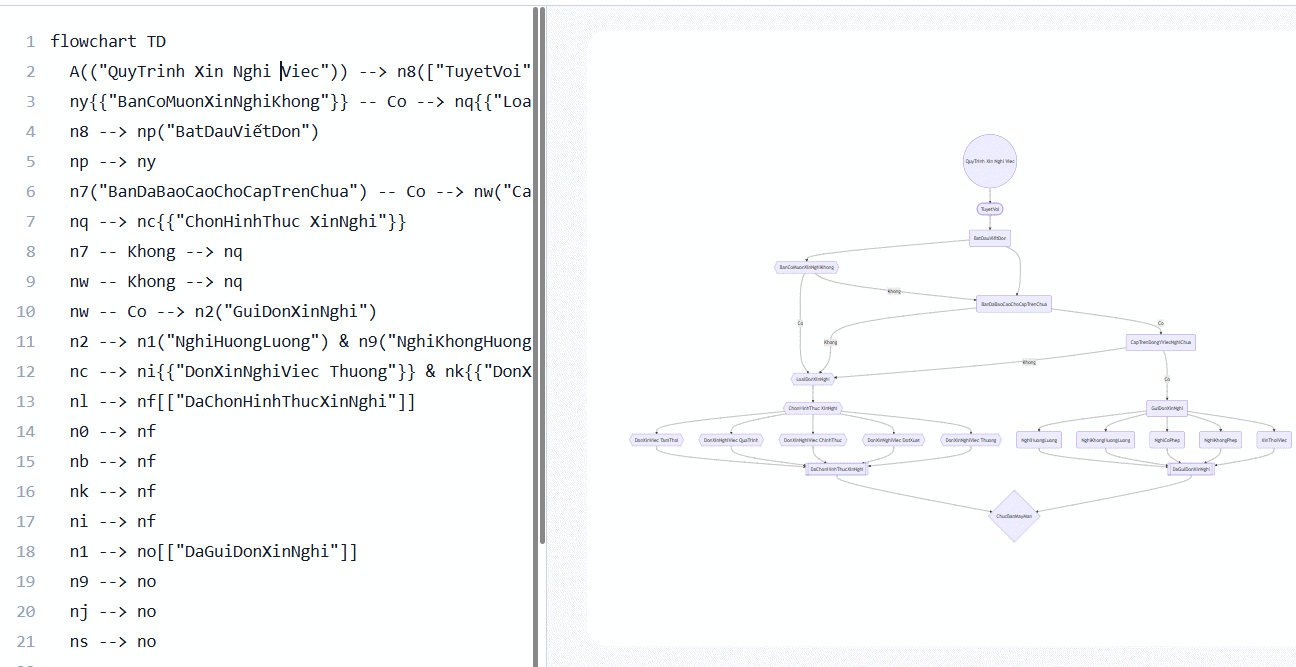
Need to tweak something? Click Show Code and Diagram to access the underlying structure and make edits.
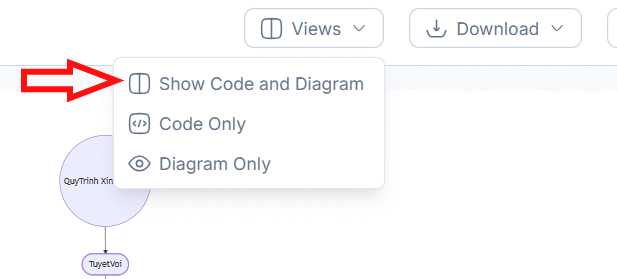
Modify the content in your diagram—updates apply instantly.
Step 5:
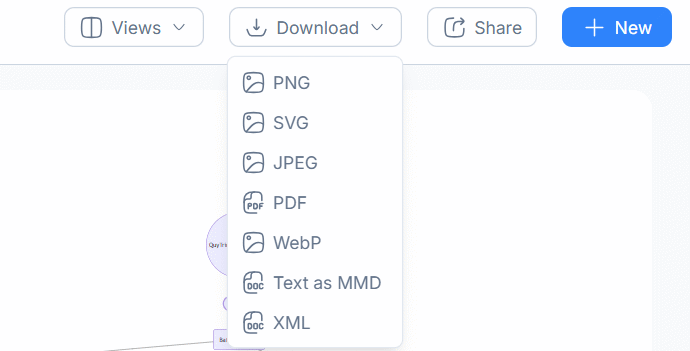
Finished? Click Download and choose your format to save the flowchart to your device.
Best Practices for Using NoteGPT's AI Flowchart Tool
- Provide detailed, specific instructions. The more thoroughly you describe your objective or process, the more accurate and complete your flowchart will be.
- Review your diagram afterward. While AI builds the flowchart automatically, you should verify that all steps and connections actually match your real-world process.
- Structure your content logically. Present your process in sequential steps or key points when possible—it helps the AI understand and organize the flow more intelligently.
- Refine when necessary. For industry-specific or organizational workflows, don't hesitate to edit the flowchart so it accurately reflects how things actually work in practice.
- Avoid sensitive data. Don't include personal information, confidential documents, or critical business details unless absolutely required. Keep requests focused on the workflow structure itself.
Description: Learn how to generate professional flowcharts using NoteGPT's AI tool. Follow our complete guide to visualize workflows and projects instantly.

No Comment to " Creating AI Flowcharts with NoteGPT: A Step-by-Step Guide "