How to Create AI News Anchor Videos: A Complete Step-by-Step Guide
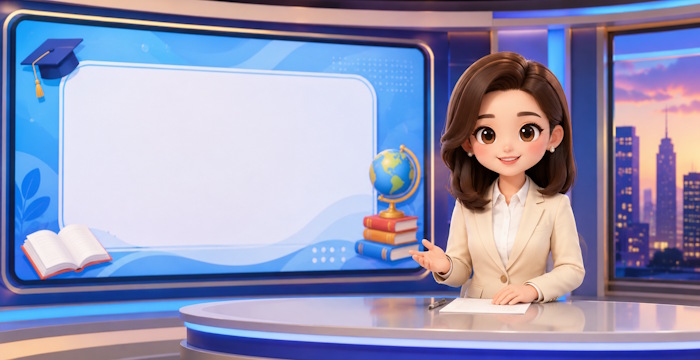
Want to produce polished AI-generated news anchor videos for your school announcements or company broadcast, but not sure where to start? You're in the right place. With the right prompts, you can generate AI anchors for virtually any sector—handling everything from content planning and visual storyboarding to character dialogue and on-screen presence. Here's exactly how to do it.
The beauty of this approach is that you maintain complete creative control over your anchor's appearance, tone, and delivery. Whether you need a formal news anchor or a friendly educational presenter, AI can produce broadcast-quality results. Let's walk through the entire process.
Creating Your AI News Anchor Video: A 4-Step Process
Step 1: Generate Your Anchor's Image
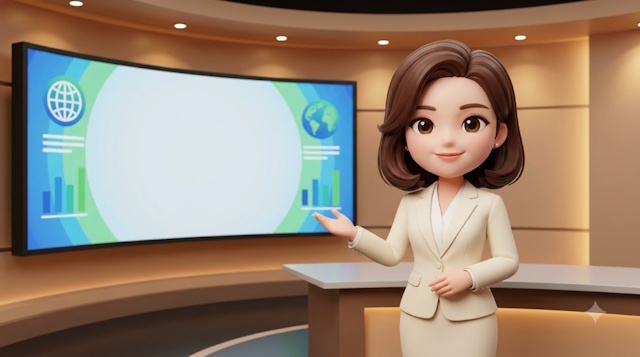
Start by creating a custom anchor character that matches your needs. You'll want to tailor the appearance, demeanor, and style to fit your specific broadcast context—whether that's corporate news, school announcements, or educational programming.
Create an image of a [gender] news anchor for [industry/program topic], approximately [age] years old, with a [professional/friendly/energetic/formal] presence, wearing [clothing description] in [color/style]. The character is [sitting/standing] at [location/set], looking directly into the camera, [posture and gesture details]. [Any props if relevant].

Layout in 16:9 aspect ratio. Position the anchor at [center/left third/right third]; use the remaining space for [LED screen/backdrop/content display area] to feature [logo/theme/illustrations].

Lighting [description], natural skin tones, photorealistic quality, broadcast-grade production, high detail. No random text, no watermarks, no distorted hands, no extra fingers, no facial distortions—maintain consistent facial features and character recognition throughout.
Here's a pro tip: if your broadcast includes lots of text-based information—show titles, schedules, dates—it's smarter to add those elements manually in CapCut or Canva rather than relying on AI generation. This ensures accuracy and consistent typography.
Step 2: Write Your Script Using ChatGPT
Next, ask ChatGPT to write the anchor dialogue for your video. This becomes the foundation for your entire broadcast script.
Write anchor dialogue approximately 100–120 words for [PROGRAM NAME/NEWS BULLETIN/EVENT], with the subject [TOPIC]. The target audience is [AUDIENCE DESCRIPTION].

Tone should be [FORMAL/FRIENDLY/DYNAMIC/PROFESSIONAL], matching the program's nature. Use short, clear sentences that sound natural when read aloud. Avoid overly academic or complex terminology.

The script must include:

- An opening greeting
- Introduction of [MAIN REASON/KEY INFORMATION]
- Any necessary reminders or notices about [CONTENT TO HIGHLIGHT]
- Closing remarks and sign-off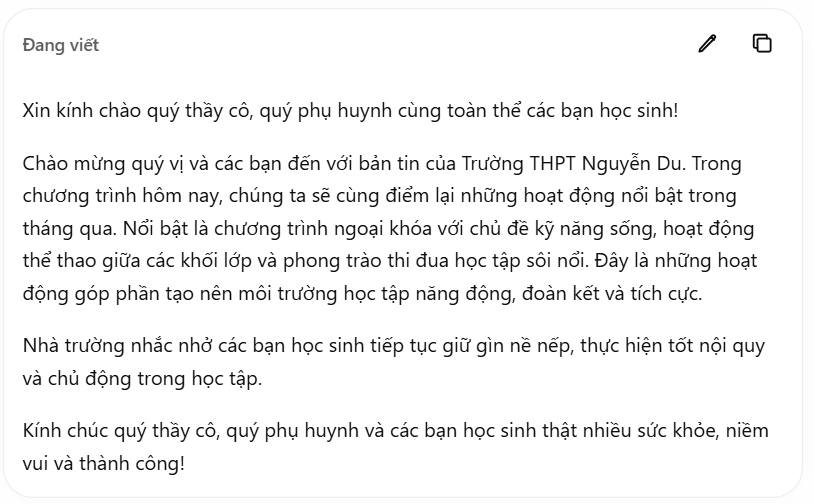
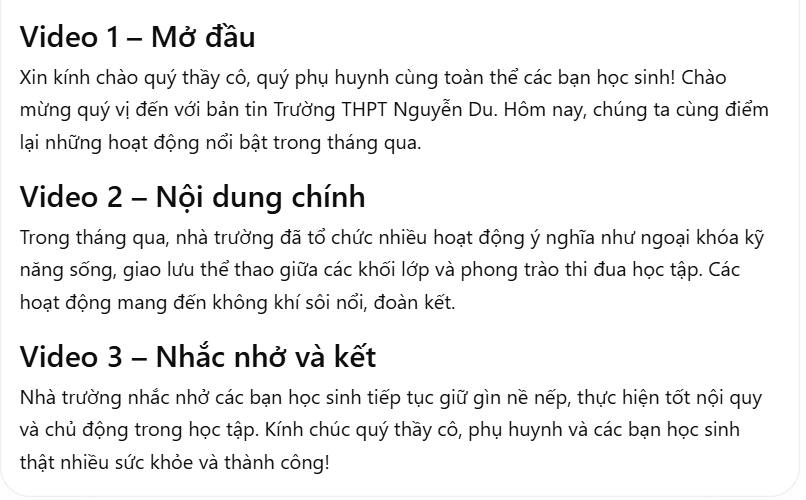
What's really useful here: ask ChatGPT to break the dialogue into distinct scenes. This segmentation makes it much easier to produce each video segment separately without losing continuity.
Step 3: Generate Video Scenes Using Flow
Upload your anchor reference image to Google Flow, then use the prompt below to create each individual scene. Upload that same reference image with every scene generation to maintain consistency.
Use the exact [REFERENCE IMAGE] provided as the base frame for creating a [VIDEO GENRE/TOPIC] video in [STYLE]. Preserve [SETTING, CHARACTER, CLOTHING, HAIRSTYLE, FACIAL FEATURES, LIGHTING, AND KEY DETAILS].

The character should be [POSTURE], looking [DIRECTION], with [FACIAL EXPRESSION]. Only allow natural, subtle movements such as [BLINKING, BREATHING, SLIGHT LIP MOVEMENT, FACIAL EXPRESSIONS]. No posture changes, no dramatic movements, no unusual behavior.

Voice: [GENDER/ACCENT/VOICE CHARACTERISTICS/PACE/DELIVERY STYLE]. Precise lip-sync with the line: "[INSERT DIALOGUE]".

Camera remains [FIXED/MOVING] throughout, [SPECIFIC CAMERA REQUIREMENTS].

Maintain consistency in the character's face, appearance, clothing, and setting across the entire video. Keep lighting stable and audio clean, [BACKGROUND MUSIC REQUIREMENTS]. Don't generate random text or logos. Minimize facial distortions, hand deformities, clothing artifacts, and any mismatches with the reference image.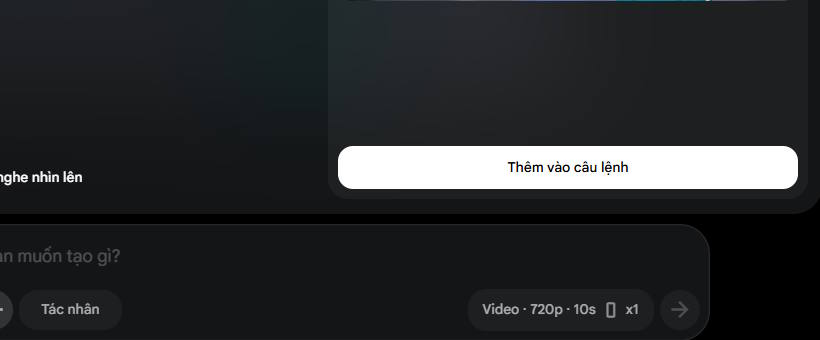
Step 4: Assemble and Polish in Canva
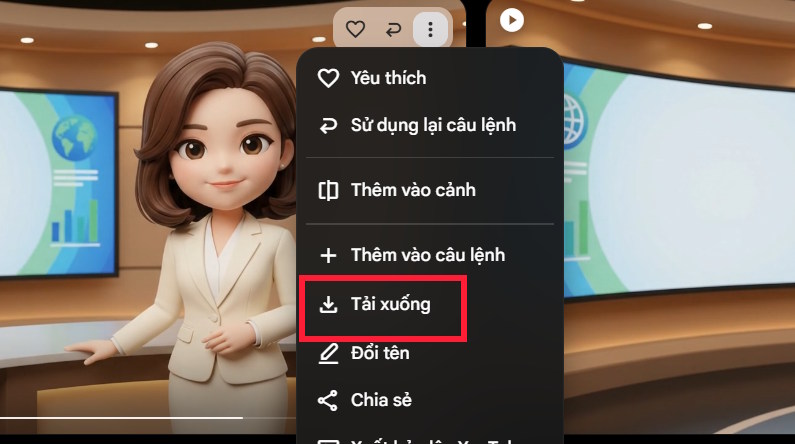
Wait for the first scene to render. Then generate the remaining scenes one by one and download them all. Import everything into Canva to add text overlays, graphics, and final polish to your broadcast.
Sample AI News Anchor Video
Description: Learn to generate professional AI-powered news anchor videos for schools and corporate broadcasts using prompt engineering and AI tools.
Related Articles
- How to Send WhatsApp Messages Directly from Google Gemini
- Claude Code vs Cursor: Which AI Coding Assistant Should You Choose in 2025?
- How to Generate Automatic Document Summaries in Google Docs
- How to Use Whimsical's AI to Generate Diagrams Instantly
- Create a Brand Context Folder to Make Every AI Output Feel Authentically Yours

No Comment to " How to Create AI News Anchor Videos: A Complete Step-by-Step Guide "