Creating AI-Powered Flashcards with NoteGPT: A Complete Guide
Flashcards remain one of the most effective study techniques out there. They break down complex information into bite-sized chunks, making it easier to retain and review knowledge repeatedly. But here's the thing: manually creating flashcards is tedious. That's where AI comes in. Tools like NoteGPT can automatically generate structured flashcard sets from your learning materials, saving you hours of manual work while maintaining the visual clarity that makes flashcards so effective for studying.
Instead of drowning in long paragraphs, your study material gets organized into individual cards—each one focusing on a single concept. This approach naturally encourages focused learning and makes revision less overwhelming.
Here's what makes this approach powerful: flashcards aren't limited to vocabulary. You can create multiple decks tailored to different subjects or learning objectives. Whether you're studying history, science, languages, or professional certifications, the same method works. In this guide, we'll walk through exactly how to build flashcards on NoteGPT that align with your specific learning goals.
Step-by-Step: Building Flashcards with NoteGPT's AI
Step 1: Access the Flashcard Maker
Head to the NoteGPT flashcard creation tool using the link below. Good news: you don't need to sign up for an account to get started.
https://notegpt.io/ai-flashcard-maker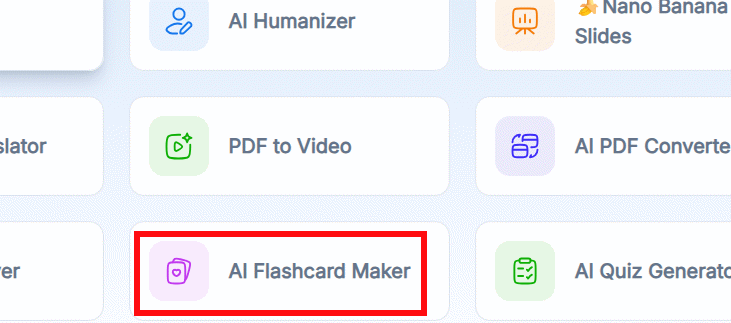
Step 2: Configure Your Flashcard Settings
Once you land on the creation interface, NoteGPT presents several input methods. Pick whichever suits your workflow best.
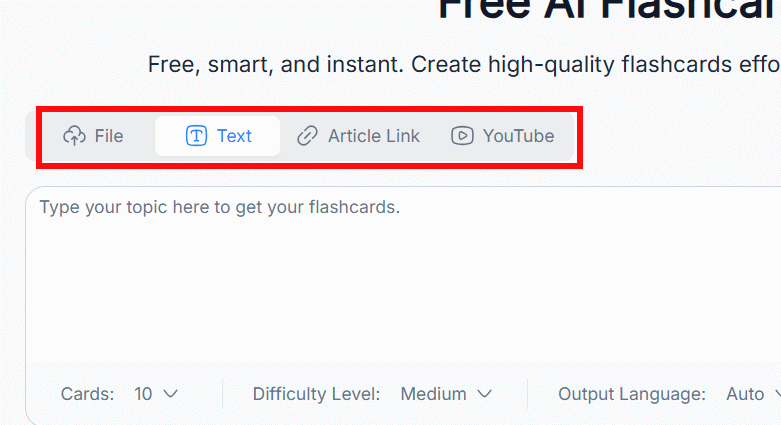
Next, configure the core settings: your study topic, the number of cards you want generated, difficulty level, and output language. These parameters shape how NoteGPT generates your cards.
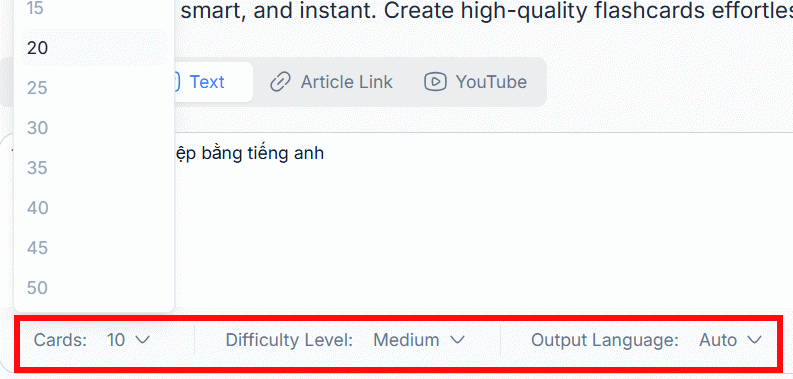
What's interesting here is the custom prompt field. You can input specific instructions to fine-tune card creation further. Once you're happy with your configuration, hit Save to proceed.
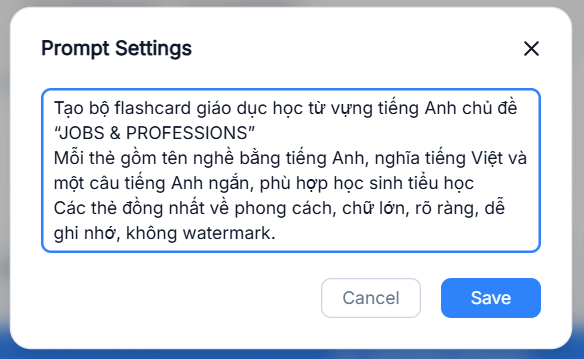
Step 3: Review and Customize Your Cards
Wait a moment, and your flashcard deck arrives. Each card features a front side (the keyword or question) and a back side (the answer or explanation).
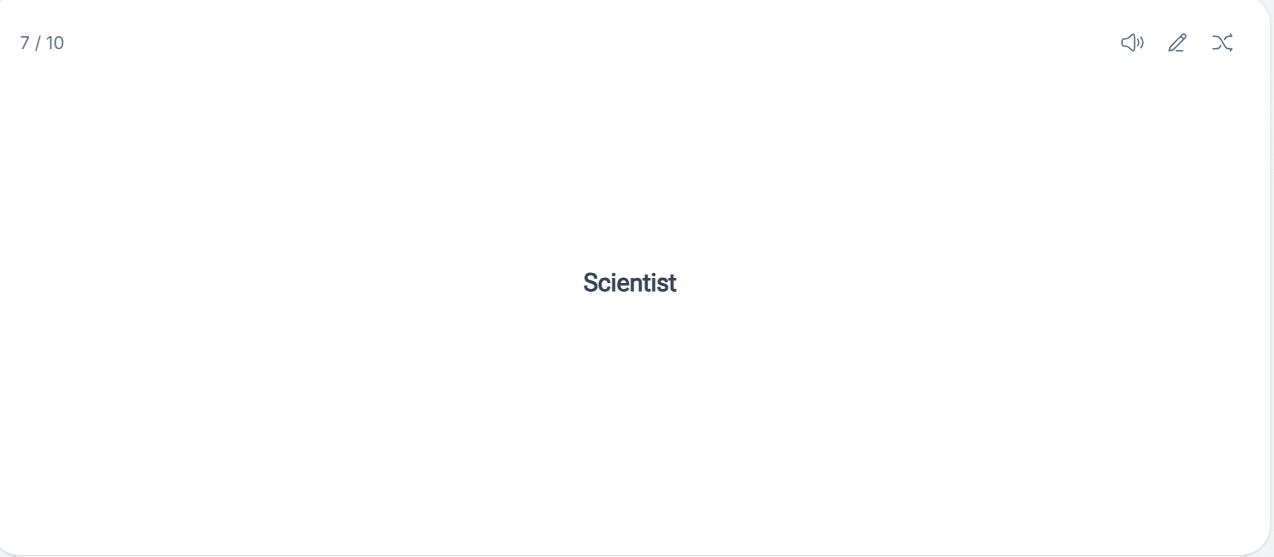
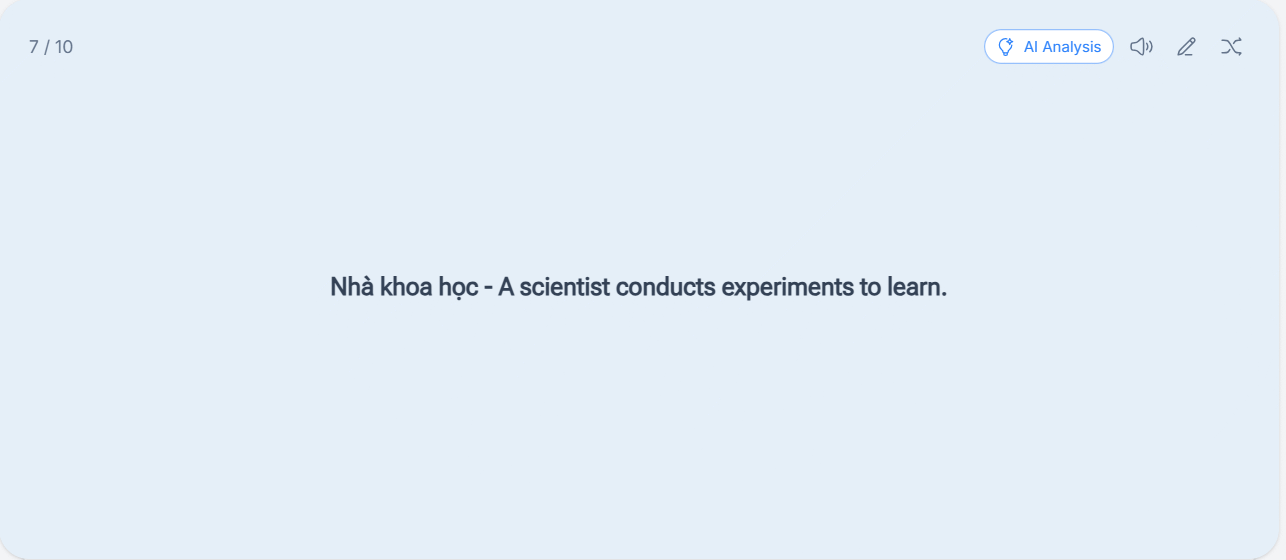
Click the AI Analysis button to see deeper explanations. The AI unpacks the keyword with additional context and expanded definitions—useful when you want richer learning material on each card.
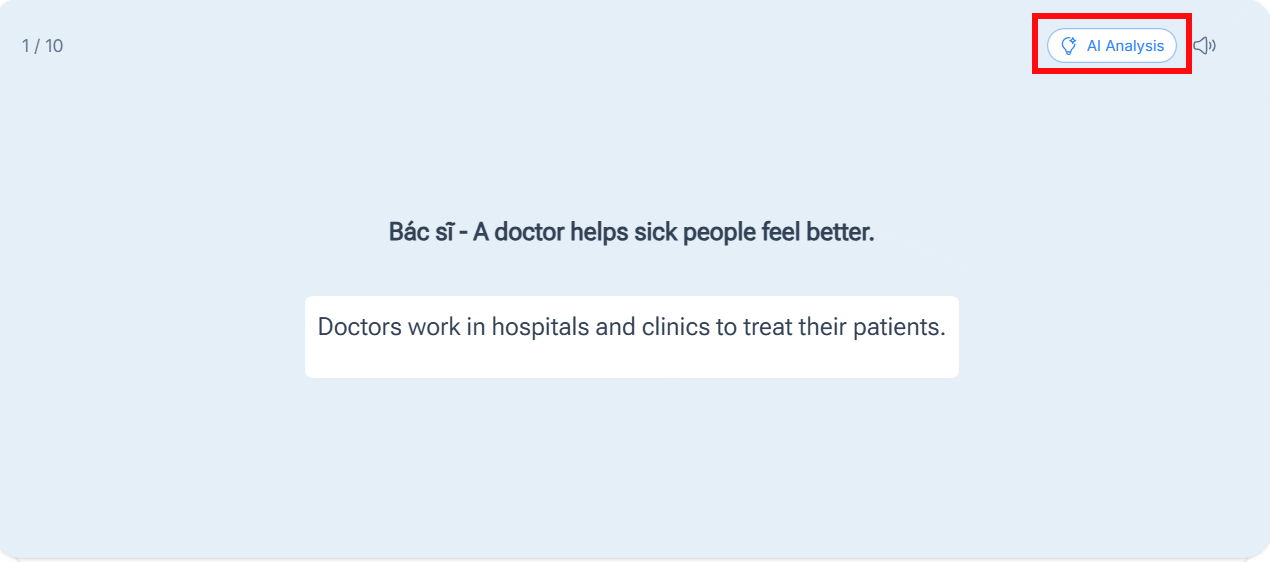
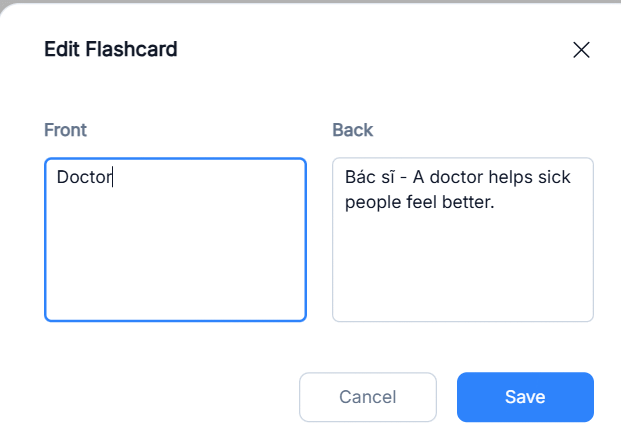
Want to tweak the content? NoteGPT makes editing simple. Click the pencil icon to modify the keyword or definition, then update the card according to your preferences. Once done, hit Save to lock in your changes.
Step 4: Download Your Deck
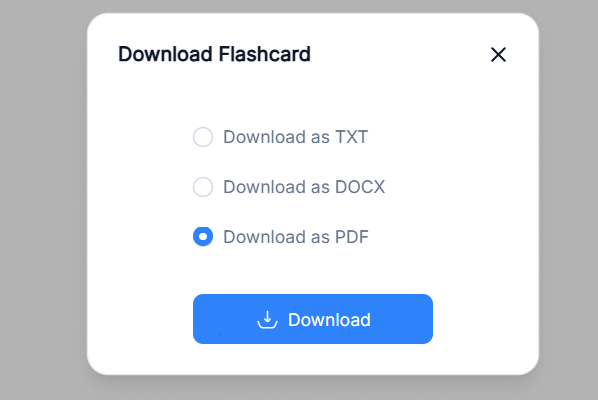
Ready to study offline? Click the Download button in the top right corner and select your preferred file format for the flashcards.
Description: Learn how to generate smart flashcards using NoteGPT's AI tool. Create, customize, and download study cards in minutes without manual design.
Related Articles
- How to Create Adam AI Voice for Your Videos for Free
- The Best AI Programming Tools You Should Know About in 2024
- Getting Started with Gemini Live: Your Guide to Voice Conversations with Google's AI
- Windsurf vs Cursor: Which AI IDE Should You Choose?
- Can Qwen 3.8 Really Compete with Claude Opus? We Tested It on a Gaming GPU

No Comment to " Creating AI-Powered Flashcards with NoteGPT: A Complete Guide "