Google Photos AI Enhance: Automatically Improve Lighting and Color in Your Photos
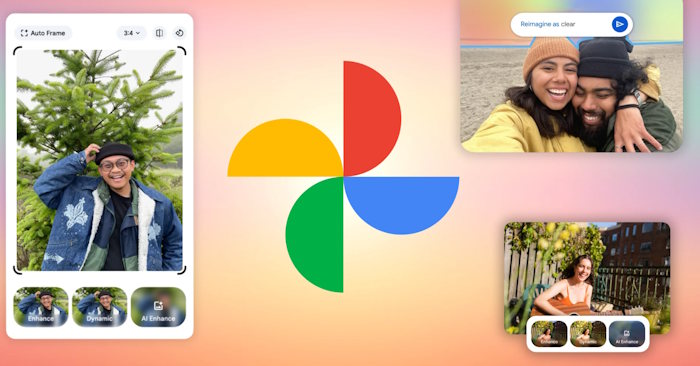
A great photo depends on more than just capturing the right moment. Lighting, color balance, and composition matter just as much. But here's the thing: most people don't have experience with professional photo editing software. That's why Google Photos built AI Enhance—a feature that automatically improves your photos with just a few taps, no advanced skills required.
The tool can enhance brightness, color saturation, contrast, sharpness, and overall composition, making your images look polished and balanced without tedious manual adjustments. What's interesting here is that AI Enhance automatically detects problem areas in your photo and applies fixes tailored to each specific image. In this guide, you'll learn exactly how to enhance your photos using Google Photos' AI tool.
What Is Google Photos AI Enhance?
Google Photos AI Enhance is an intelligent photo editing feature that improves image quality automatically, without requiring manual tweaks or advanced knowledge. The system analyzes your photo's content and optimizes key elements to deliver a noticeably better result.
Here are the main capabilities of Google Photos AI Enhance:
Brightness adjustments: The AI corrects underexposed photos by optimizing brightness levels and balancing shadows and highlights, making details pop and images appear sharper.
Color optimization: This enhances color vibrancy, adjusts contrast, and balances color tones so your image looks more natural and visually pleasing without manual calibration.
Sharpness enhancement: AI sharpens details throughout your photo, giving it that high-quality feel without requiring complex editing work.
Automated editing workflow: Rather than manually tweaking individual sliders like traditional photo editors, AI Enhance lets you perfect images in seconds with minimal interaction.
This feature is perfect if you want quick improvements to phone photos—especially those that are too dark, have dull colors, or suffer from awkward composition.
How to Use Google Photos AI Enhance on Mobile
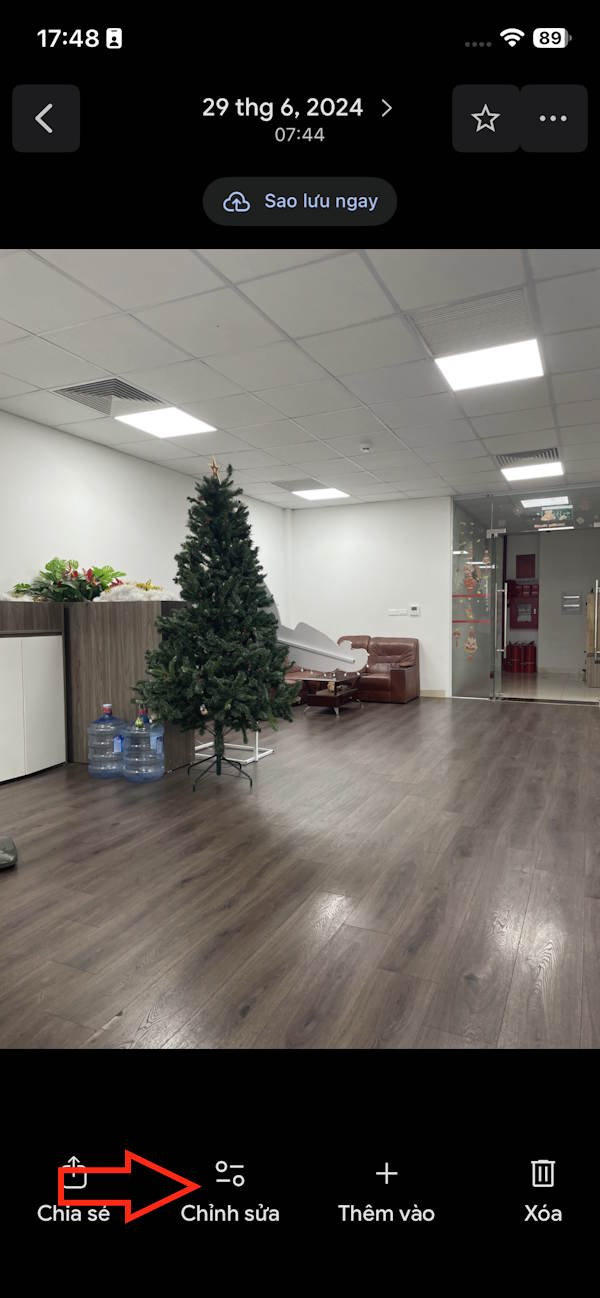
Open any photo in Google Photos and you'll see editing options at the bottom. Tap the Edit button.
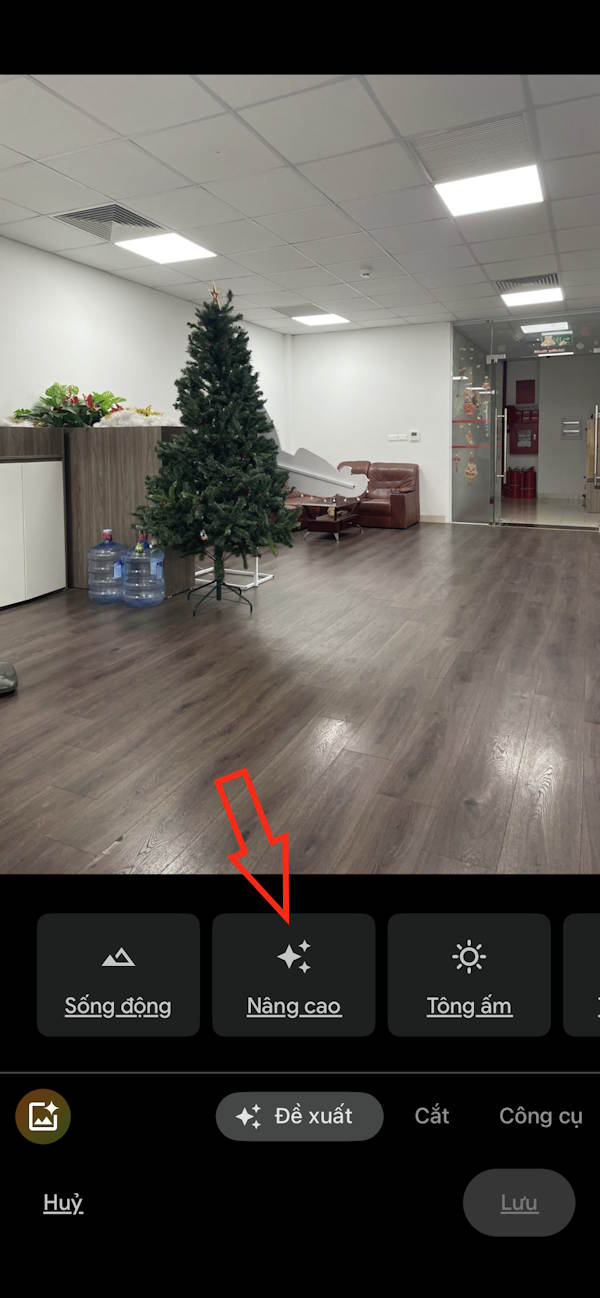
A menu with various editing options will appear. Select Enhance to activate the AI enhancement feature.
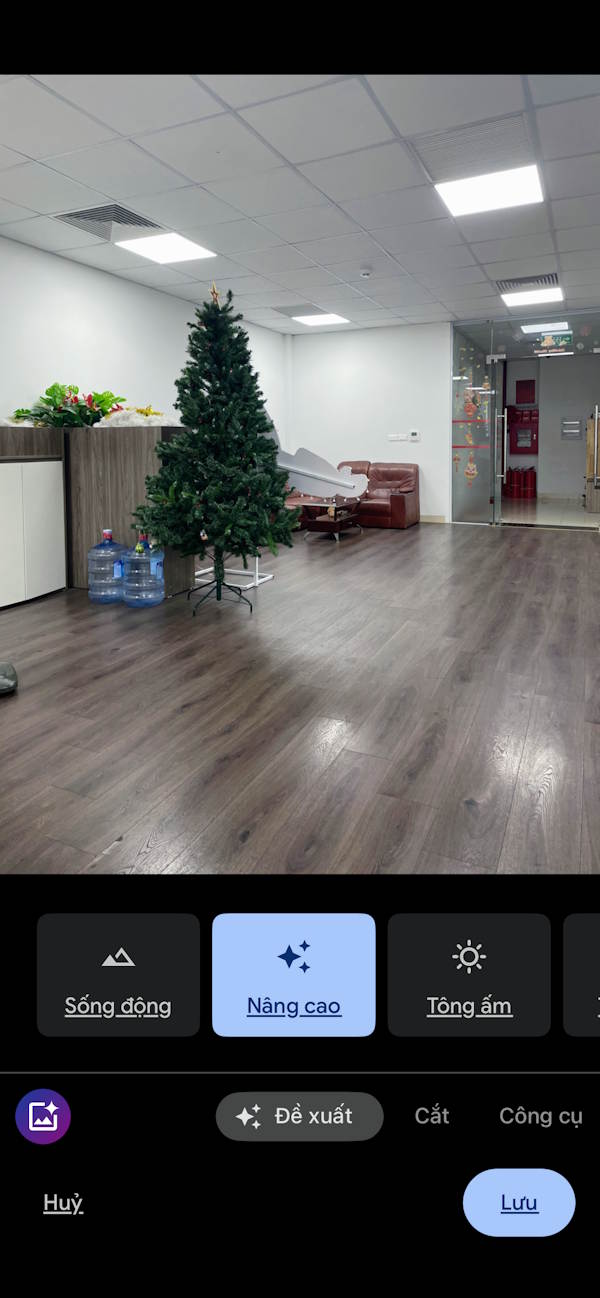
Instantly, you'll notice the image's colors brighten and lighting improves. For poorly lit or low-quality shots, the difference becomes dramatically visible.
How to Use Google Photos AI Enhance on Web
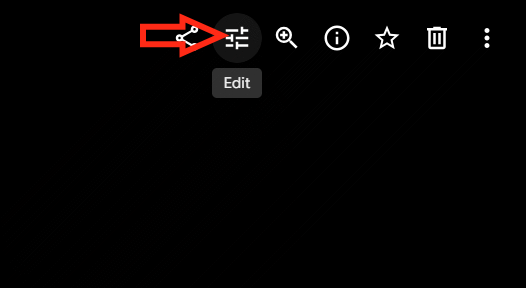
Open the photo you want to edit in Google Photos through your browser, then click the edit icon as shown below.
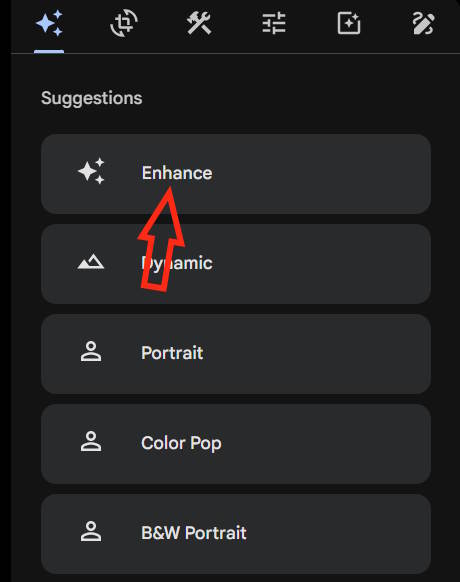
You'll see a full editing toolbar with multiple tools. Click Enhance to let AI handle the quality improvements.
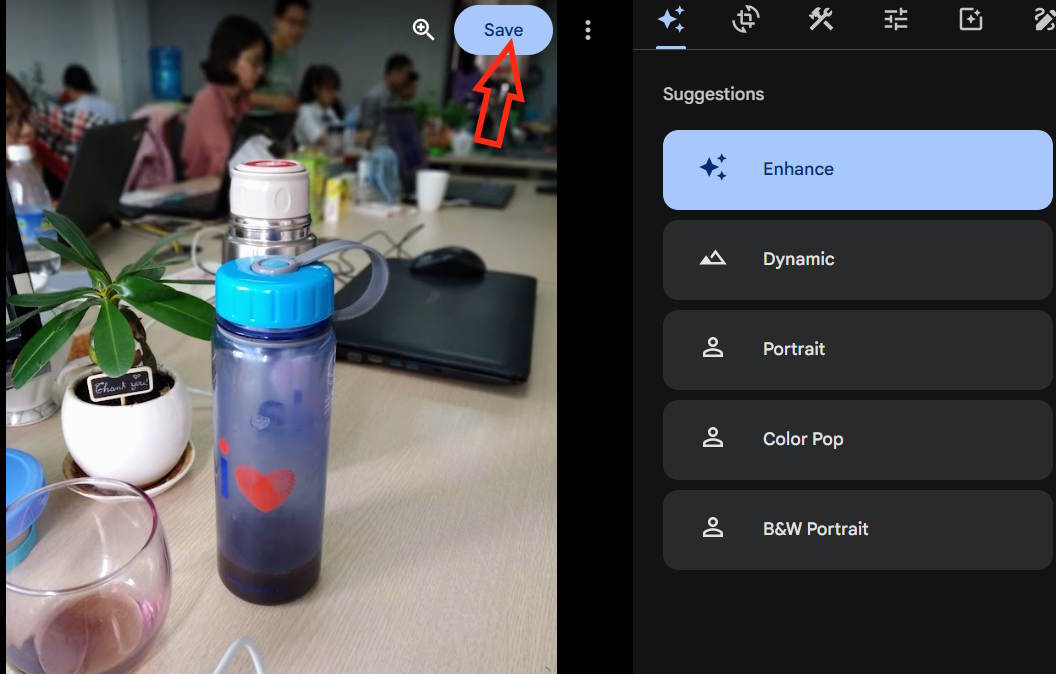
The image will shift noticeably—colors intensify and lighting balances out. When you're satisfied, click Save to preserve your enhanced version.
Key Benefits of AI-Powered Photo Enhancement on Google Photos
Here's what makes Google Photos AI Enhance genuinely useful:
Brighter, clearer images: The AI tackles underexposed photos, bringing out subject detail and improving overall visibility with intelligence.
More natural color rendition: Color balancing happens automatically—increasing vibrancy and harmony without requiring manual parameter adjustments.
Saves editing time: Skip the learning curve of complex software. Get professional-looking results in seconds instead of minutes or hours.
Works across photo types: Whether it's travel photography, portraits, family snapshots, product shots, or social media content, AI Enhance adapts to different scenarios.
Accessible to everyone: No design background or editing expertise needed. The AI analyzes and suggests improvements automatically, letting anyone create better-looking photos.
These advantages make Google Photos AI Enhance an essential tool for anyone looking to quickly elevate photo quality using artificial intelligence—no technical knowledge required.
Description: Learn how Google Photos' AI Enhance tool automatically fixes brightness, contrast, and color in seconds—no editing skills needed.
Related Articles
- Hugging Face: The Python Ecosystem That Revolutionized AI Development
- Claude Science: Anthropic's AI Platform Built for Research Labs
- How Claude Code Solves Claude's Biggest Problem With Just One Prompt
- Building AI Apps with Claude API: A Complete Developer Guide
- GLM-5.2 vs Claude Opus 4.8 vs GPT-5.6 vs Kimi: Which AI Coding Model Wins in 2026?

No Comment to " Google Photos AI Enhance: Automatically Improve Lighting and Color in Your Photos "