How to Remove Image Backgrounds in Google Vids

Struggling to make your images look polished when that messy background keeps stealing the spotlight? Google Vids changes the game by making background removal surprisingly straightforward. You can now isolate your subject matter without wrestling with complicated editing software, letting the main content shine through.
The background removal feature in Google Vids eliminates unwanted backdrops, giving your images a modern, polished appearance. This works great for presentations, training materials, product showcases, and social media content creation. Here's exactly how to use it.
Removing Image Backgrounds in Google Vids
Step 1:
Start by adding an image to your project. You can generate one using Google Vids' AI image creation tool through descriptive text commands.

Alternatively, navigate to the Stock section to search for and insert an image from the library.
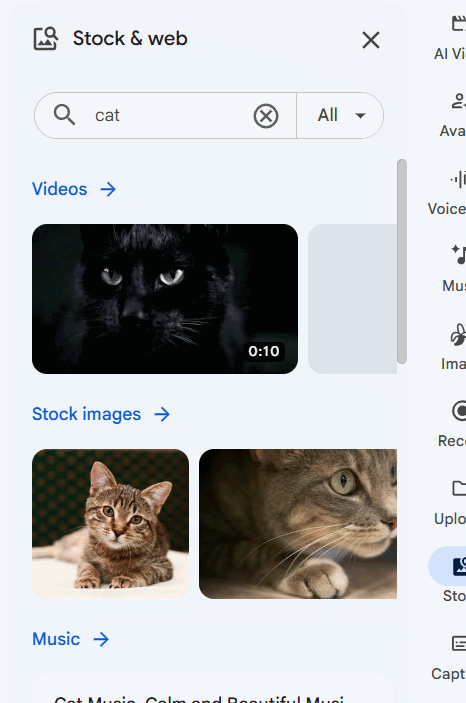
Step 2:
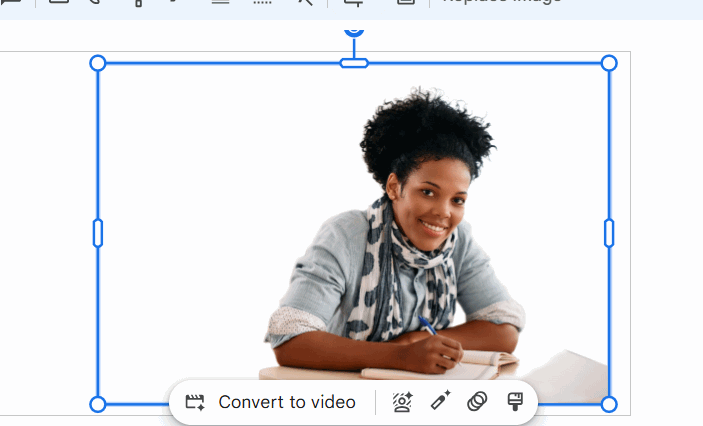
Once your image is in the editor, click the background removal icon to activate the feature.
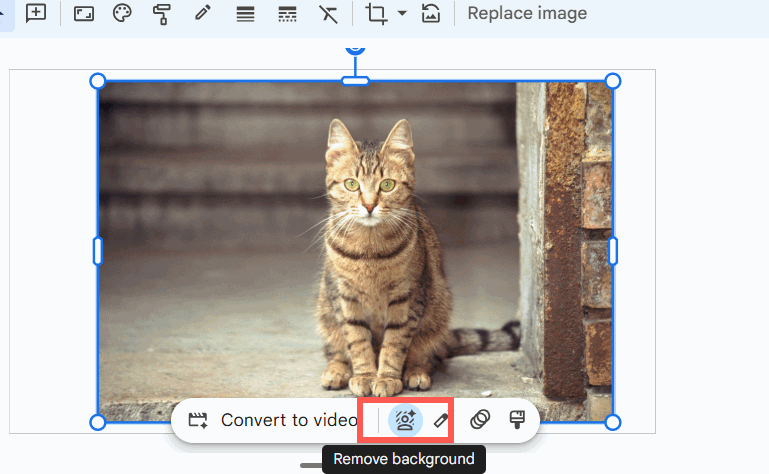
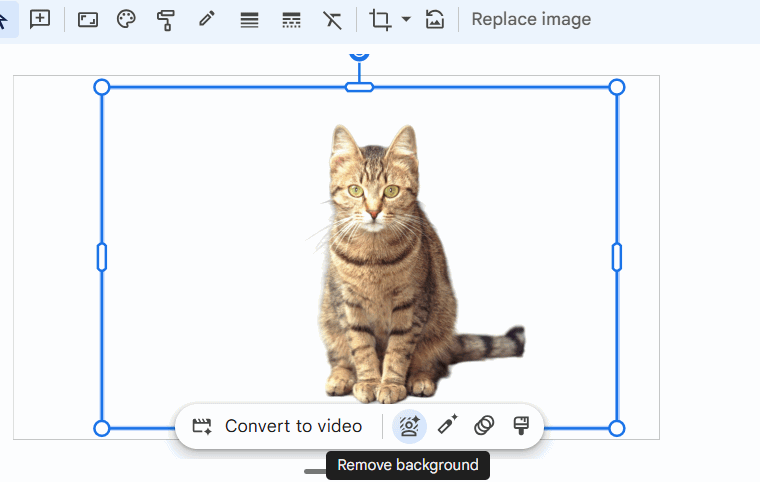
The background disappears instantly, leaving just your subject against a transparent layer.
Google Vids can handle images with people as subjects too, though results depend heavily on how complex the original background is.
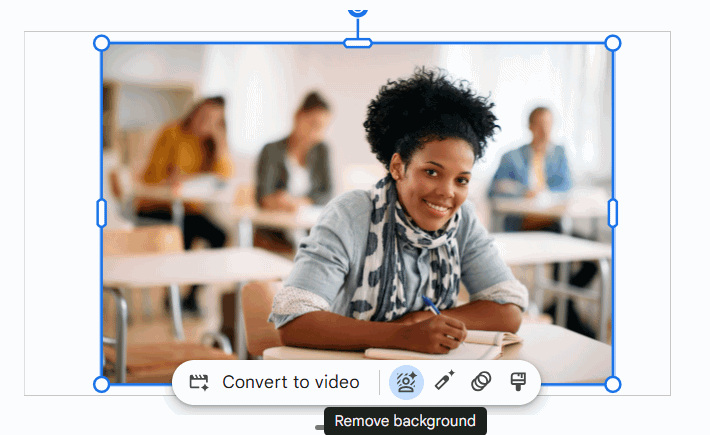
For best results, stick with images that have simple, uncluttered backgrounds and contain just one main subject.
Tips for Better Background Removal Results
Background removal in Google Vids saves significant time and produces professional-quality images quickly. However, achieving natural-looking results requires attention to a few key details during image selection and editing.
1. Start with high-quality source images
Image quality directly impacts how well Google Vids identifies your subject. Prioritize sharp, well-lit photos where the subject stands out clearly against the background.
2. Inspect the results carefully
After removal completes, examine the edges closely. Fine details like hair strands, clothing edges, small accessories, and thin objects often get misidentified during processing.
3. Save in the right format
File format matters when you need transparency. Use PNG format if you plan to keep editing and want to preserve the transparent background.
4. Don't rely entirely on automation
While Google Vids handles background removal quickly, results vary based on image complexity. Images with intricate details or precision requirements deserve manual review and touch-ups before final use.
Combining AI automation with manual inspection gives you polished, professional images suitable for design work, marketing materials, presentations, and creative content.
Common Questions About Background Removal in Google Vids
Can Google Vids remove backgrounds automatically?
Yes. Google Vids includes smart editing tools that detect subjects and strip away backgrounds rapidly. The best results come from high-resolution images with distinct subjects and uncomplicated backgrounds.
Does background removal affect image quality?
The removal process itself doesn't significantly degrade image quality. Maintain sharpness by starting with high-resolution originals and selecting appropriate export formats.
What can you do with background-removed images?
Stripped backgrounds work perfectly for product photography, advertising banners, social media posts, presentation slides, and other creative projects. Removing the background makes your subject pop and blends seamlessly into various designs.
Why aren't my results accurate?
Some images struggle with background removal due to low quality, overly detailed backgrounds, or small subject features that are hard to detect. Always review your results before using them to ensure they meet your standards.
Description: Master Google Vids' background removal tool. Learn the step-by-step process to create professional images without complex editing software.
Related Articles
- What is Grok Bot? xAI's Multi-Agent Assistant Explained
- The 5 Best AI Recruitment Tools to Transform Your Hiring Process
- Setting Up CLAUDE.md for Claude Code: Complete Guide with Templates
- Four Hidden Token Drains Quietly Eating Your Claude Code Budget
- Bases: Obsidian's New Plugin Finally Closes the Gap Notion Left Behind

No Comment to " How to Remove Image Backgrounds in Google Vids "