How to Use Claude in Google Docs, Sheets, and Slides
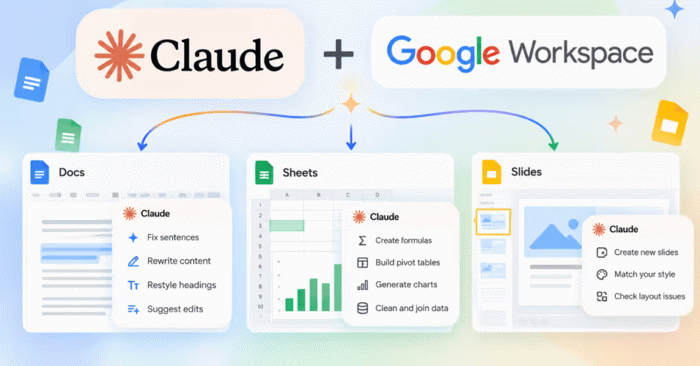
Claude AI now works directly inside Google Docs, Sheets, and Slides through an integrated extension for Google Workspace. Once installed, you can open Claude in a sidebar panel to help with document drafting, editing, spreadsheet analysis, and presentation building—all without leaving the app you're working in.
This integration streamlines your workflow by eliminating constant tool-switching and boosting productivity on everyday office tasks. Read on as we walk through installing the Claude extension on Google Docs and other Workspace applications.
What Can Claude Do in Google Workspace?
Claude for Google Workspace is currently in beta and available to Pro, Max, Team, and Enterprise subscribers. You'll need a Google account and access to the Google Workspace Marketplace to install it.
Once you've installed Claude successfully, here's what you can do:
- Ask questions about your open document, spreadsheet, or presentation and get answers with source citations included.
- Request Claude to edit content directly—all changes are tracked in your version history.
- In Google Sheets: Design spreadsheet models, write and debug formulas, and clean messy data.
- In Google Docs: Draft, rewrite, and reorganize lengthy documents.
- In Google Slides: Create new slides or modify existing ones—including content, layout, and styling.
- Access custom connectors that your organization has configured in Claude, right from the sidebar.
Here's what's important to understand: this feature differs from the Google Workspace connectors you can set up inside Claude itself. Those connectors let Claude search and reference data from Google Drive, Gmail, and Calendar separately.
- How to connect Google Drive to Claude and use it effectively
- How to connect Google Docs with Claude for document analysis
The Claude extension brings the AI assistant right into your document, spreadsheet, or presentation—no context switching required.
How to Use Claude in Google Docs
Step 1:
Head to the link below to install the extension for your Google Workspace apps.
Step 2:
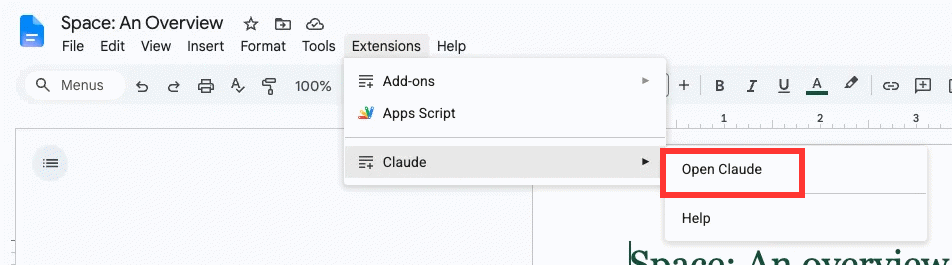
Go back to your Docs file and click Extensions > Claude > Open Claude. You'll be prompted to grant permissions and sign in with your Claude account to complete the connection.
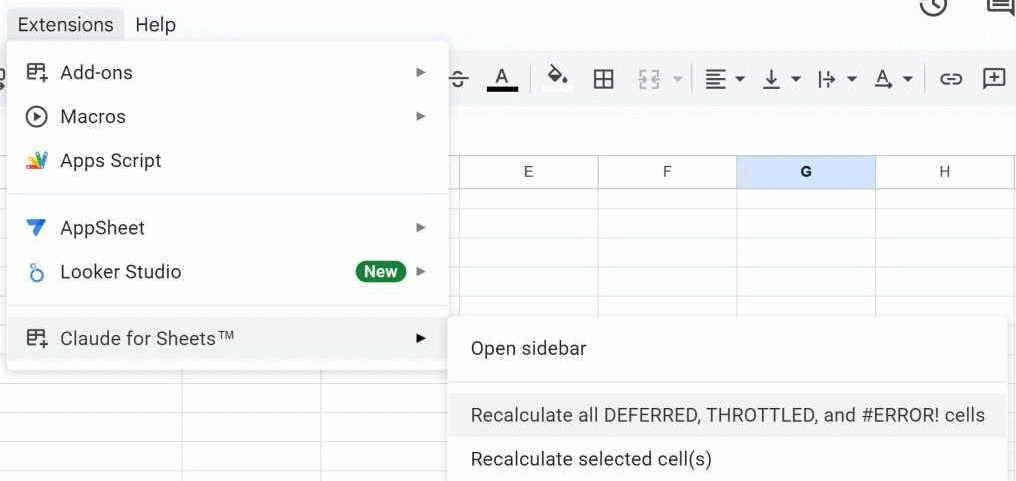
The same process applies in Google Sheets.
Sample Prompts for Claude in Google Workspace
Different apps require different approaches. Here are some examples tailored to each application.
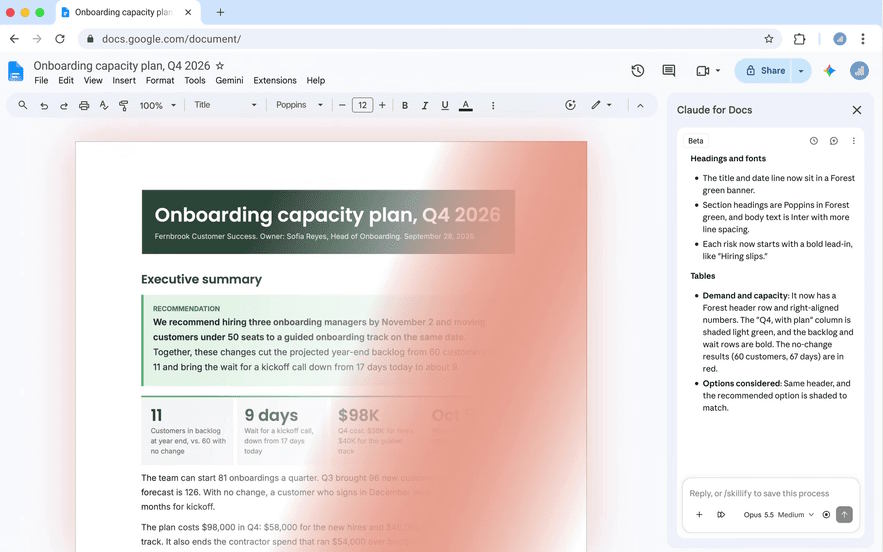
Claude in Google Docs
- Rewrite the executive summary so it leads with the recommendation and fits in one paragraph.
- This brief is 14 pages. Cut it to 6 without losing any of the numbered requirements.
- Turn the notes under 'Next steps' into a table with owner, action, and due date.
- Check this contract for defined terms that are used but never defined.
- Make every heading sentence case and fix the numbering in section 4.
Claude in Google Sheets
- Walk me through how the total in H42 is calculated and flag anything hardcoded.
- Build a three-statement model on a new tab from the assumptions in 'Inputs'.
- Column D has dates in three different formats. Normalize them to YYYY-MM-DD.
- Find why the VLOOKUP in the Summary tab returns #N/A for some rows and fix it.
- Add a sensitivity table for price and volume, plus a chart of revenue by quarter.
Claude in Google Slides
- Draft a five-slide project update from the bullet points in the speaker notes on slide 1.
- Slide 7 is a wall of text. Split it into two slides and keep the deck's styling.
- Make the titles across the deck parallel and under eight words each.
- Add a bar chart of the regional numbers on slide 4, matching the deck's colors.
- Restyle this deck to use the fonts and colors from the title slide.
Keep in mind that Claude for Google Workspace is still in beta testing, so availability may vary by account type.
Description: Integrate Claude AI directly into Google Workspace apps. Write, edit, and analyze data without switching tools.
Related Articles
- How to Sharpen Blurry Images with AI in Canva
- Building Integrated Lesson Plans and Appendices with Digital Literacy, Defense Education, and Moral Education in NotebookLM
- 5 Essential AI Agent Research Papers You Should Read
- How to Access Kling 3.0: Your Complete Guide to Free and Paid Options
- How AI is Reshaping Modern Warfare — And Why That Should Concern Us

No Comment to " How to Use Claude in Google Docs, Sheets, and Slides "