Using Gemini to Take Google Meet Notes: Complete Setup Guide
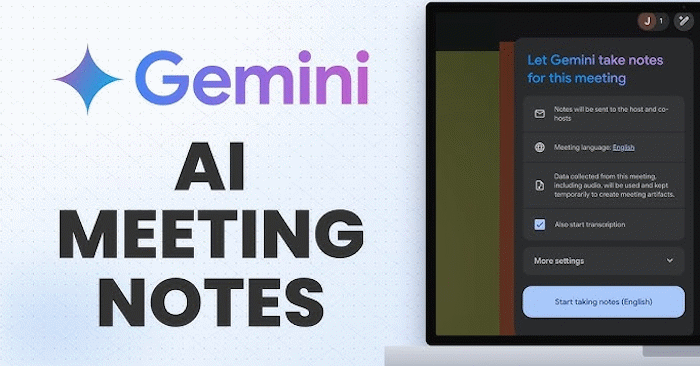
Imagine attending a meeting without frantically scribbling notes while trying to stay engaged. Gemini's meeting notes feature in Google Meet does exactly that—it listens to your conversation in real-time, extracts key points, and generates a structured summary automatically. Instead of juggling participation and manual note-taking, you simply enable the feature and let Gemini handle the documentation.
Once the meeting wraps up, Gemini produces a well-organized document containing discussion topics, agreed-upon decisions, action items, and other important details. What's interesting here is that these notes can be saved directly to Google Docs and shared with all attendees, making follow-up coordination and reference much smoother. Here's your step-by-step guide to getting Gemini note-taking working on Google Meet.
How to Enable Gemini Note-Taking in Google Meet
Activate Note-Taking Through Google Calendar
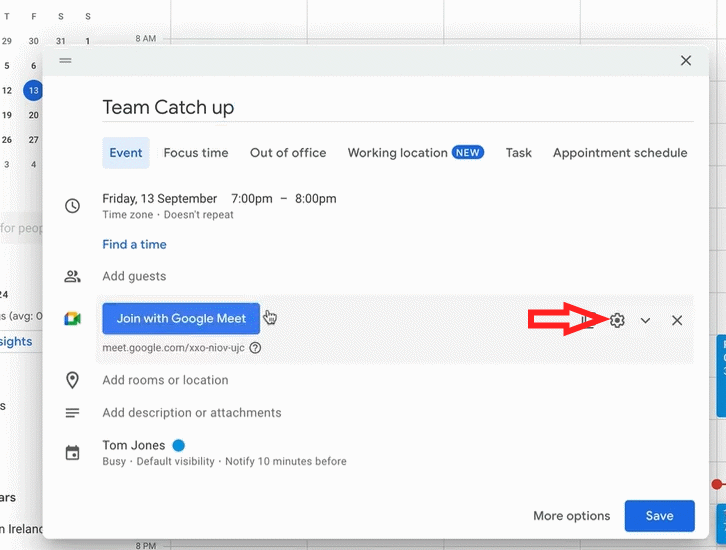
Start by creating a meeting in Google Calendar, then enable Google Meet as your video meeting platform. Next, click the gear icon to access settings.
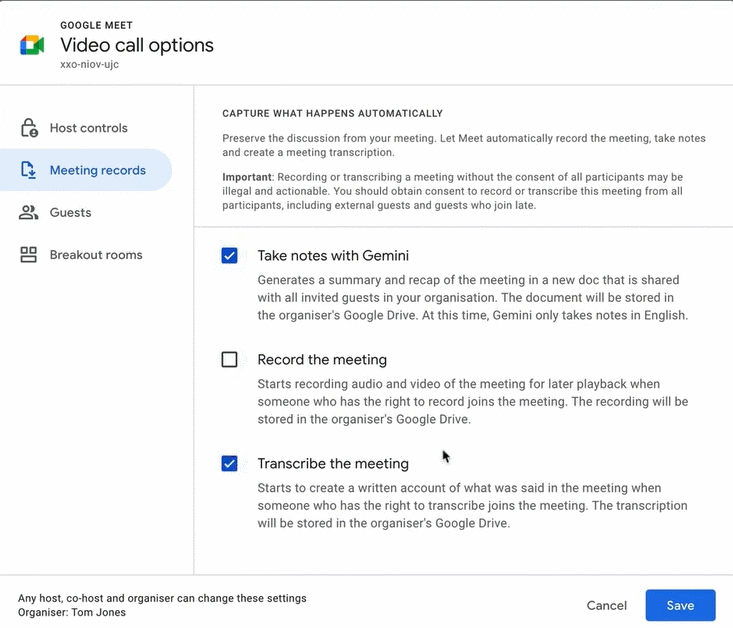
In the new interface, navigate to Meeting records to adjust your preferences. Check the box for Take notes with Gemini to enable AI note-taking, and also enable Transcribe the meeting to capture a full transcript. Finally, hit Save.
Activate Note-Taking Directly in Google Meet
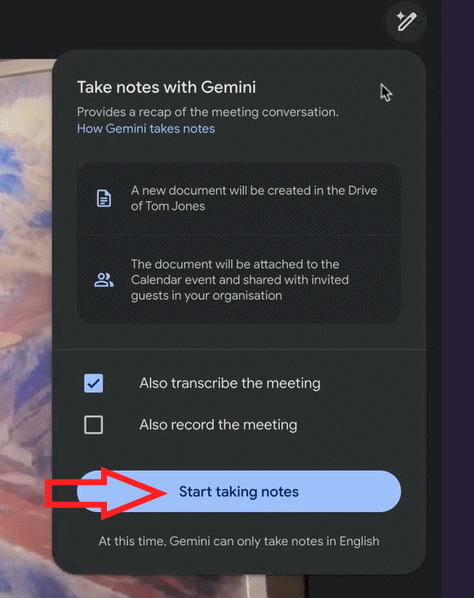
During an active meeting, click the notes icon (pencil symbol) in the upper right corner, then select Start taking notes to activate the feature.
You'll have access to several configuration options, including who receives the notes, which language the AI should use for transcription, and custom note preferences.
How Gemini Note-Taking Works in Google Meet
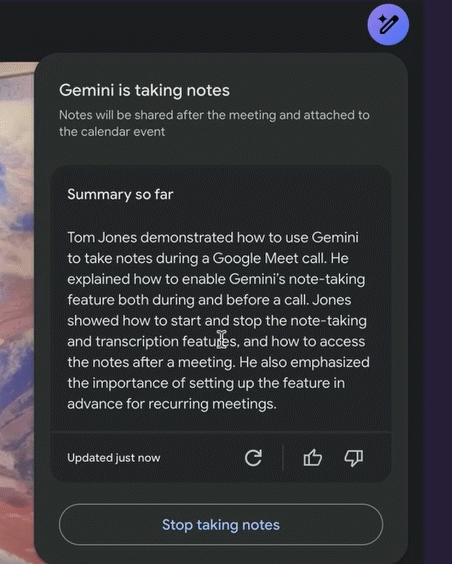
After you activate note-taking, Gemini begins capturing content and displays it on your screen throughout the meeting. At any point during the call, you can tap Update just now to refresh and add new information to your notes.
To stop recording notes, simply tap Stop.
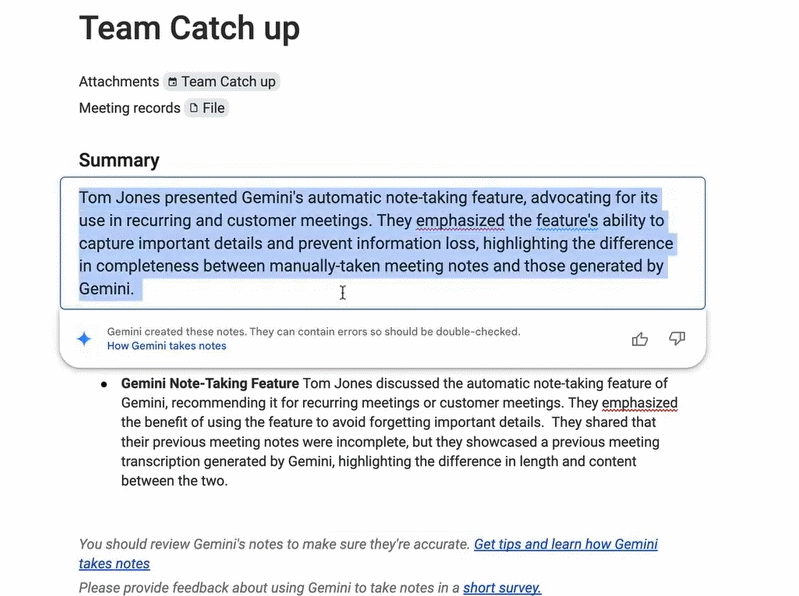
The completed notes are automatically saved as a standalone Google Docs document in the meeting organizer's Drive. Gemini also sends an email notification containing a link to the document so you can easily access it. The real concern is that meeting organizers can set permissions to automatically share these notes with all invited attendees, who can then view them as an attachment in the Calendar app.
Important Things to Know About Gemini Note-Taking
- The feature currently supports only one language per meeting. If your discussion spans multiple languages, Gemini cannot simultaneously document them all.
- Supported languages include English, French, German, Italian, Japanese, Korean, Portuguese, and Spanish. Your meeting must be conducted in one of these languages for accurate AI-generated notes.
- If a participant switches to a different language within 30 seconds, Google Meet will prompt you to change the note-taking language or continue using the current one.
- All meeting participants receive a notification when note-taking is enabled, maintaining transparency throughout the conversation.
- AI-generated notes function as summaries and may not capture every single word or minor detail. Review them carefully if you need documentation for critical information.
- Notes are stored as Google Docs files in your Google Drive, and the meeting organizer receives an email with a direct link to the document immediately after the meeting ends.
- Google recommends using this feature for meetings lasting between 15 minutes and 8 hours to achieve optimal results.
Description: Learn how to enable and use Gemini's automatic note-taking feature in Google Meet to capture meeting highlights effortlessly.
Related Articles
- Claude Fable 5 vs GPT-5.5: Which AI Model Should You Actually Use?
- Enhance Your Google Slides Presentations with Gemini's AI Writing Tools
- How to Generate and Edit AI Images in Google Vids
- 7 Surprising Tasks AI Assistants Can Actually Handle for You Right Now
- Beyond Ollama and llama.cpp: Alternative Runtimes for Local LLM Deployment

No Comment to " Using Gemini to Take Google Meet Notes: Complete Setup Guide "