Enhance Your Google Slides Presentations with Gemini's AI Writing Tools

Google Slides now has built-in Gemini integration that lets you polish your presentation content directly within the app. Whether you need to condense wordy paragraphs, adjust the writing tone, or restructure text into bullet points, Gemini's Refine tool handles it all. The real advantage here is that you're not manually rewriting text anymore—you simply select your preferred style or enter a custom instruction, and AI rewrites it for you instantly.
Instead of spending time manually editing and rewriting slide text, you can pick from predefined refinement options or write custom instructions to guide Gemini's improvements. If your slides have lengthy paragraphs, unclear sentences, or text that needs tweaking to fit better, the Refine tool is your solution. Here's a step-by-step walkthrough on how to use Gemini to enhance your Google Slides content.
How to Refine Text in Google Slides Using Gemini
Step 1: Access the Refine Tool
Open your presentation in Google Slides and navigate to the slide containing text you want to improve. Click on the text box, then tap the Refine icon to see your content refinement options.
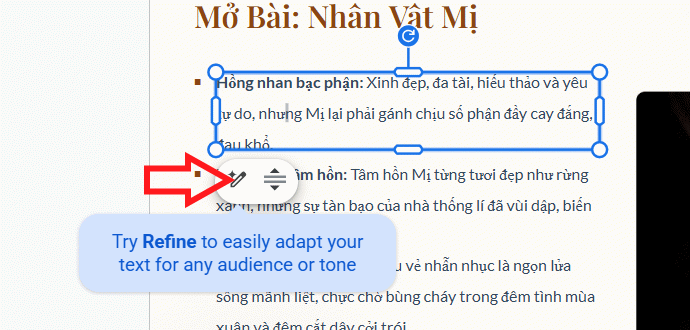
Step 2: Choose Your Refinement Style
You'll see four built-in text editing options:
- Shorten: Condenses lengthy paragraphs that take up too much space on your slide.
- Rephrase: Rewrites sentences or passages in a different way, making them flow more naturally and become easier to understand.
- More formal: Adjusts the tone to sound more professional and serious.
- Bulletize: Transforms paragraph text into bullet points for better readability and impact on slides.
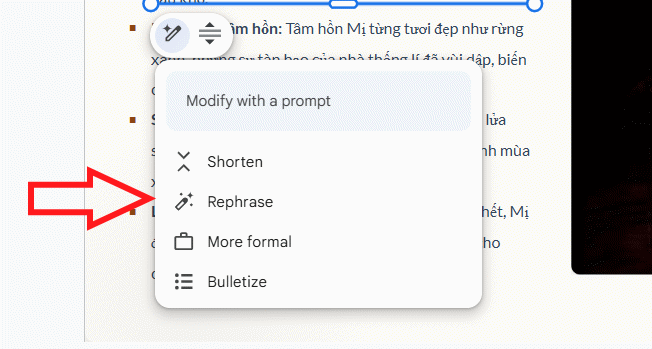
Select one of these options to instantly rewrite your text. For example, choose "More formal" to elevate the tone of your content. You'll immediately see Gemini's revised version. Not satisfied? Click Refine again to try a different approach.
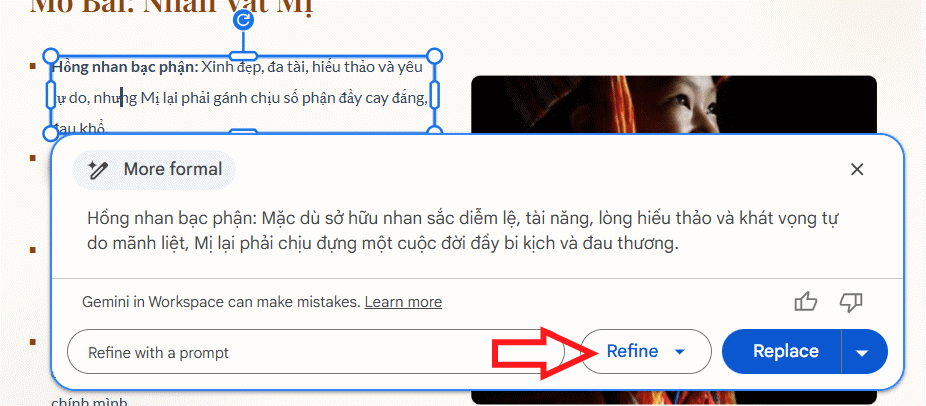
Gemini generates fresh content based on your selected refinement option.
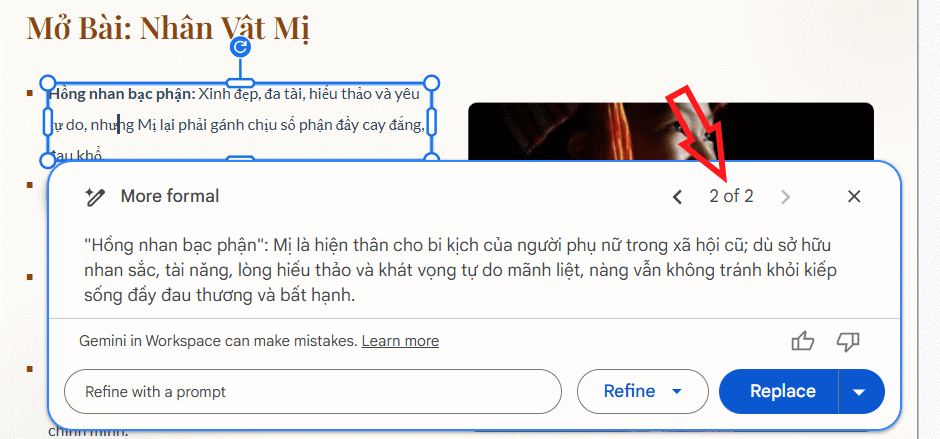
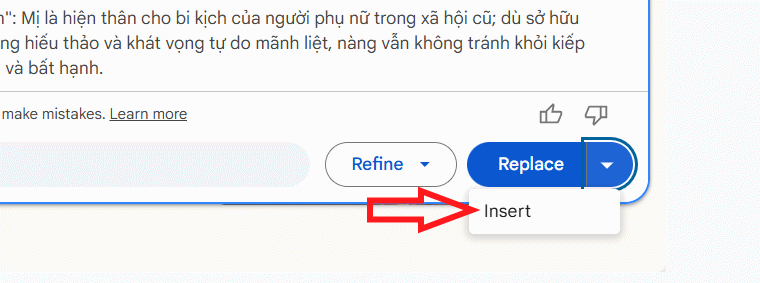
If you like the new version, click Replace to swap out your original text. If you want to keep both versions for comparison, click Insert instead—this adds Gemini's version below your existing text rather than replacing it.
Step 3: Write Custom Refinement Instructions
What's interesting here is that Gemini isn't limited to those four preset options. You can write your own custom prompt to refine text however you want. Just keep in mind—your instructions must be in English.
Example prompts:
- Shorten this text into 3 key points, using simple language for elementary students.
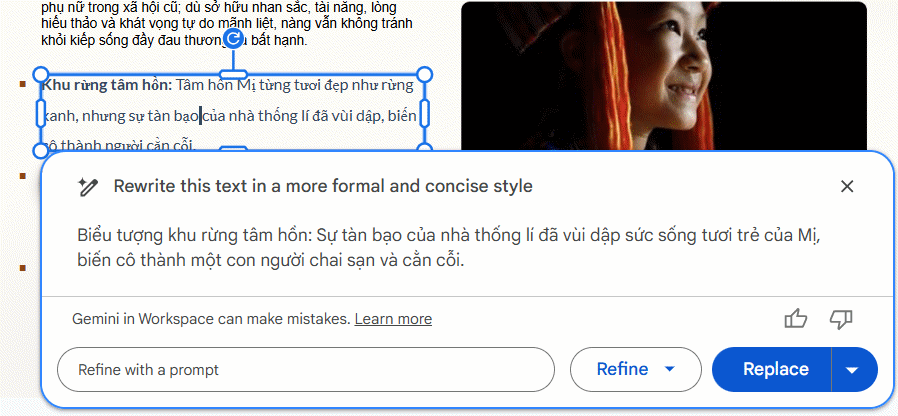
- Rewrite this text in a more formal and concise style.
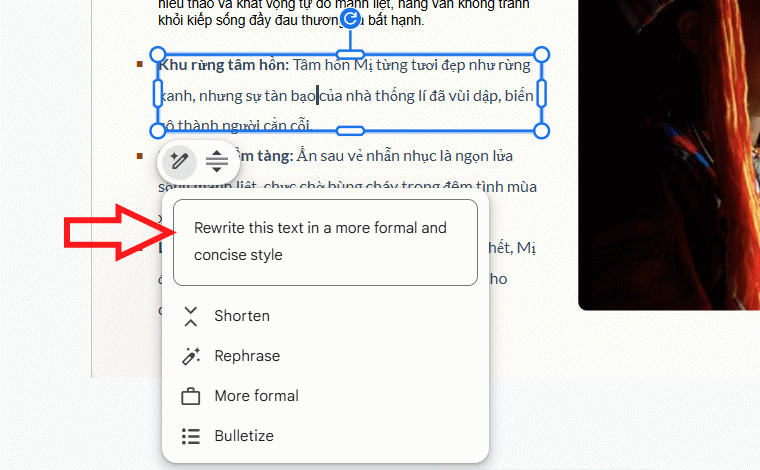
Be specific about what you want changed, who the audience is, and how long you want the final text to be. This helps Gemini produce results that actually match your needs.
Gemini generates new text based on your custom instructions.
Best Practices for Crafting Effective Prompts in Google Slides
To get the best results from Gemini, you need to write clear, specific prompts. A good prompt tells Gemini exactly what to do, how to format the result, and who the audience is.
- Use specific action verbs: Choose precise editing verbs like shorten, rewrite, simplify, summarize, or turn into bullet points instead of vague requests.
- Specify desired length: For slide content, mention the number of points or word limit you need—this prevents Gemini from making the text too long or too short.
- Identify your target audience: Since slide presentations aim at specific viewers, tell Gemini who'll be reading it. For instance: "Rewrite this text using simple language for elementary students."
- Specify tone and style: Request a particular voice—casual, straightforward, formal, or concise—depending on your presentation's purpose.
- Combine multiple requirements in one prompt: You can ask Gemini to shorten and reformat simultaneously. Example: "Shorten this text into 4 key points and use simple language for students."
- Avoid overly broad requests: Vague prompts like "Improve this text" rarely deliver what you're actually looking for. Instead, specify exactly which elements need improvement and what the final result should accomplish.
After Gemini produces the new content, review it carefully to ensure it matches your intent. If it's not quite right, adjust your prompt or edit the text manually to maintain slide quality.
Description: Learn how to use Gemini's Refine feature in Google Slides to improve content, adjust text tone, and create professional-quality presentations.
Related Articles
- Getting Started with Gemini Live: Your Guide to Voice Conversations with Google's AI
- The 5 Best AI Recruitment Tools to Transform Your Hiring Process
- How to Cut Your AI Coding Platform Costs in Half
- 5 Safety Guardrails Built Into Claude Code to Stop Costly Terminal Mistakes
- Beyond Ollama and llama.cpp: Alternative Runtimes for Local LLM Deployment

No Comment to " Enhance Your Google Slides Presentations with Gemini's AI Writing Tools "