What Can Gemini Do in Gmail? 4 AI-Powered Features Worth Using

Email remains essential for work, but managing dozens—or even hundreds—of messages daily drains your productivity. Google recognized this problem and integrated Gemini directly into Gmail as an intelligent AI assistant. What's interesting here is that Gemini goes way beyond simple composition. It can summarize lengthy email threads, suggest smart replies, adjust tone and style, search using natural language, and extract key information from your messages. If you're looking to maximize Gmail's AI capabilities, this guide covers the most practical Gemini features you should be using.
How to Use Gemini in Gmail
Important note: You'll need a Google One AI Premium subscription and your Gmail language set to English. If you don't have access yet, alternative AI email assistants can help you draft quick, professional responses.
Writing Emails with Gemini
Use Gemini to draft new messages or generate professional reply emails in seconds.
Step 1:
Open the Gmail compose window and click the pen icon to activate Gemini's writing feature.
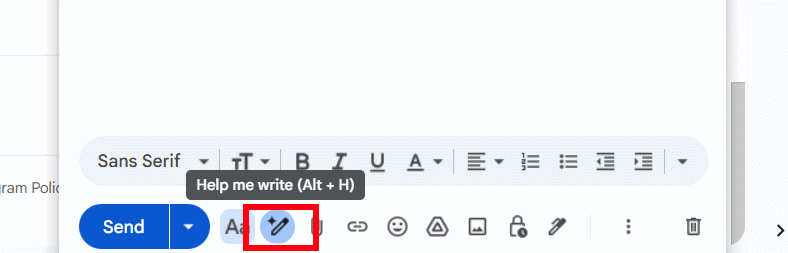
Describe what you want to say, who you're writing to, and what tone to use. Then hit send to generate your draft.
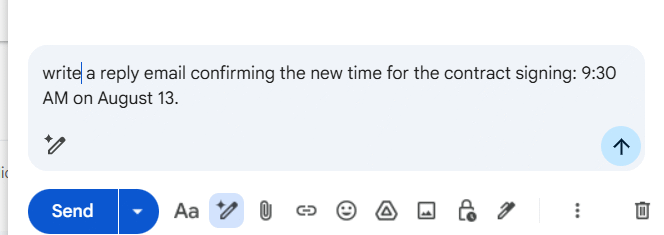
Step 2:
In a moment, Gemini will generate your email draft in the compose box. Click the three-dot menu to access additional options for refining your message.
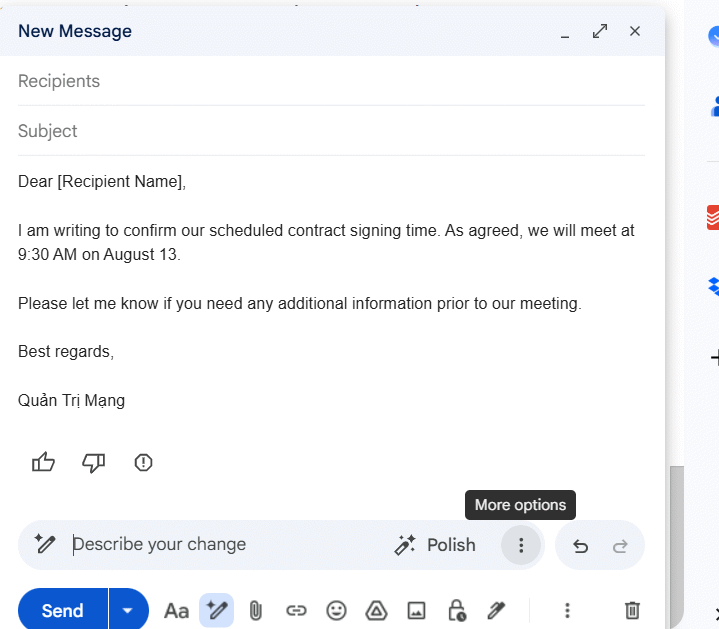
Here you can adjust the writing style, make it more concise, or change the tone. Select "Polish" to regenerate the email with different wording.
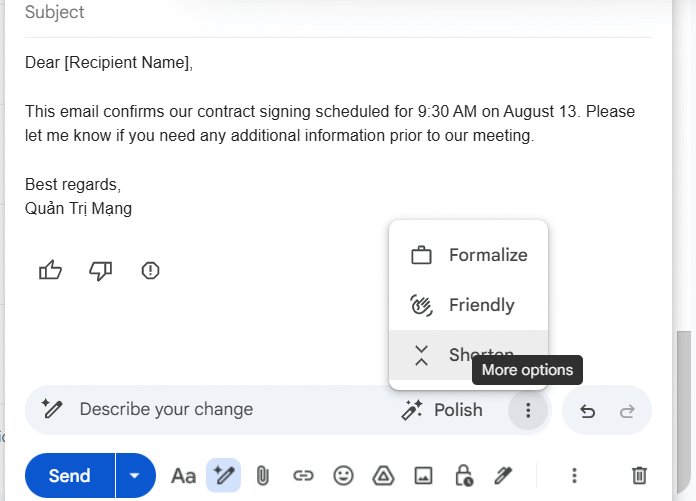
Pick the tone and length based on your recipient and message purpose. The real concern is getting the voice right—Gemini handles that well once you've given clear direction.
Summarize Email Threads
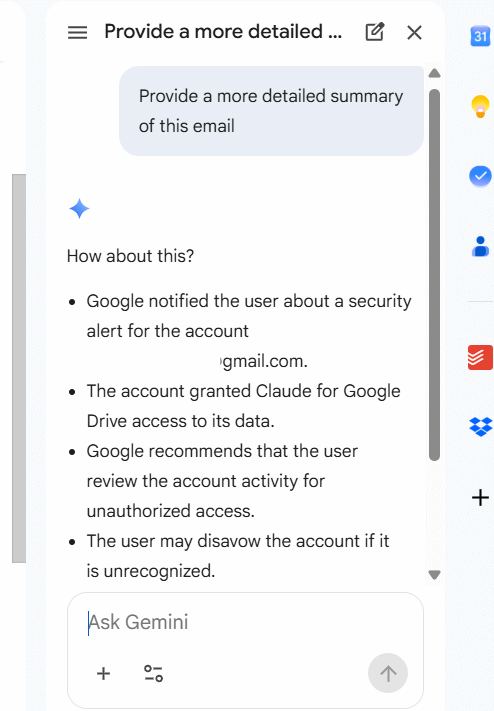
Instead of reading long email chains, Gemini extracts the key points instantly. Open any email and click the Gemini icon to activate the chat panel. Then type this command:
Summarize this email in more detailGemini instantly shows you the main points without reading the full text.
Smart Email Search with Gemini
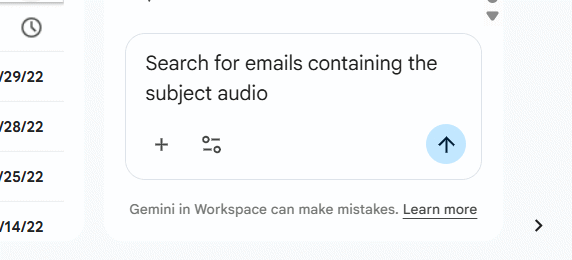
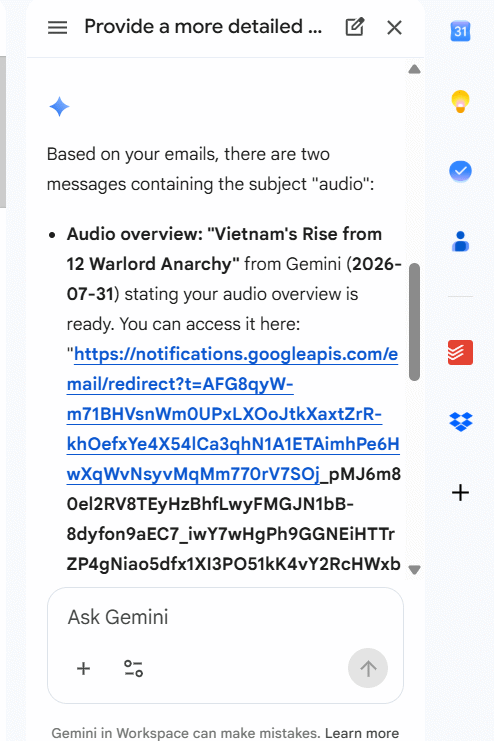
Forget typing exact keywords. Gemini understands natural language queries, so you can search by meaning instead of memory. Describe what you're looking for—specific content, attachments, dates—and Gemini finds it.
Enter your search request in plain language and send.
Gmail returns the matching emails instantly based on your description.
Translate Emails Instantly
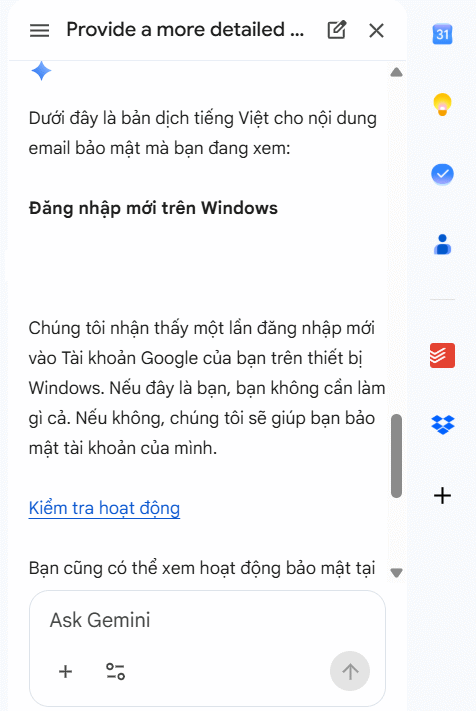
Gemini handles email translation, helping you work seamlessly with international clients and partners. It adapts tone and context, not just words—which matters for professional communication.
Request translations into Vietnamese, English, or any other language. You'll understand incoming messages clearly and write more accurate responses.
Effective Gemini Prompts for Gmail
For better results, write detailed prompts instead of vague one-word commands. Example:
Reply to this email professionally, confirm the meeting on Friday at 10:00 AM, thank the sender, and ask them to share the meeting agenda in advance.1. Summarize email threads
Summarize this email thread and highlight the key points, decisions, and action items.2. Compose new emails
Draft a professional email inviting a client to a project meeting next Tuesday at 2:00 PM.3. Reply to messages
Reply to this email politely, confirm my attendance, and thank the sender for the invitation.4. Adjust tone and style
Rewrite this email in a more professional and friendly tone.Or:
Make this email shorter and more formal.5. Shorten or expand emails
Shorten:
Shorten this email while keeping all important information.Expand:
Expand this email with more details and a professional tone.6. Find specific emails
Find the latest email from [name] about the marketing proposal.Or:
Search for emails containing the subject [name].7. Summarize multiple emails
Summarize all emails in this conversation and provide the main discussion points.8. Extract key information
Extract all meeting dates, deadlines, and action items from this email thread.Or:
List all tasks assigned to me in these emails.9. Translate emails
Translate this email into Vietnamese while preserving the original meaning and professional tone.Or:
Translate this email into English.10. Compose based on attachments
Draft an email based on the attached document and summarize the key information for the recipient.11. Check your inbox status
What emails require my attention today?Or:
Summarize my unread emails from this week.List all emails related to the ABC project.Which emails contain pending action items?Description: Discover how Google's Gemini AI transforms Gmail with smart email composition, summarization, search, and translation capabilities.

No Comment to " What Can Gemini Do in Gmail? 4 AI-Powered Features Worth Using "