Installing Google Gemini as a Windows App: Complete Guide
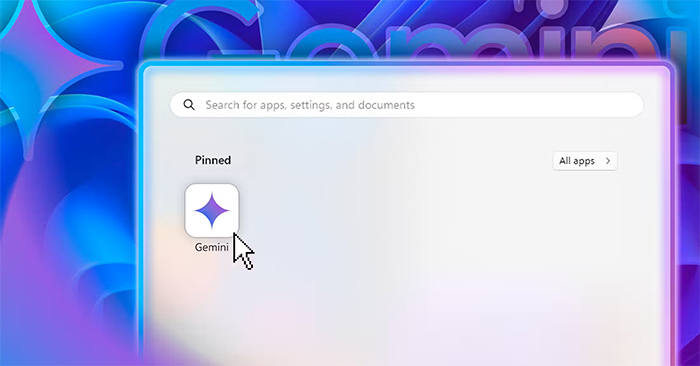
Google Gemini doesn't have a standalone Windows installer yet—only macOS users get a dedicated app download. The rest of us are stuck accessing it through a web browser. But here's the thing: you can actually turn Gemini into a proper Windows application using either Google Chrome or Microsoft Edge.
Once installed this way, Gemini appears as a standalone app on your desktop, making it just as quick to launch as any other program. No more hunting through browser tabs. This guide walks you through installing Gemini as a web app on Windows using both Chrome and Edge, plus how to uninstall it later if you change your mind.
Table of Contents
Video Tutorial: Installing Gemini on Windows
Installing Gemini as an App on Windows via Edge
Step 1:
Open the Gemini website in Microsoft Edge and sign in with your Google account.
Step 2:
Once you're on the Gemini interface, click the three-dot menu icon, then select Apps from the dropdown. Next, click Install this site as an app.
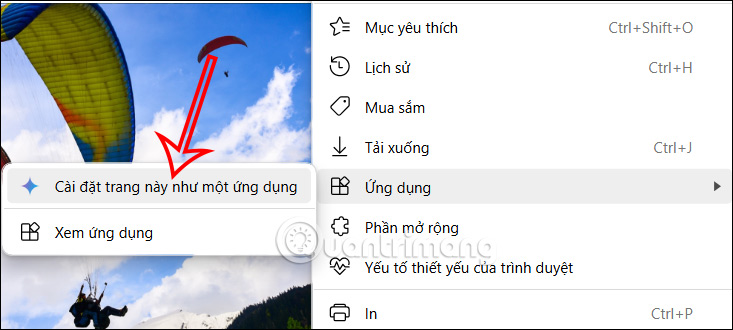
A confirmation dialog will pop up. Click Install to proceed. You can customize the app name if you prefer something different.

Step 3:
Gemini will now launch in a new window. You'll see a permissions dialog asking for various app permissions. Check the boxes for any permissions you want to grant, then click Allow.
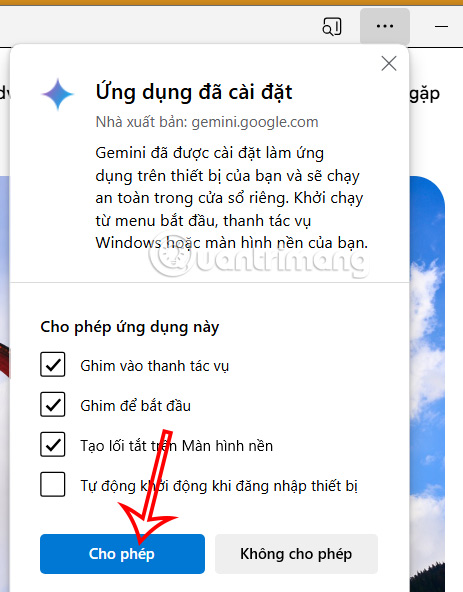
That's it. Google Gemini is now running as a standalone app on your Windows machine.

How to Install Gemini via Google Chrome
Step 1:
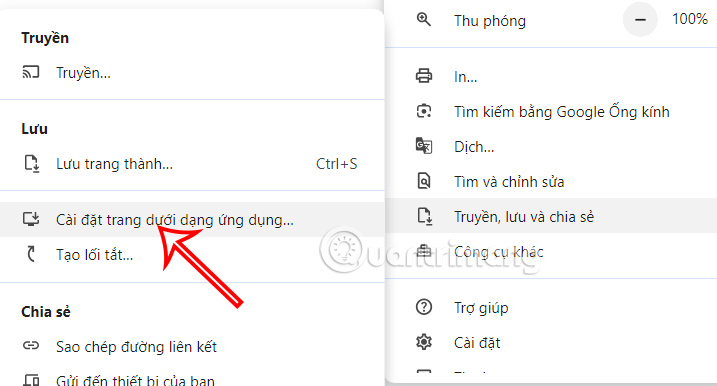
Navigate to Gemini in Google Chrome and click the three-dot menu. From there, select Save and share, then tap Install this site as an app.
Step 2:
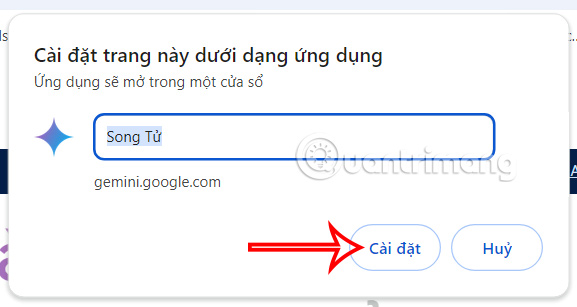
A dialog box appears asking for an app name. Type whatever you'd like to call it, then click Install at the bottom.
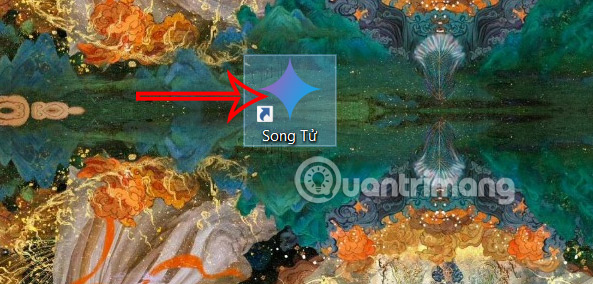
Gemini now appears as a standalone app on your desktop, ready to use anytime.
Uninstalling Gemini from Windows
Step 1:
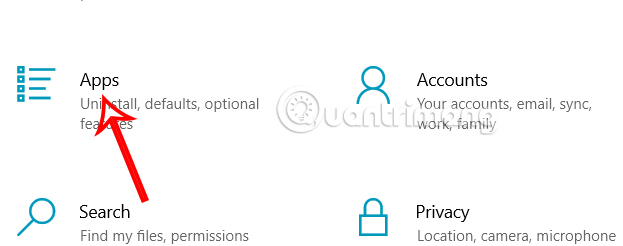
Press Windows + I to open Settings. Then click Apps to view your installed applications.
Step 2:
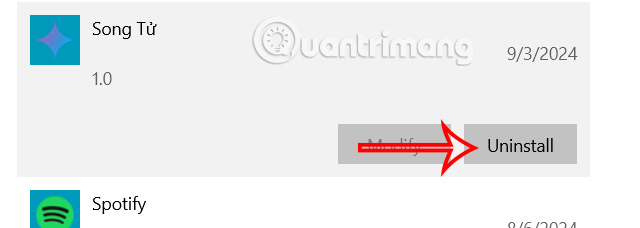
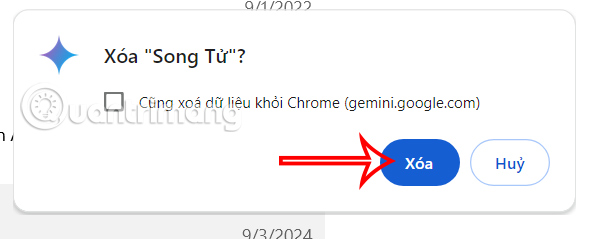
Find the Gemini app in the list and click it. Then click Uninstall to remove it from your system.
A confirmation window will appear. Click Delete to finalize the removal.
Creating Gemini Shortcuts on Windows
Don't want to install Gemini as a full app? No problem. You can create a quick shortcut instead for faster access without the full installation.
Adding a Gemini Shortcut in Chrome
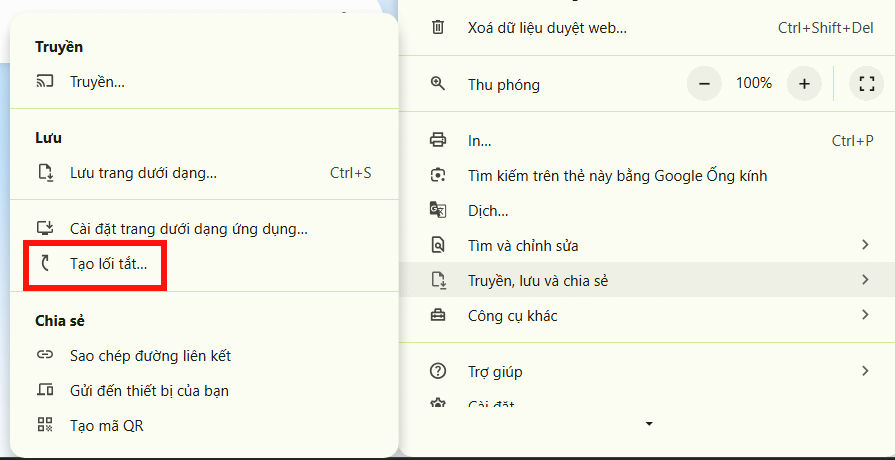
Go to Gemini in Chrome, click the three-dot menu, select Save and share, then choose Create shortcut.
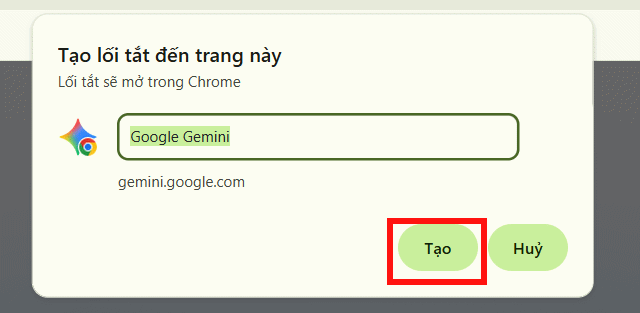
A shortcut creation window appears. You can rename it if you want, then click Create to add the shortcut to your Windows desktop.
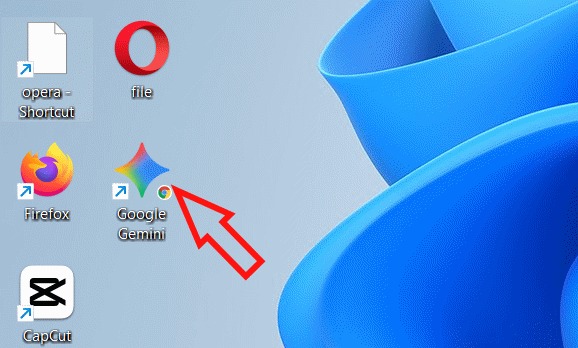
Done. You'll see a Gemini shortcut on your desktop. Clicking it opens Gemini in a new Chrome tab instantly.
Adding a Gemini Shortcut via Edge
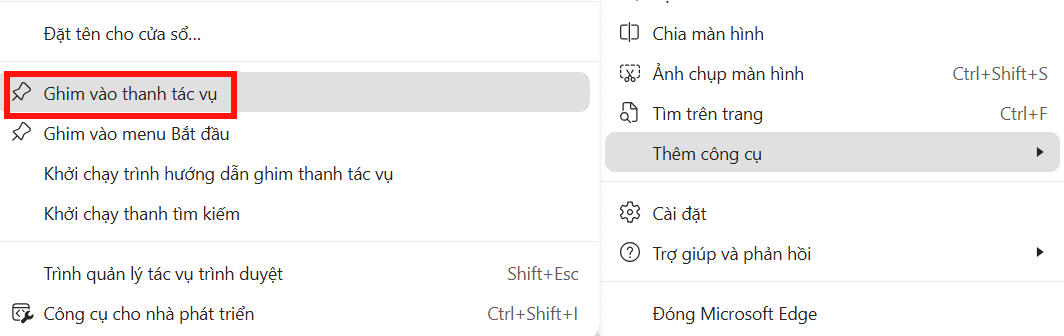
In Microsoft Edge, click the three-dot menu, select Add tools, then choose Pin to taskbar to create a Gemini shortcut in your taskbar.
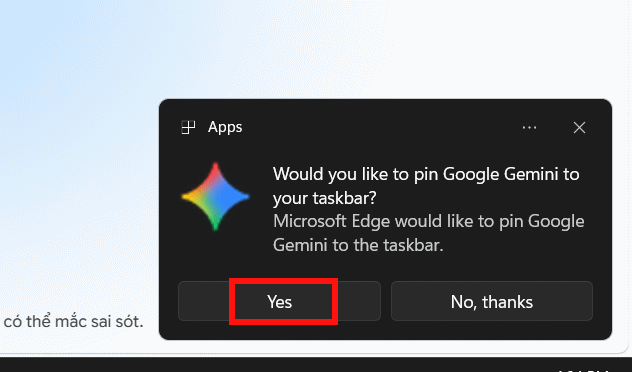
A confirmation prompt appears in the bottom right corner. Click Yes to confirm.
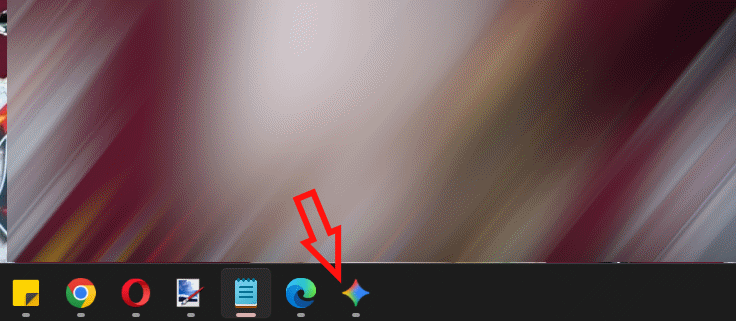
Now you can click the Gemini icon in your taskbar anytime for instant access.
Frequently Asked Questions About Gemini on Windows
Can I install Gemini on Windows 10 and 11?
Yes. Both Windows 10 and Windows 11 support installing Gemini as a web app through your browser. The steps are identical regardless of your Windows version.
Do I need to download an installer file?
No. When you install Gemini as a web app, you're not downloading any separate files. Just open Gemini in Chrome or Edge and use the built-in install option—that's all you need.
Can I pin Gemini to my Windows taskbar?
Absolutely. After creating the app, you can pin it to your taskbar or Start menu for quick access without reopening your browser.
Can I create a Gemini shortcut on my desktop?
Yes. If you prefer not to install Gemini as a full app, you can create a desktop shortcut instead for quick launches.
Should I use Chrome or Edge to install Gemini?
Either works fine. Choose whichever browser you use most often—it'll make launching and managing Gemini more convenient.
Description: Learn how to install Google Gemini as a desktop application on Windows 10/11 using Chrome or Edge.
Related Articles
- ExcelMerger Pro: Combine Multiple Excel Files Into One
- The Best AI Tools for Teachers in 2026: A Practical Guide
- Build Parent-Teacher Meeting Slides in Minutes Using Canva AI
- Copilot Studio Now Lets You Connect Bing Custom Search as an Agent Knowledge Source
- What Makes Google Flow Agent Special? Complete Guide to AI Video Creation

No Comment to " Installing Google Gemini as a Windows App: Complete Guide "