Building Custom Skills Directly in Google Docs: A Complete Guide

Google Workspace Skills is rolling out across Google's ecosystem faster than ever. What's interesting here is that you're no longer confined to using Gemini in isolation. Instead, you can ask Gemini to build, refine, and validate custom skills for your Google applications without switching windows. It's a significant workflow improvement for teams relying on Google's suite.
Once you enable a skill, Gemini can recognize when it's the right tool for the job and apply it automatically. Alternatively, you can manually invoke the skill whenever you need it. Here's the breakdown of how to get started.
Creating Skills in Google Docs: Step by Step
A quick heads-up: this feature is still in beta and only available in select regions, so full rollout will take some time.
Step 1: Access the Skill Builder
Open Google Docs and locate the Gemini icon at the bottom of your screen. Click the three horizontal lines menu and select Skill builder to begin creating your skill.
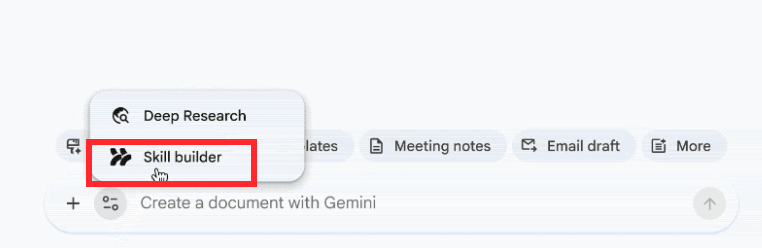
From here, you'll instruct Gemini to generate a skill based on template documents you provide. In this example, we're creating a Proposal Automation Skill that learns from your existing proposal templates.
Create a proposal automation skill based on these examples: Full Cymbal Proposal, Cymbal Investment Proposal. Integrate HubSpot and past sales history for accuracy, analyze requests against historical sales, and maintain our brand voice. Once finalized, automatically share the document in the Chat.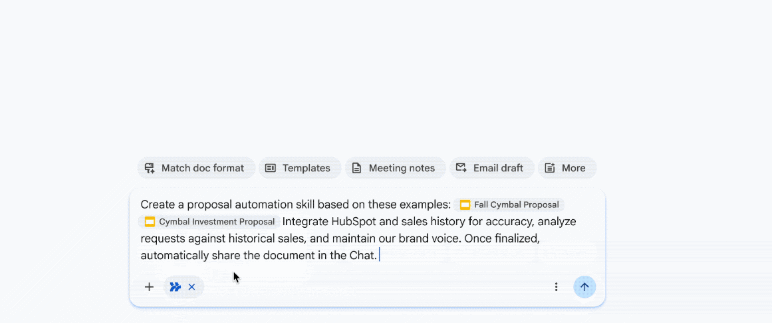
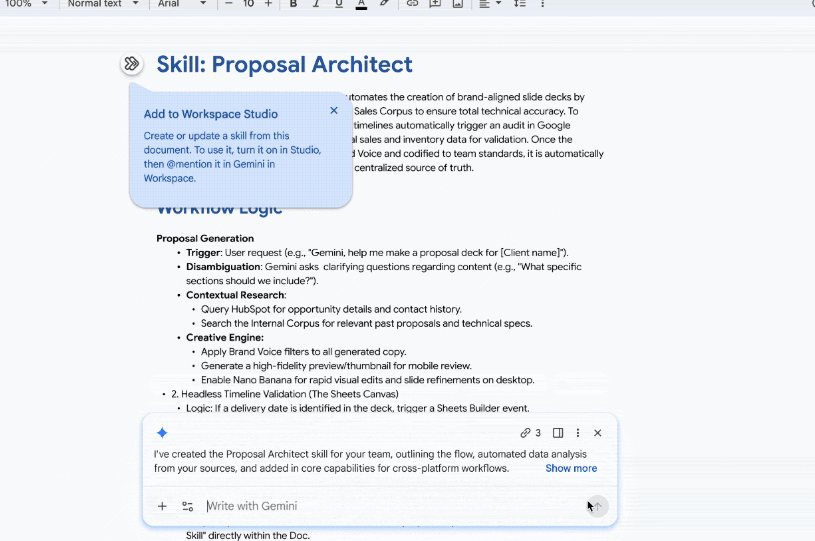
The result? A new skill called Proposal Architect that automates the entire proposal creation and management workflow using Gemini and Google Workspace tools. This is exactly the kind of time-saver teams need.
Your newly minted skill automatically syncs across all Google Workspace applications, ready to be called whenever you need to generate content. On this screen, click Add to Workspace Studio to integrate the skill into your workspace.
Step 3: Activate Your Skill
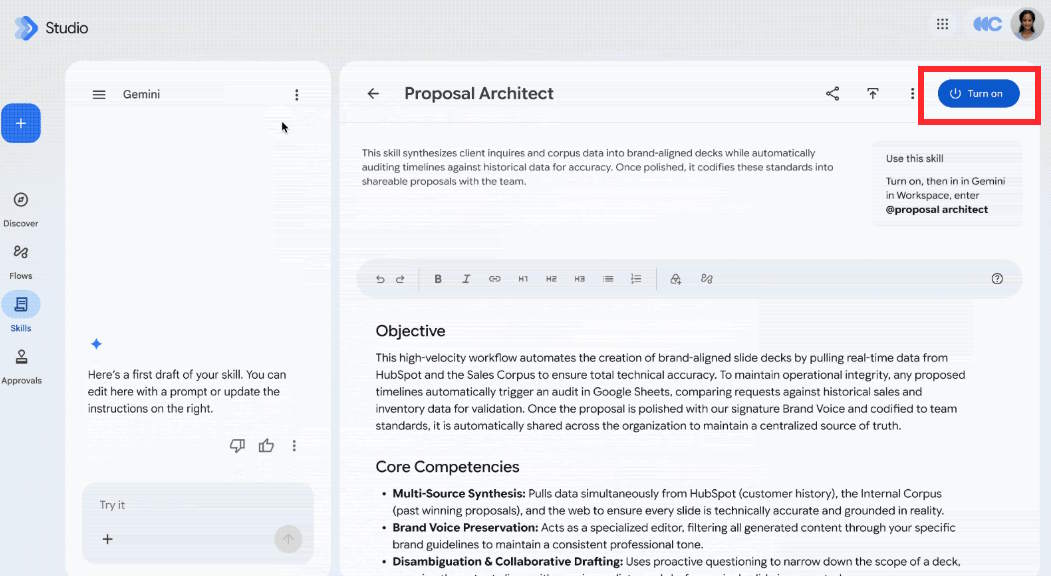
Navigate to Workspace Studio, and you'll see your new skill displayed with details about its functionality—in this case, generating proposals and presentation slides for business use. Hit the Turn on button to activate it across your workspace.
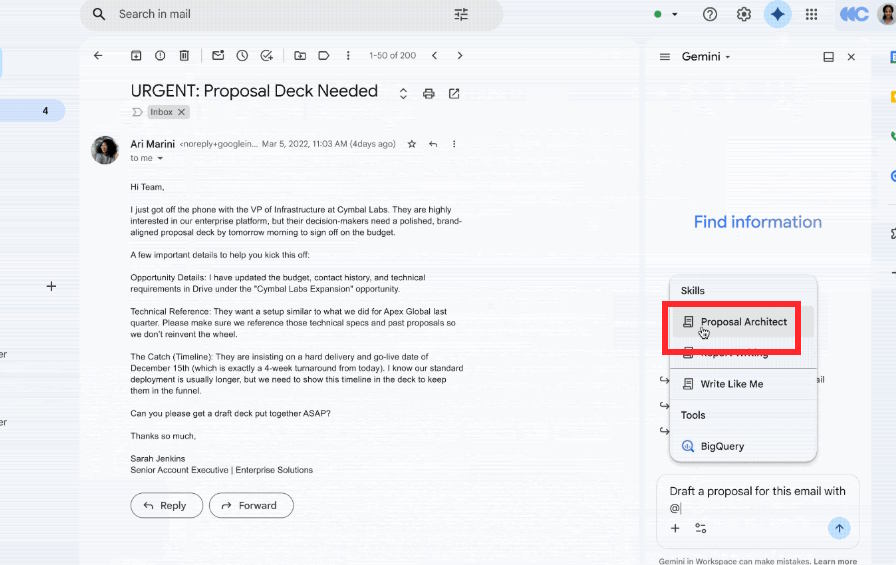
Now jump over to Gmail (or any other Google app). Click the Gemini icon and draft a message. In the chat window, type your request for an email, then enter @ followed by your newly created skill name. Gemini will generate content aligned with that skill's training. The real concern is ensuring your skills are specific enough to produce consistently useful results—too broad, and you'll get generic outputs.
Description: Learn how to create and deploy custom Google Workspace Skills through Gemini without leaving Google Docs. Step-by-step instructions inside.
Related Articles
- What Data Do AI Chatbots Collect From You? Privacy Tips for ChatGPT, Gemini, Claude, and Grok
- 9 Top Machine Learning Courses Worth Taking in 2026
- Build Your Own Custom AI Voice with NoteGPT's Voice Designer
- Resolving the Gemini Error 1076: A Complete Troubleshooting Guide
- Where Did the Copilot Button Go? Here's Why It Disappeared from Your Office Apps

No Comment to " Building Custom Skills Directly in Google Docs: A Complete Guide "