How to Manage Your iCloud Mail Directly Through ChatGPT
ChatGPT now integrates iCloud Mail directly into the chatbot for all users—whether you're on a paid or free plan. Once you link your iCloud Mail to ChatGPT, you can leverage AI to search emails, summarize content, and process information at speed. No more tedious manual email work.
This guide walks you through connecting iCloud Mail to ChatGPT and shows you how to use it safely and effectively for your email management.
Connecting iCloud Mail to ChatGPT: Step-by-Step
Step 1:
Open ChatGPT and click the Plugins option in the left sidebar.
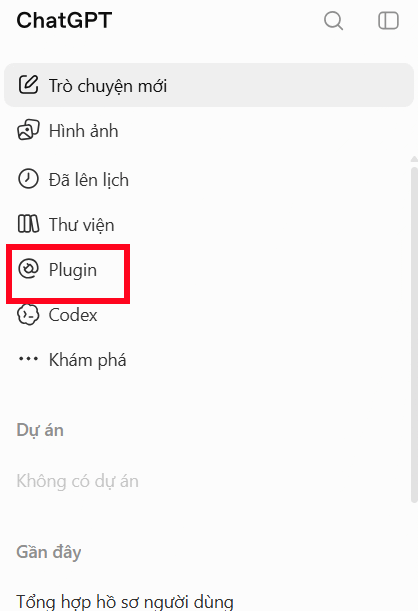
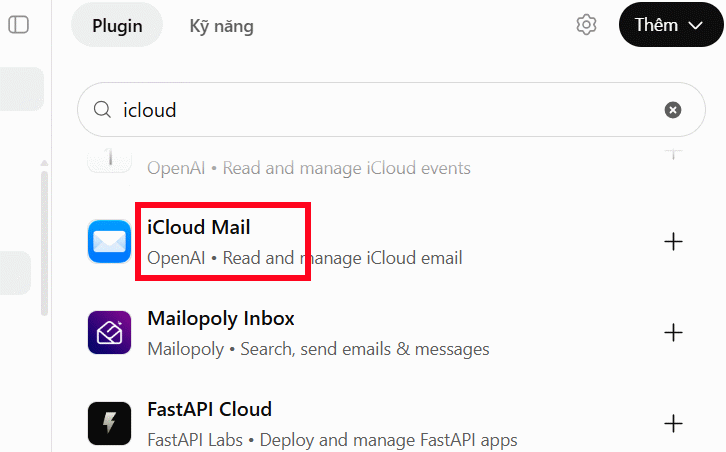
In the search bar that appears, type "icloud" to find the app. Then select iCloud Mail from the results to begin the connection process.
Step 2:
Click Configure Plugin to proceed with the connection setup.
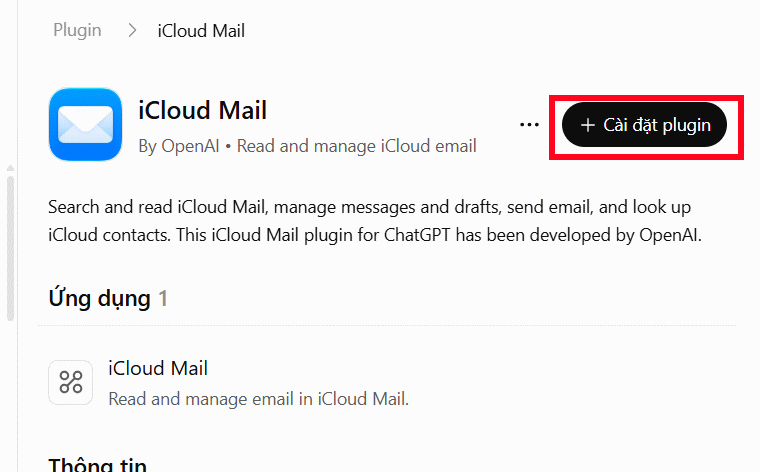
Now select Connect iCloud Mail to move forward.
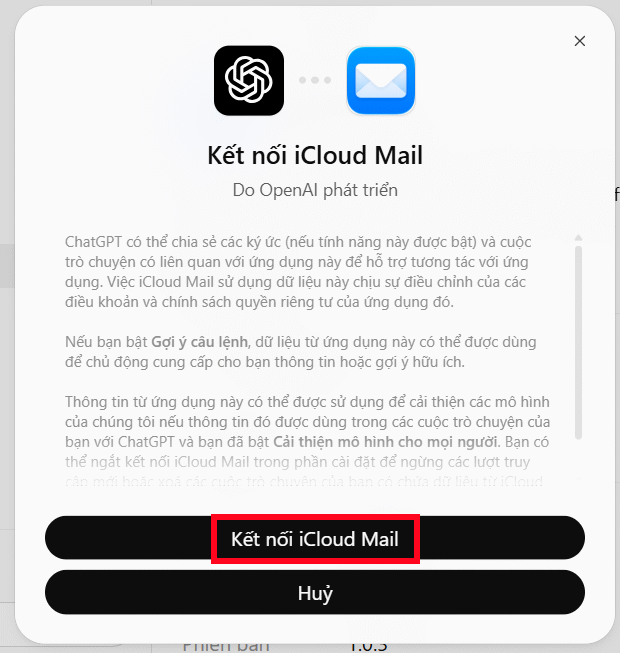
Step 3:
Enter your iCloud email address in the field and tap Next.
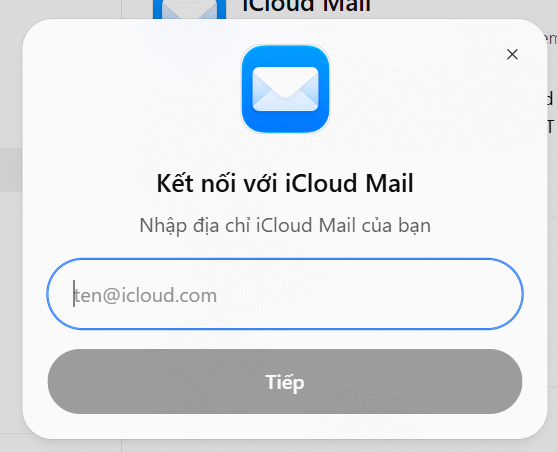
What's interesting here is that ChatGPT doesn't ask for your regular Apple Account password. Instead, you'll create an app-specific password—a security-first approach. Your Apple Account must have two-factor authentication enabled to generate this type of password.
Visit the Apple Account page and sign in with your Apple ID.
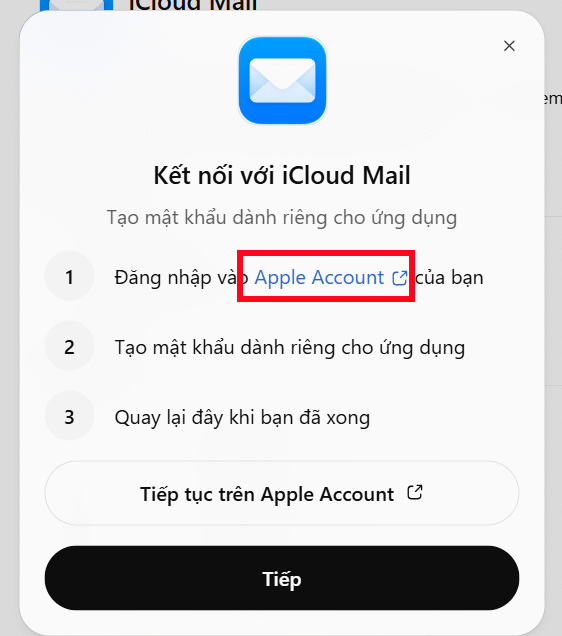
Step 4:
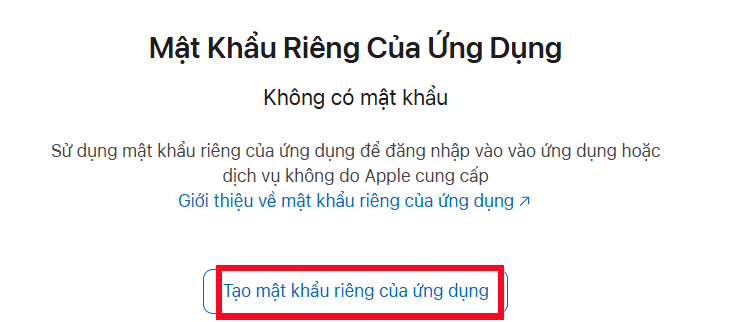
After signing in, navigate to App-Specific Passwords from the sidebar menu.
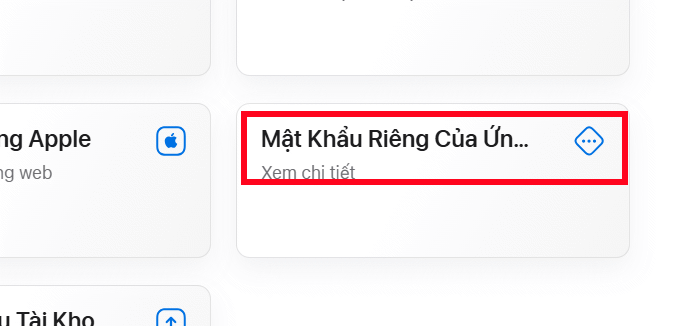
Select Generate an app-specific password.
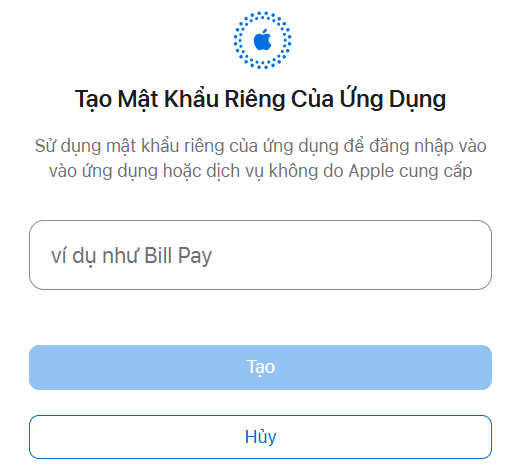
Type "ChatGPT" as the app name, and Apple will generate a unique password just for this integration.
Critical reminder: Don't use your regular Apple Account password here. Never share this app-specific password in conversations or with anyone else.
Step 5:
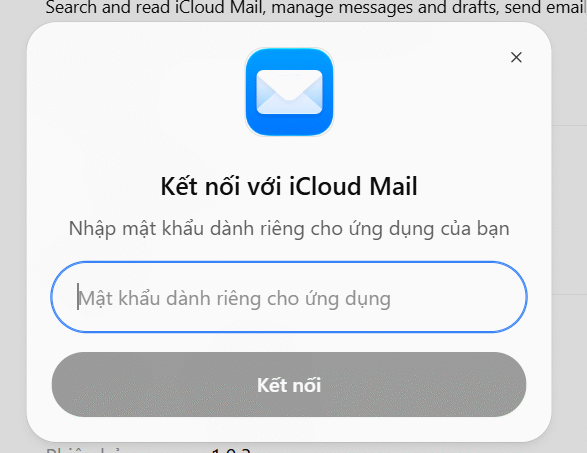
Return to the ChatGPT window, click Continue, and paste the app-specific password Apple just generated. Done—your connection is now live.
Once connected, you can ask ChatGPT to:
- Find emails by sender name, keywords, or subject line.
- Read and summarize email messages.
- Manage emails and drafts.
- Compose and send emails on your behalf.
- Look up contact information saved in iCloud.
Using ChatGPT to Manage iCloud Mail
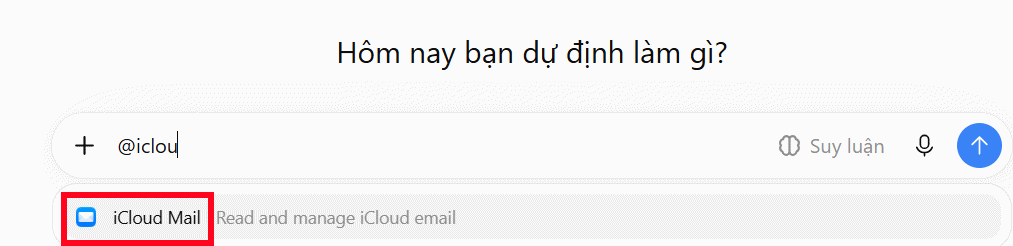
Back in ChatGPT, type @icloud and select iCloud Mail from the dropdown. Then type your command to search, read, or process emails.
Here are some example commands to try:
Search for emails in your inbox
Find the most recent email from example@icloud.comSummarize your mailbox
Find unprocessed work-related emails and summarize what I need to do next.Find emails by subject
Find all emails with "quote" in the subject from the past 30 days. List the sender, date received, and main content.ChatGPT will filter through your mailbox and return results based on your request. It'll notify you whether it found matching emails or not.
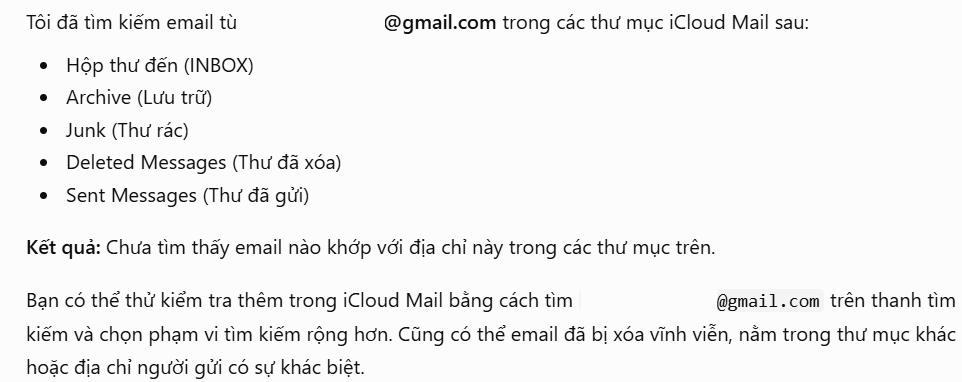
Common Connection Issues and Fixes
Running into trouble? Here are the most frequent problems and how to solve them.
- Can't find iCloud Mail in ChatGPT: Check your ChatGPT account status. Try signing out and signing back in to refresh the plugin list.
- Invalid password error: Verify your iCloud email address is correct. Confirm you're using the app-specific password, not your regular Apple password. Check if the old password was revoked.
- Connected but ChatGPT can't find emails: Double-check that you connected with the right iCloud email address. Make sure your command syntax is correct and targets the right mailbox.
- Connection keeps dropping: Try reconnecting using the app-specific password again. If the problem persists, check ChatGPT's status page for any service issues.
Security Best Practices for iCloud Mail + ChatGPT
The real concern is access control. Once you authorize ChatGPT, it can read and act on your emails within the permissions you grant. Here's what you should do:
- Only connect accounts you own or have explicit permission to manage.
- Review the access permissions carefully before confirming.
- Always double-check the recipient and message content before asking ChatGPT to send an email.
- Never paste your regular Apple Account password into the chat.
If you no longer want ChatGPT accessing your iCloud Mail, disconnect it through ChatGPT's app management settings. You can also revoke the app-specific password from your Apple Account page anytime.
Description: Learn to connect iCloud Mail with ChatGPT and use AI to search, summarize, and manage your emails efficiently.
Related Articles
- Google Now Lets You Share Gemini Gems — What Does This Mean for AI Teamwork?
- How AI Is Reshaping Software Development: A Practical Guide for Modern Teams
- The 7 Best Web Crawling Tools and APIs in 2026 for AI and RAG Systems
- Understanding Plugins in Claude Code
- Privacy-First AI Chat: Why Proton's Lumo Chatbot Changes the Game

No Comment to " How to Manage Your iCloud Mail Directly Through ChatGPT "