How to Remove People from Photos in Canva Using AI
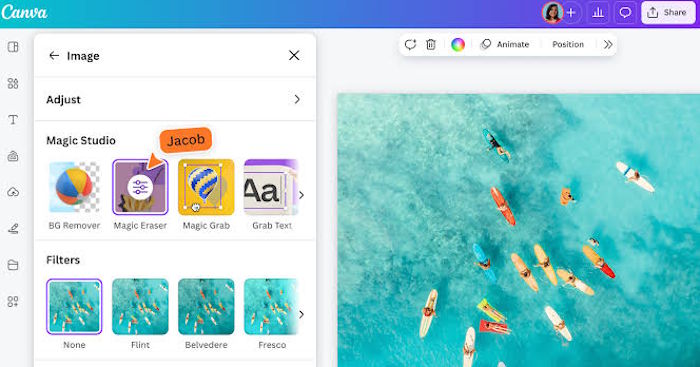
Canva's Magic Eraser tool has become the go-to solution for anyone wanting to clean up photos by removing unwanted subjects without investing in expensive software like Photoshop. The beauty of this AI-powered feature? It automatically detects what you want to remove and intelligently reconstructs the background behind it, leaving your image looking natural and polished. Just a few clicks, and you're done.
This guide walks you through the entire process of removing people from images using Canva's Magic Eraser. Follow along and you'll produce clean, professional results while saving yourself considerable editing time.
What is Magic Eraser on Canva?
Magic Eraser is an AI-driven photo editing tool built into Canva that lets you effortlessly remove unwanted elements from images—people, objects, text, or any distracting visual noise. The tool works by recognizing the area you want to delete and then automatically regenerating the background beneath it, keeping your photo looking natural without requiring professional-grade editing software.
Canva created this feature to streamline the editing workflow, helping users save time when they need to polish images before publishing them online.
Step-by-Step Guide to Removing People from Photos in Canva
Step 1:
Start by uploading your image into Canva. Magic Eraser is part of Canva's Magic Studio suite—a collection of AI-powered design tools.
Step 2:
In the image editor, click on the Magic Eraser tool.

You'll see two removal options: use a brush to manually outline the person you want to delete, or use the tap-to-select feature to let Magic Eraser identify and highlight subjects for you to remove.

Step 3:
Choose your removal method. If you select the brush tool, pick your brush size and paint over the person you want to remove, then click Erase.

Wait a moment while the AI processes. If the result isn't what you wanted, hit the Reset Content button to restore your original image.

Finally, click the save icon to download your edited photo, or click Edit Design to continue refining it in Canva.

Here's a side-by-side comparison of the before and after results.


Step 4:
Beyond removing people, you can eliminate any unwanted details from your image using the exact same process.

Canva handles removing those extra elements just as effectively.

Tips for Getting the Best Results with AI Removal in Canva
To achieve natural-looking, polished edits when using Magic Eraser, keep these best practices in mind:
Start with high-quality images: High-resolution, sharp photos give the AI better data to work with. It'll accurately identify subjects and regenerate backgrounds that look convincingly natural.
Be precise with your selection: Only mark the area containing the person or object you want removed. Selecting too large an area risks the AI accidentally erasing important details.
Favor simple backgrounds: Images with minimal background detail and fewer overlapping objects produce better results. Complex, cluttered backgrounds make AI removal trickier.
Work in sections on complex images: For photos with lots going on, erase one small area at a time rather than trying to remove an entire subject in one go. This gives the AI better precision.
Combine with Canva's other editing tools: Magic Eraser is fast, but it can struggle with crowded scenes, detailed patterns, or partially hidden subjects. What's interesting here is that using complementary tools in Canva afterward can help you refine the final result and catch any imperfections the AI missed.
Description: Learn how to use Canva's AI-powered Magic Eraser tool to remove unwanted people and objects from your images in minutes.

No Comment to " How to Remove People from Photos in Canva Using AI "