Privacy Settings You Need to Check Right Now If You Use Claude Daily
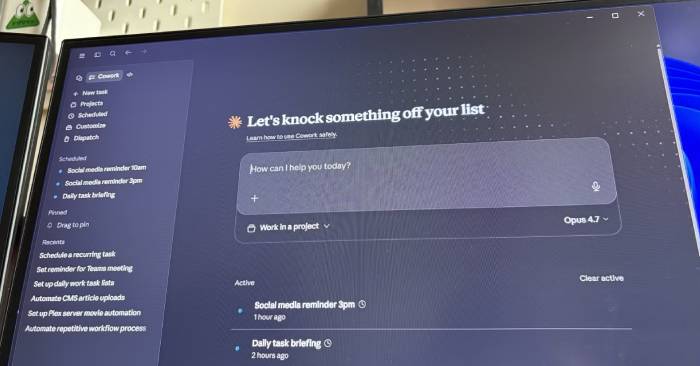
If you've been using Claude's paid version for a while now, you've probably come to rely on it as one of your most trusted AI tools. But here's the thing — while you might love what it can do, you also care deeply about your privacy. As you dig into the app's settings and start tweaking things, you'll run into several options that deserve more than a quick glance.
Some features come switched on by default even though you'd rather have them off, while others are worth enabling depending on how you actually use Claude day-to-day. Taking time to adjust these settings to match your needs makes a real difference. Rather than leaving everything as it comes out of the box, regular Claude users should definitely spend a few minutes exploring the Settings menu.
In This Article
Location Data Tracking in Claude
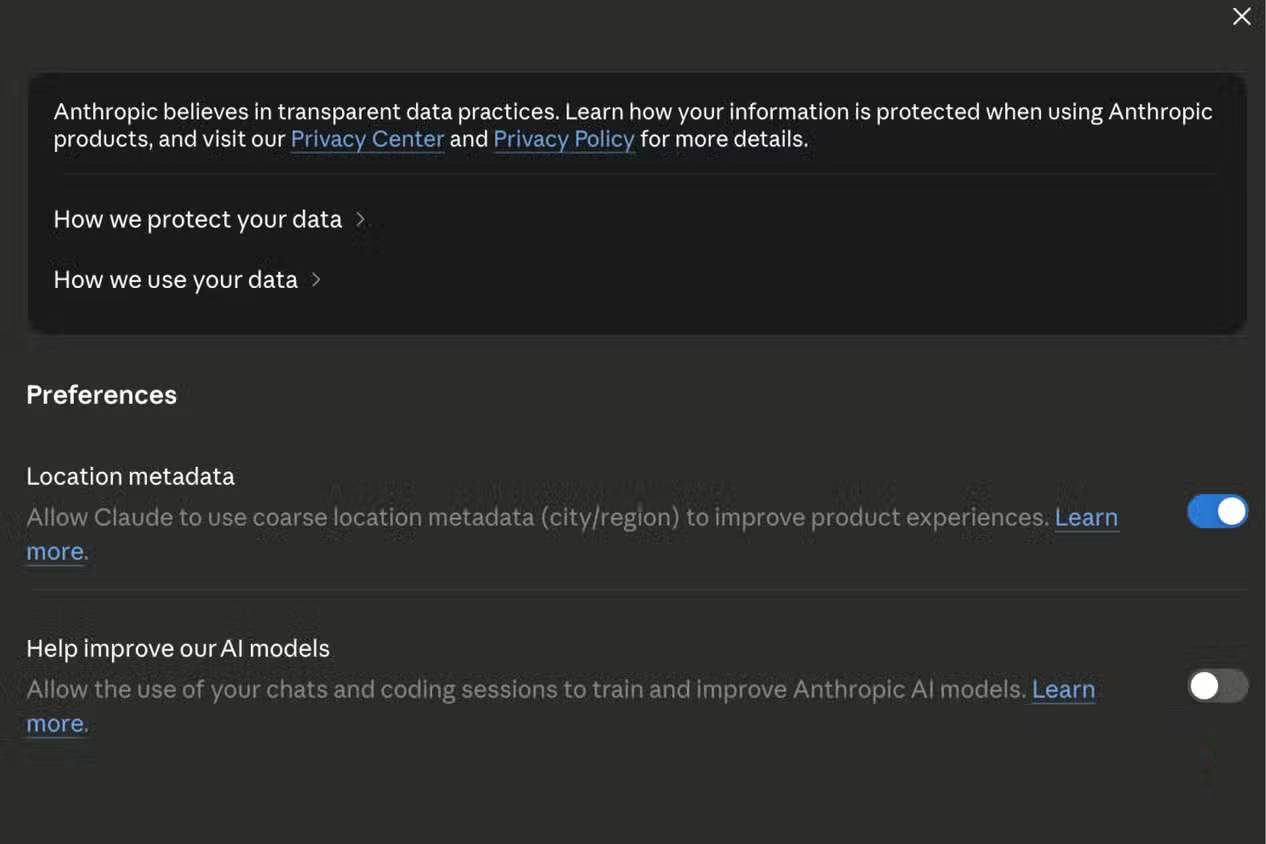
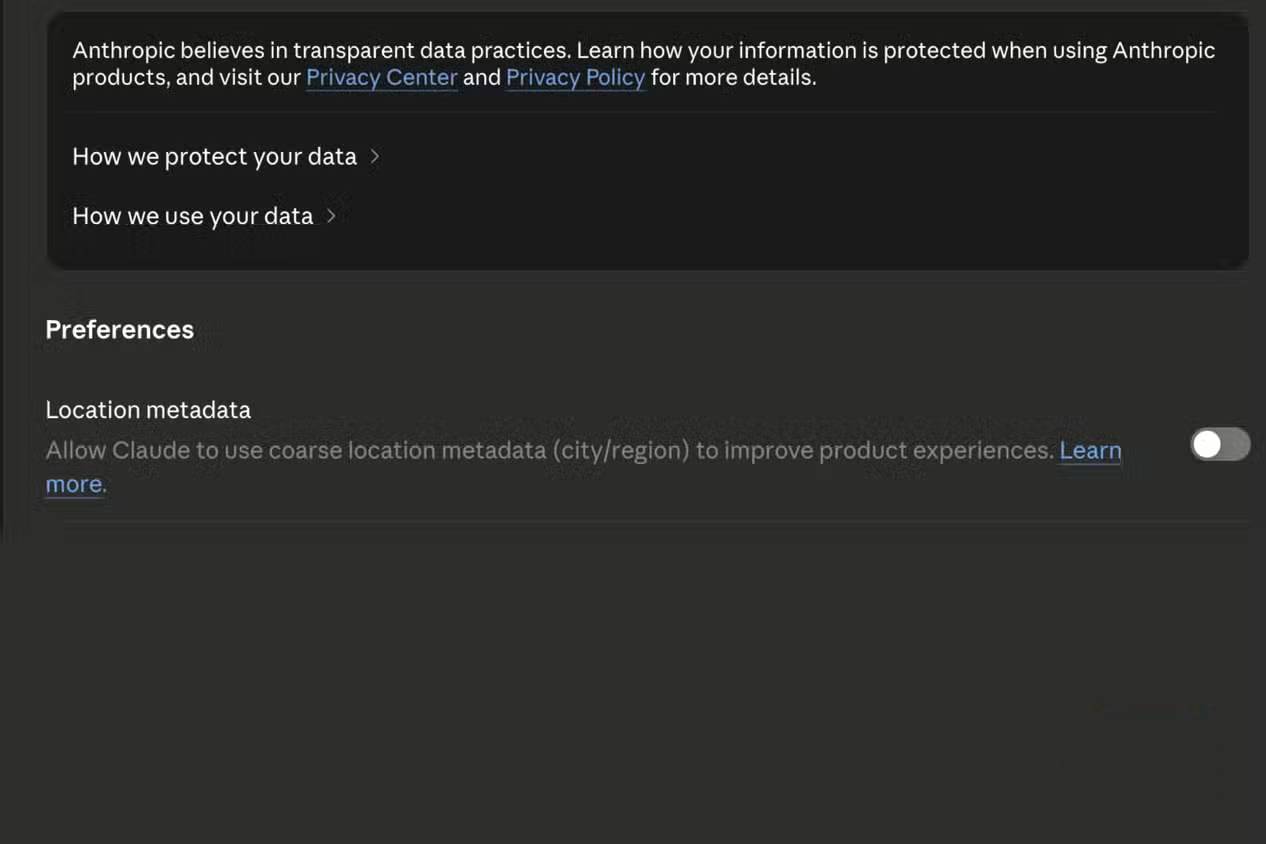
When you start looking through Claude's privacy settings, one option jumps out immediately: Location Metadata. You probably don't want Claude to know where you are, yet this setting comes enabled by default. To be fair, Claude is pretty transparent about why they collect this data — they say location information can improve certain product features.
After reading their explanation, you might feel better about turning this off. Claude explains that when you use features that need location data — like searching for nearby places or local information — the system uses your IP address to figure out your general location at the city or region level. That's why queries like "Find a coffee shop nearby" or "What's the weather today?" could be answered based on where you actually are.
That makes perfect sense for people who regularly ask Claude for location-specific information. But here's the problem: not everyone does. If you mostly use Google Maps or Search for those kinds of lookups and rarely ask Claude for local suggestions, then Location Metadata doesn't really provide much value. Here's how to turn it off:
- Open Claude on your phone or computer.
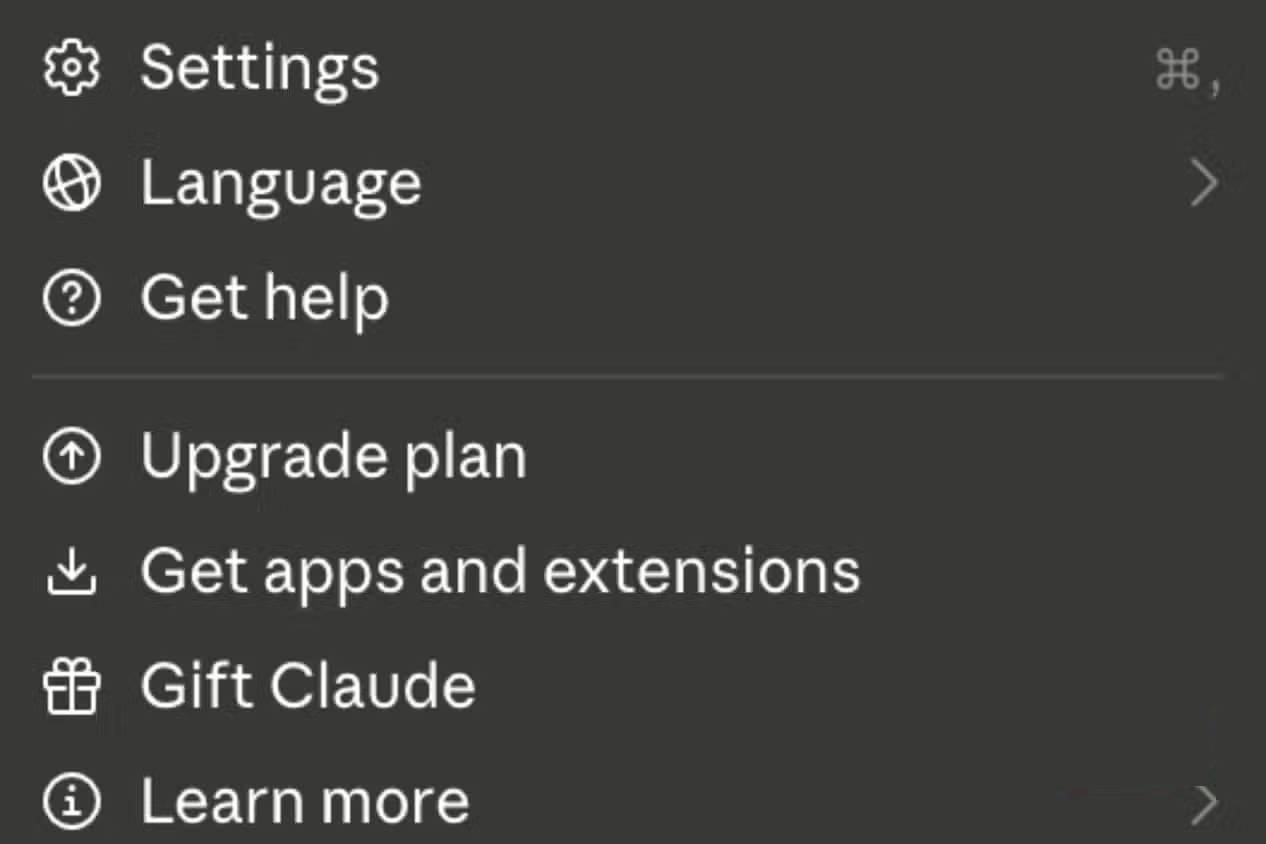
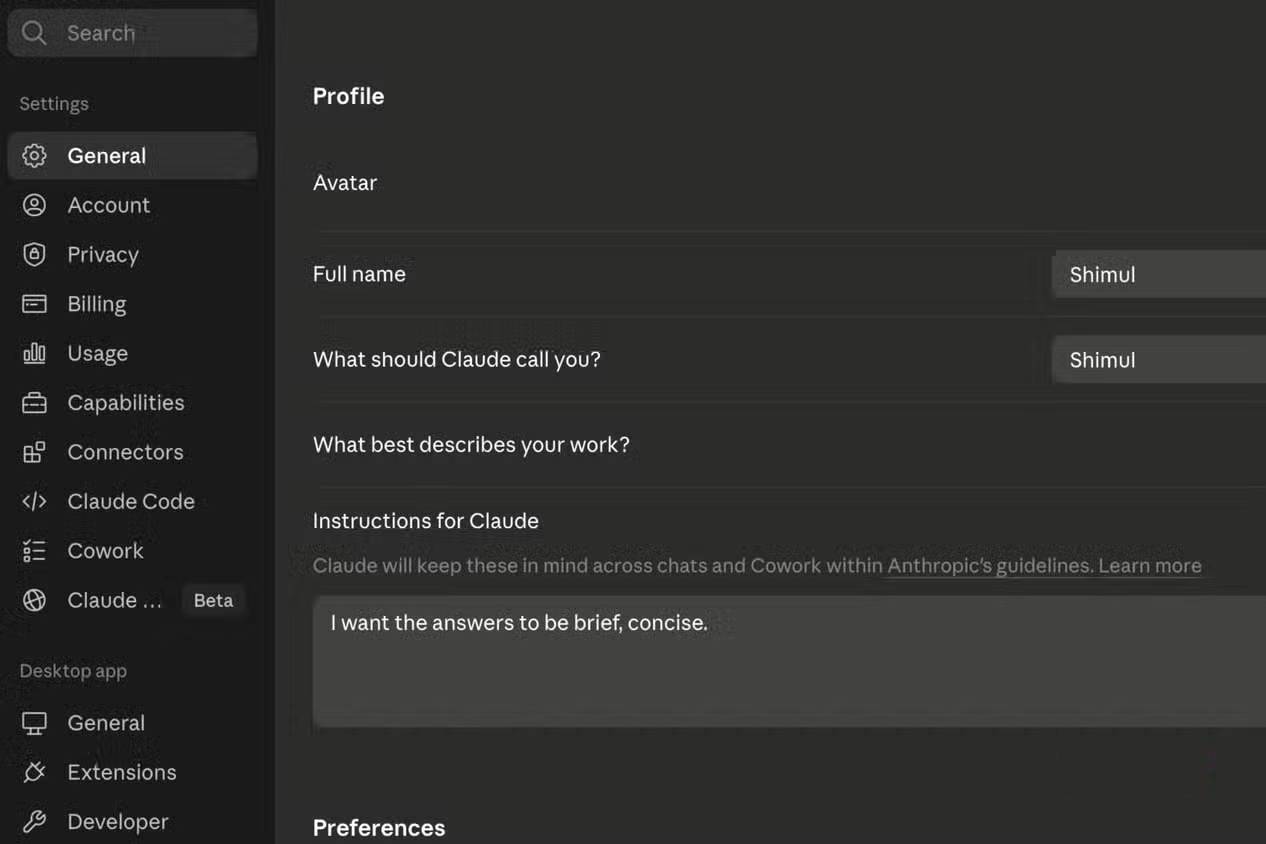
- Tap your profile icon, then select Settings.
- Go to Privacy.
- Under Preferences, find Location Metadata and toggle it off.
Even if you decide to leave it on, understanding what it does and whether you actually benefit from it is always worth the time.
The "Help Improve Claude" Setting
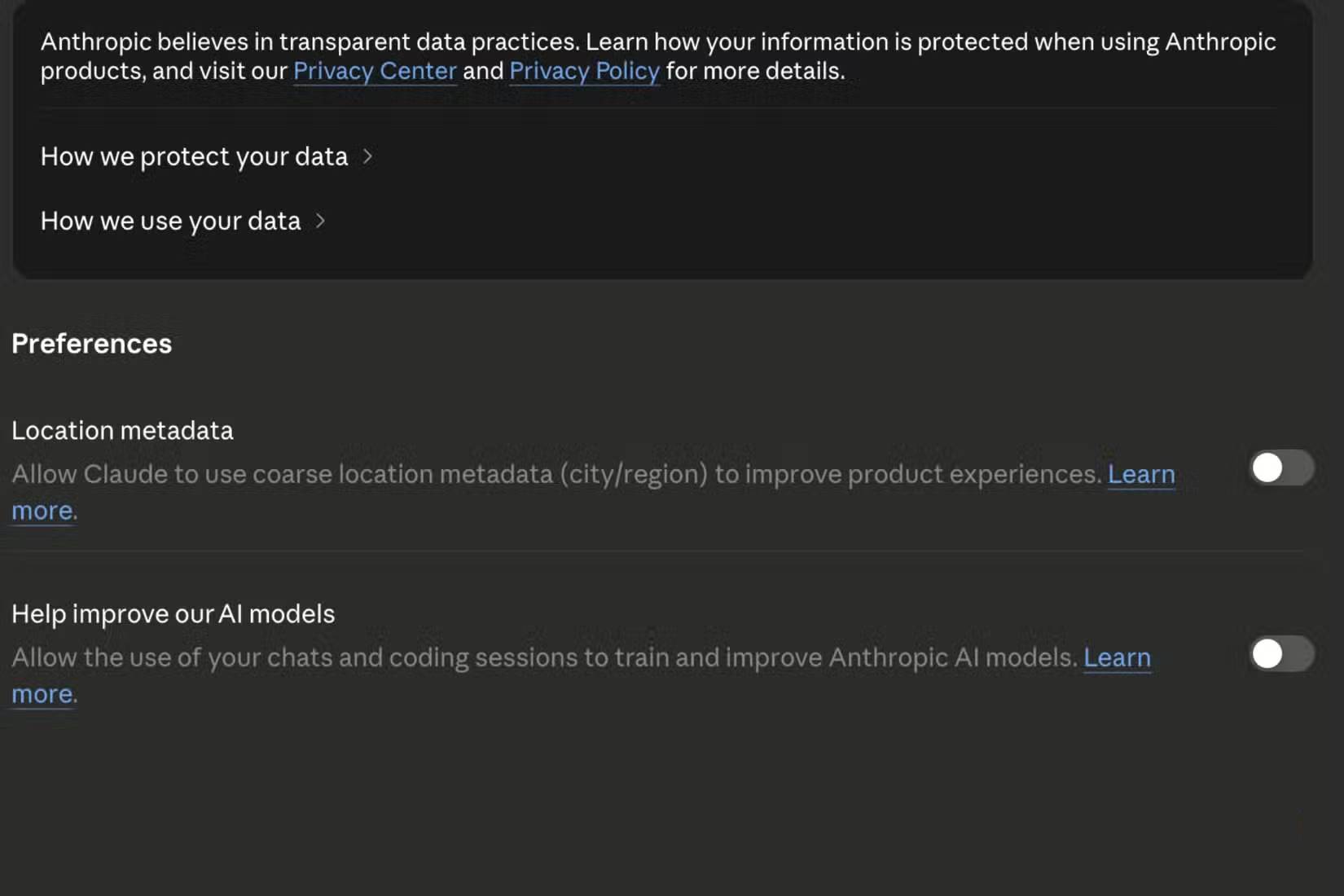
Right below the Location Metadata toggle, there's another setting that will probably grab your attention. Claude has a feature called Help Improve Claude that's turned on by default. It uses your conversations to improve the service. A lot of people aren't comfortable with that.
It's not like you're sharing deep personal secrets or anything particularly sensitive in Claude. Most conversations are actually work-related. But that's exactly why many people feel uneasy knowing their chats could be used for AI training purposes. Whether it's personal notes, research documents, drafts, or work discussions, most people want to keep that data private between themselves and the AI tool they're using.
So after disabling Location Metadata, they also turn off Help Improve Claude. For them, it's about controlling where their data gets stored and how it's used. If you feel the same way, this is another setting worth reviewing.
Claude's Anonymous Mode Feature
Here's the reality: many people turn to Claude precisely because they don't want to share certain things elsewhere. Maybe it's personal thoughts, sensitive questions, work-related discussions, or conversations they want to keep separate from their regular chat history. No judgment here — everyone uses AI differently.
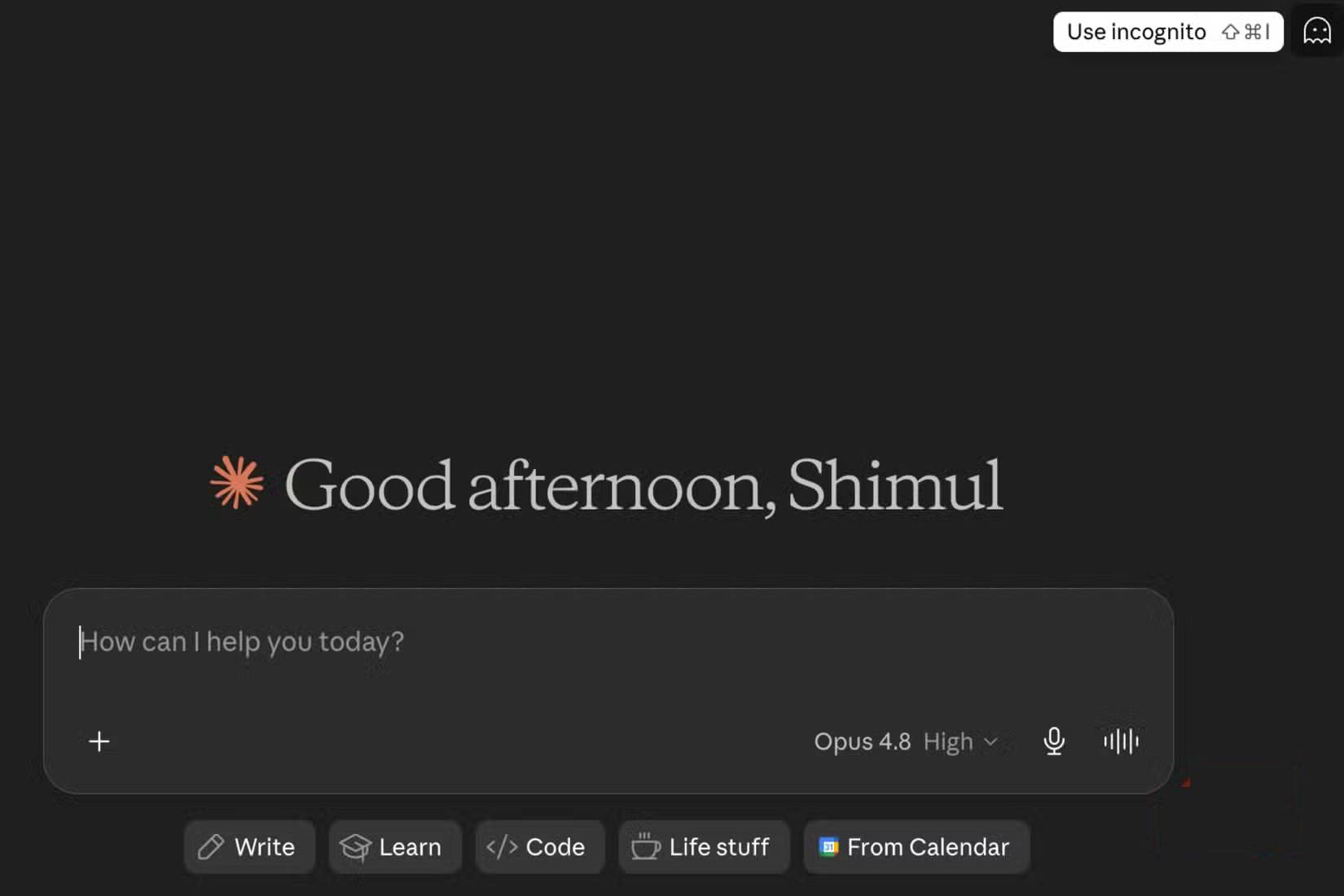
If that sounds like you, you should definitely check out Anonymous Mode. It's designed for when you want an extra layer of separation between a conversation and your normal Claude activity.
The good news? Enabling it takes about a second. Start a new conversation in Claude and click the Anonymous Mode icon in the top right corner. After that, you can chat in Anonymous Mode. Even if you don't use it every day, it's a feature worth knowing about. You might not need it regularly, but when you do, you'll be glad it's there.
Memory: Never Explain Yourself Twice
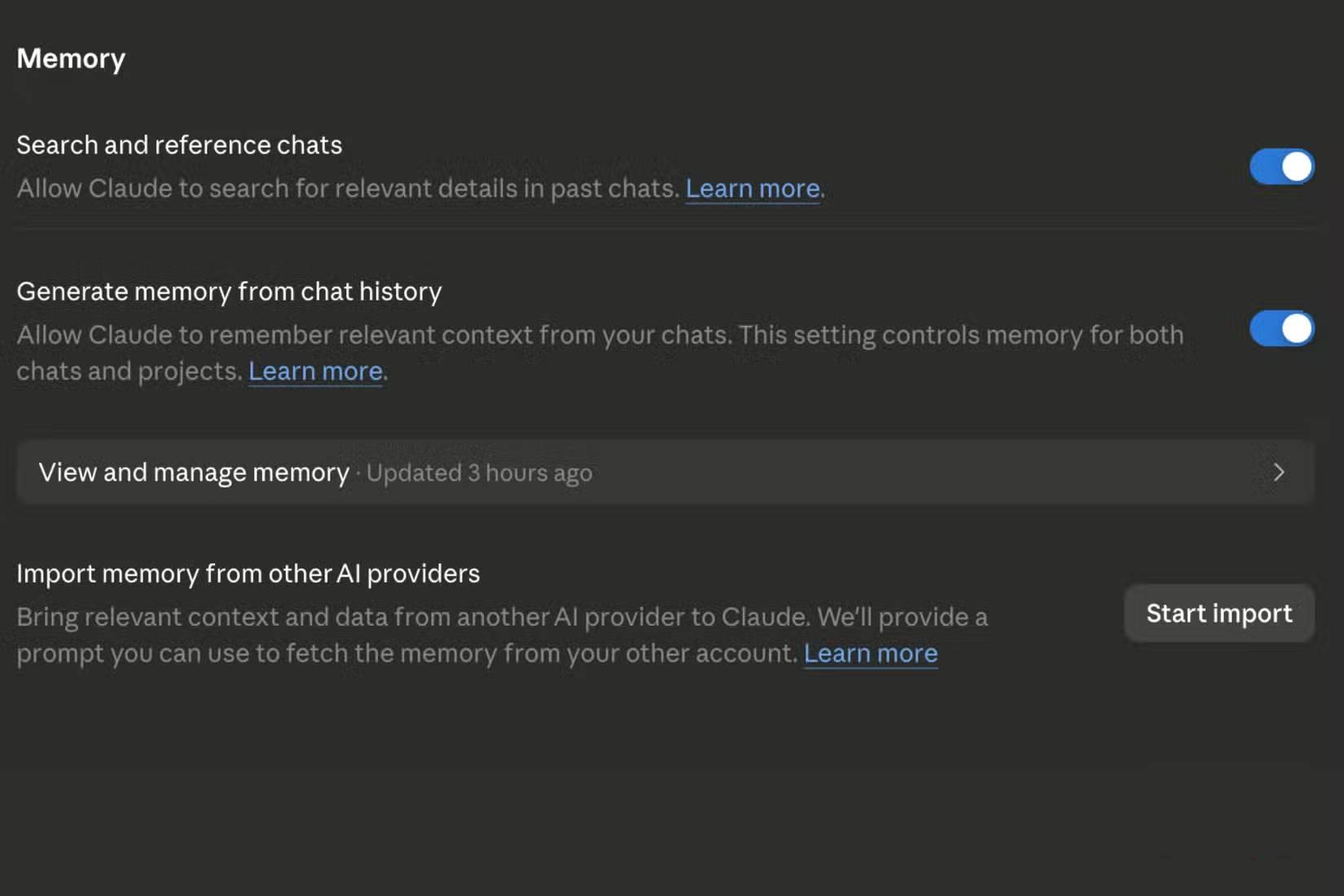
Unlike those privacy-focused settings we just looked at, this is one you should actually keep turned on. What's interesting here is that this could be the most useful feature in Claude, depending on how you work.
Think about it: many regular Claude users lean on it for the same kinds of tasks — researching projects, refining processes, or working through workflows. When Claude can remember context, you don't have to start from scratch each time. Instead of repeatedly explaining your requirements, writing style, or preferred format, Claude can pick up right where it left off.
That said, this is completely a personal preference thing. What works for someone else might not work for you. If you don't want your conversations feeding into Claude's memory, you can turn this off easily. Here's how:
- Open Claude and go to Settings.
- Select Capabilities.
- Under Preferences, find Generate memory from chat history.
- Toggle it off.
This is probably the only setting on this list without a clear right or wrong answer. It really just comes down to whether you want Claude to remember you or treat you like a stranger every time you start a new conversation.
Make Claude Work Your Way
People have spent considerable time using Claude and testing pretty much every feature it offers. Right now, it's easily become one of the most popular AI tools around. At the same time, many users are serious about privacy settings. Not because they have something to hide, but because they want to know exactly what they're sharing and why. Taking a few minutes to review and adjust these settings to fit your personal preferences will make you feel much more confident about the tools you use every day.
What really resonates with people is that Claude actually puts the choices in your hands. It lets you decide how much data you want to share, which features you want active, and how you want the service to work for you. That level of control isn't something every app offers, and it's a big reason why so many people prefer using Claude.
Description: Discover the Claude privacy settings enabled by default that you should review. Control your data sharing and customize your AI experience.

No Comment to " Privacy Settings You Need to Check Right Now If You Use Claude Daily "