Setting Up Scheduled Tasks in Canva AI: A Complete Guide
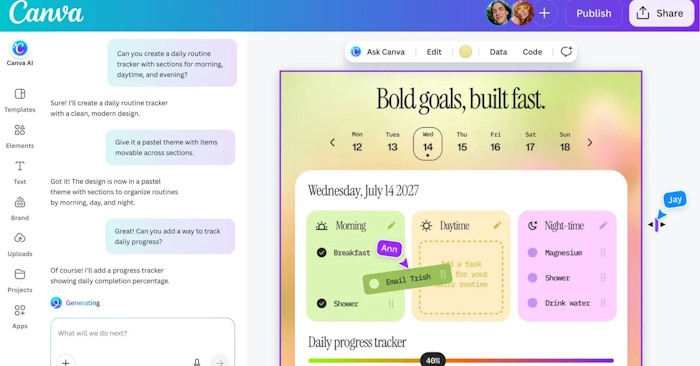
Canva AI just rolled out a game-changing feature: scheduled tasks. Instead of manually requesting the same work every day or week, you can now set it and forget it. Define what you need, specify when you want it done, and Canva AI handles the rest automatically. What's interesting here is how this streamlines repetitive creative work—the kind of stuff that usually eats up your schedule without adding much value.
This is a genuinely useful addition to Canva's AI toolkit. You can batch-schedule content ideas, design requests, or any creative task that follows a pattern. The feature cuts down on redundant work and lets you focus on refining outputs rather than making requests. Here's how to get started with scheduled tasks on Canva AI.
How to Create Scheduled Tasks in Canva AI
Step 1:
Open Canva and click on Canva AI from the left sidebar of your dashboard.

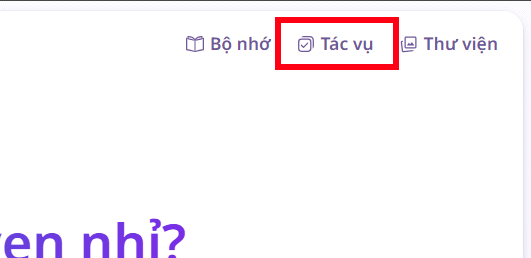
In the new window, look to the right side of the interface and select Tasks to begin scheduling.
Step 2:
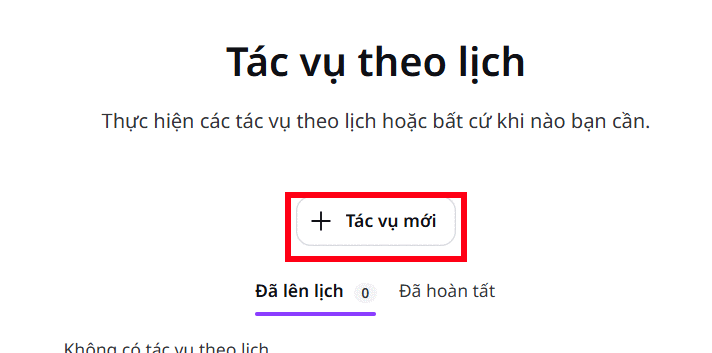
On the Tasks page, click New Task to get started.
Canva AI will present you with a form to fill in the task details—name, description, and execution timing. For example, you might request: "Every day, suggest 3 creative Facebook post ideas with catchy headlines and suggested copy for each."
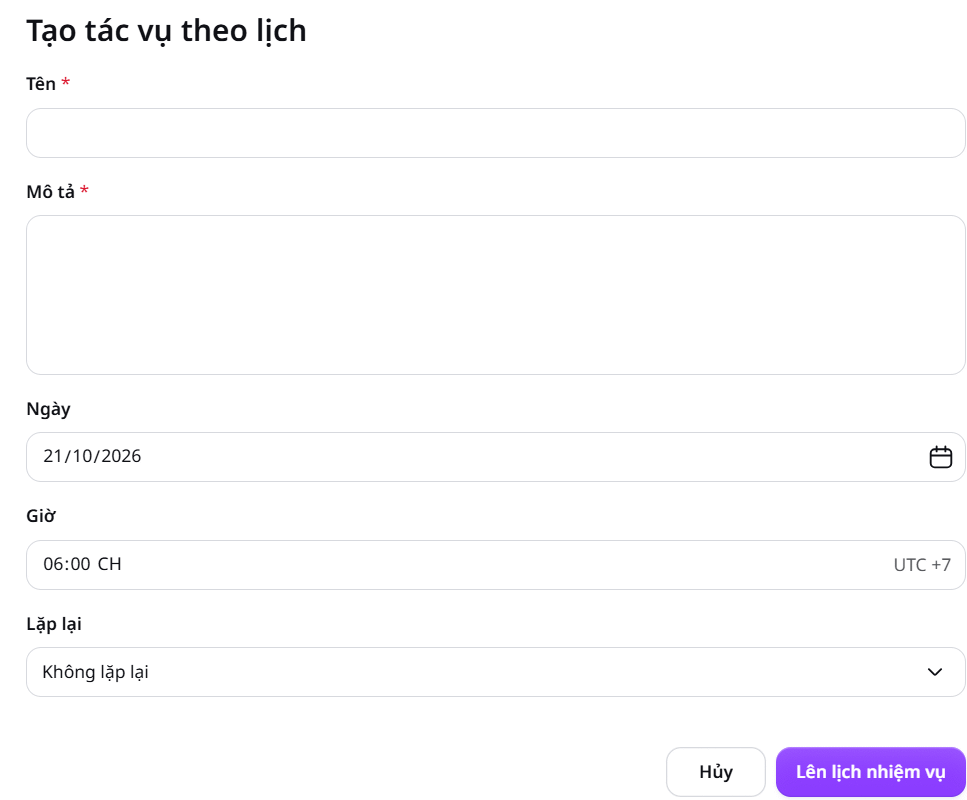
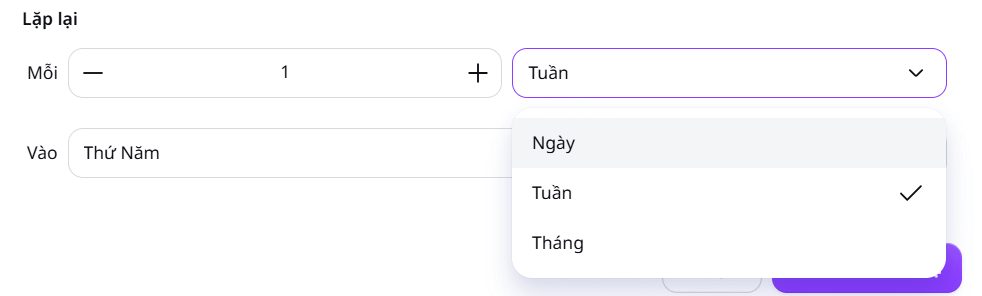
In the Repeat section, you'll find several timing options. You can pick from preset frequencies or click Custom to set your own schedule.
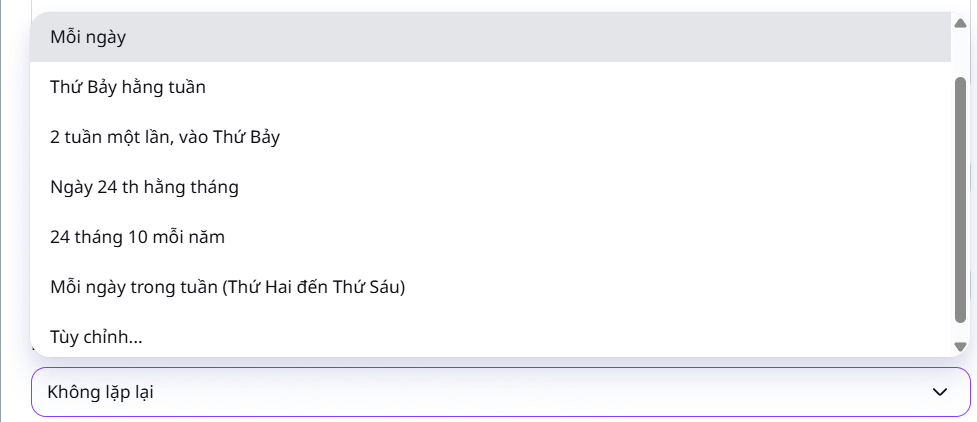
Select your preferred recurrence pattern from the options Canva supports. When you're done configuring, hit Schedule Task to confirm.
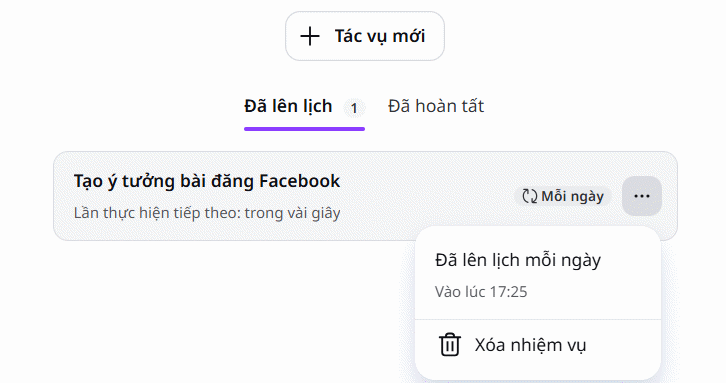
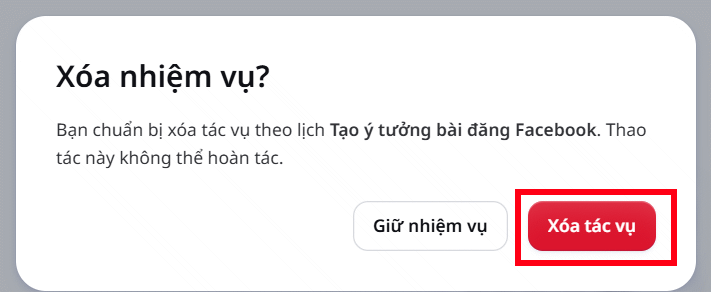
That's it—your task is now scheduled. If you need to remove it later, tap the three-dot menu next to the task and select delete.
Step 3:
When the scheduled time arrives, Canva AI executes the task based on your specifications and sends you a notification when it's complete.
Tap the notification icon to view the finished task.
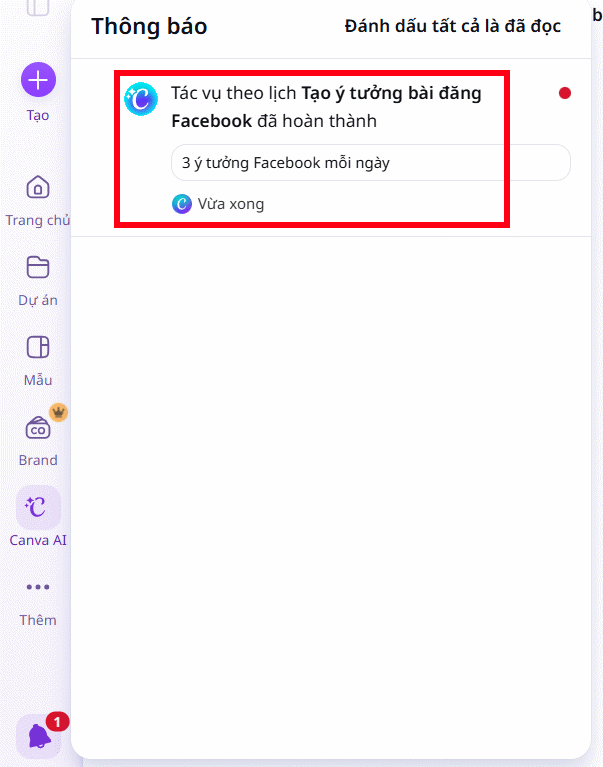
You'll see the completed task content ready to review.
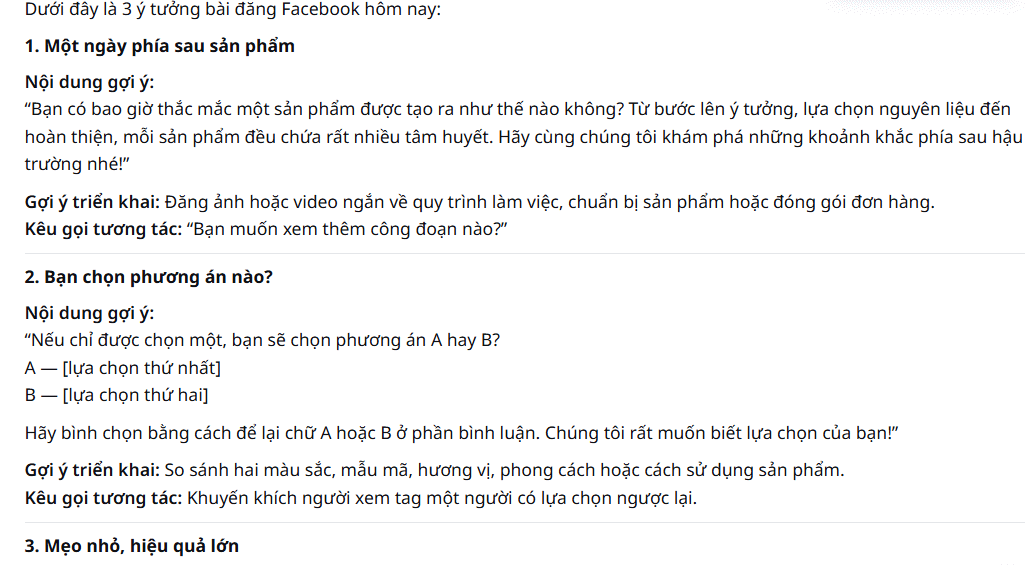
Step 4:
Back on the Tasks dashboard, you'll see your completed work listed under the Completed section.
If you decide to stop using a scheduled task, delete it through the task menu. Select Delete Task to confirm removal.
Description: Learn how to automate your creative workflow by scheduling recurring tasks in Canva AI. Save time and boost productivity with this step-by-step guide.
Related Articles
- The Best AI Tools for Teachers in 2026: A Practical Guide
- Open Design: The Free, Open-Source Alternative to Claude Design That Actually Works
- Generate Schedule Images with a Single AI Command
- Claude Science: Anthropic's AI Platform Built for Research Labs
- Windsurf vs Cursor: Which AI IDE Should You Choose?

No Comment to " Setting Up Scheduled Tasks in Canva AI: A Complete Guide "