n8n Tutorial

  • Loading...
Browsing Category " Download "

3 Outstanding improvements in KB5010414 update on Windows 11




KB5010414 updates on February 15, 2022 updated with a few new features as below. Help Windows 11 become more and more perfect:.

Outstanding Improvements 

1. Weather Widget: You can use Weather feature on the left side of the taskbar if the taskbar is aligned in the center. When you hover over the weather, the Widgets panel will appear on the left side of the screen and will disappear when you stop hovering over the area.
 
Weather Widget on the left side of Taskbar
 

2. Microphone: For Microsoft Teams, you can quickly share open application windows directly from your taskbar to a Microsoft Teams call. Beside, you can mute and unmute a Microsoft Teams call from your taskbar. During a call, an active microphone icon will appear on the taskbar so that you can easily mute the audio without having to return to the Microsoft Teams call window.
 

You can set Microphone on Taskbar 
 
3. Clock and date on the taskbar: will be display on other monitors when you connect other monitors to your device.


Other Improvements and Fixes

Significant other improvements and fixes are introduced to the Windows 11. You can read deltail about them on release information KB5010414 from Microsoft.


How to update KB5010414

 
KB5010414 on Windows Updates
 
KB5010414 already installed
 
You can remove this update on here

You can see detail how to get this update by:
1. Check for and install update on Windows 10
2. Download & Install KB5010414 directly from Microsoft Update Catalog. 

How to remove update

You can see detail guide how to remove update on Windows 11

Information about update 

Release Date: February/15/2022

Install Microsoft 365 Apps by Office Deployment Tool (ODT)

On


This article helps you download & install Office 365 using the Office Deployment Tool. This is an effective, fast, safe and secure solution from Microsoft. For Office 365 version, it will fix a lot of errors, run smoothly and smoothly compared to old, expired versions such as: Office 2010, 2013 even 2016.
Currently, many users and businesses are getting the error: Your Microsoft Exchange administrator has blocked the version of Outlook that you are using on Office 2010 and 2013. I recommend you to switch to Office 365. It's completely different and I really like it. If you do not want to install the office 365 version, you can use and install Office 2019, 2021. 

 How to download & install Office Standard 2019 by Office Deployment Tool


➠ Join QTitHow fanpage to be inspired by unique IT stories and share exciting technology experiences with a passionate IT community.


How to do:

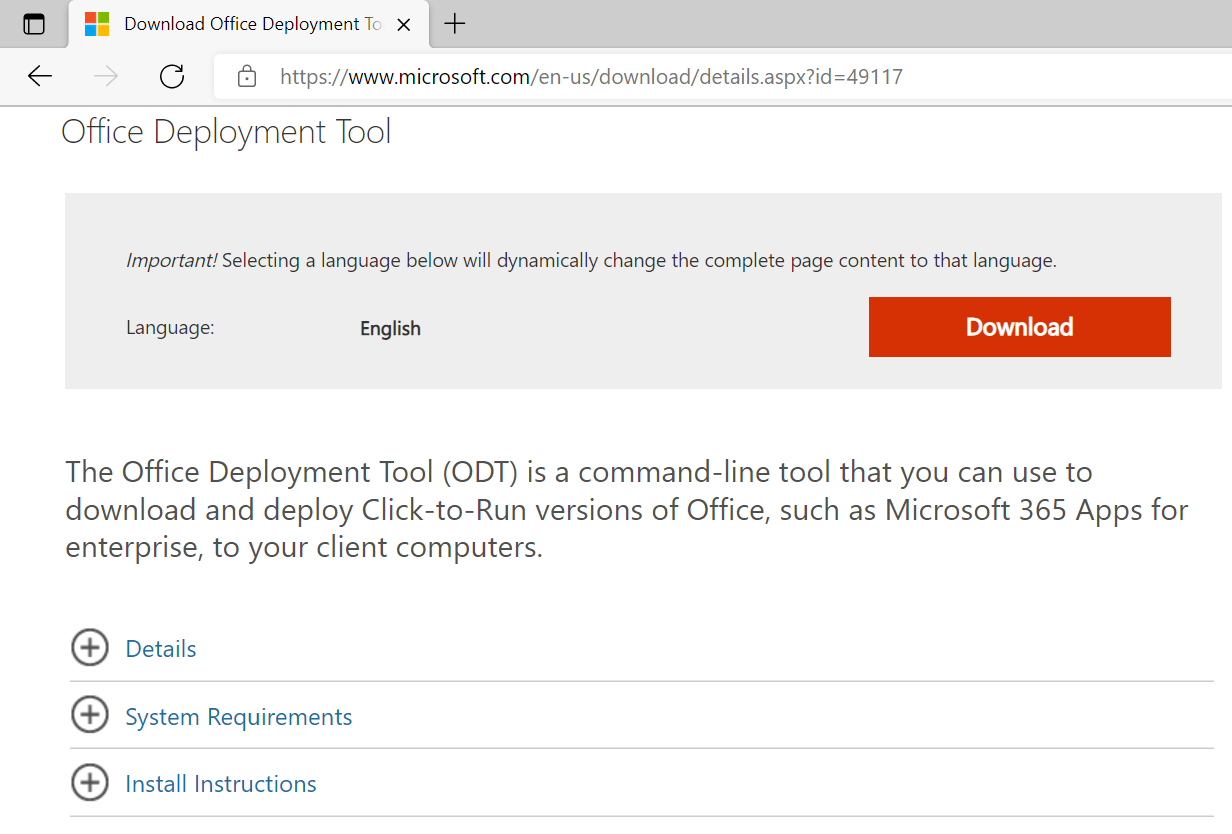
Step 1: Download Office Deployment Tool (ODT) by access Microsoft homepage as below:

https://www.microsoft.com/en-us/download/details.aspx?id=49117


Click to Download to download Office Deployment Tool


Step 2: Run ODT file has been downloaded. Accept license terms of Microsoft and then click Continue


Accept Microsft Terms to continue
 

Step 3: Create a new folder on C drive (C:\). You can set name Office 365. Files extracted successfully will be save on this folder. You can see it: This PC > C drive > Office 365


Office 365 - new folder
 
 After extracted


All files on Office 365 folder (after extracted)
 

Step 4: Open Command Prompt by Run as Administrator

 Open Command Prompt

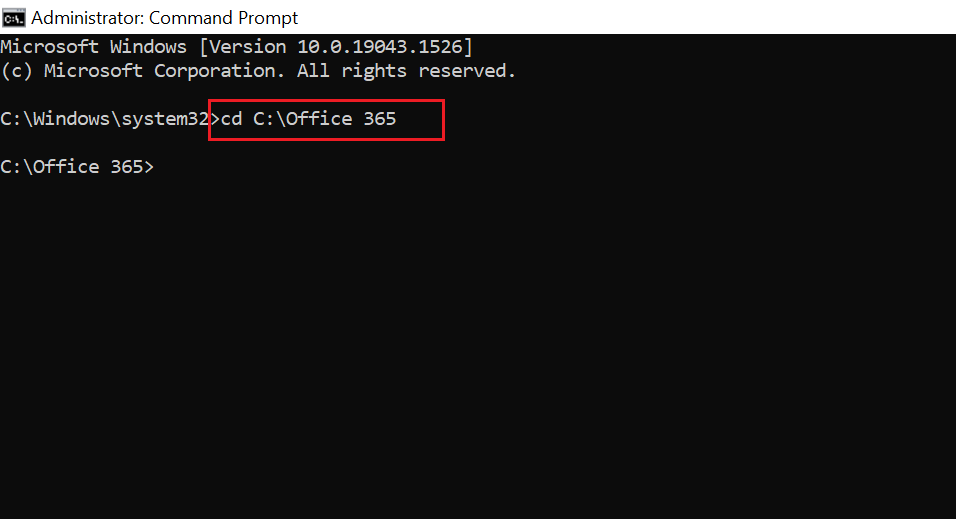
Step 5: Type command line as below and hit Enter: cd C:\Office 365


Step 6: Download Microsoft 365 64 Bit by command line as below:

setup /download configuration-Office365-x64.xml


Download Office 365 programs


Note: If you want download & install other Office version (Office 365 - 32bit; Office 2019 Enterprise or Office 2021 Enterprise), please change the corresponding commands as below:

setup /download configuration-Office365-x86.xml

setup /download configuration-Office2019Enterprise.xml

setup /download configuration-Office2021Enterprise.xml


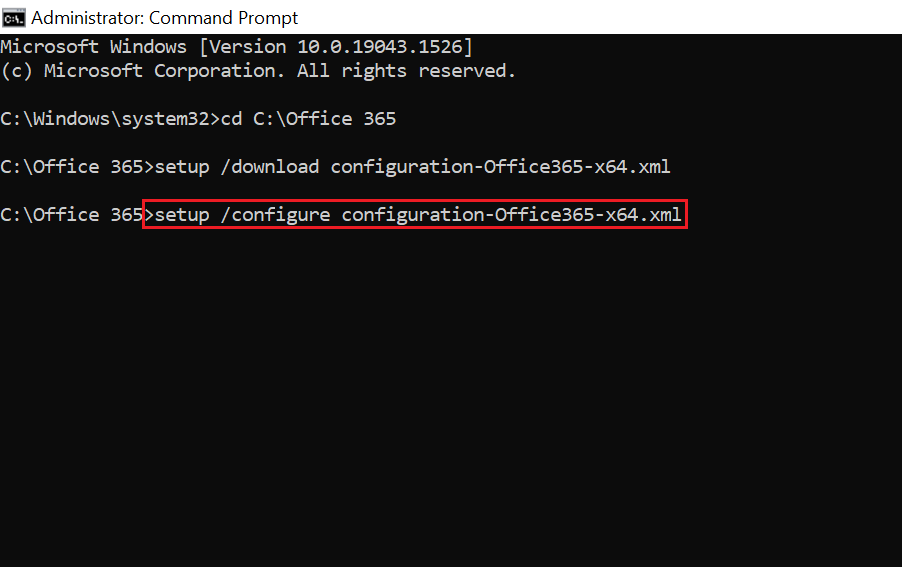
Step 7: After finshed downloading, continue install Office 365 64bit by command line:

setup /configure configuration-Office365-x64.xml


Install Office 365
 

Similar to the above, you will change the install command for the respective versions (if desired):

setup /configure configuration-Office365-x86.xml

setup /configure configuration-Office2019Enterprise.xml

setup /configure configuration-Office2021Enterprise.xml


Step 8: Wait 5 minutes to complete. Finally, you sign-in Office 365 account & active it.


Wait 5-10 minutes to finish
 
Finished installing Office 365
 

 Excel, Word, Outlook, PowerPoint...are apps on Office 365
 
Sign-in and active Microsoft account
 
Conclusion: 
 
Above are 8 steps to help you download and install Office 365. In this guide you can customize the programs you want to install. For example, you only want to install the office suite that includes: Excel, Word, Outlook, PowerPoint. 
And do not want to install other programs such as: Publisher, Access, Skype for business...Please edit the configuration file as follows:

  <Product ID="O365ProPlusRetail">
      <Language ID="en-us" />
      <ExcludeApp ID="Access" /> --> add new code if you don't want to install Access
      <ExcludeApp ID="Groove" /> --> add new code if you don't want to install Onedrive
      <ExcludeApp ID="Lync" /> --> add new code if you don't want to install Skype
      <ExcludeApp ID="Publisher" /> --> add new code if you don't want to install Publisher
  </Product>


Check for and install update Windows 10 & Windows 11


Checking for and installing Windows updates helps you update with new features, patch security holes from old and current updates. It even helps your computer run faster and more stable.

There are 2 ways you can update Windows:

  1. Use the built-in Windows Updates feature on Windows
  2. Manually download updates from Microsoft.


In my opinion, updating through Windows Update is easier and more convenient.

In this article, I will show you how to use Windows Update feature on Windows 10 and Windows 11. Two popular and latest platforms currently.

And to make sure you're following the steps correctly, you need to know what version of Windows is currently on your computer.


Check for and Install Updates in Windows 10 


Step 1: In Windows 10, press Windows (hotkey) and then choose Settings


Step 2: Click to Update & Security on Windows Settings table


Step 3: Check for new update Windows 10 by click Check for updates


Step 4: After check for updates, you can see Download and install button. Please click this.  


Check for and Install Updates in Windows 11


Step 1: In Windows 11, Click Windows icon (in the middle of the screen ) and then choose Settings


Step 2: Find and click Windows Update


Step 3: Check for new update Windows 11 by click Check for updates


Step 4: After check for updates, you can see Download and install button. Please click this.  


Note: On Windows 10 & 11, in many case after check for updates, or even when you're not using your computer, updates are downloaded & installed automatically. Please pay attention to this.


The above is a guide to help you update Windows on Windows 10 and Windows 11. In general, all updates released by Microsoft help your computer become more secure, anti-hacker, and increase security. However, that is not all. In many cases, that update is the cause of errors: computer crashes, slowness, BSOD, ... So please pay attention when your computer is finished updating. Thank you for following the article.

Download Free & Safety MSVCP100.DLL & MSVCR100.DLL in Windows 10


In case your computer fails or 1 of 2 files MSVCP100.DLL & MSVCR100.DLL is lost. At this time, your computer will inform errors when opening some programs and applications that use Microsoft Visual C ++ Redistributable. And most of the programs run on this popular platform.

Some common error messages related to 2 files MSVCP100.DLL & MSVCR100.DLL are as follows:

  • the code execution cannot proceed because msvcr100.dll was not found
  • the code execution cannot proceed because msvcp100.dll was not found
  • the program can't start because msvcr100.dll is missing from your computer
  • the program can't start because msvcp100.dll is missing from your computer
  • msvcr100.dll was not found. reinstalling the application may fix this problem
  • this program can't start because msvcr100.dll is missing from your computer
  • There was a problem starting msvcp100.dll. The specified module could not be found.
  • Error loading msvcp100.dll. The specified module could not be found.
  • The code execution cannot proceed because msvcp100.dll was not found. Reinstalling the program may fix this problem.
  • msvcp100.dll is either not designed to run on Windows or it contains an error. Try installing the program again using the original installation media or contact your system administrator or the software vender for support.


2 files MSVCP100.DLL & MSVCR100.DLL are 2 files located in the library of Microsoft Visual C ++. So when it fails or fails, you must restore or replenish it.


There are a few ways to fix this error like:

  1. Remove and reinstall the Microsoft Visual C ++ Redistributable program (recommended this way)
  2. Download and copy these 2 files to the correct original folder
  3. Using some DLL fix software, the software will automatically detect and add it to you (but it will be charged)

This article I will help you download 2 files MSVCP100.DLL & MSVCR100.DLL and find the correct folder path containing those 2 files.

Method 1: You can download directly here:
Download file MSVCP100.DLL (64-bit) <Filename: msvcp100 (64-bit).zip>
Download file MSVCP100.DLL (32-bit) <Filename: msvcp100 (32-bit).zip>


Download file MSVCR100.DLL (64-bit) <Filename: msvcr100 (64-bit).zip>
Download file MSVCR100.DLL (32-bit) <Filename: msvcr100 (32-bit).zip>


These are the 2 files I updated to the latest (version 10.0.40219.473). 

After extracting your zip-file, place the extracted DLL-file in the directory of the program that is requesting the file. Make sure to use a 32bit DLL-file for a 32bit program, and a 64bit DLL-file for a 64bit program. Failure to do so will likely result in a 0xc000007b error.


Method 2: Access to website: https://www.dll-files.com/ to find and download as desired


To find the folder containing the two files above in Windows 10, navigate to the following path:


C:\Windows\System32


Finally, make sure to overwrite any existing files (but make a backup copy of the original file).


Ok, done. You can use these 2 files MSVCP100.DLL & MSVCR100.DLL for both Windows 7, Windows 8 and Windows 10. The repair method can also be applied similarly. Thank you for following the article!

In addition, if you have any problems with your computer, please contact us directly through the QTitHow fanpage. We will try to help and answer you as soon as possible. Thank you!

Download Free Microsoft Office 2010 Professional Plus Full 2019 (Bản Quyền Mãi Mãi)


Xin chào tất cả mọi người,
Ngày hôm nay QTit xin chia sẻ với các bạn một phần mềm phổ biến và hữu dụng Microsoft Office 2010 Professtional Plus. Đây là bộ công cụ soạn thảo phần mềm được sử dụng rộng rãi. Và rất nhiều bạn đã hỏi và muốn download bộ phần mềm office 2010 professional plus key đầy đủ bao gồm cả license – bản quyền dùng mãi mãi. Vậy thì tất cả đã có trong bài viết này.

Download Free Microsoft Office 2010 Professional Plus Full 2019 (Bản Quyền Mãi Mãi)


Chúng tôi sẽ cung cấp cho các bạn 2 phiên bản Microsoft Office 2010 Professtional Plus: 32 Bit và 64 Bit. Tuỳ theo cấu hình máy tính và nền tảng Windows, bạn có thể chọn một trong hai nhé:
Để sử dụng phần mềm này vĩnh viễn bạn hãy download product key office 2010 professional plus ở dưới đây:
 

Cám ơn các bạn đã theo dõi bài viết. Nếu có bất kì khó khăn nào trong quá trình sửa lỗi trên bạn có thể trực tiếp liên hệ với chúng tôi qua fanpage QTitCare. Hoặc có thể mang máy tính của bạn đến cửa hàng sửa chữa máy tính laptop tại Quảng Yên, chúng tôi sẽ hỗ trợ bạn tốt nhất có thể. Xin cám ơn!

Copyright © 2016 QTitHow All Rights Reserved