How to Download Music from Suno AI: Complete Guide

Suno has become one of the most popular AI music generation tools available today. Using simple text prompts, you can generate original songs on Suno AI across numerous genres tailored to your creative vision. Once your tracks are ready, you can easily listen to them and download them to your device for offline playback or other uses.
Suno currently supports multiple audio formats for downloads. Here's a detailed walkthrough of all the different ways you can save your tracks.
Table of Contents
Direct Download from Suno
Step 1:
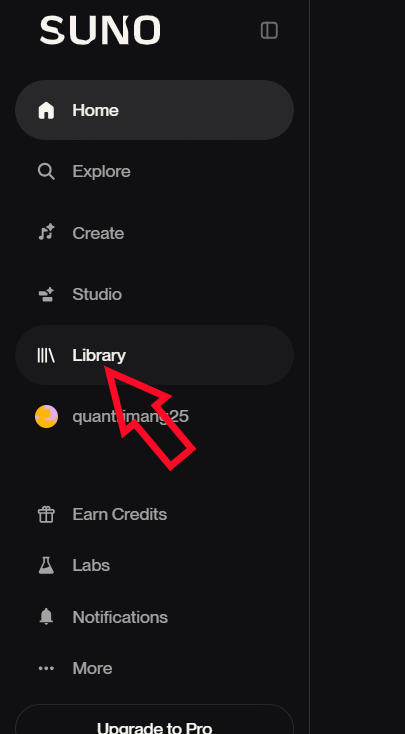
Log into your Suno account and navigate to the Library section on the left sidebar. This displays all the songs you've created.
Step 2:
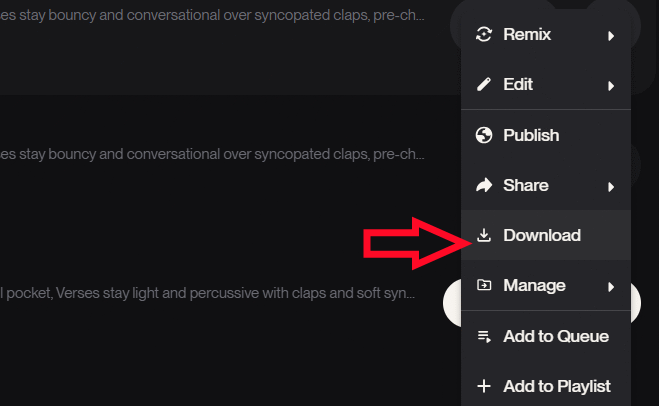
Find the track you want to download and click the three-dot menu icon next to it. Select Download from the dropdown options.
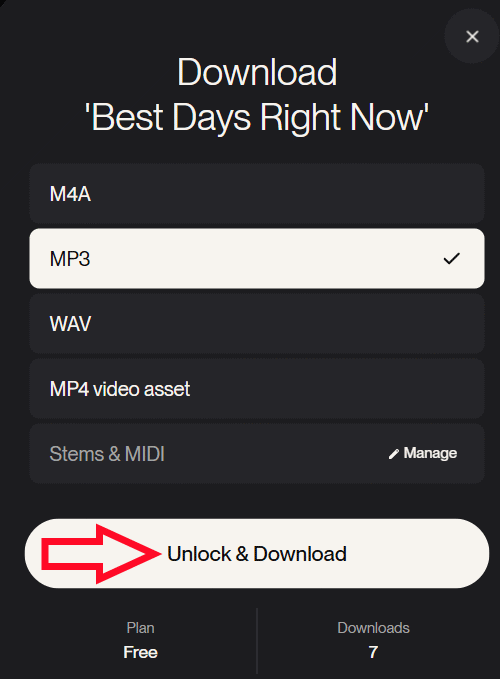
A dialog box appears where you can choose your preferred audio format: MP3, WAV, or Video. Keep in mind that free Suno accounts have a limited number of monthly downloads.
Once you've selected your format, click Unlock & Download to save the file to your device.
Batch Download Multiple Tracks
Instead of downloading tracks one at a time, you can select multiple songs and grab them together.
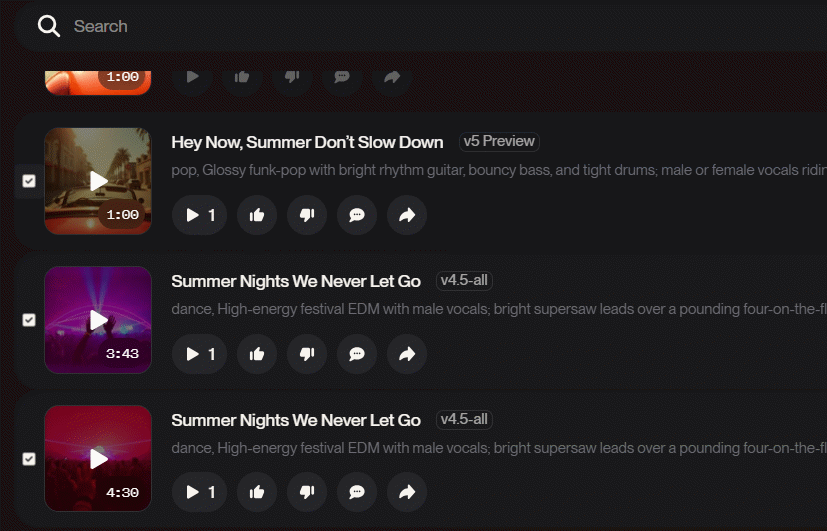
Head back to your Library and check the boxes next to the songs you want to download simultaneously.
Right-click on one of the selected tracks and choose Download All.
Note: The Download All option may not appear in all versions of Suno or on every account type. If you don't see it, you'll need to download each track individually using the standard download feature mentioned above.
Using Third-Party Download Tools
Beyond the built-in download function, several web-based tools make it easier to grab your Suno tracks in bulk.
Download Playlists via usesuno
If your Suno account doesn't support batch downloads, online tools offer a workaround.
Step 1:
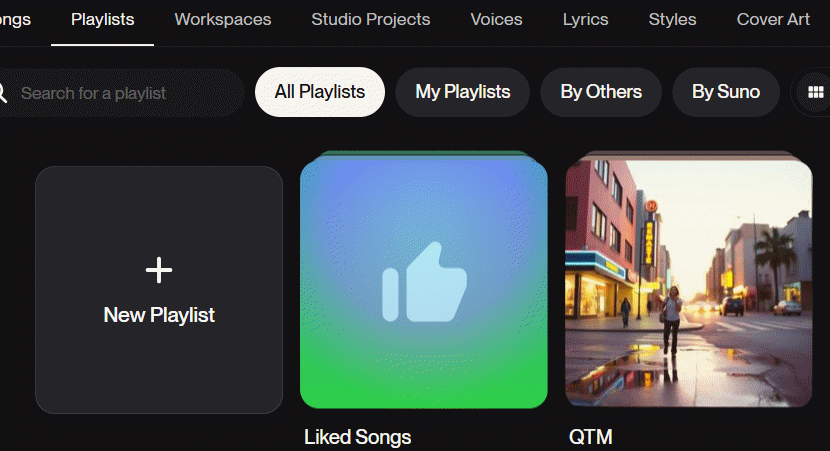
First, create a playlist on Suno containing the songs you want to download. Then open your Library, navigate to Playlists, and select the one you created.
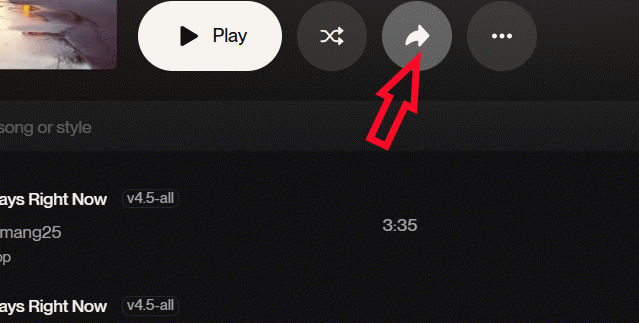
In the playlist view, click the share icon to copy the playlist link.
Step 2:
Visit the usesuno playlist downloader page (link below) and paste your copied playlist URL. Hit Load playlist to proceed.
https://usesuno.com/tools/playlist/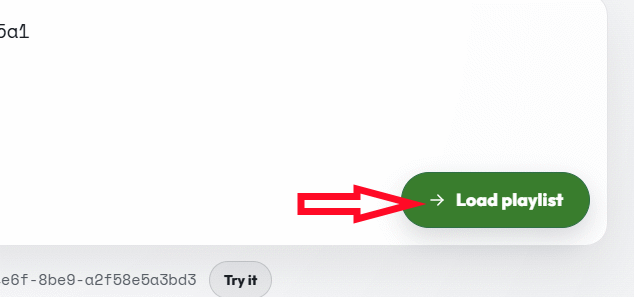
Step 3:
The tool displays all songs in your playlist. Click Select all shown to check every track, then press Export to begin the download.
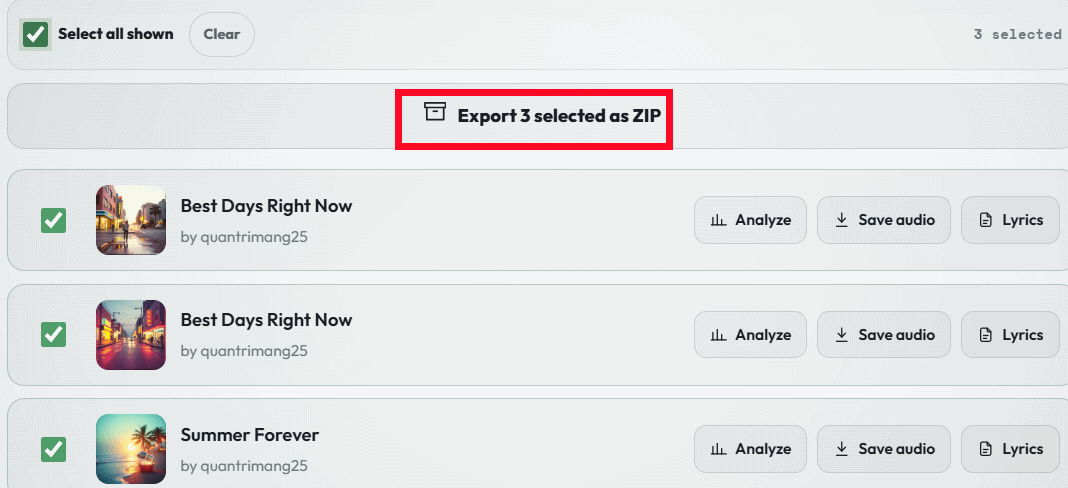
Select your audio format from the list that appears.
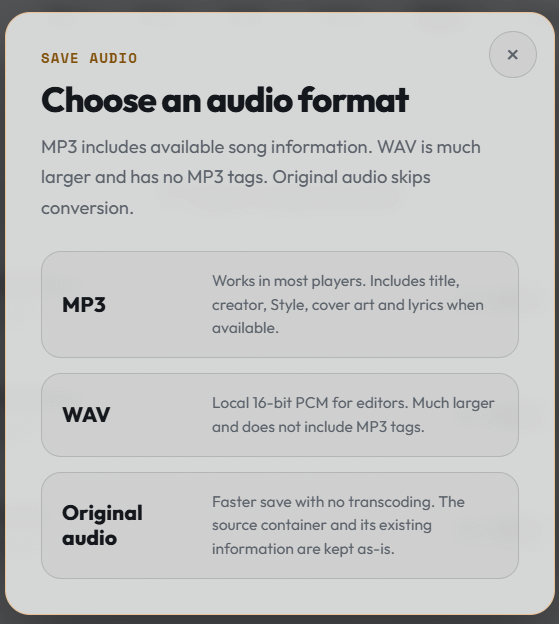
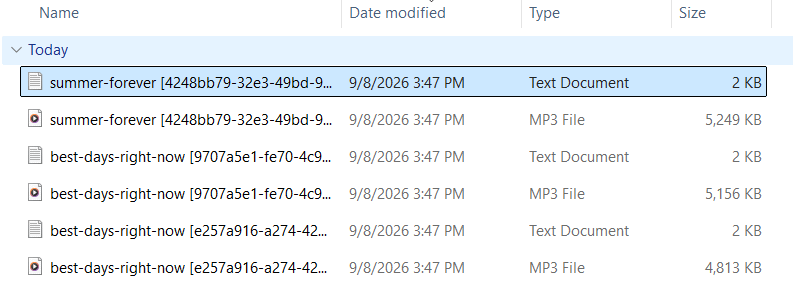
The tool compresses your playlist into a ZIP file and downloads it to your device. You'll receive a folder containing all your tracks along with metadata and lyrics.
Download Tracks Using Suno AI Download
Step 1:
Visit the Suno website using the link below and find the specific track you'd like to download.
https://suno.com/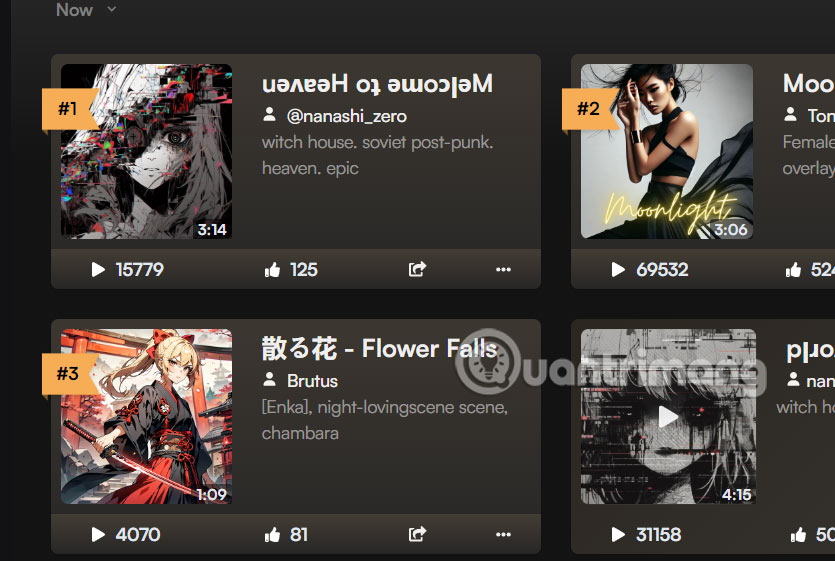
Step 2:
Click on the track and copy its URL from your browser's address bar.
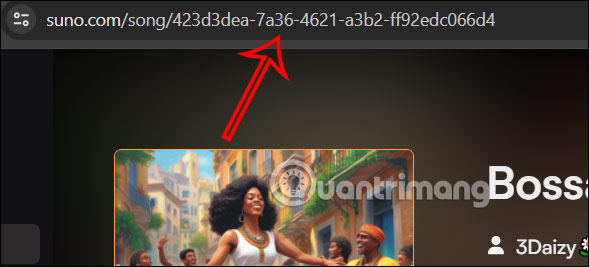
Step 3:
Head to the Suno AI Download website (link below) and paste the track URL you just copied. Click the Download button to start the process.
https://sunoaidownload.com/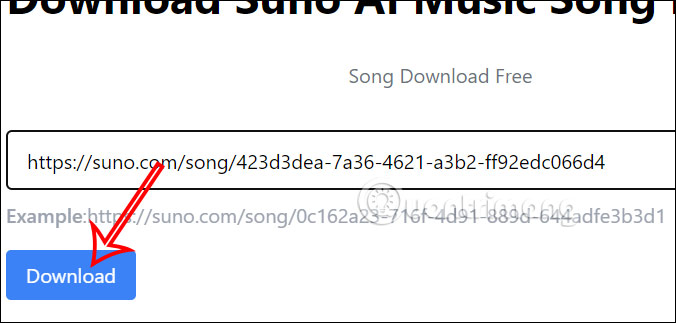
Step 4:
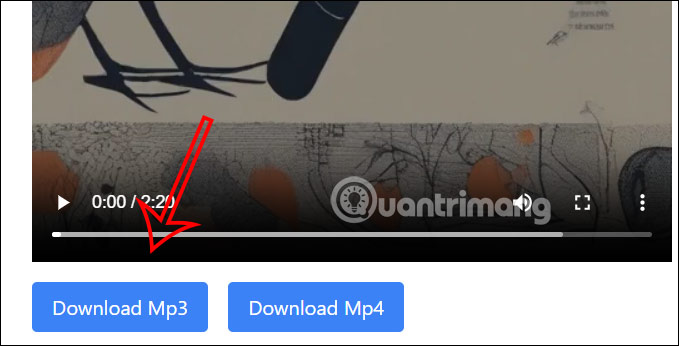
Your track appears on the results page. Click the play button to listen to it first. You'll then see options to download the audio file or the accompanying music video.
Description: Learn multiple methods to download your AI-generated tracks from Suno in MP3, WAV, or video formats with step-by-step instructions.
Related Articles
- 8 Essential Privacy Tips for ChatGPT Users
- ExcelMerger Pro: Combine Multiple Excel Files Into One
- Why Claude Cowork Is Being Hailed as 2026's Biggest AI Breakthrough
- How to Change Gemini Live's Voice to Your Preferred Option
- How to Find and Use AI Prompts for Image and Video Generation on PromptHero

No Comment to " How to Download Music from Suno AI: Complete Guide "