How to Summarize Google Slides Presentations Using Gemini

Here's something that saves real time: with just a simple command, Gemini can pull out all the key points from your Google Slides deck. No more skimming through endless slides when you need the highlights fast. Whether you're pressed for time or just want the executive summary, this AI feature delivers.
What's interesting here is that Gemini doesn't stop at just summarizing. You can ask it to create a table of contents slide, generate a complete summary slide to present, or even rebuild your deck's structure. The key is being clear about what you want—whether that's a condensed overview or an entirely new summary slide formatted and ready to go. Let's walk through exactly how to do this.
Summarizing Your Presentation with Gemini
Step 1:
Type your summary request into the Gemini chat panel on the right side of your screen. Specify how many key points you want—or let Gemini decide.
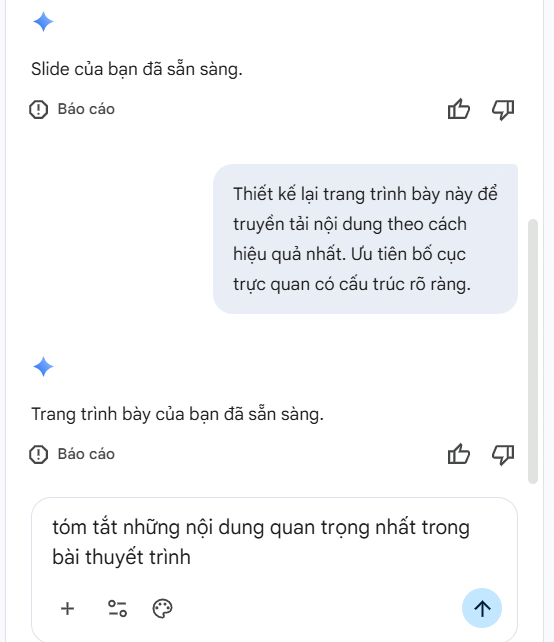
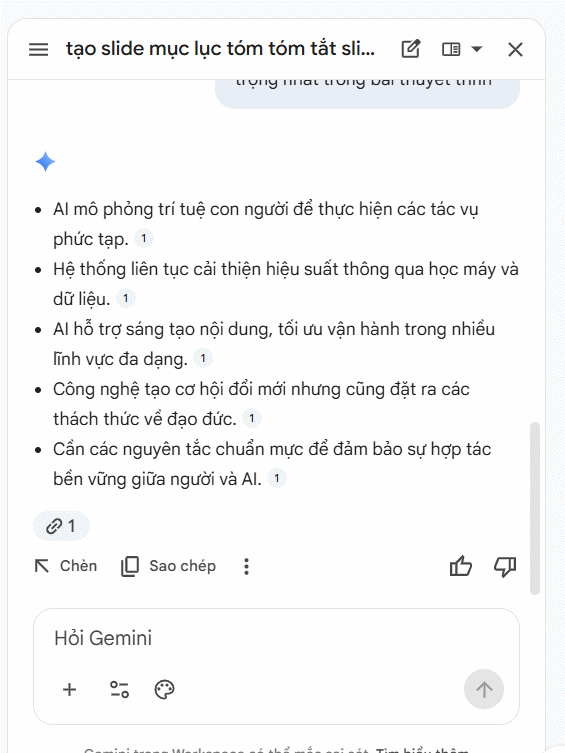
You'll get back the main points from your presentation. Notice the Insert option that appears in the response—click it to add the summary directly into your slides if you want.
Step 2:
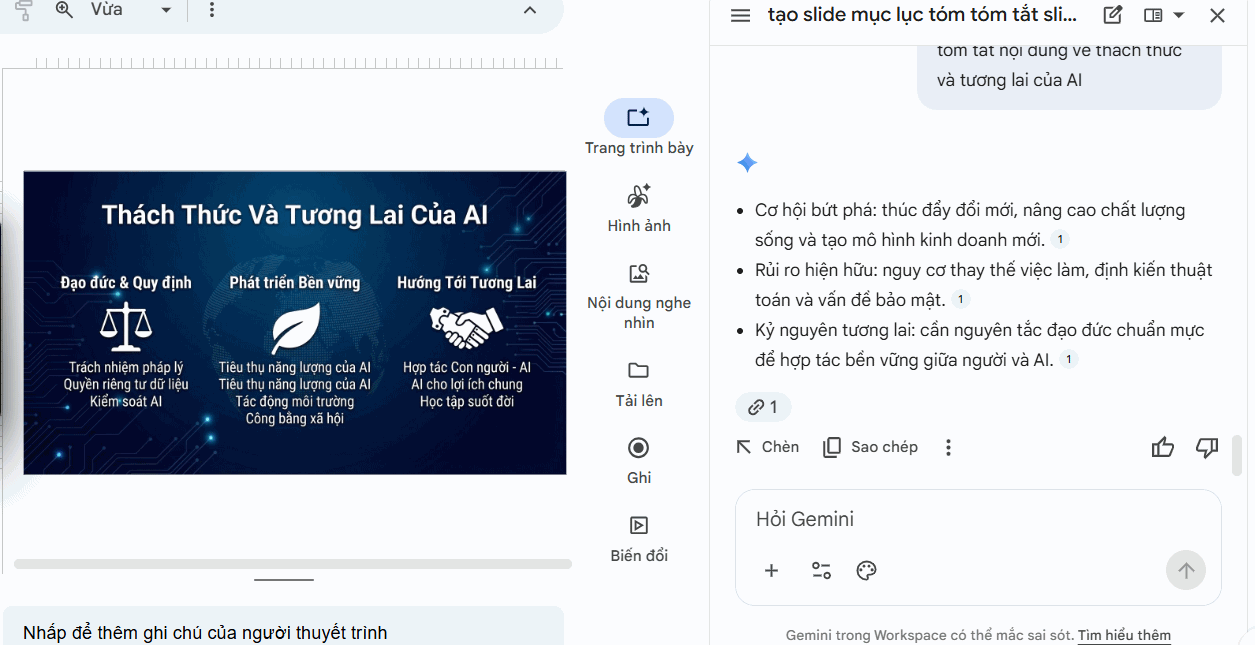
Summarizing for understanding is just the start. You can ask Gemini to focus on specific angles too—pull out just the data, zero in on a particular section, or create a brief version to share with colleagues.

Gemini will tailor the summary to exactly what you asked for.
Step 3:
You can also request that Gemini create a table of contents slide or generate new summary slides.
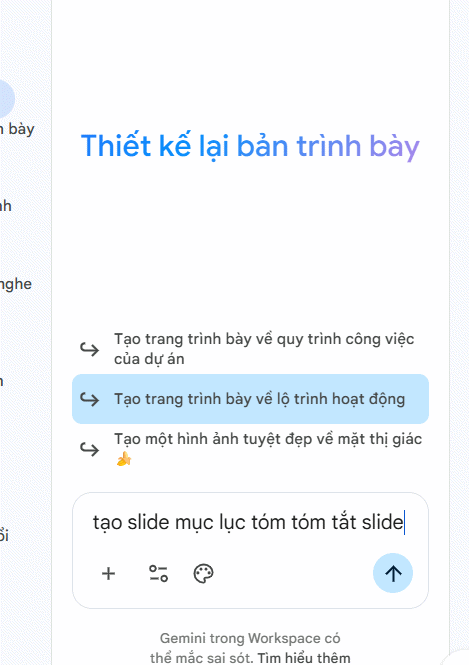
Gemini builds out summary slides complete with automatic layout, formatting, and design. It handles the presentation structure for you.
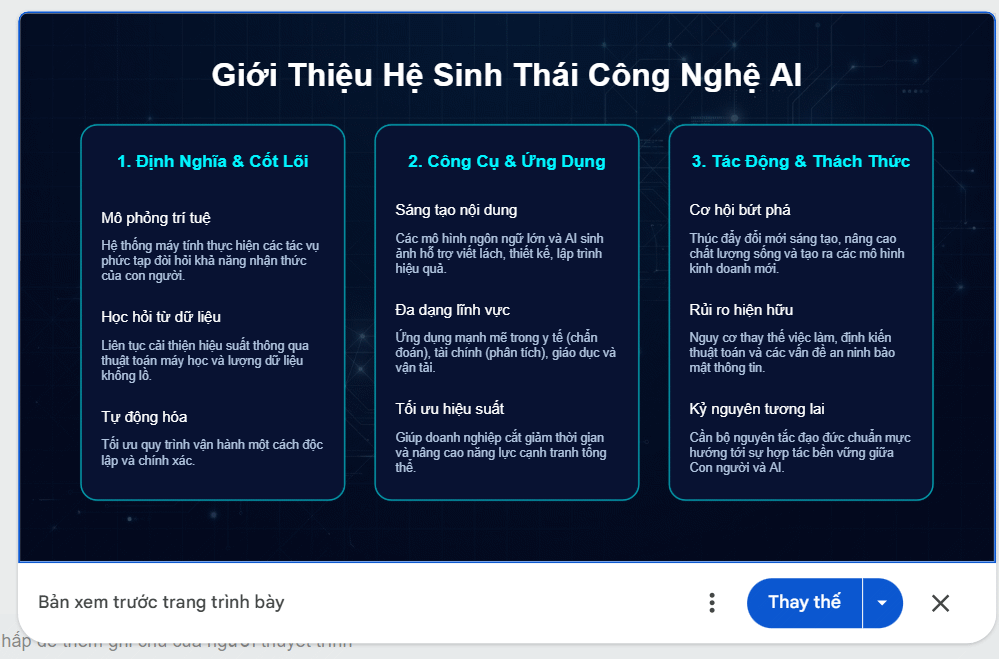
Step 4:
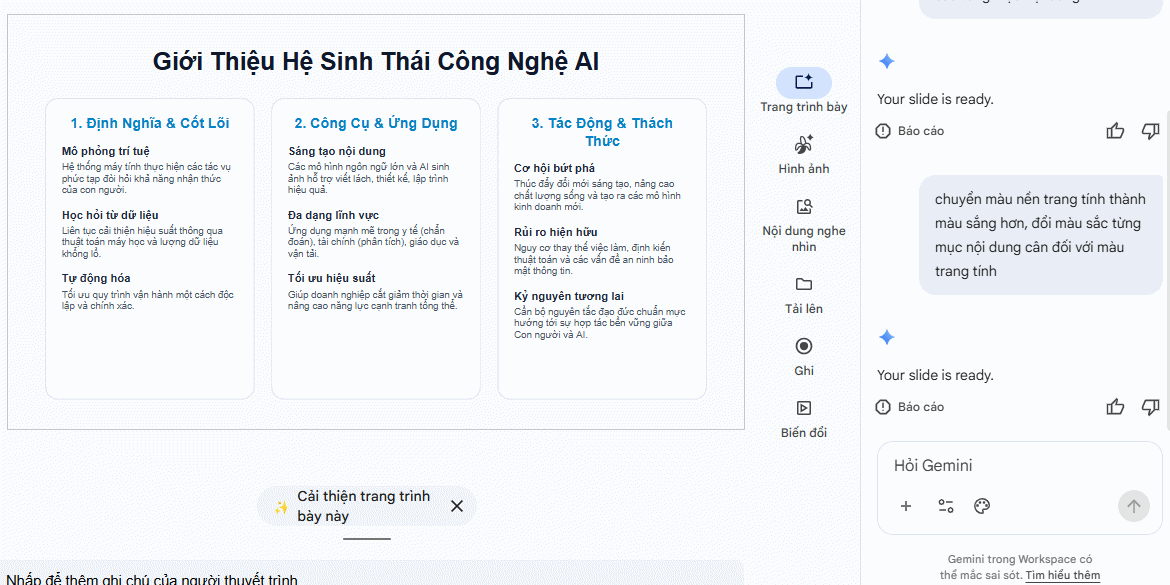
Want to refine the colors, layout, or typography? Hit the Improve option below the summary.

Or give Gemini a specific instruction about what you'd like changed. It'll regenerate the slides based on your feedback.
Writing Better Prompts for Presentation Summaries
The real concern is this: vague requests get vague results. To get summaries that actually fit your needs, be specific about what you want, what content matters most, and how you want it presented. Skip the one-liners and write clear instructions instead.
Here are some prompts you can adapt for your own presentations:
- Summarize this presentation in 3 sentences, focusing on the most critical information.
- Condense the entire presentation into 5 main points.
- Summarize this presentation and highlight the 3 most important conclusions.
- Break down the summary section by section.
- Summarize this presentation using simple, easy-to-understand language.
- Create a one-minute summary I can read quickly.
- Summarize the presentation focusing on key data and results.
- Summarize the problems, solutions, and conclusions mentioned.
- Create a summary for someone unfamiliar with this topic.
- Summarize as bullet points I can use as speaker notes.
- Summarize focusing on the problem statement, solution, and key outcomes.
Description: Learn how to use Gemini AI to automatically summarize your Google Slides presentations quickly and efficiently.
Related Articles
- Master Claude Projects: Build Your Personal AI Assistant Space
- How to Find and Use AI Prompts for Image and Video Generation on PromptHero
- Generate AI Music for Your Canva Videos: A Complete Guide
- Installing Google Gemini as a Windows App: Complete Guide
- Windsurf vs Cursor: Which AI IDE Should You Choose?

No Comment to " How to Summarize Google Slides Presentations Using Gemini "