How to Generate Images in Google Docs Using Gemini: Complete Guide
Google Docs now includes one of Gemini's most practical features: built-in image generation. You can now create images directly within your document without jumping between apps or hunting for external AI image tools. What's interesting here is how seamlessly this integrates into your workflow—no more context switching.
Gemini's image generation capability inside Google Docs democratizes visual content creation. Whether you have design skills or not, you can now produce visually compelling, professional-looking documents. Gone are the days of searching endlessly for the perfect stock image to match your ideas.
With this feature, you can:
- Create infographics and visual summaries to enhance your documents: Ask Gemini to "Add a summary diagram of the proposal overview at the top" or "Generate an infographic that visually summarizes the document content."
- Refine existing images using natural language: Request adjustments like "Change the aspect ratio to 16:9" or "Update the style to better match the rest of the document."
- Generate or edit multiple images at once: Have Gemini add infographics to each section or update the styling across several images simultaneously.
You can access these features from the toolbar at the bottom of Google Docs or through the Gemini side panel. Here's how to get started.
Step-by-Step: Creating AI Images in Google Docs
Step 1:
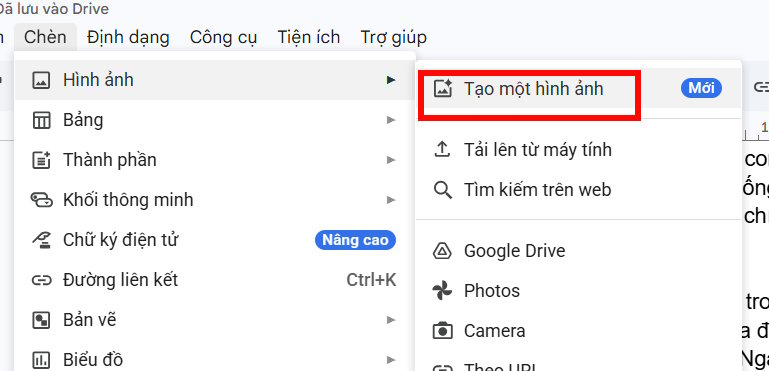
In Google Docs, click Insert > Image, then select Generate an image from the dropdown menu.
Step 2:
A customization panel appears on the left. Select your preferred image size and choose the style or category you want.
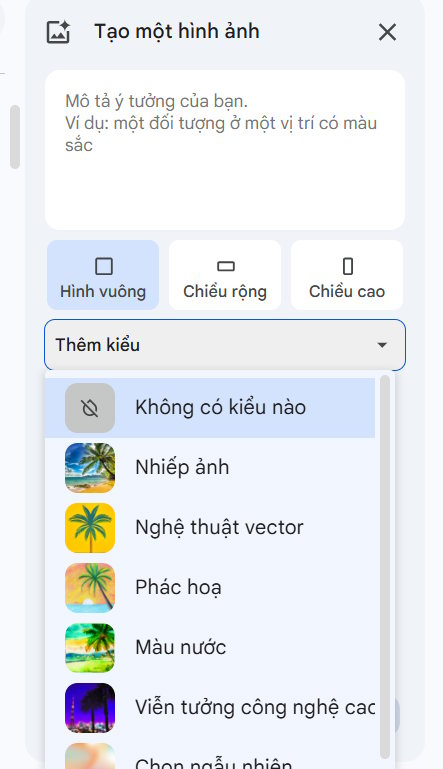
Now enter your image description. Here's the key: be specific with subjects, backgrounds, distances, and surrounding elements. Avoid figurative or poetic language—straightforward descriptions work best.

Gemini will generate four image options. Click View more to see additional variations. Pick the one you prefer and insert it into your document.

Creating AI Cover Images for Google Docs
Step 1:
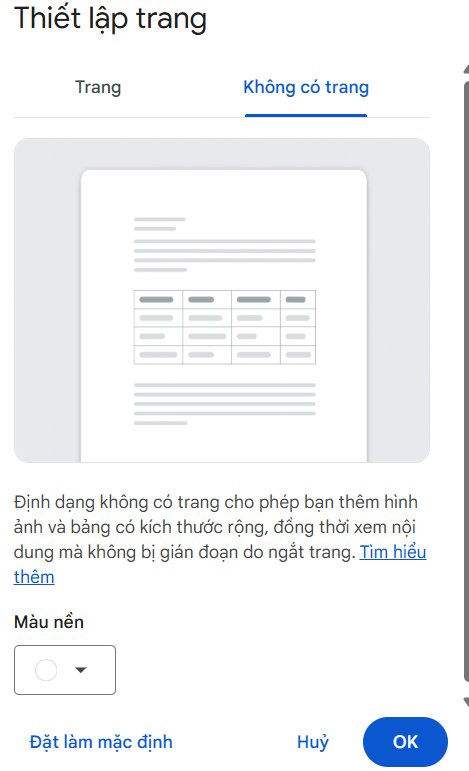
First, enable Pageless Mode. Go to File, then select Page setup from the menu.
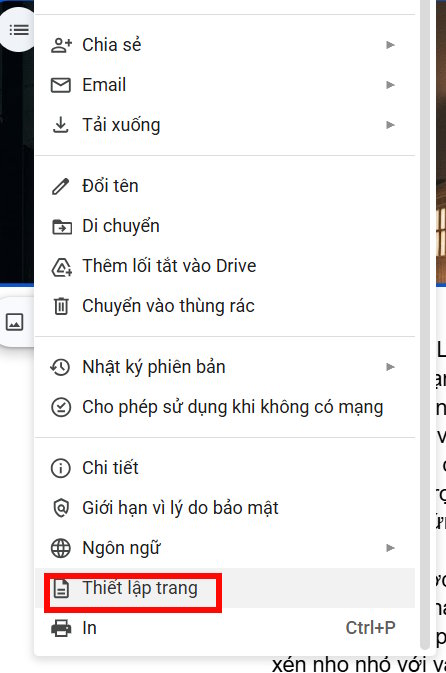
Select Pageless and click OK to enable cover image support.
Step 2:
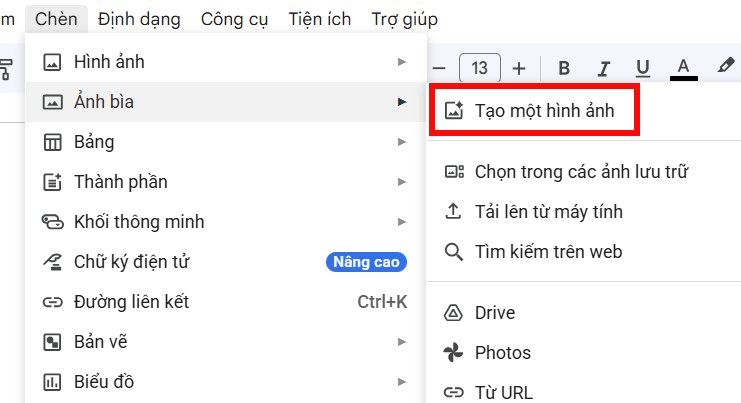
Navigate to Insert and choose Cover image. Select Generate an image.
Step 3:
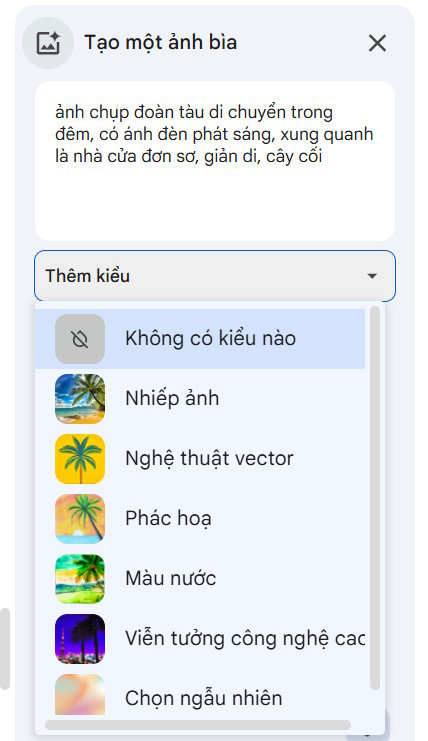
Choose your image size and style, write your prompt, then click Generate.
Step 4:
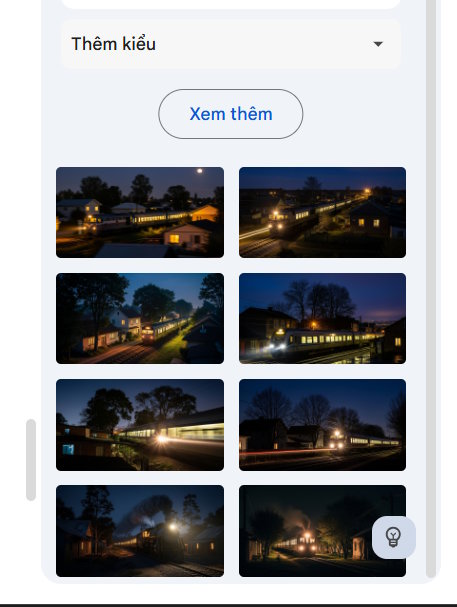
Review the generated cover images and select the one that works best for your document.
Click on the cover image to access editing options:
- Replace image: Click to swap it with a different version.
- Reposition: Adjust where the image sits on the cover.
- Alt text: Add descriptive text for accessibility.
- Delete: Remove the cover image entirely.

The result? A professional AI-generated cover image ready to elevate your document.
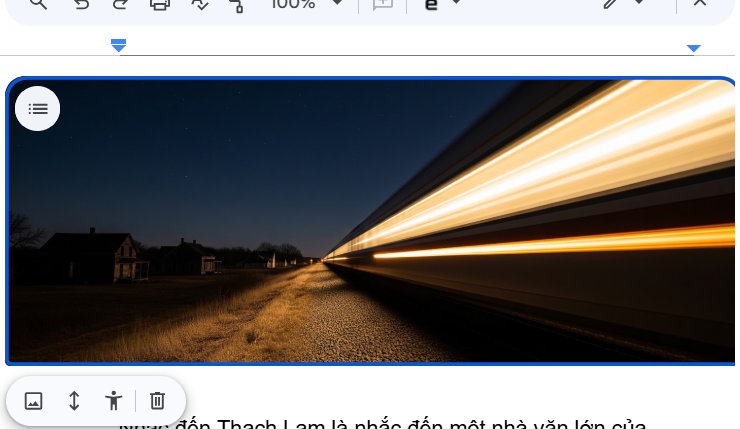
Note: Cover images only work in Pageless mode, allowing them to span the full width. To switch modes anytime, go to File > Page setup > Pageless or Format > Switch to Pageless format.
Providing Feedback on Generated Images
Google Workspace's Gemini learns continuously, but it won't always get things right. If you receive inaccurate or unsafe suggestions, you can report them.
- To flag specific images, click the feedback icon and follow the prompts.
- For general feature feedback, visit Help at the top and select Help improve Google Docs.
- To report legal concerns, see Google's content reporting process for copyright or other legal issues.
Understanding Gemini Feature Limitations
- Gemini's suggestions don't represent Google's opinions and shouldn't be treated as official company positions.
- Don't rely on Gemini for medical, legal, financial, or other professional advice.
- Generated content can be inaccurate or irrelevant—always review before publishing.
- Your feedback helps improve Gemini's accuracy and safety over time.
- Organizations can collect user feedback on feature performance. The real concern is ensuring feedback doesn't contain personal, sensitive, or confidential data.
- Generated images are designed for use within Google Docs only.
- These images imaginatively visualize your ideas but may not reflect real-world accuracy or situations.
Description: Learn how to create AI-generated images directly in Google Docs with Gemini. Step-by-step instructions for infographics, cover images, and more.
Related Articles
- 4 Proven Strategies to Optimize Token Usage in Multi-Agent AI Systems
- How to Find and Use AI Prompts for Image and Video Generation on PromptHero
- How to Edit Videos in Google Flow: A Complete Guide
- Installing Google Gemini as a Windows App: Complete Guide
- Gemini Now Lets You Create Images by Speaking—No Typing Required

No Comment to " How to Generate Images in Google Docs Using Gemini: Complete Guide "