Getting Started with Nanobot: A Lightweight Alternative to OpenClaw
Nanobot is a sleek, lightweight personal AI assistant designed as a leaner alternative to OpenClaw. What's striking is its footprint—it's 98% smaller than OpenClaw yet still packs the essential functionality you'd expect. Like OpenClaw, Nanobot runs locally on your machine, integrates with your favorite apps, and thanks to its compact size, you can easily inspect and audit the source code yourself.
At its core, Nanobot bridges open-source and closed-source language models to run a programming agent directly on your hardware. Send a message via Telegram, WhatsApp, or your terminal, and the agent responds by executing commands on your system—reading logs, running scripts, searching for files, and more.
This guide walks you through setting up Nanobot from scratch and building a fully functional AI agent in just a few minutes. We'll also cover important security and stability considerations when working with this technology.
Table of Contents
What is Nanobot?
Nanobot has emerged as a popular alternative to OpenClaw, quickly accumulating over 21,000 GitHub stars. Like its predecessor, it supports mainstream messaging platforms including Discord, Slack, and Telegram.
Nanobot agents can also participate in social networks like Moltbook, mirroring what OpenClaw offers.
Core Capabilities
Despite its minimal footprint, Nanobot addresses three critical needs for a powerful agent:
- Stateful Memory: Nanobot constructs a local graph of your interaction history. This means if you're working on a Python data analysis project today, it will still remember that detail weeks later.
- Model Agnostic: You're not locked into any single vendor. Use models from OpenAI, Anthropic, or even local models running on your own hardware.
- Familiar Interfaces: Access Nanobot through the messaging apps you already use daily—there's no new platform to learn.
System Requirements
To follow along, you'll need:
- Python 3.11 or higher installed on your machine (macOS, Windows, or Linux).
- An API key from a provider like OpenRouter, OpenAI, or Anthropic—or a local model set up via Ollama.
- A Telegram account (we're using Telegram for this guide because it's the easiest to configure).
Step-by-Step Setup: Building a Research Agent
Let's create an agent in Telegram that can search the web and remember your preferences.
Step 1: Install Nanobot
The modern way to install Python tools is through pip or uv, which keeps them isolated from your system Python. Standard pip works fine too if you don't have those tools available.
Open your terminal and run:
# run inside your env
pip install nanobot-ai
# OR if you prefer uv
uv tool install nanobot-ai
Once installed, you'll see a confirmation message like this:
Successfully installed nanobot-0.4.1Step 2: Obtain API Credentials
To set up your Telegram interface:
- Open Telegram and search for @BotFather
- Send the command /newbot and follow the prompts
- Copy the token you receive from BotFather
- Next, grab your user ID to ensure only you can send commands to the bot. Search for @userinfobot in Telegram, hit start, and copy your user ID.
Step 3: Initialize
Run the nanobot onboard command to initialize your bot. You'll see output similar to this:
✓ Created config at /Users/derrickmwiti/.nanobot/config.json
✓ Created workspace at /Users/derrickmwiti/.nanobot/workspace
  Created AGENTS.md
  Created SOUL.md
  Created USER.md
  Created memory/MEMORY.md
  Created memory/HISTORY.md
🐈 nanobot is ready!
Next steps:
  1. Add your API key to ~/.nanobot/config.json
     Get one at: https://openrouter.ai/keys
  2. Chat: nanobot agent -m "Hello!"
Want Telegram/WhatsApp? See: https://github.com/HKUDS/nanobot#-chat-apps
Step 4: Configuration
Run the command below and add your API key to the providers section:
nano ~/.nanobot/config.jsonEdit the file to include your chosen provider's API key:
{
  "workspace": "./workspace",
  "providers": {
    // Option 1: OpenAI
    "openai": {
      "apiKey": "sk-YOUR-OPENAI-KEY-HERE",
      "model": "gpt-4o"
    },
    // Option 2: Anthropic (Claude)
    "anthropic": {
      "apiKey": "sk-ant-YOUR-CLAUDE-KEY-HERE",
      "model": "claude-3-5-sonnet-20240620"
    },
    // Option 3: Google Gemini
    "google": {
      "apiKey": "AIza-YOUR-GOOGLE-KEY-HERE",
      "model": "gemini-1.5-pro"
    },
    // Option 4: OpenRouter (Best for flexibility)
    "openrouter": {
      "apiKey": "sk-or-YOUR-OPENROUTER-KEY-HERE",
      "model": "nousresearch/hermes-3-llama-3.1-405b"
    },
    // Option 5: Local (Ollama or vLLM)
    "local": {
      "apiBase": "http://localhost:11434/v1",
      "apiKey": "ollama",
      "model": "llama3"
    }
  },
  "channels": {
    "telegram": {
      "enabled": true,
      "token": "YOUR_TELEGRAM_BOT_TOKEN",
      "allowFrom": ["YOUR_NUMERIC_USER_ID"]
    }
  }
}
Update the Telegram section with the token and user ID you collected earlier. This restriction ensures only you can issue commands to your agent.
"telegram": {
      "enabled": true,
      "token": "",
      "allowFrom": [""],
      "proxy": null
}
Adjust the agent section to reflect your selected provider:
"agents": {
    "defaults": {
      "workspace": "~/.nanobot/workspace",
      "model": "openai/gpt-5",
      "maxTokens": 8192,
      "temperature": 0.7,
      "maxToolIterations": 20,
      "memoryWindow": 50
    }
  }
Test your agent from the terminal:
nanobot agent -m "Hello"

🐈 nanobot
Hi there! How can I help you today?
Step 5: Set Up the Gateway
To complete the Telegram integration, run this command in your terminal:
nanobot gatewayAs you can see in the output below, Telegram is now active:
🐈 Starting nanobot gateway on port 18790...
2026-02-13 09:59:35.405 | INFO     | nanobot.channels.manager:_init_channels:46 - Telegram channel enabled
✓ Channels enabled: telegram
✓ Heartbeat: every 30m
2026-02-13 09:59:35.406 | INFO     | nanobot.cron.service:start:154 - Cron service started with 0 jobs
2026-02-13 09:59:35.406 | INFO     | nanobot.heartbeat.service:start:81 - Heartbeat started (every 1800s)
2026-02-13 09:59:35.406 | INFO     | nanobot.agent.loop:run:116 - Agent loop started
2026-02-13 09:59:35.406 | INFO     | nanobot.channels.manager:start_all:159 - Starting telegram channel...
2026-02-13 09:59:35.406 | INFO     | nanobot.channels.manager:_dispatch_outbound:187 - Outbound dispatcher started
2026-02-13 09:59:35.411 | INFO     | nanobot.channels.telegram:start:140 - Starting Telegram bot (polling mode)...
2026-02-13 09:59:39.245 | INFO     | nanobot.channels.telegram:start:148 - Telegram bot @mwitibananabot connected
2026-02-13 09:59:39.417 | DEBUG    | nanobot.channels.telegram:start:152 - Telegram bot commands registered
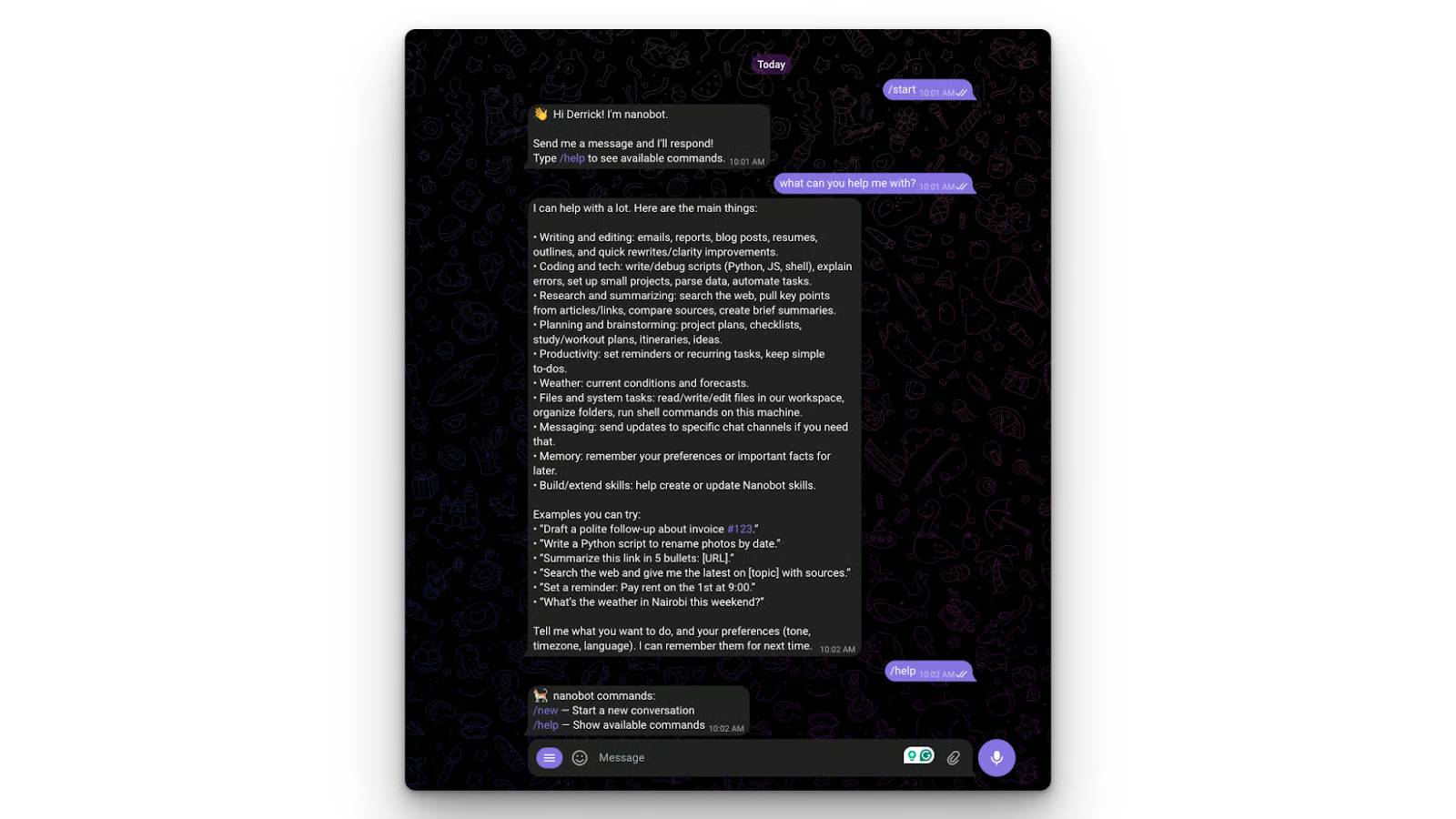
Head over to Telegram and test it out:
Upgrading Nanobot: Building a Versatile Agent
Now that the basics are in place, let's make your agent smarter. Most models only have knowledge up to their training cutoff date. The real concern is that without web access, your agent will give you outdated information. We can fix that by connecting it to the internet.
Nanobot supports the Model Context Protocol (MCP), which extends your agent's capabilities with features like web search and database queries. Let's add Brave Search Server to give your agent internet access:
- Grab an API key from Brave
- Update your config with that key
"tools": {
    "web": {
      "search": {
        "apiKey": "",
        "maxResults": 5
      }
    },
    "exec": {
      "timeout": 60
    },
    "restrictToWorkspace": false
  }
Restart your gateway.
Now in Telegram, ask something like "What is the current price of Apple stock?" Watch your terminal window—you'll see it actively searching the web:
2026-02-13 10:14:48.753 | INFO     | nanobot.agent.loop:_process_message:164 - Processing message from telegram:7045522516: What is the current price of the Apple Stock
2026-02-13 10:14:59.726 | INFO     | nanobot.agent.loop:_process_message:246 - Tool call: web_search({"query": "AAPL stock price Yahoo Finance", "count": 5})
2026-02-13 10:15:22.066 | INFO     | nanobot.agent.loop:_process_message:246 - Tool call: web_fetch({"url": "https://finance.yahoo.com/quote/AAPL/", "extractMode": "text", "maxChars": 20000})
2026-02-13 10:15:26.886 | INFO     | nanobot.agent.loop:_process_message:246 - Tool call: web_fetch({"url": "https://www.google.com/finance/quote/AAPL:NASDAQ", "extractMode": "text", "maxChars": 20000})
2026-02-13 10:15:51.361 | INFO     | nanobot.agent.loop:_process_message:246 - Tool call: web_fetch({"url": "https://query1.finance.yahoo.com/v7/finance/quote?symbols=AAPL", "extractMode": "text", "maxChars": 20000})
2026-02-13 10:15:52.018 | INFO     | nanobot.agent.loop:_process_message:246 - Tool call: web_fetch({"url": "https://query2.finance.yahoo.com/v10/finance/quoteSummary/AAPL?modules=price", "extractMode": "text", "maxChars": 20000})
2026-02-13 10:16:07.071 | INFO     | nanobot.agent.loop:_process_message:246 - Tool call: web_fetch({"url": "https://www.marketwatch.com/investing/stock/aapl", "extractMode": "text", "maxChars": 20000})
2026-02-13 10:16:07.406 | INFO     | nanobot.agent.loop:_process_message:246 - Tool call: web_fetch({"url": "https://finviz.com/quote.ashx?t=AAPL", "extractMode": "text", "maxChars": 20000})
2026-02-13 10:16:35.897 | INFO     | nanobot.agent.loop:_process_message:246 - Tool call: web_fetch({"url": "https://financialmodelingprep.com/api/v3/quote/AAPL?apikey=demo", "extractMode": "text", "maxChars": 20000})
2026-02-13 10:16:36.919 | INFO     | nanobot.agent.loop:_process_message:246 - Tool call: web_fetch({"url": "https://stooq.com/q/l/?s=aapl.us&i=5", "extractMode": "text", "maxChars": 20000})
2026-02-13 10:17:14.870 | INFO     | nanobot.agent.loop:_process_message:266 - Response to telegram:7045522516: Reflection:
- JS-heavy sites (Yahoo/Google) hid the live quote; Yahoo's JSON APIs blocked (401).
- Finviz returned a pr...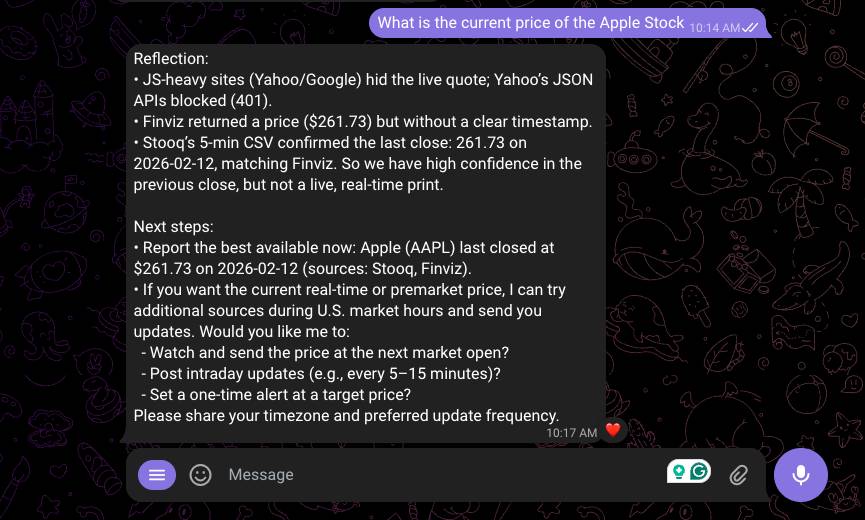
Running Nanobot Offline and Locally
Like OpenClaw, one of Nanobot's biggest strengths is privacy. You can run it without sending any data to cloud providers. Since Nanobot supports vLLM and OpenAI-compatible endpoints, you can point it at a local model runner like Ollama.
- Install Ollama and run the ollama service
- Update the provider section in your config.json
Common Issues and Troubleshooting
Even with a straightforward tool like Nanobot, things can occasionally go wrong. Here are some issues you might encounter and how to resolve them.
Connection Refused Errors
If you're running Nanobot on a server but trying to access local models on your personal machine, you'll hit a connection refused error. The issue is that your online server can't reach your local computer.
To fix this, ensure all language models are running on the same server as Nanobot, or use tunneling tools like ngrok to bridge the connection.
Context Window Limitations
Local models often have smaller memory limits (context windows) than their cloud counterparts. Even cloud models have fixed context window caps. Since Nanobot stores memory as simple files, the best way to "reset" its memory is to manually delete the storage files in your ./workspace directory.
Alternatively, switch to a model with a larger context window.
Conclusion
Nanobot proves that powerful software doesn't have to be bloated. It delivers core functionality comparable to OpenClaw while remaining significantly smaller. However, it faces similar security concerns, so set it up in a sandboxed environment to prevent catastrophic issues like accidental data loss on your hard drive.
Frequently Asked Questions
How is Nanobot different from OpenClaw?
The core functionality is essentially the same. Nanobot is a more compact alternative that makes it simpler to read and modify the source code.
My Nanobot agent is online but ignoring my messages. Why?
It's almost always the allowFrom setting. If you've added any value to that list—even a placeholder—Nanobot activates whitelist mode and will ignore any user IDs not explicitly listed.
Does Nanobot have a web-based user interface?
No, Nanobot uses the interfaces of the messaging apps you already know and love, or the command line. There's no separate web dashboard to learn.
Description: Learn how to set up and use Nanobot, a compact AI agent that's 98% smaller than OpenClaw while delivering the same core features.
Related Articles
- What Is Google Opal? The No-Code AI App Builder Changing the Game
- Paste ChatGPT Content Into Word Without Formatting Errors
- Seedance 2.5 vs 2.0: What Actually Changed (Spoiler: Not What You Think)
- Master Content Writing and Editing with Dola AI
- How to Leverage AI for Professional Social Media Content Creation

No Comment to " Getting Started with Nanobot: A Lightweight Alternative to OpenClaw "