Schedule Events Directly in ChatGPT Using iCloud Calendar

Building on the ability to manage iCloud Mail within ChatGPT, you can now harness iCloud Calendar to organize your schedule directly in the chat interface. Here's what makes this genuinely useful: you never need to context-switch between apps. Creating events, checking appointments, editing details—it all happens in one place. Let's walk through connecting iCloud Calendar to ChatGPT and putting it to work.
Connecting iCloud Calendar to ChatGPT: Step-by-Step
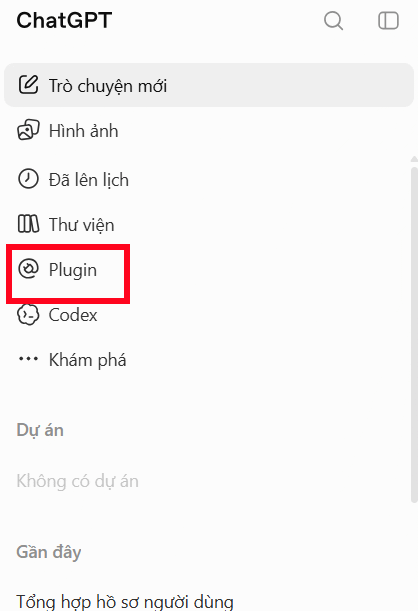
Step 1: Access the Plugin Menu
Open ChatGPT and click the Plugins option in the main interface.
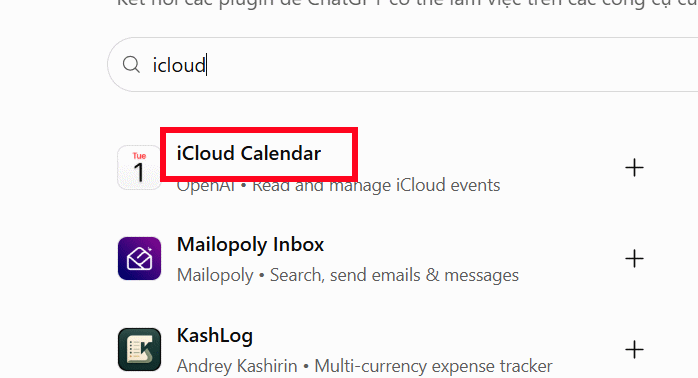
In the search box, type icloud and select iCloud Calendar from the results.
Step 2: Install the Plugin
On the app information page, click Install Plugin.
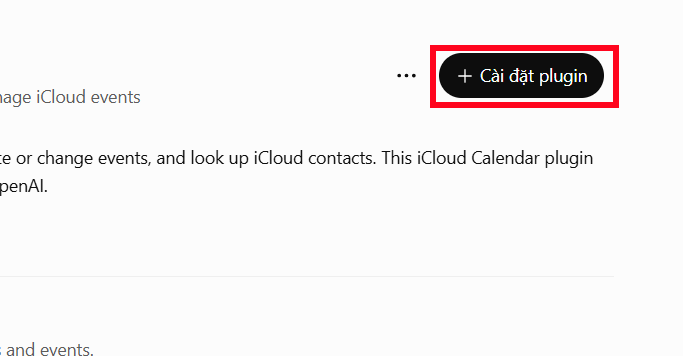
Next, select Connect iCloud Calendar.

Step 3: Enter Your Apple ID
Type your email address into the ChatGPT interface and click Continue.

You'll see instructions for the next phase. Follow the prompts to sign in to Apple's website with your Apple ID.

Step 4: Generate an App-Specific Password
On the Apple account page, navigate to App-Specific Passwords.

Enter a name for this connection—something like ChatGPT Calendar—so you can identify it later if needed.

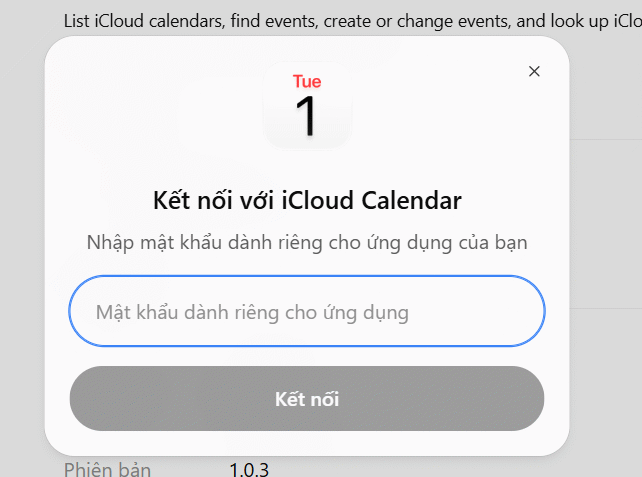
Apple will generate a unique password. Copy this password immediately—you'll need it in the next step.
Return to ChatGPT, click Continue, then paste the password Apple provided. That's it—the connection is complete.
Once iCloud Calendar is connected, you unlock several capabilities:
- View upcoming appointments and events.
- Search for specific scheduled events.
- Create new calendar entries.
- Edit times and event details.
- Access your iCloud contacts.
Creating and Managing Events in ChatGPT
In the ChatGPT chat box, type @icloud and select iCloud Calendar from the dropdown menu.

Now type your command to interact with your calendar. ChatGPT will confirm whether it found matching events or complete your request.

Here are some example commands to try:
Check Your Schedule:
Show me all my iCloud Calendar events for the next 7 days and give me a summaryFind a Specific Event:
Find any events this month with "client meeting" in the nameCreate a New Event:
Create an event called "Project Report" on Monday, November 11th for 60 minutesReschedule an Event:
Find my "Project Report" event and move it to Tuesday, November 12thPro tip: always double-check the dates, times, and details before confirming any changes. What's interesting here is that ChatGPT acts as your calendar assistant—no hunting through menus required.
Description: Learn how to connect iCloud Calendar to ChatGPT and manage your schedule without switching apps. Complete setup guide included.
Related Articles
- Four Practical Ways to Deploy Large Language Models in 2025
- 5 AI Prompts That Free Up 5 Hours of Office Work Every Week
- Can Qwen 3.8 Really Compete with Claude Opus? We Tested It on a Gaming GPU
- 10 Strategies to Future-Proof Your Career in the AI Era
- Claude vs ChatGPT: Which AI Chatbot Should You Actually Use?

No Comment to " Schedule Events Directly in ChatGPT Using iCloud Calendar "