How to Use Ask Photos AI on Google Photos: A Complete Guide
Ask Photos is a new AI-powered search feature in Google Photos, backed by Google's Gemini technology. It lets you find images and information using natural language queries instead of traditional keywords. What's interesting here is that Google has embedded Gemini directly into Photos, fundamentally changing how you interact with your library.
Google Photos already had solid search capabilities, but Ask Photos takes things to another level. The AI-driven approach gives you more options and better results overall. Instead of typing keywords, you can now describe what you're looking for in plain English—and Gemini understands the context behind your query to surface exactly what you need. Let's walk through how to get started with Ask Photos.
How Does Ask Photos Work?
Ask Photos is Google Photos' new AI search tool that understands descriptive queries and returns relevant results. Under the hood, it uses Google's Gemini AI models to analyze context and deliver smarter search results.
The feature understands a ton of information stored in your Google Photos library—important people in your life, favorite meals, locations you've visited, hobbies, and much more. You can query it with natural questions or descriptions, adding as much detail as you want.
Because it grasps context, Ask Photos can surface images that traditional keyword searching would struggle to find. The real power comes from its ability to connect the dots across your entire photo collection.
How to Use Ask Photos AI on Google Photos
Step 1:
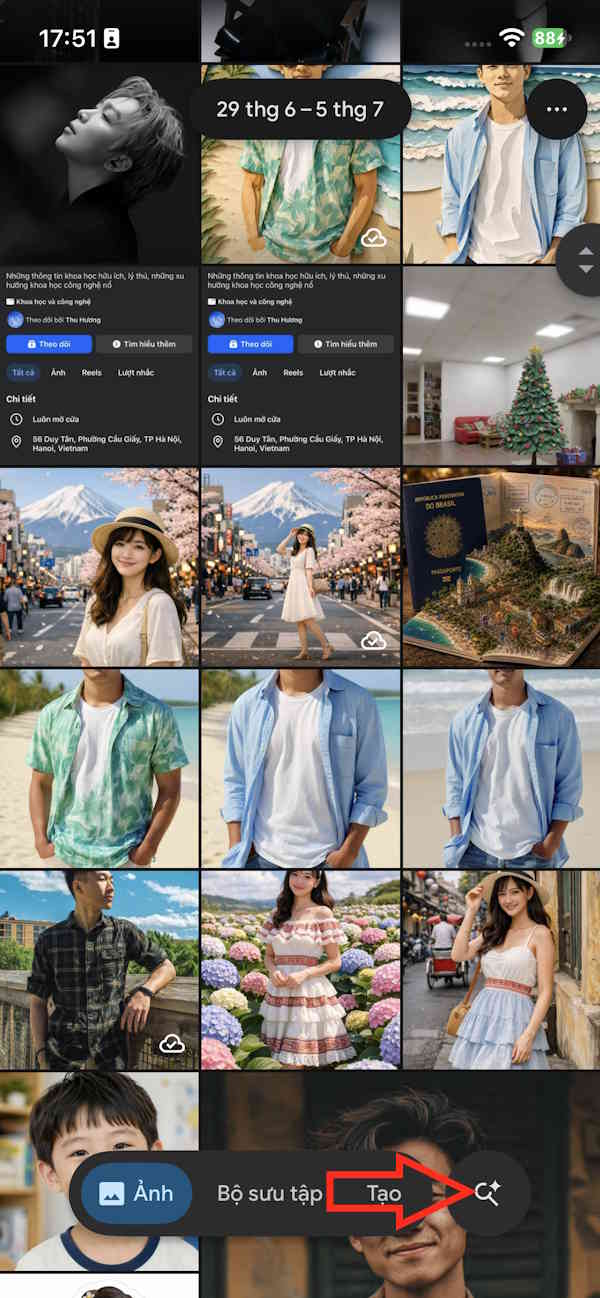
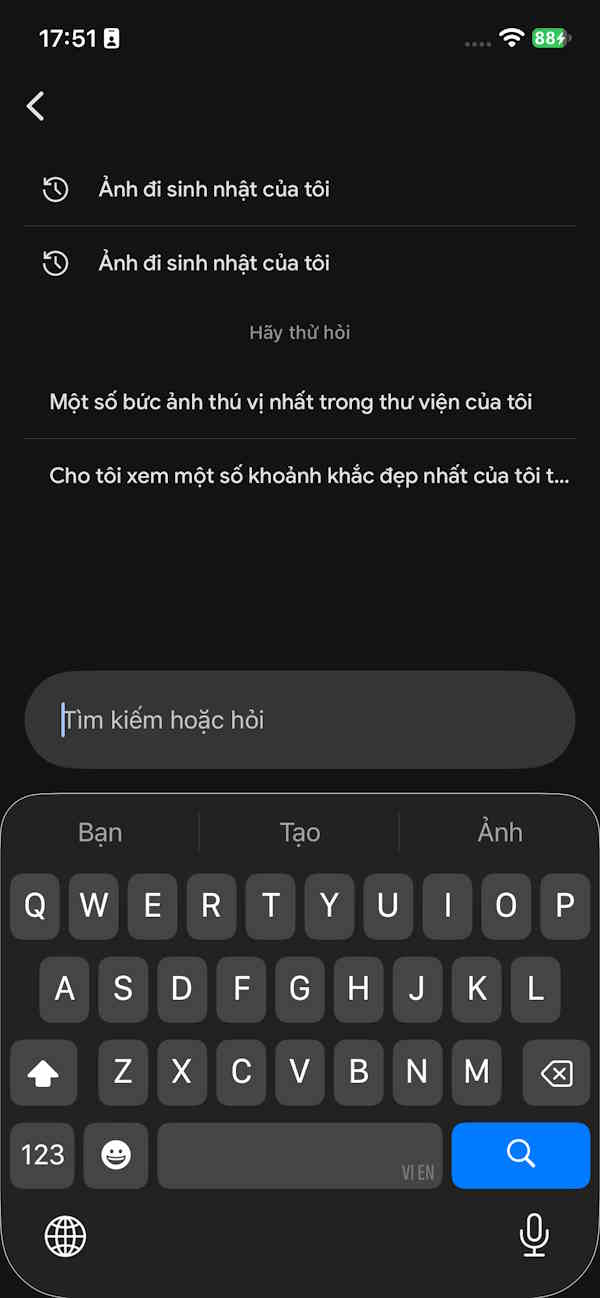
Open Google Photos and you'll see a notification about the new AI search tool. Accept it to enable the feature. Next, tap the search icon to activate Ask Photos. You'll now see a search bar where you can enter your description.
Step 2:
Type in a description of the image you're trying to find. Ask Photos understands natural language, so it will process your query and return related results. The more descriptive you are, the better your results.
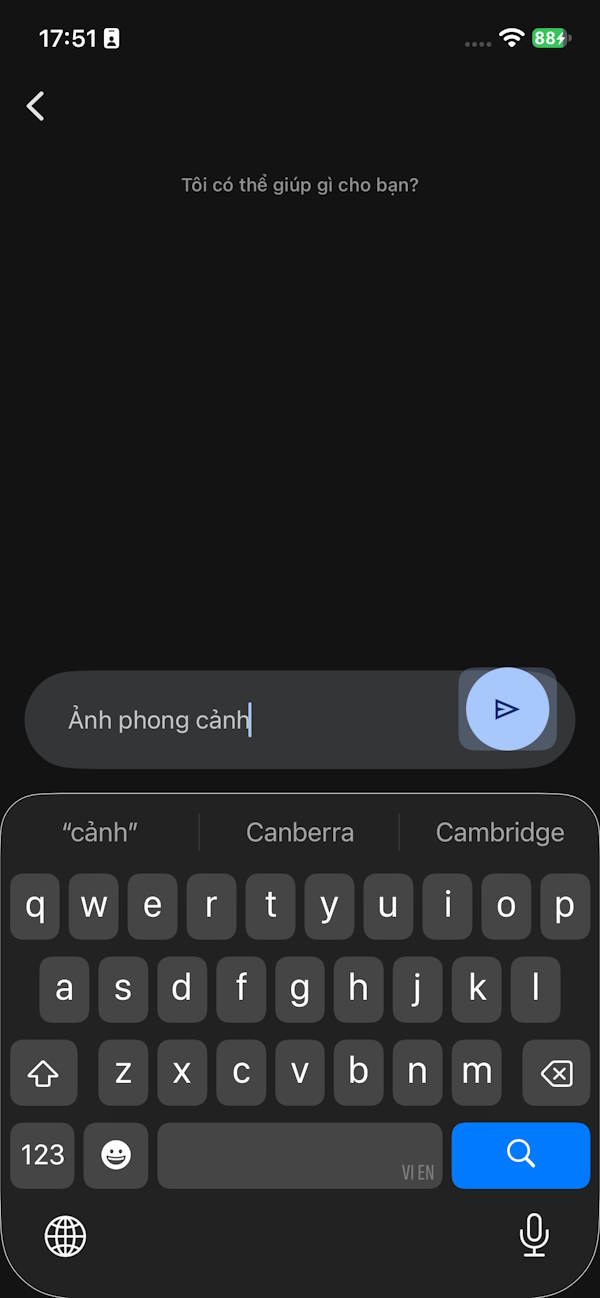
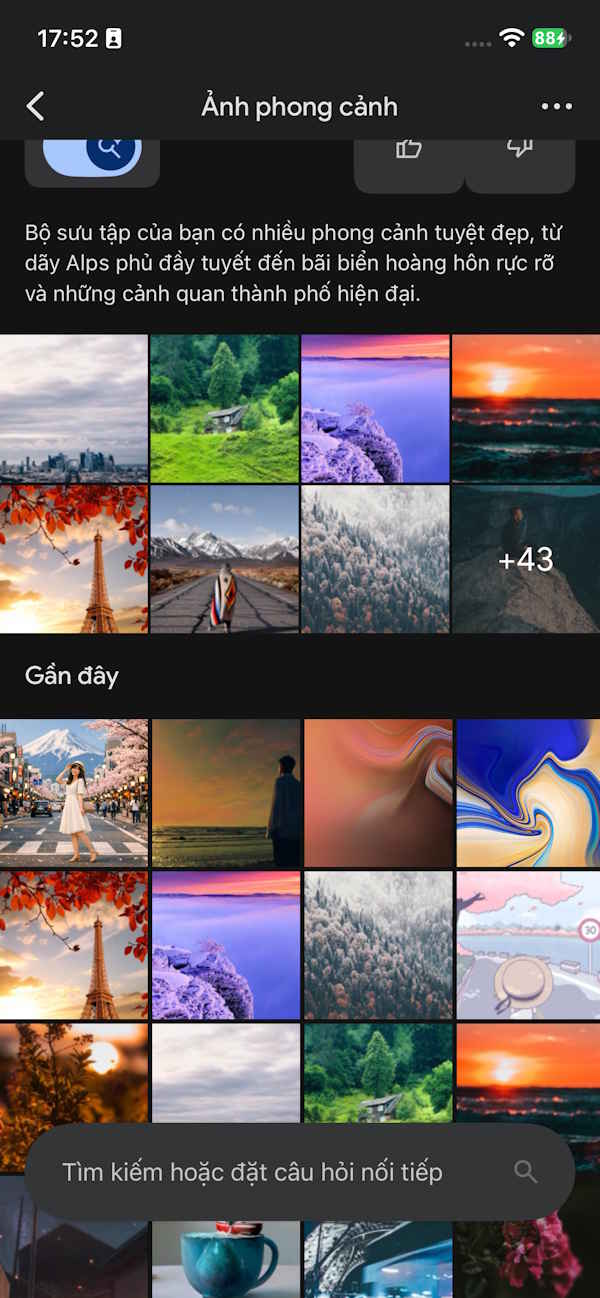
You can continue entering new search queries to find different images. Gemini scans your photos and identifies matches based on the details in your description. The results align closely with your search terms, so specificity pays off.
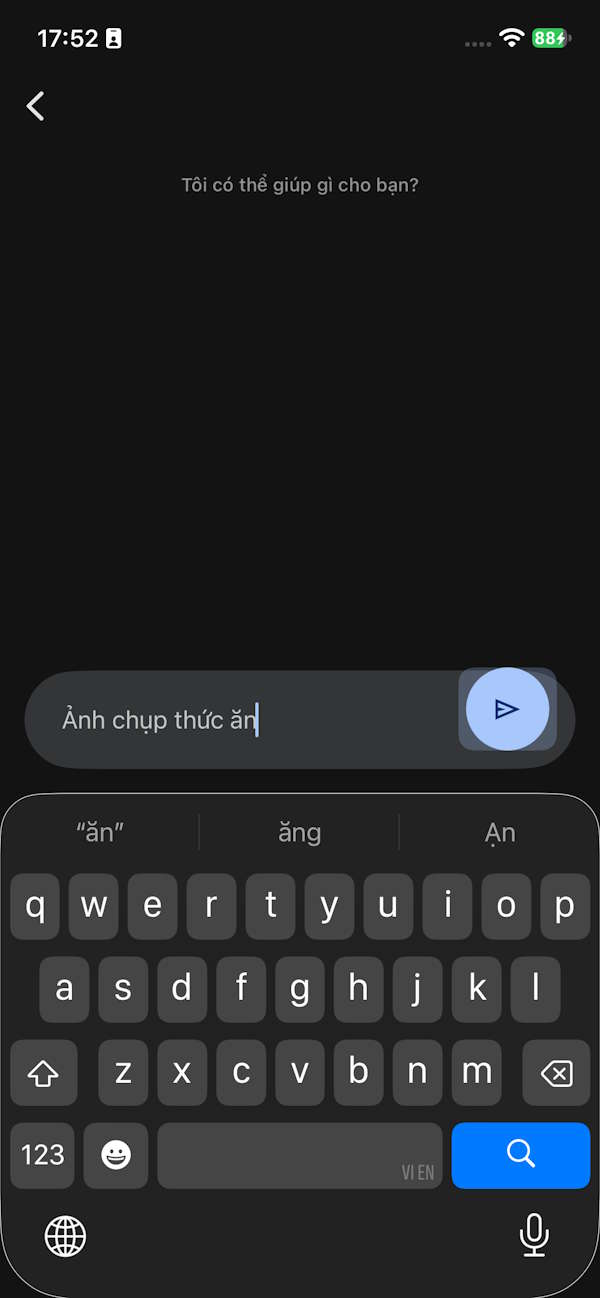

The results Ask Photos delivers will closely match your search criteria. That's why detailed descriptions yield better outcomes.
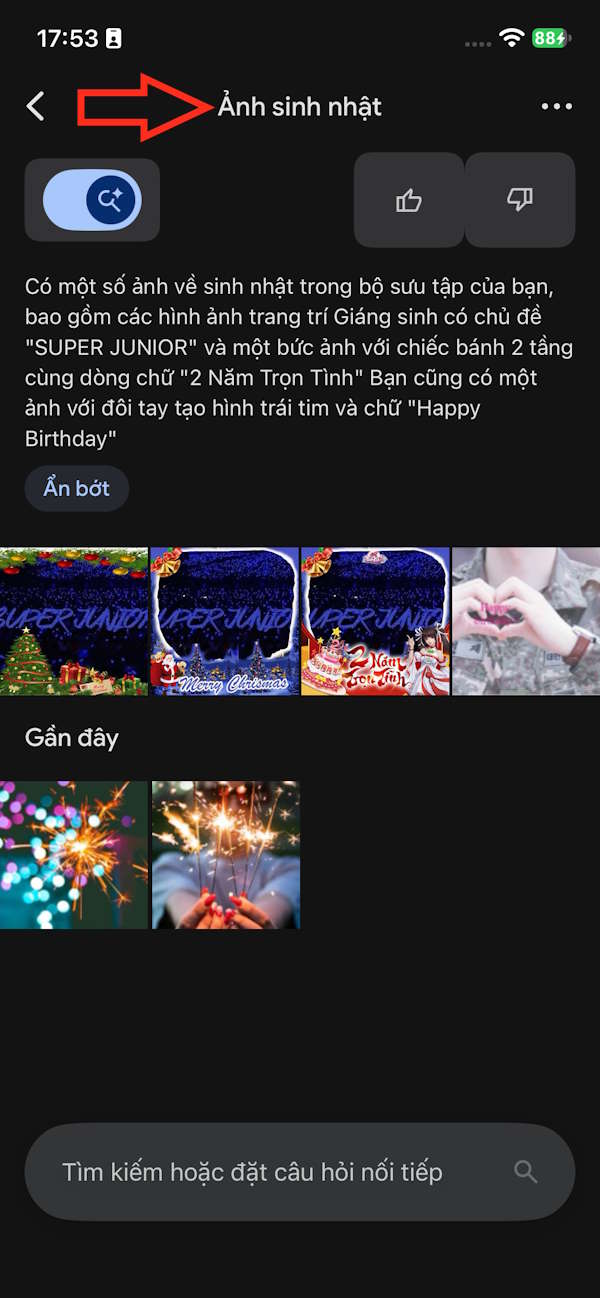
Step 3:
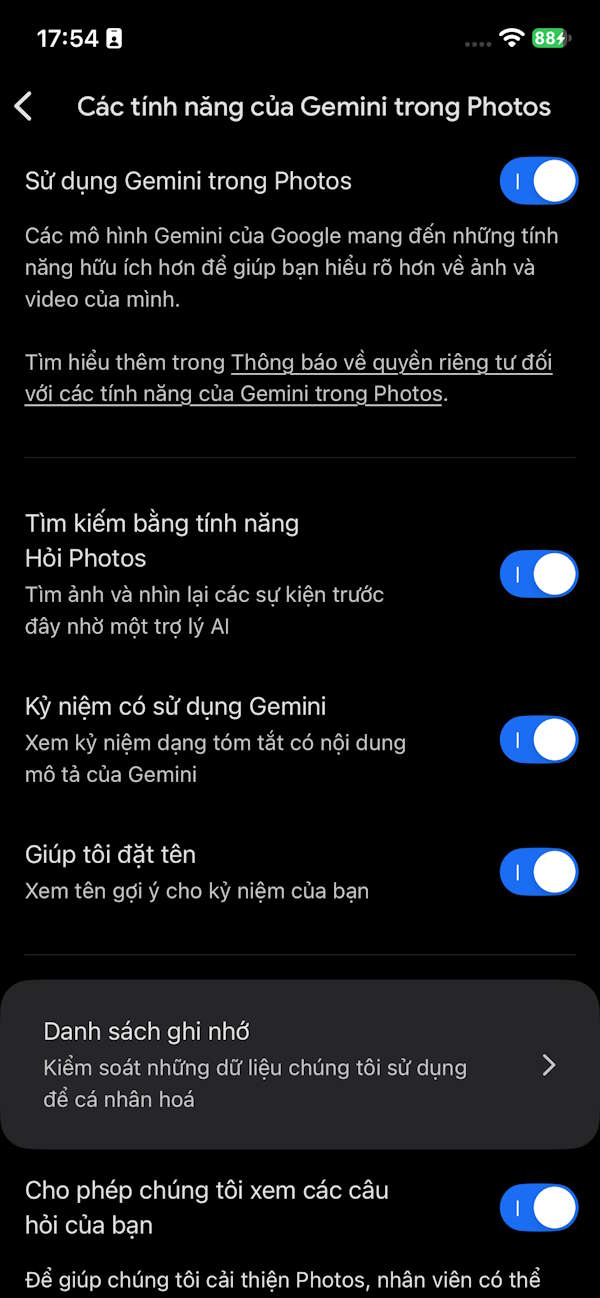
Gemini has its own settings panel within Google Photos so you can tweak how it operates. In the Ask Photos search interface, tap the three-dot menu in the top right corner and select Gemini in Photos.
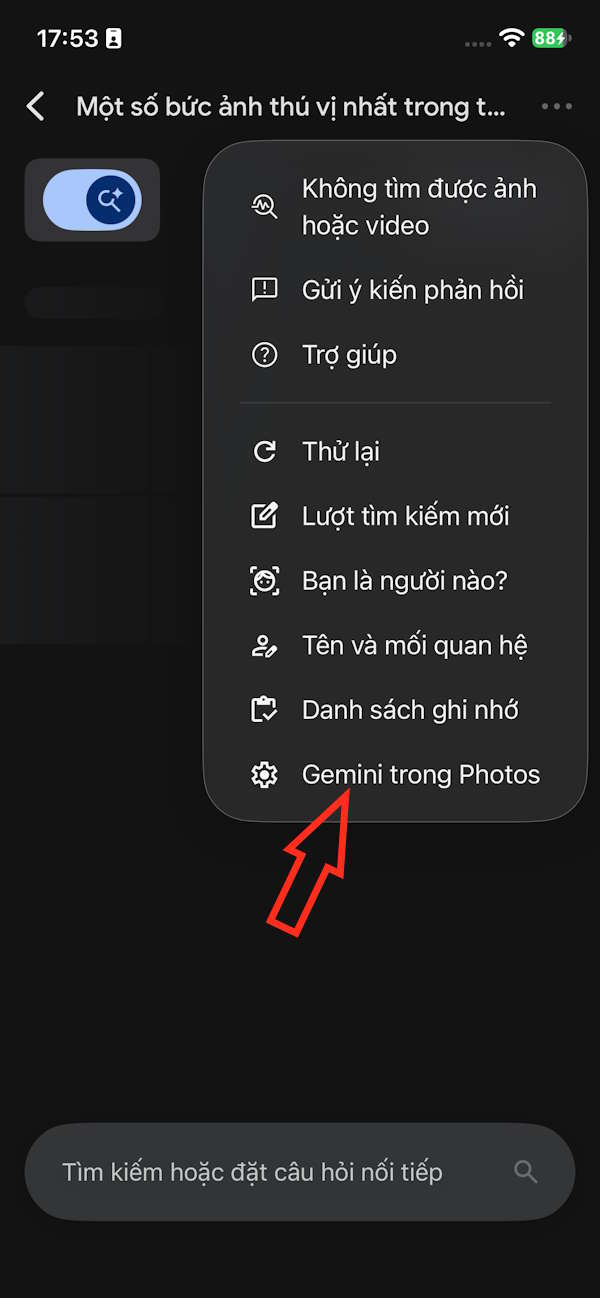
You'll now see Gemini settings for Google Photos. Review these options and disable any features you don't want to use.
What Can You Do With Ask Photos?
Ask Photos, powered by Gemini in Google Photos, lets you search for images using anything from simple to highly specific questions. The AI grasps context to locate the right photos. Here are some practical search examples:
- Find travel photos: Ask "Where did I go to [location]?" or "Show me photos from my trip to [location] in [year]." Ask Photos pulls from multiple data points to find the right images.
- Find food photos: Forgotten what you ate? Try "What did I eat at the resort in [location]?" or "Show me all the desserts I had this year."
- Find specific details: You can ask hard-to-remember questions like "What's my license plate number?" Ask Photos searches through related images to provide the answer.
- Find particular photos: Short queries like "Recent selfies" or "Landscape photos" work too, helping you quickly locate specific image types.
- Find photos with specific people: Ask "When was the last time I saw my sister?" or "Photos of me and my brother at the restaurant." Thanks to its face recognition capabilities, Google Photos pinpoints relevant images with impressive accuracy.
Description: Learn how to search your photo library using natural language with Ask Photos, Google's new AI-powered search feature powered by Gemini.
Related Articles
- 5 Real-World Applications of Vibe Coding That Drive Digital Transformation Today
- 5 Best AI Coding Subscriptions for 2026: Finding Value Beyond 'Unlimited' Plans
- 7 Ways AI Can Streamline Your Linux System Administration
- How to Enable Your Laptop Webcam on Windows 7, 8, 10, and 11
- 11 Ways to Open the On-Screen Keyboard in Windows 10

No Comment to " How to Use Ask Photos AI on Google Photos: A Complete Guide "