How to Use Google Sheets AI Summarize to Condense Your Data
Google Docs isn't the only place getting AI-powered summarization. Google Sheets now brings this capability through Gemini, letting you condense text-heavy data right within your spreadsheets.
Most spreadsheets contain more than just numbers. You'll find customer feedback, project notes, survey responses, and other text content mixed in. Manually reading through all that to find the main points is tedious—which is exactly where Gemini's AI Summarize text tool comes in handy. This guide walks you through condensing text in Google Sheets efficiently.
Getting Started with AI Summarize in Google Sheets
Step 1:
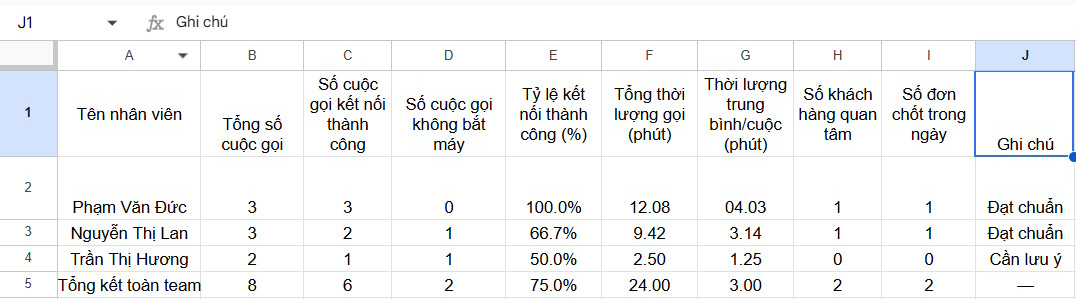
Set up your Google Sheets spreadsheet as usual. You can create a dedicated column or row where you want to place your summarized content.
At the location where you want to insert the summary, click on Gemini and select Summarize text. Gemini automatically analyzes the text you've selected—whether it's a single cell or your entire data range—and generates a concise summary.
Here's what's interesting: you don't need to write any prompts or commands. Just pick the right data and select the Summarize text tool, and Gemini handles the rest.
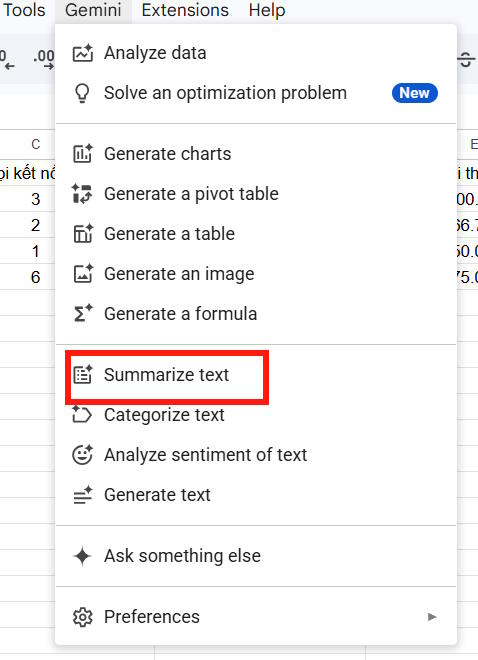
Step 2:
Give Gemini a moment to process your data and content. Once it finishes, you'll see the summarized version appear on your screen. Gemini's summarization tool extracts the most essential information from your spreadsheet, making it easier for anyone to grasp the key points at a glance.
Want a different summary? Simply hit Refresh and fill to generate an alternative condensed version.
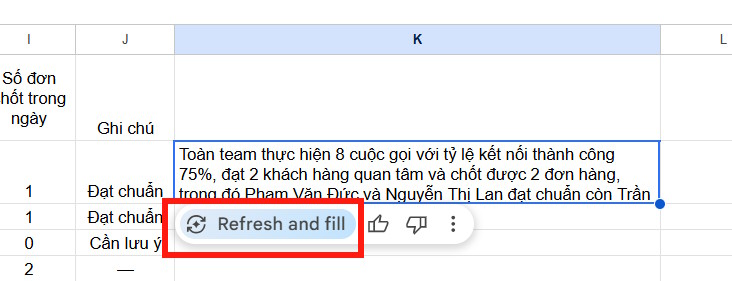
The content refreshes instantly with the new summary in place.
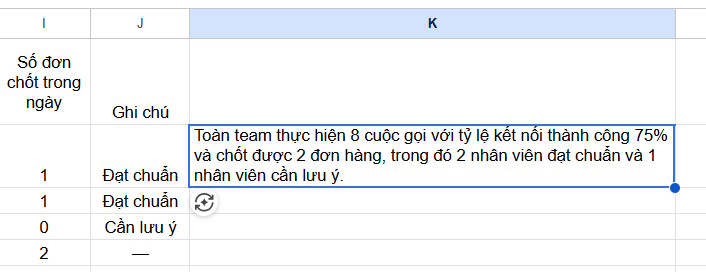
Review the updated summary and keep whichever version works best for your spreadsheet.
What Content Works Best with AI Summarize?
The Summarize text feature shines when dealing with text-heavy spreadsheets. Here are the most practical use cases:
Customer Feedback
Summarize text pulls together the core themes from all your feedback entries and highlights the most critical points that need attention.
Product Reviews
Condense multiple product reviews into key takeaways, making it simple to identify common patterns and themes.
Survey Responses
Reduce lengthy survey answers to their essential elements, saving time when you need to review and analyze results.
Work Notes
Transform long, rambling notes into clean, digestible summaries that are actually pleasant to read.
Meeting Minutes
If you store meeting notes in Google Sheets, Summarize text distills lengthy notes down to their key action items and decisions.
User Comments and Replies
Beyond formal feedback and surveys, this tool also handles general user comments and responses pulled from various sources.
Description: Learn how to leverage Gemini's AI Summarize feature in Google Sheets to automatically condense text data and extract key insights from your spreadshee
Related Articles
- The Best AI Programming Tools You Should Know About in 2024
- How to Seamlessly Transfer Conversations Between ChatGPT, Claude, and Gemini Using ThreadPort
- Why Quizlet Beats Gemini and ChatGPT for Actual Learning
- The Upload Button Paradox: How AI Tools Became Your Company's Biggest Security Risk
- Claude Pro vs API: Which Option Actually Makes Sense for You?

No Comment to " How to Use Google Sheets AI Summarize to Condense Your Data "