11 Telltale Signs That an Image Was Created by AI
That celebrity photo circulating on social media? The product shot in an online ad? That suspiciously perfect portrait on a dating profile?
Any of these could have been generated by artificial intelligence. And as we head into 2026, fake images are becoming increasingly sophisticated.
Here's the good news: AI image generators like Midjourney, Adobe Firefly, and GPT Image 2 still make predictable mistakes—if you know what to look for. This guide walks you through 11 reliable methods to detect AI-generated imagery.
11 Ways to Spot AI-Generated Images
- 1. Distorted Hands and Fingers
- 2. Missing or Duplicated Elements
- 3. Unnaturally Flawless Skin
- 4. Garbled or Nonsensical Text
- 5. Illogical Architecture
- 6. Unnatural Lighting and Shadows
- 7. Check the Filename
- 8. Examine the Metadata
- 9. Verify the Source
- 10. Look Closely at the Details
- 11. Be Suspicious of Perfection
1. Distorted Hands and Fingers
AI image generators—including Midjourney—have long struggled with rendering hands correctly. Fingers often appear too long or too short:

Sometimes the hand itself has too many or too few digits:

Or the hands look warped and malformed. In this example, a woman has four fingers on one hand, with the fifth digit appearing to sprout from her skirt:

Here's what's important to know: Don't rely blindly on this trick anymore. The latest generation of models—GPT Image 2, Midjourney V8.1, and FLUX.2—now render hands with impressive accuracy. This image, created with GPT Image 2, features anatomically correct hands with natural skin texture:

So here's the takeaway: deformed hands are strong evidence of AI generation, but perfect hands don't prove an image is authentic.
2. Missing or Duplicated Elements
Beyond hands, other objects frequently appear incomplete or repeated. Take this lion, which only has one ear:

Or this T-Rex, which somehow sprouted three arms:

3. Unnaturally Flawless Skin
Many AI image generators produce skin that's suspiciously perfect. That means zero wrinkles, blemishes, facial hair, or moles—essentially digital airbrushing taken to an extreme:

That said, this particular image was created with Midjourney and isn't an extreme example. It could also be a lightly Photoshopped photograph.
With other tools, this "perfect skin" problem becomes far more obvious and jarring.
4. Garbled or Nonsensical Text
Most AI image generators struggle to render readable text accurately. Midjourney included.
Letters often appear distorted, duplicated, scrambled, or missing entirely.
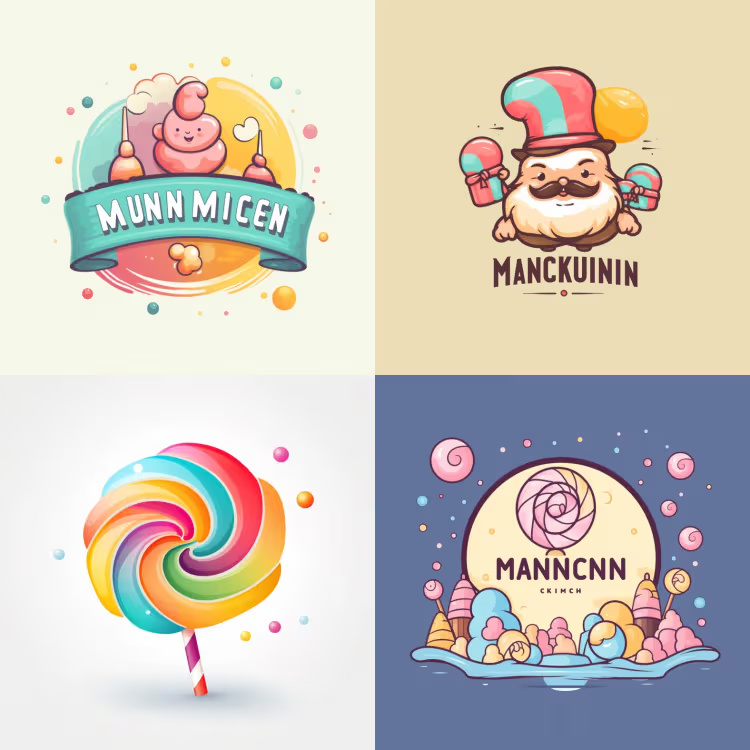
In this logo example, the word "Munchkin" should be spelled clearly, but instead it's mangled:
The newest generation has caught up here. GPT Image 2 now leads the pack in text rendering accuracy, even correctly displaying German umlauts, as shown in this AI-generated sign:

So garbled text mainly reveals images from older or cheaper models.
5. Illogical Architecture
AI models often struggle with architecture, especially complex structures like castles or fortifications.
This castle image looks decent at first glance:

But look closer and you'll spot several inconsistencies:
- Stairways that defy logic
- Towers that appear warped or asymmetrical
- Windows that are distorted or misaligned
- Rooflines and dormers that bend unnaturally
- Chimneys in odd locations
- Brickwork laid incorrectly
- And more...
6. Unnatural Lighting and Shadows
Simulating light and shadow realistically is a complex task that trips up most AI models. So if you spot an image where the lighting and shadows don't quite match up, it might be AI-generated.
In this DALL·E 3 image, the shadows cast by beachgoers are inconsistent and look wrong. Some shadows are too long, too short, cut off, or too dark. Others don't align with the sun's position, or they're missing entirely:

7. Check the Filename
If the filename hasn't been changed before uploading, you can often determine whether an image was AI-generated—and sometimes even which tool created it.
Midjourney image filenames follow this pattern:
Username_Prompt_JobID.pngExample:
blogmojo_superheroine_sailor_with_blue_dress_maritime_backgroun_fc50e595-3c9d-419d-a3e7-ce0ce9f9089a.png
With DALL·E 3 (replaced by GPT Image and fully discontinued by OpenAI in May 2026), it was even more obvious—not only the prompt but "DALL·E" itself appeared in the filename. Many such files are still circulating online:

8. Examine the Metadata
Beyond the filename, you can also inspect an image's metadata to determine whether it was AI-generated.
Real photographs contain camera information—brand, model, and lens used—plus technical data like aperture, shutter speed, and focal length:

AI-generated images lack this camera metadata. Instead, they increasingly carry embedded provenance information:
- C2PA Content Credentials: OpenAI embeds C2PA metadata into all images generated via ChatGPT or the API (GPT Image). You can verify this free at contentcredentials.org/verify.
- SynthID: Google watermarks images from Gemini and Imagen with an invisible marker that persists through cropping, screenshots, and light editing. In the Gemini app, you can directly ask whether an uploaded image carries the SynthID watermark, though the accuracy isn't guaranteed—a July 2026 investigation found Gemini sometimes carries over verdicts from the first image in a conversation.
Both methods have limitations, but they're currently the most reliable first-pass checks for suspicious images.
Note: Of course, metadata can be manipulated and added to AI images after the fact. Conversely, real photos can have their metadata stripped—something many image compression tools do by default.
9. Verify the Source
Whenever you encounter an image online, always check where it came from. Who uploaded it? Where did they source it? Have any credible news outlets independently confirmed the image?
If you're uncertain, run a reverse image search using Google Images. Click the camera icon ("Search by image") on the right side of the search bar:

This shows whether the image has appeared elsewhere previously or if similar versions exist online. You can also check whether credible news outlets have reported on the event the image allegedly depicts.
10. Look Closely at the Details
AI image quality improves constantly. The best ones today are almost indistinguishable from real photographs. But they still typically show subtle tells.
AI images are trained on existing photos, so the models often struggle with uncommon details that rarely appear in training data.
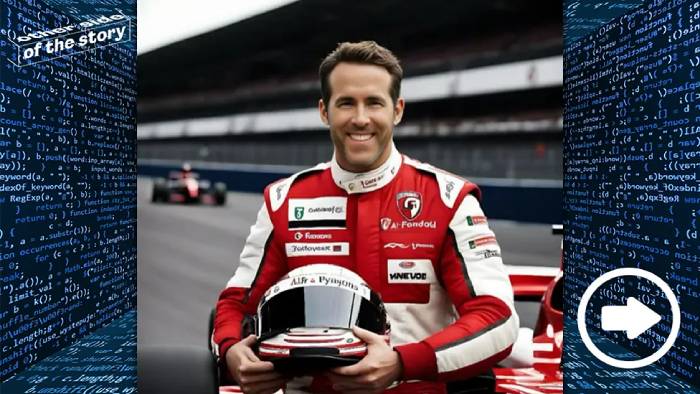
Take this example. Most of the image looks fairly realistic, but the fingers on the person's right hand have an unnatural appearance—a helpful hint that something's off. If the hands don't tip you off, examine the text on the F1 jacket more closely. Those letters are complete nonsense, a common giveaway in AI images, since the technology still struggles with small details like text and logos.
11. Be Suspicious of Perfection
Another effective way to spot AI images is to notice whether they look unnaturally flawless.
AI-generated images often lack the natural texture and imperfections inherent in real photographs. This gives them an overly processed appearance, like they've been run through aggressive smoothing filters or blemish removal.
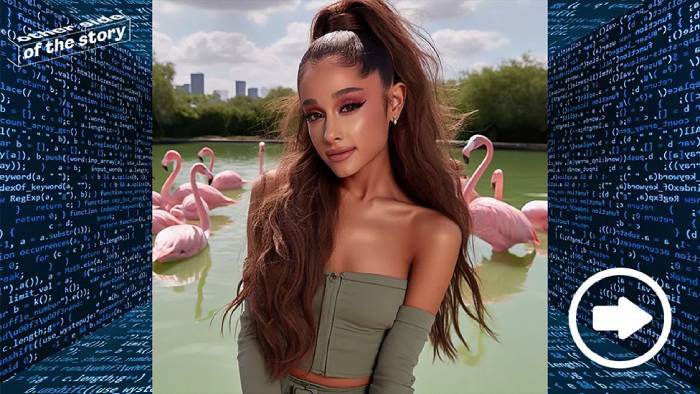
This image might initially remind you of a famous pop star, but the face lacks natural texture and detail. It's too sharp, too smooth, too perfect—all red flags suggesting AI generation.
The background can also be a giveaway. AI images often feature impossibly perfect or fantastical settings. For instance, a flock of flamingos in the background might seem normal, but in this case, it signals another detail suggesting something's amiss with the image.
Description: Learn how to spot AI-generated images. From wonky hands to impossible architecture, here are the giveaways that reveal synthetic photos.

No Comment to " 11 Telltale Signs That an Image Was Created by AI "