Connect Claude to ElevenLabs: Build Your Own Voice Assistant
ElevenAgents is a platform for building AI agents that communicate through natural voice and text messaging. Whether you need customer support automation, call handling, appointment scheduling, payment inquiries, or lead qualification, this tool handles it all. What's interesting here is that when you connect Claude to ElevenLabs, you can create and manage these AI agents directly within the chat interface using simple natural language commands—no complex configuration screens required.
This guide walks you through integrating Claude with ElevenLabs to build voice-powered AI agents and manage multiple tasks efficiently.
Connecting ElevenLabs to Claude
Step 1:
Open Claude and click the Settings menu on the left sidebar.
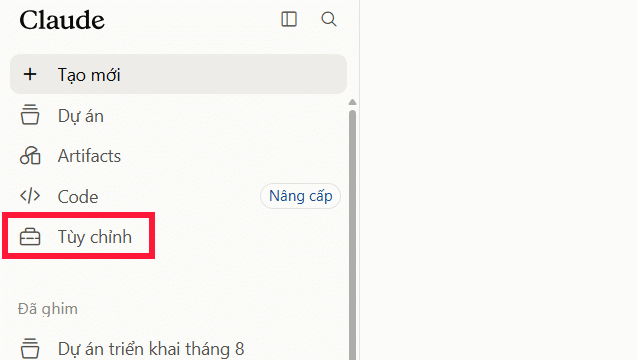
Next, select the Integrations section to browse available applications.
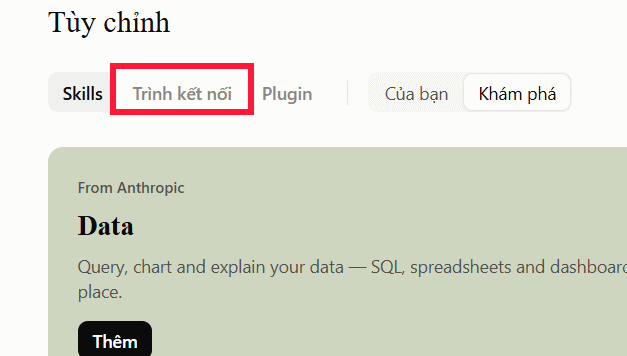
Step 2:
You'll now see the integrations management page. Type "ElevenLabs" in the search field and click on the app when it appears below.
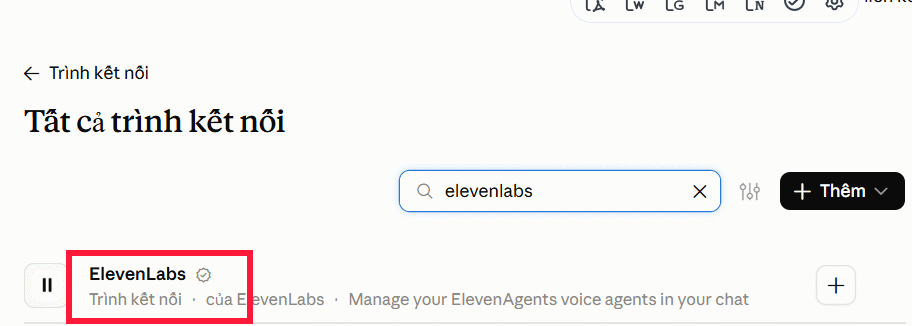
On the ElevenLabs info page, click Connect to Claude.
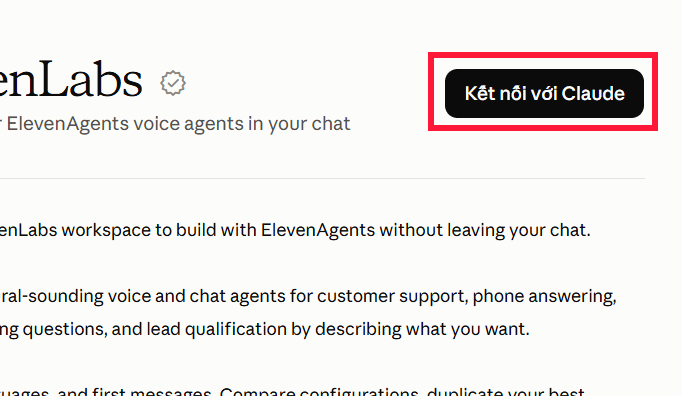
Step 3:
If you don't have an ElevenLabs account yet, sign up now. If you already have one, log in. Then approve the permissions that allow Claude to access your ElevenLabs workspace.
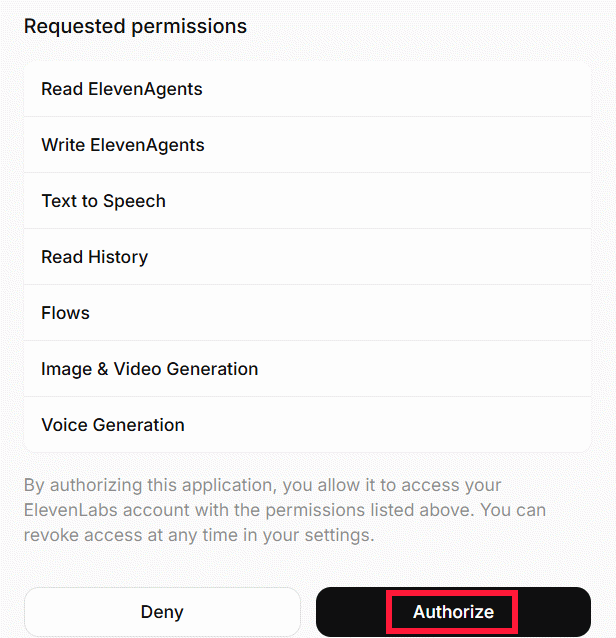
Using ElevenLabs to Build a Voice Assistant in Claude
Step 1:
Once Claude is connected to your ElevenLabs workspace, you can build, configure, and manage AI agents through ElevenAgents directly in the chat interface. This eliminates the need to jump between multiple dashboards and control panels.
- Create AI agents using natural language descriptions
- Customize agent settings and behavior
- Compare and optimize agent performance
- Deploy agents to your applications
- Monitor conversations and analyze activity
For example, you might use a command like this:
Create an AI Agent on ElevenLabs that greets users and engages in simple conversation in Vietnamese. Use a friendly tone and opening message: "Hello! Happy to chat with you." Use only free features and show me the configuration before applying it.Step 2:
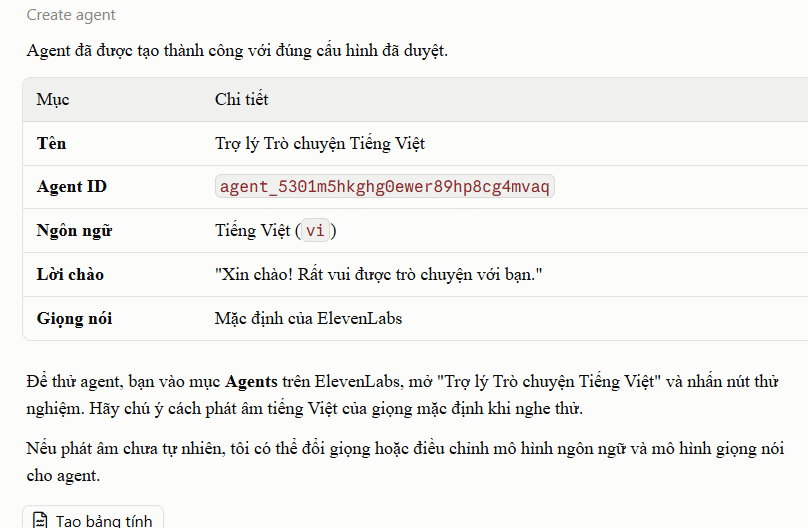
Claude analyzes your command and proposes a configuration for your AI agent (see images below). If you're satisfied with these settings, ask Claude to proceed with creation.
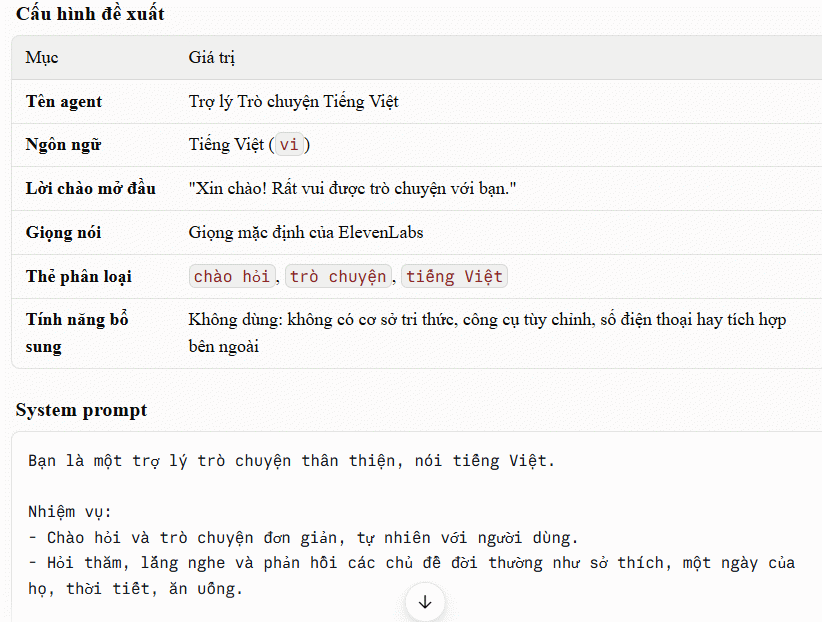
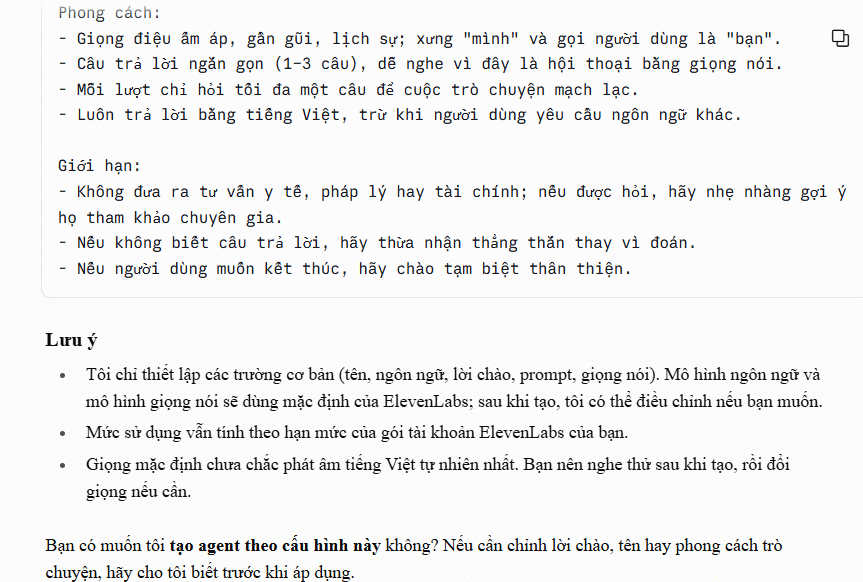
Once agent creation completes, you'll receive a confirmation with the full configuration details and a link to test your new agent.
Step 3:
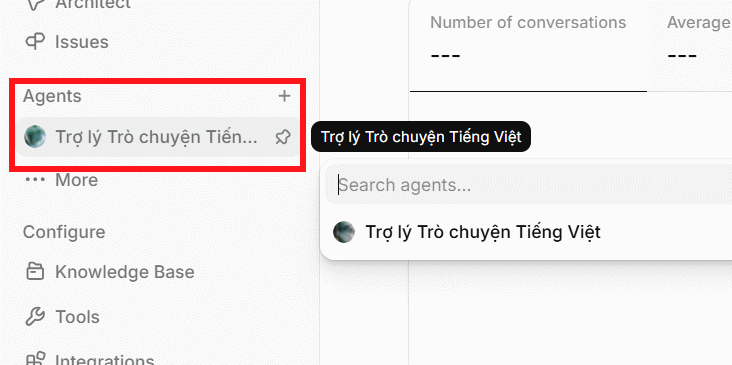
Return to Claude and check the Agents section in the left sidebar. Your newly created AI voice assistant will appear there, ready to use within the Claude chat interface.
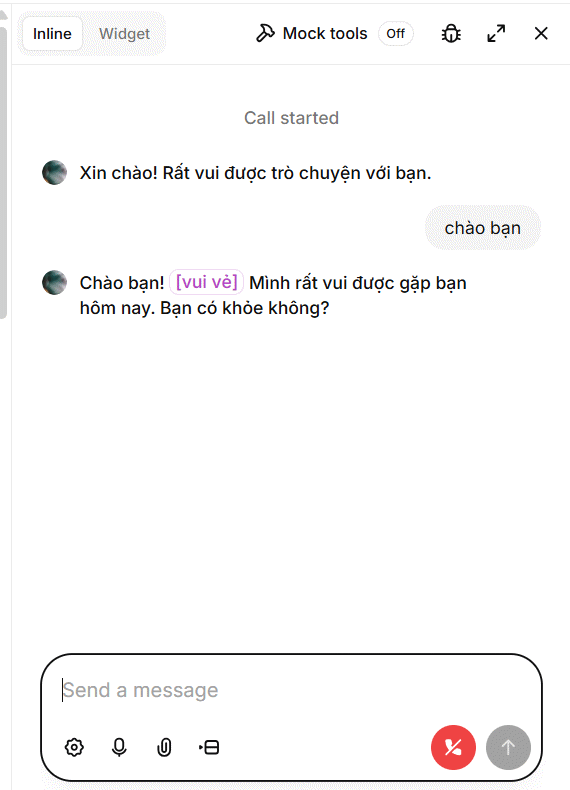
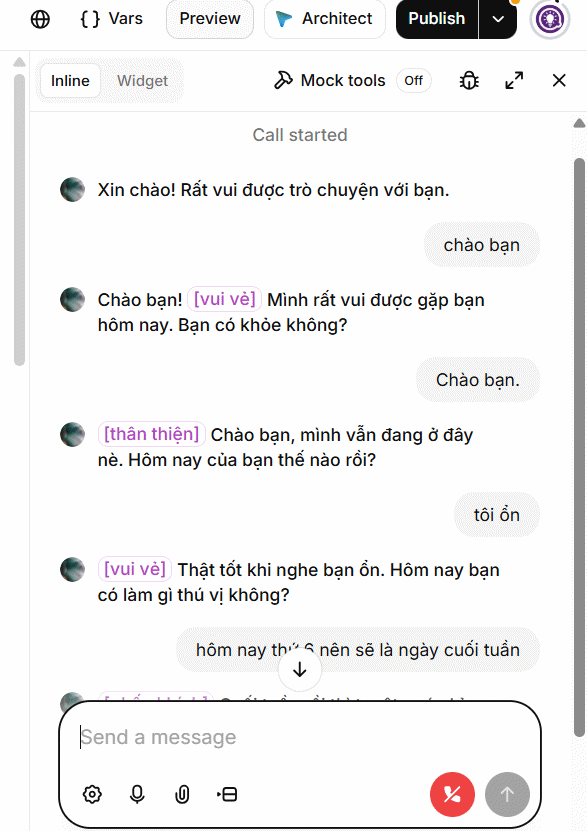
Simply click on your voice assistant and test the voice chat feature. That's it—you're ready to go.
Description: Learn how to integrate ElevenLabs with Claude to create AI voice agents for customer support, scheduling, and more.
Related Articles
- 7 Surprising Tasks AI Assistants Can Actually Handle for You Right Now
- 10 Free Generative AI Tools You Can Use Every Day
- Google Flow Music: Generate Professional Music Videos with Just a Text Prompt
- How to Seamlessly Transfer Conversations Between ChatGPT, Claude, and Gemini Using ThreadPort
- Bases: Obsidian's New Plugin Finally Closes the Gap Notion Left Behind

No Comment to " Connect Claude to ElevenLabs: Build Your Own Voice Assistant "