How to Access Your Canva AI Chat History
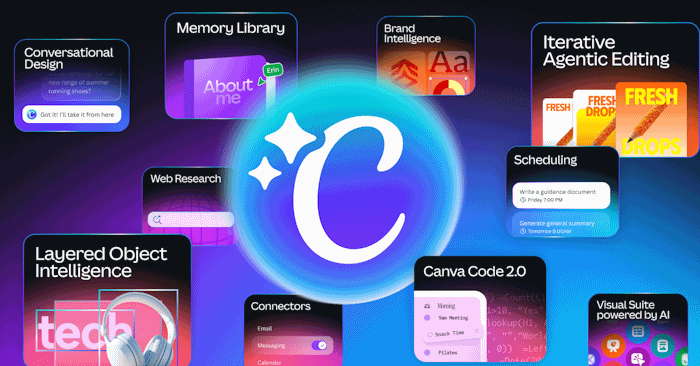
If you've been using Canva AI regularly, you've probably had dozens of conversations to generate content, design images, and brainstorm ideas. Over time, tracking down a specific conversation becomes tedious. The challenge is real: you remember creating something useful, but finding it again feels like searching for a needle in a haystack.
Maybe you want to revisit previous discussions, or you're hunting for that perfect AI-generated design but can't remember where it lives in your chat history. What's interesting here is that Canva makes this easier than you'd expect. This guide walks you through locating and managing your Canva AI conversation history.
Finding Your Canva AI Chat History
Step 1:
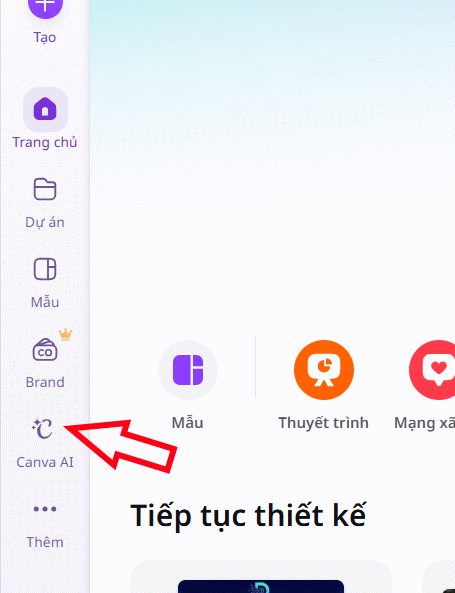
Open Canva and click the Canva AI section from the left sidebar to access the AI tools.
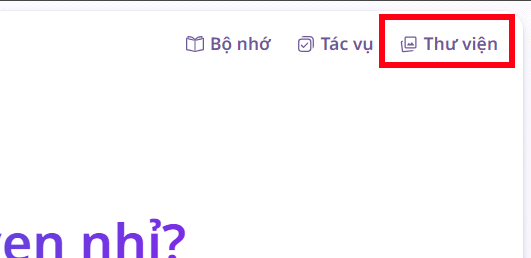
Once the Canva AI workspace loads, look to the top-right corner and select the Library option.
Step 2:
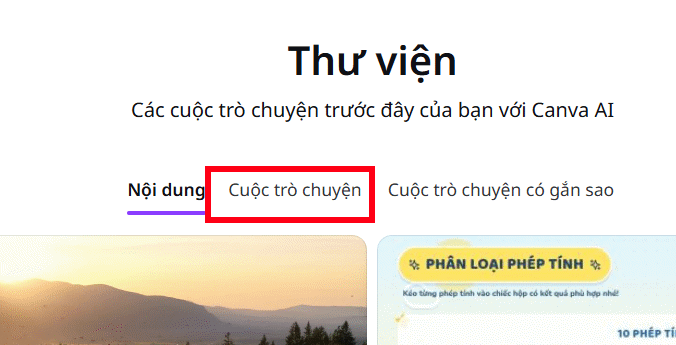
The new screen displays all your AI-generated content—images, videos, logos, and presentations created with Canva's AI tools. Click on Conversations to view your complete message history with Canva AI.
Step 3:
You'll now see every AI conversation you've had on Canva, complete with timestamps. This date information is incredibly useful—especially when you've created multiple projects over several days. You can quickly identify and select the specific conversation you want to revisit without opening everything.
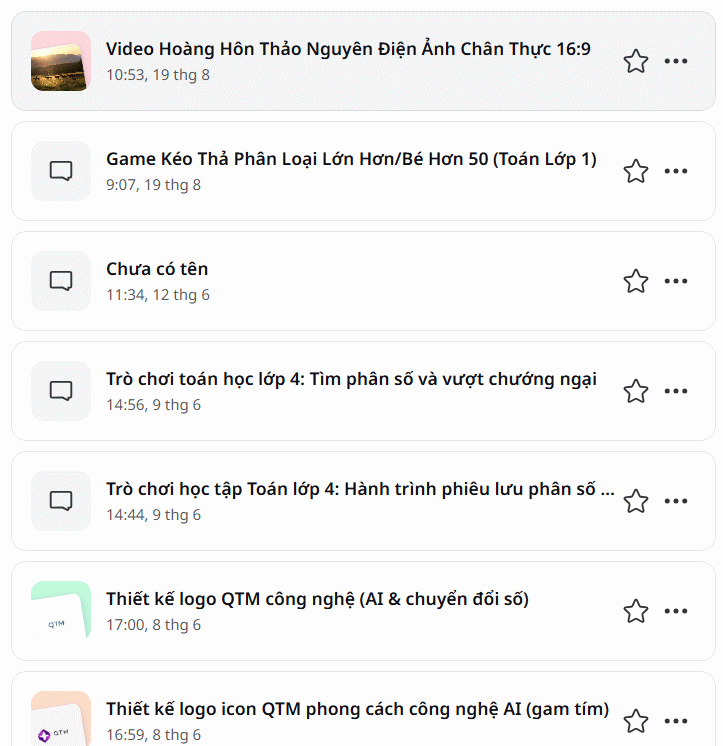
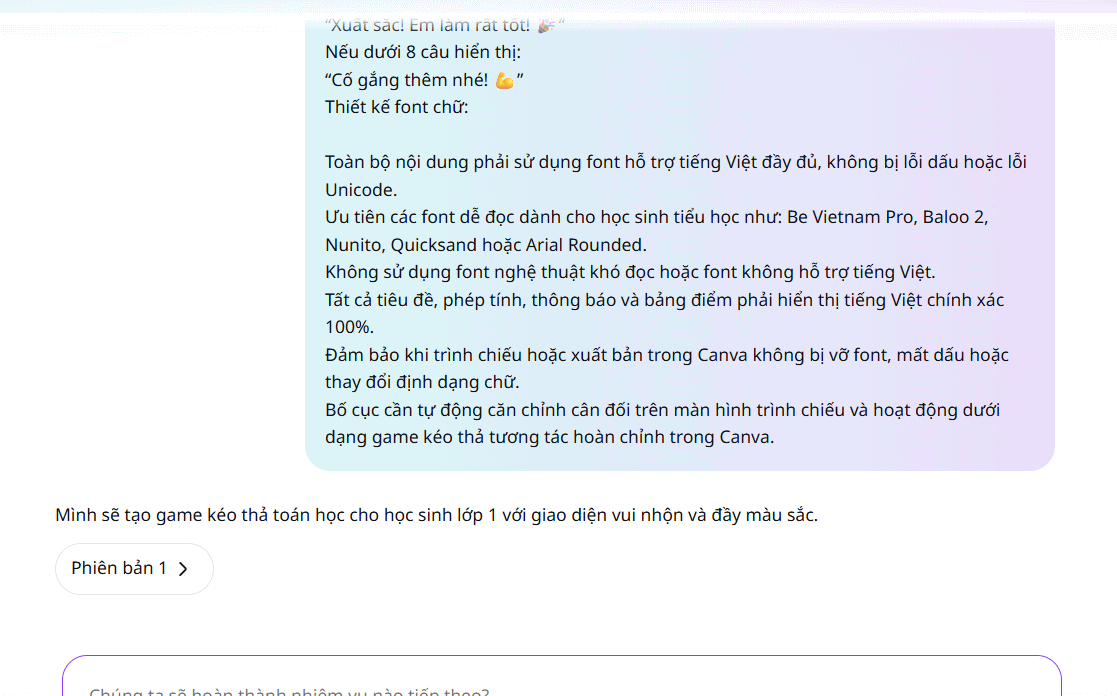
Clicking any conversation opens it in a new tab, showing the full chat transcript alongside the AI-generated results.
Step 4:
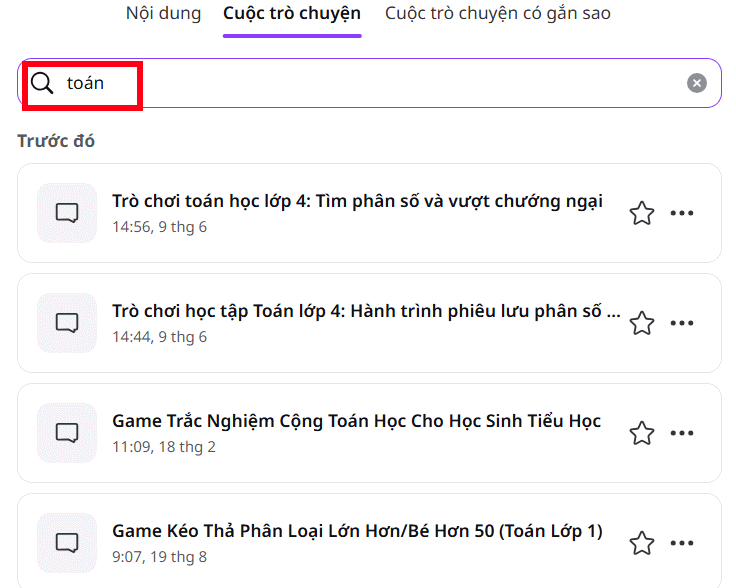
The conversation history screen includes a search bar that lets you hunt down specific content without manually scrolling through everything.
Simply type keywords related to the conversation title or content—think design theme, project name, or image type you requested. The search results show all conversations containing those keywords. Using distinctive terms tied to your work saves significant time compared to opening each conversation individually to verify its contents.
Step 5:
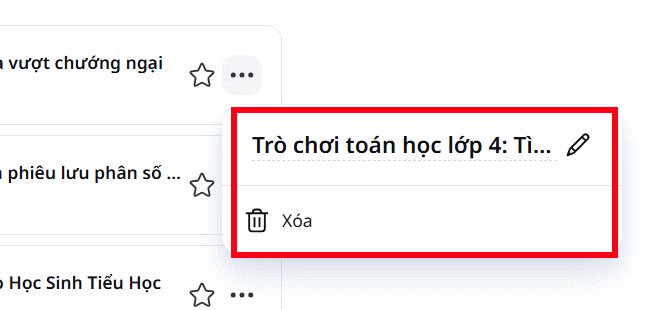
Each conversation has a three-dot menu icon. Tap it to delete a conversation or rename it—just click the pencil icon to edit the name.
Description: Learn how to find and search through your Canva AI conversation history to quickly locate past designs and content.
Related Articles
- Enhance Portrait Photos with Google Photos AI: A Complete Guide
- Microsoft Copilot vs ChatGPT: Which AI Assistant Should You Actually Use?
- How to Generate Automatic Document Summaries in Google Docs
- Which AI Should You Actually Use: ChatGPT, Claude, or Gemini?
- Hugging Face: The Python Ecosystem That Revolutionized AI Development

No Comment to " How to Access Your Canva AI Chat History "