AI News

  • Loading...
Browsing Category " Windows 11 "

Tips for Windows 11: How to show Weather Widget on Taskbar


Unlike Windows 10, Windows 11 currently does not have News and Interests functionality. This is an interesting and useful feature for users on Windows 10.
However, with Windows 11 you will not see this feature anymore. Instead are Weather, News, Top Stories... located in the Widget. This article will help you display the Weather feature on Windows 11 with just a few basic steps.


How to do:

To display the Weather feature on the Taskbar, please install the Taskbar in the middle of the screen as the default below. If the Taskbar is on the left side of the screen. Please reinstall it.  


➤ How to move Taskbar & Start Menu to the left or center in Windows 11


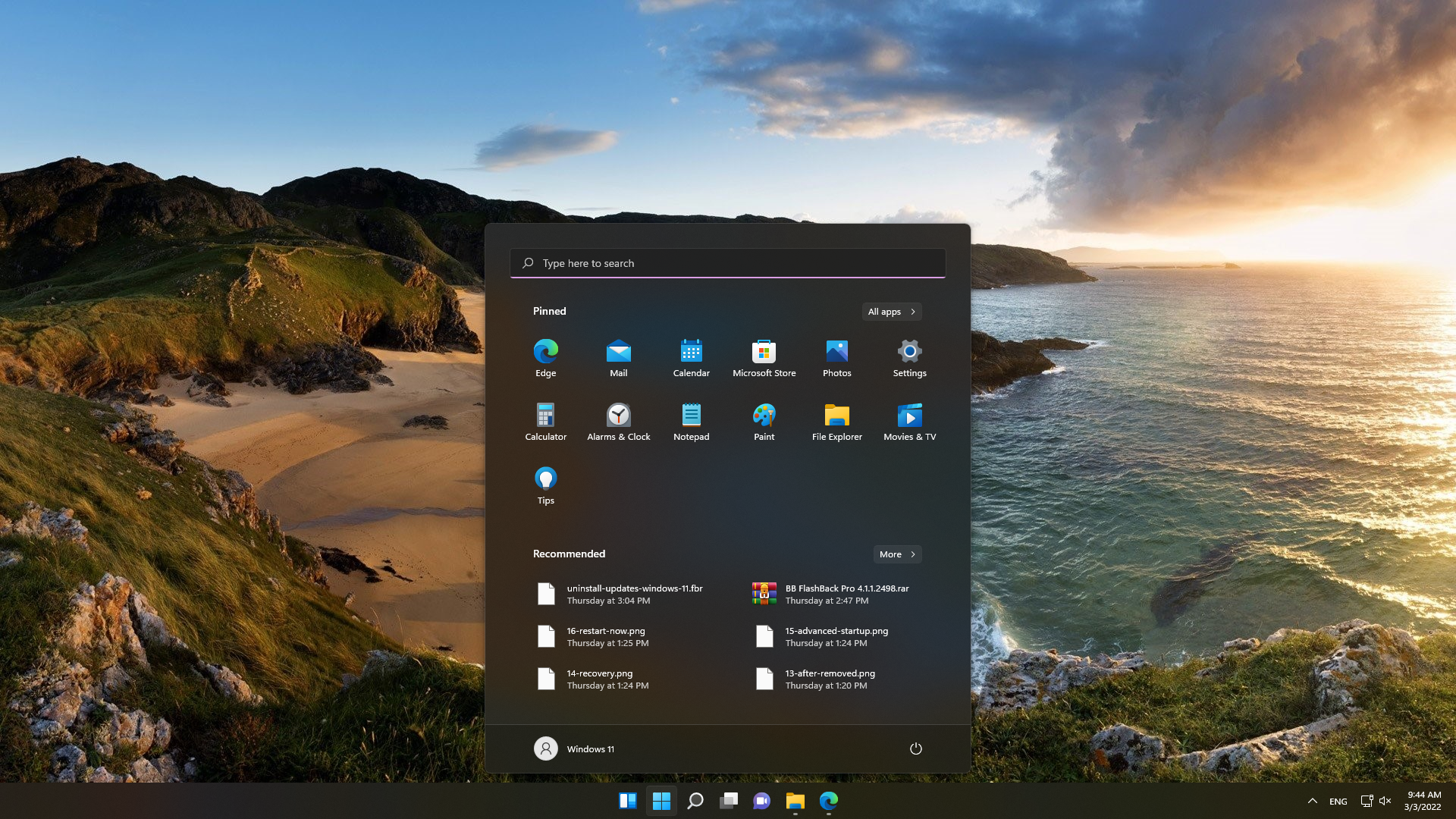
Make sure the taskbar is installed at the center of the screen.


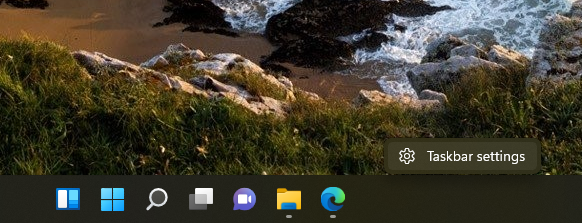
Step 1: Right click to Taskbar. Choose Taskbar settings.


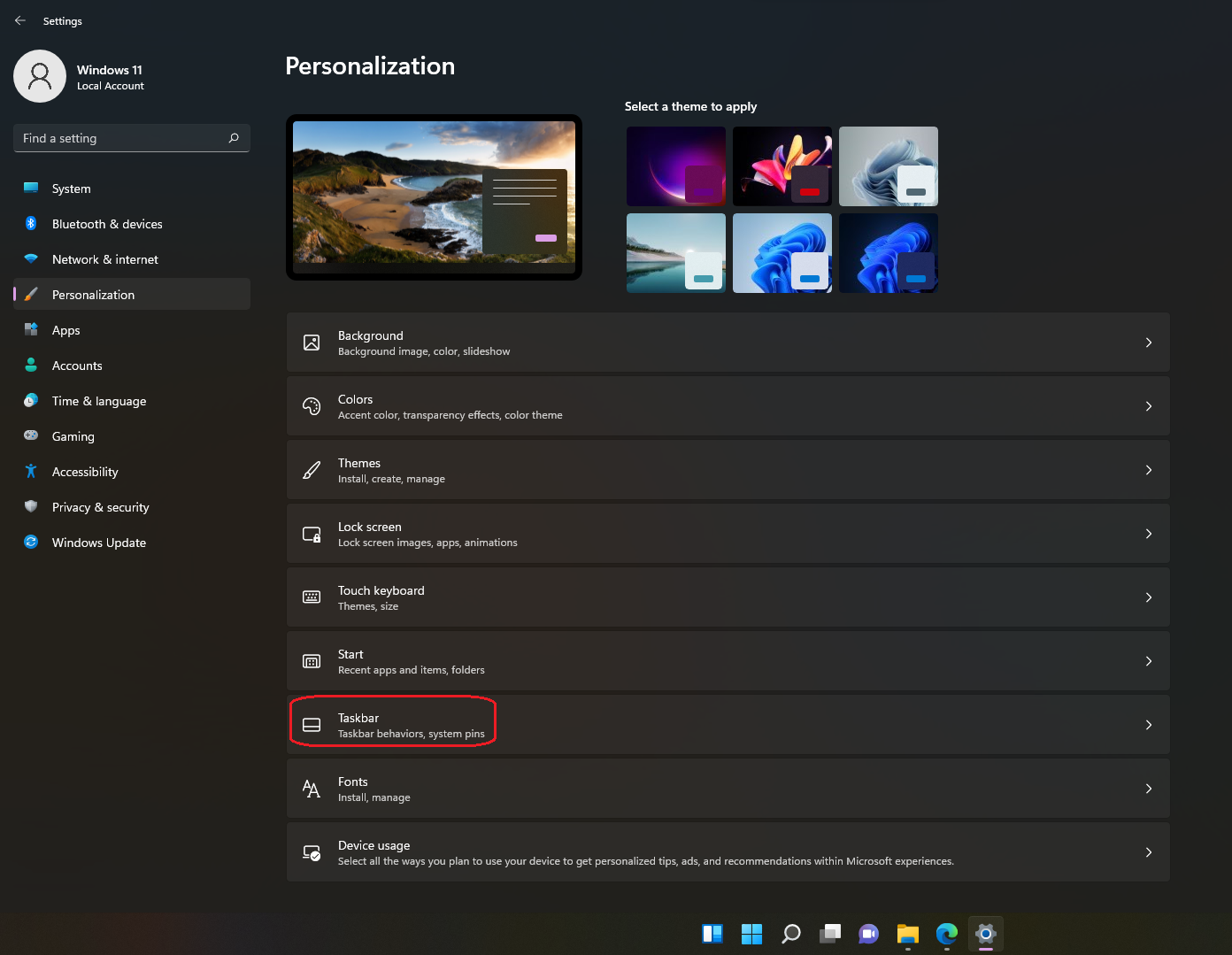
Step 2: Go to Personalization on the left side, and then find to Taskbar items.

Step 3: Please turn on Widgets. Please wait 1-2 mintutes to system to update Weather widget on left corner side.


Turn on Widgets


 Weather info will be display on the left side of Taskbar

Conclusion:

With 3 simple steps, you can enable or disable the Weather feature as you like. If this post help to you, please like and share it. Thank you.

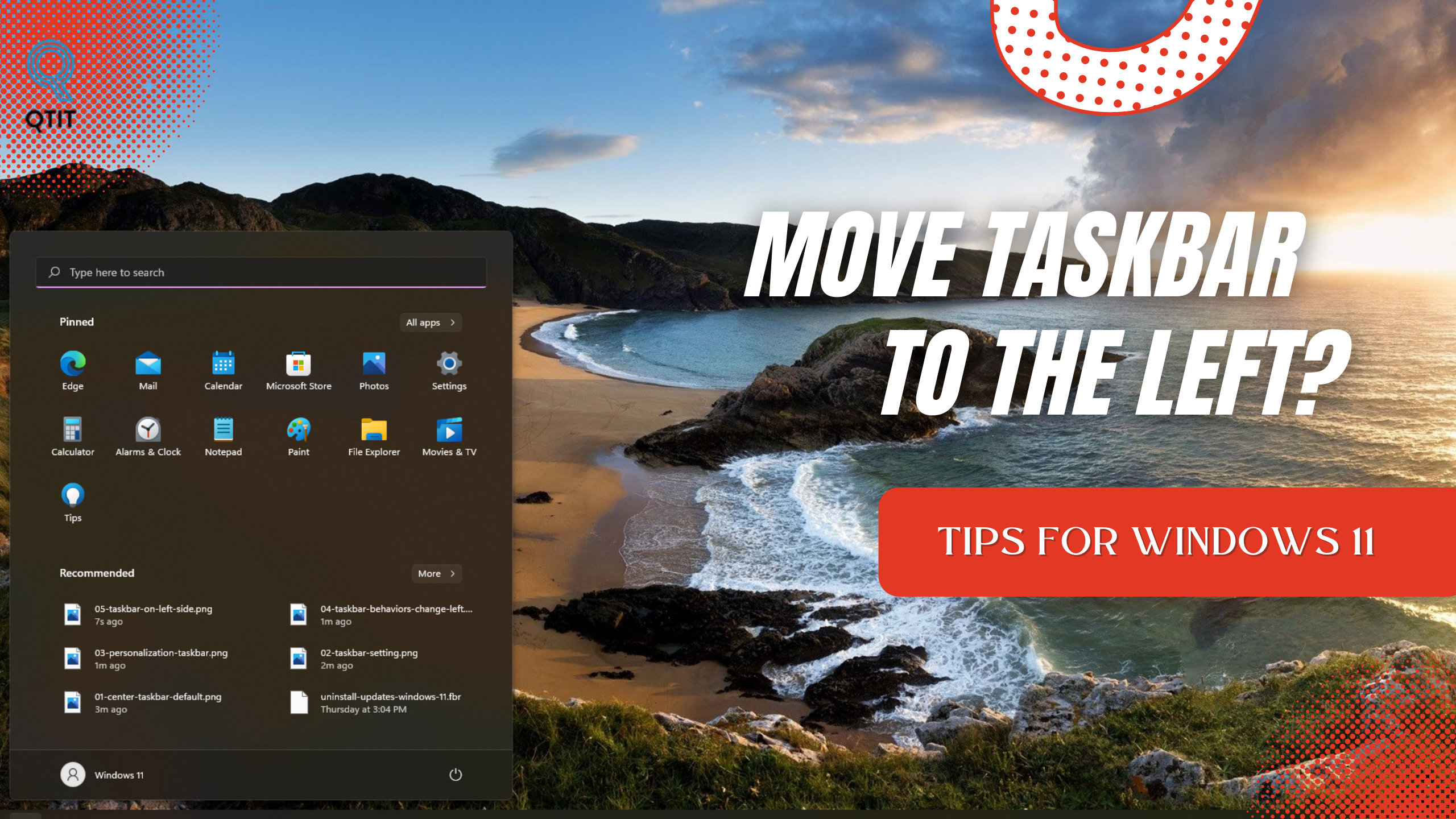
How to move Taskbar & Start Menu to the left or center in Windows 11


The biggest difference between Windows 11 and Windows 10 is the location of the Taskbar and Start Menu. For Windows 11, the default location will be in the center of the screen where your eyes tend to go on your display. However, you can still adjust their position to the left like Windows 10. This post help to you do it.


➤ How to remove "Transparent box" on Taskbar

➤ 3 Outstanding improvements in KB5010414 update on Windows 11 


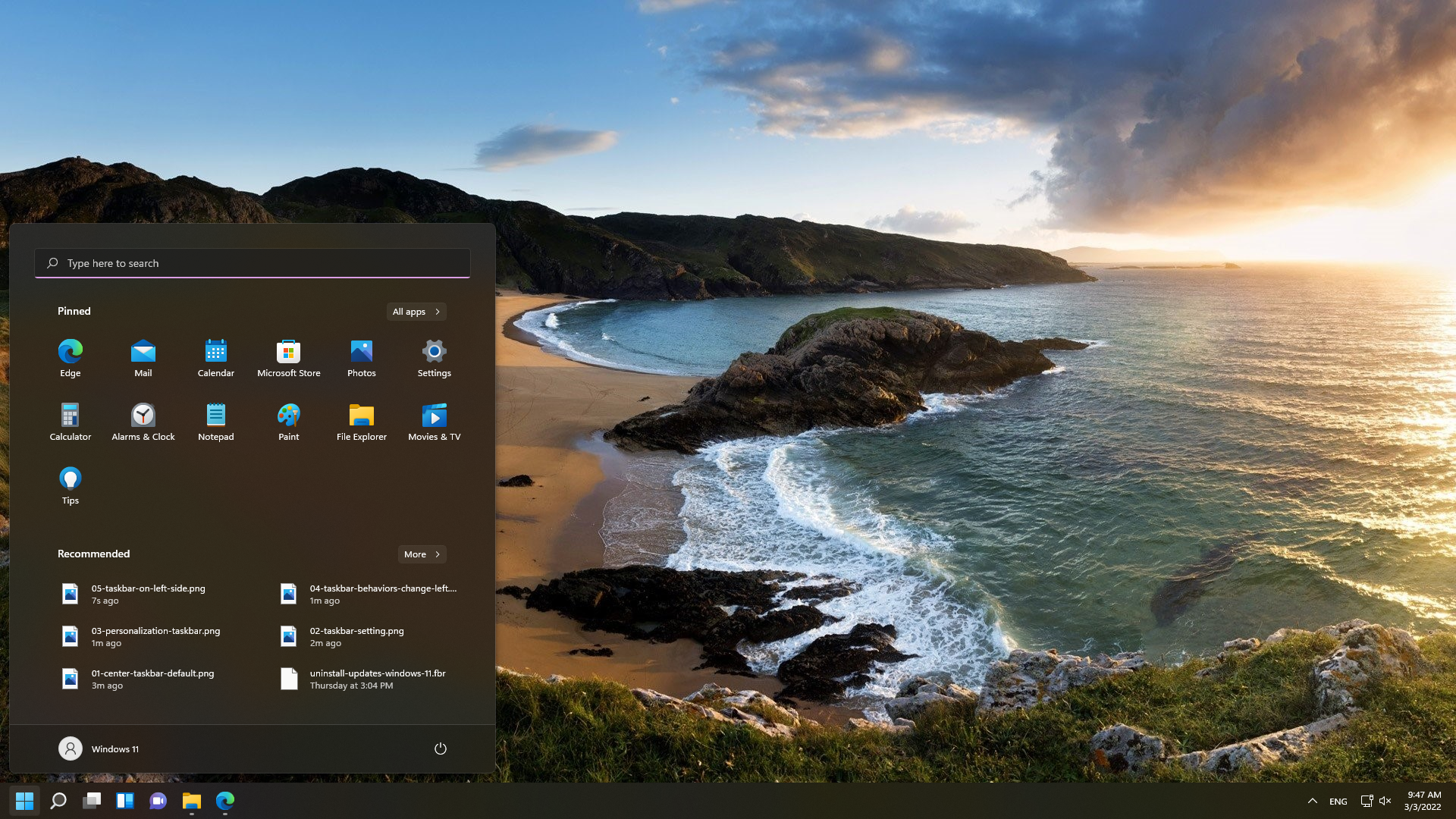
By default, the Taskbar is in the middle of the screen


How to do:

Step 1: Right click Taskbar. 


Step 2: Go to Personalization category on righ side. Click to Taskbar 


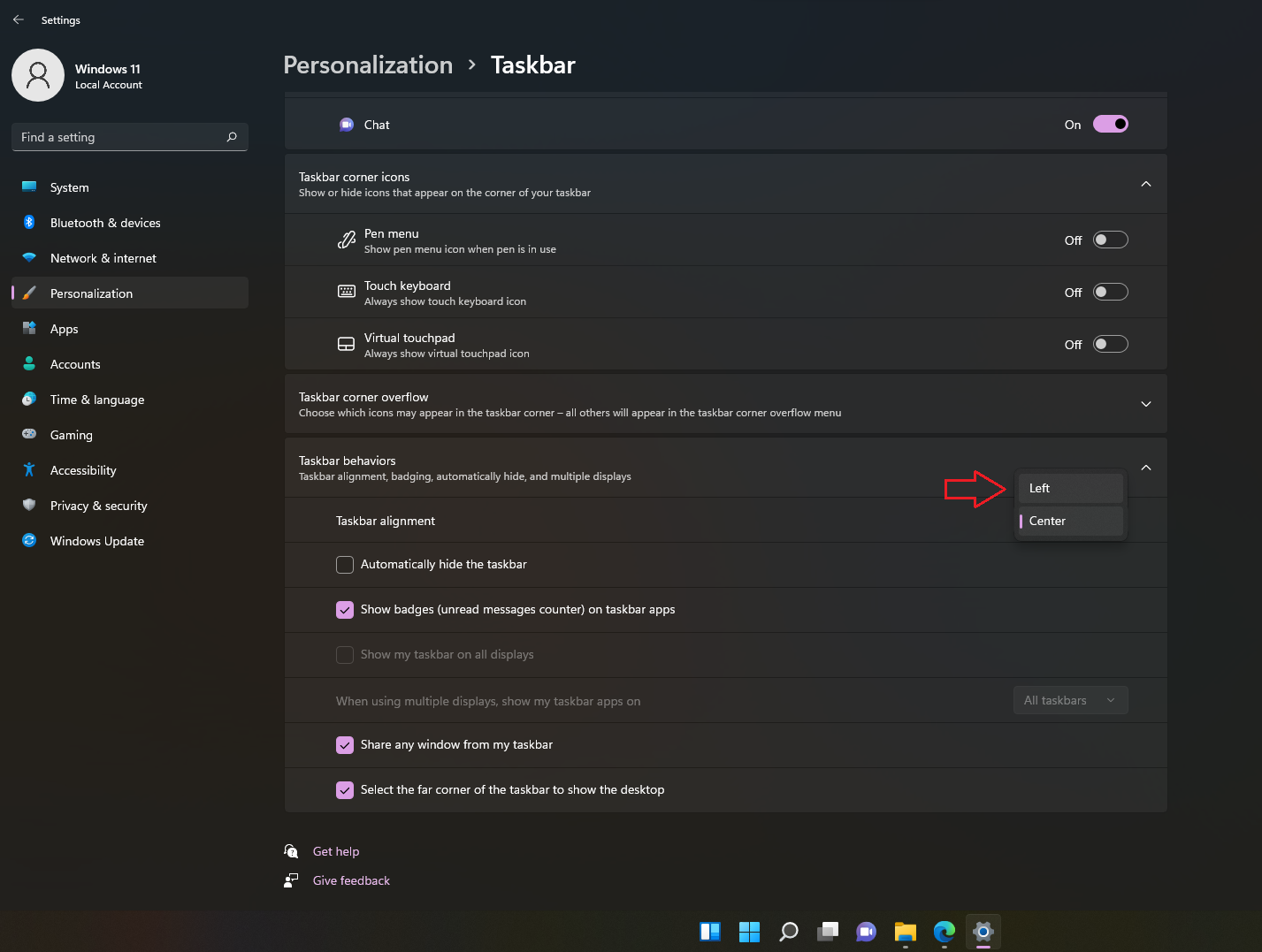
Step 3: Find to Taskbar behaviors category. From here, look for Taskbar Alignment. Please choose Left


Finished. Now, Taskbar and Start Menu move the left side. 


Taskbar & Start Menu on the left side (same as Windows 10)


Note: When you move the Taskbar and Start Menu to the left, the Weather widget feature will disappear on Taskbar as normal. And if you want to show Weather, please move it on the center.


➤ How to show Weather Widget on Taskbar


Conclusion:

This is 3 steps help to you move Taskbar & Start Menu to the left in Windows 11. If have any question, please contact me by fanpage QTitHow. Thank you.

How to remove "Transparent box" bugs on Windows 11


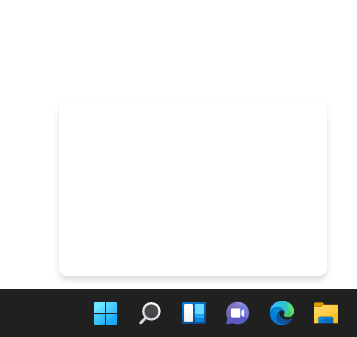
When you work on PC or playing something on Windows 11, this randomly appears. No corrupt files, no virus. Just a weird but annoying bug.
That is a transparent box opens and cannot close it. Causing this display region not to be accessible with the mouse, closing the process causes it to restart and the problem is solved.
Beside, when you move my cursor to this box it's starts showing a loading icon. 


A "Transparent box" showing above Taskbar


How to do:

And This is  a temporary solution help to you remove Transparent box on Taskbar Windows 11

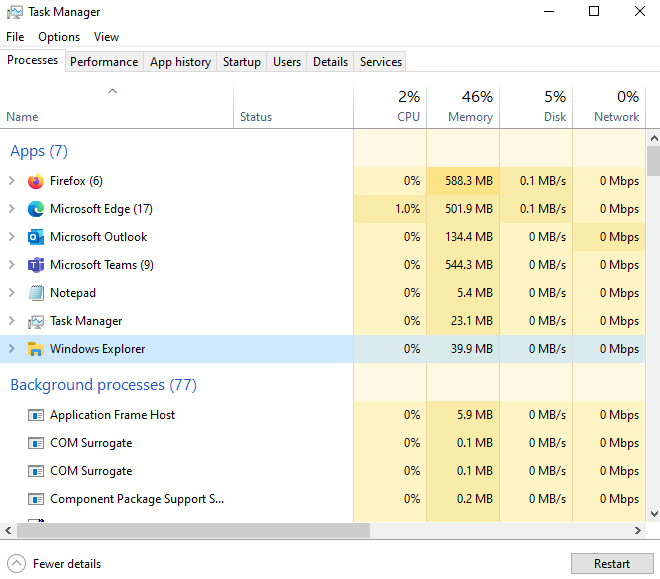
Step 1: Open Task Manager (or Windows + Shift + Esc), go to Process tab  


➤ Useful Keyboard Shortcuts for Windows 11


Step 2: Then scroll down and find Windows Explorer running.
Step 3: Please Restart it.


Restart to Windows Explorer


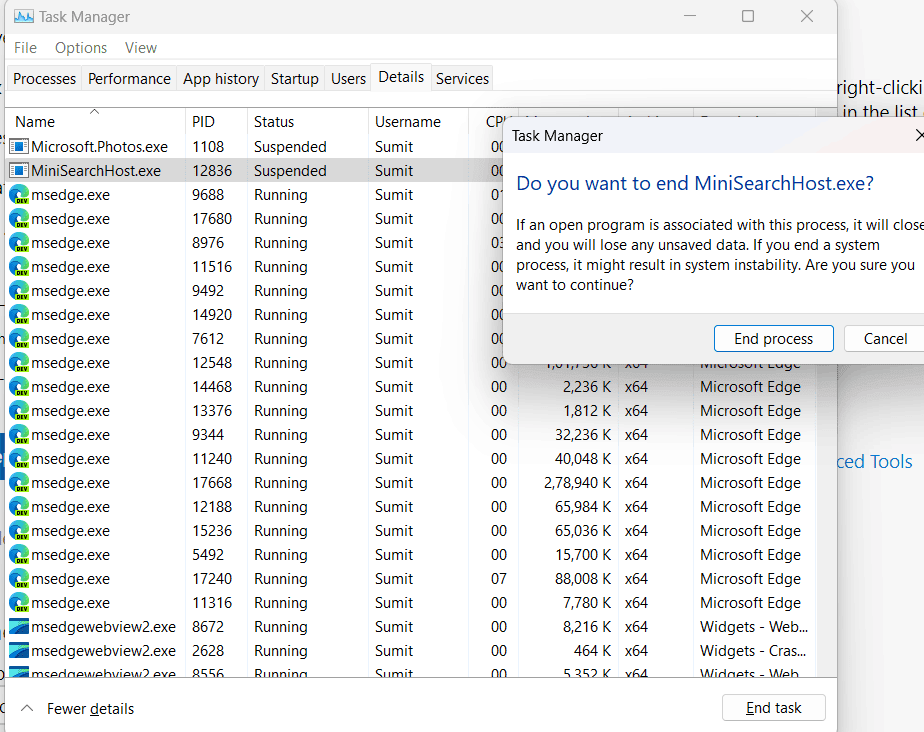
Step 4: Still on Task Manager, move to Details tab.
Step 5: Find and disbale MiniSearchHost.exe


Right click and choose End task


Finished. In addition, try reinstalling Windows 11 and update to the latest version to completely fix the above error. 

➤ KB5010414 - Outstanding improvements update on Windows 11 

3 Outstanding improvements in KB5010414 update on Windows 11


KB5010414 updates on February 15, 2022 updated with a few new features as below. Help Windows 11 become more and more perfect:.

Outstanding Improvements 

1. Weather Widget: You can use Weather feature on the left side of the taskbar if the taskbar is aligned in the center. When you hover over the weather, the Widgets panel will appear on the left side of the screen and will disappear when you stop hovering over the area.
 
Weather Widget on the left side of Taskbar
 

2. Microphone: For Microsoft Teams, you can quickly share open application windows directly from your taskbar to a Microsoft Teams call. Beside, you can mute and unmute a Microsoft Teams call from your taskbar. During a call, an active microphone icon will appear on the taskbar so that you can easily mute the audio without having to return to the Microsoft Teams call window.
 

You can set Microphone on Taskbar 
 
3. Clock and date on the taskbar: will be display on other monitors when you connect other monitors to your device.


Other Improvements and Fixes

Significant other improvements and fixes are introduced to the Windows 11. You can read deltail about them on release information KB5010414 from Microsoft.


How to update KB5010414

 
KB5010414 on Windows Updates
 
KB5010414 already installed
 
You can remove this update on here

You can see detail how to get this update by:
1. Check for and install update on Windows 10
2. Download & Install KB5010414 directly from Microsoft Update Catalog. 

How to remove update

➤ You can see detail guide how to remove update on Windows 11

Information about update 

Release Date: February/15/2022

How to uninstall updates on Windows 11 - from Basic to Advanced


As below is 4 methods from basic to advanced to uninstall updates on Windows 11.

➤ How to uninstall update on Windows 10

Method 1 (Basic): Using Settings

Step 1: Click to Windows icon (in the middle of the screen) > Click Settings.


Step 2: Continue, click Windows Update at the bottom left of the screen > Choose Update history


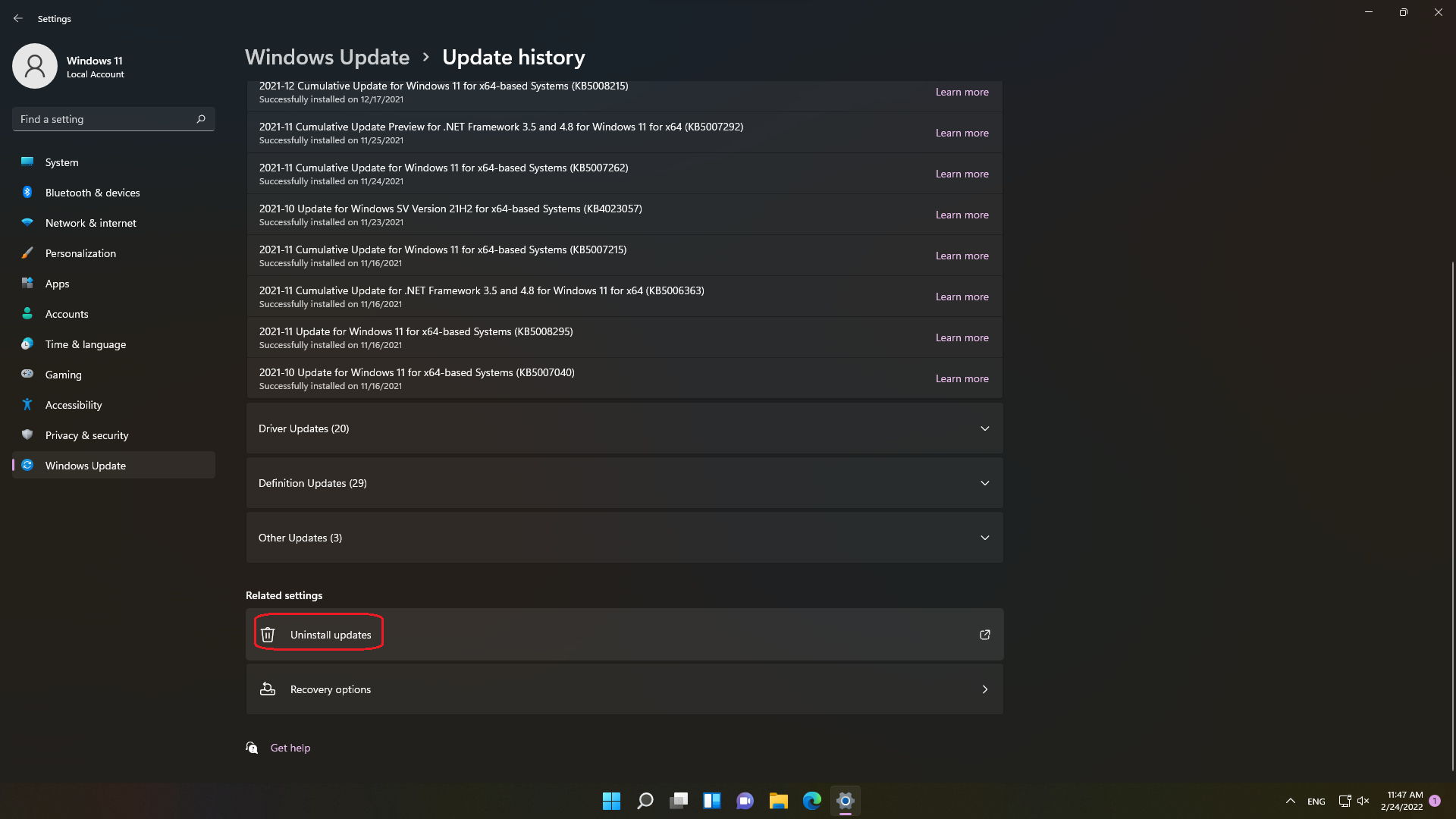
Step 3: Scroll down and select Uninstall updates. Select the update you want to uninstall.


Choose the update and mouse right "Uninstall"


Method 2 (Basic): Using "wusa"

Step 1: Press Windows key and type Command Prompt. And then click Run as administrator.


Step 2: List recent updates by type command line: wmic qfe list brief/format:table. And hits Enter. The propose of this is to help you find the most recent updates.


Step 3: Type the following command to uninstall the update: wusa /uninstall /kb:[id]. Then hit Enter. A dialog box Windows Updates Standalone Installer will appear, please click Yes. See detail as image below:


Method 3 (Advanced): Using "dism"

Most use "dism" to uninstall the latest update on Windows 10.

Step 1: Press Windows key and type Command Prompt. And then click Run as administrator

Step 2: Enter the following command: dism /online /get-packages


 You can copy Packages listing on notepad for easy find

Step 3: Find the Package Identity with the most recent Install time. And then copy name of Package Identity.

➤  How to check OS version on Windows 11

Step 4: Continue, type & enter the command:  

dism /online /get-packageinfo /packagename:[package_ID]


With this command will help you see in more detail the update that you want to uninstall.


Step 5: Type command line as below to uninstall the update:

dism /Online /Remove-Package /PackageName:[package_ID]


 We must to wait 5-10 minutes to complete


 Type Y to start uninstalling


Check if the update has been uninstalled by command line: wmic qfe list brief/format: table
 

Method 4 (Advanced): Using Recovery


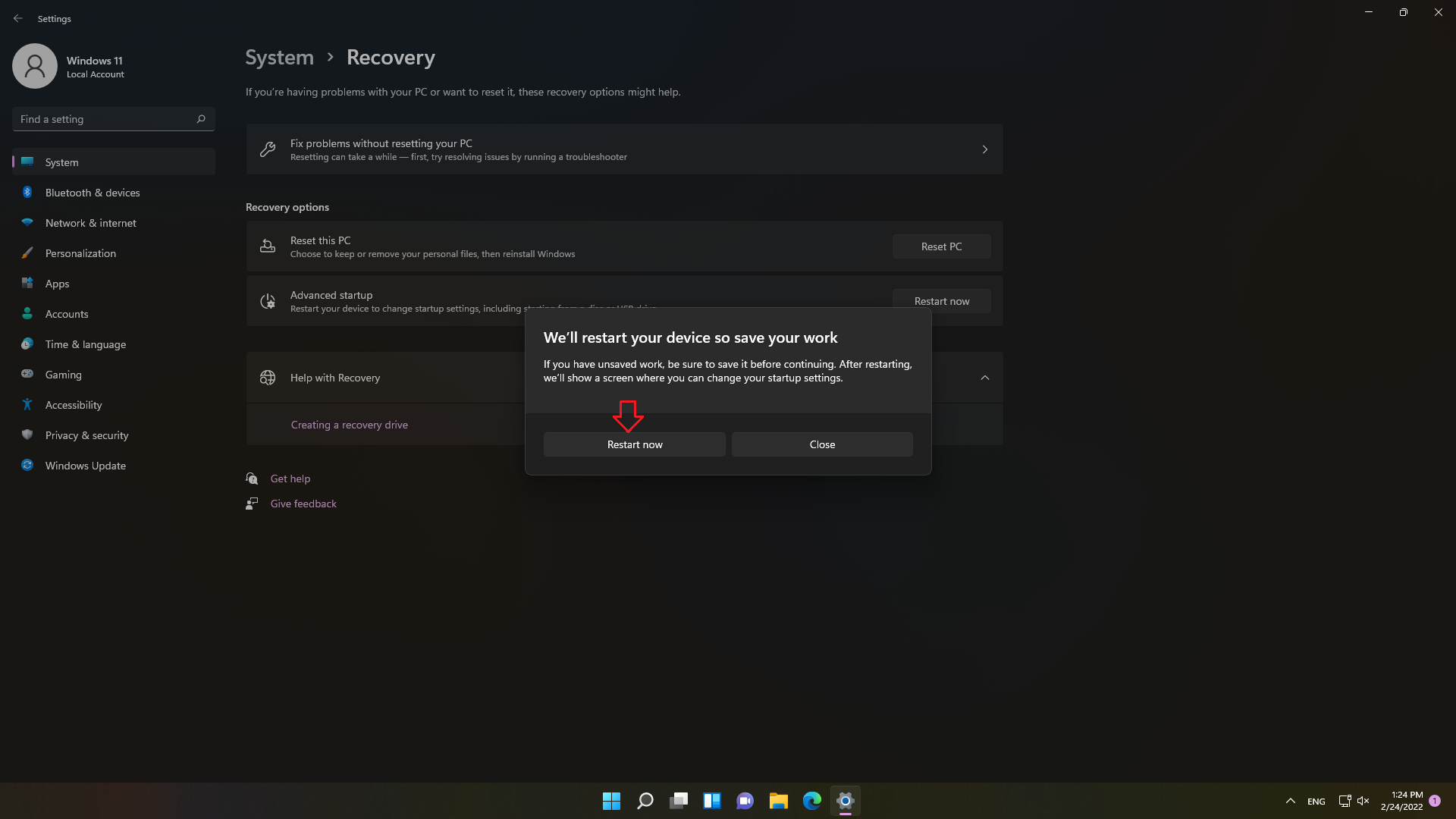
Step 1: Go to Settings > System > Recovery


Step 2: Find to Advanced startup and then click Restart now.


What is Feeds in task manager?


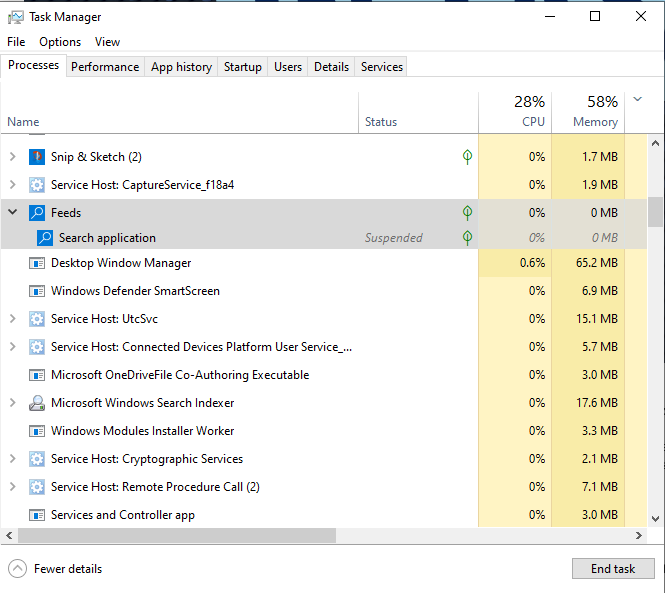
Feeds/Search application is a process on Windows 10. You can see Feeds/Search Application process in the Task Manager as below:


 Feeds/Search application in Task Manager


This process runs in the background on Windows 10, to be used for the “News and Interests” feature. “News and Interests” feature uses the MSN feed to enable quick access to dynamic content such as headlines, sports, finance, and weather. 


 News and interest feature on Windows 10


This process will still run in the background to update the feed throughout the day. It uses up to 100-150MB of memory on the virtual machines with 4GB, 6GB and 8GB of RAM. In a lot of cases it can use up to 97-100% of the RAM capacity. 


➤ How to fix Feeds using all RAM in Task Manager


However, the memory usage is normally zero when the news and weather feed is not actively looking for new contents or weather forecasts. In addition, you can customize this feature by how to customize News and interests.

“Your Microsoft Exchange administrator has blocked the version of Outlook that you are using. Contact your administrator for assistance.”


Hi Everyone,

Users will see the following error message in Outlook: 

“Your Microsoft Exchange administrator has blocked the version of Outlook that you are using. Contact your administrator for assistance.” 


➤ Download & Install Microsoft 365 Apps by Office Deployment Tool


Outlook will now be disabled or trying to connect. You CAN NOT send and receive any email.

The reason is that you are using Microsoft 365 (email service) on Office (Outlook) 2007, 2010, 2013. Detail as below:

"After November 1, 2021, only Outlook 2013 Service Pack 1 (with latest fixes) and later will be able to connect to Microsoft 365 services. It’s worth noting here that Outlook 2007, 2010, and Office 2013 versions earlier than 15.0.4971.1000 *and Office 2016 versions earlier than 16.0.4600.1000 aren’t supported"


If you are using Office 2007, 2010 please note the following times, your Outlook will not be able to connect to Mail Exchange (Microsoft 365):

  • The block will start rolling out on November 1st 2021 for users on Outlook 2007 and will proceed in a phased rollout. 
  • The block has started rolling out for Outlook 2010 users on January 11, 2022 and will proceed in a phased rollout.


Outlook users will see the following error message in Outlook, when they experience the block that we are rolling out: “Your Microsoft Exchange administrator has blocked the version of Outlook that you are using. Contact your administrator for assistance.”

Why are we blocking old versions? 

Older versions of Outlook, such as Outlook 2007 and 2010 are incompatible with the following upcoming service changes, which is prompting this controlled block: 

  1. Support for basic authentication is ending to increase the security of Microsoft 365 by relying on modern authentication protocols, which are not only more secure, but also provide compliance and policy controls to help you manage your data. 
  2. We’re working on adding support for HTTP/2 in Microsoft 365. HTTP/2 is a full duplex protocol, which decreases latency through header compression and request multiplexing. On the service side, we’ll be able to better prioritize requests and more effectively push data to clients. 
  3. It can be a challenge to stay current, but there are many reasons why staying current is a good idea: 
  4. Security fixes will protect your devices against known vulnerabilities. 
  5. Reliability – over the last five years we’ve eliminated 75% of crashes in Outlook! 
  6. Updated versions have all the coolest new features to make your life easier!


Solution

Users can immediately start using Outlook on the web through a browser on their Windows (or any other) device. This is temporary solution.

I recommend switching to Office 365 or higher versions of Office like Office 2019 or Office 2021. 

➤ Download & Install Microsoft 365 Apps by Office Deployment Tool

➤ How to download & install Office Standard 2019


Outlook on the web

Upgrade guidance

  • For Office 2007 and 2010, use the roadmaps listed below to move to Microsoft 365 Apps. If your organization is highly regulated or uses devices that can’t take updates, consider Office 2019
  • For Office 2013, move to Version 15.0.4971.1000 of Office 2013 (Service Pack 1 with the October 2017 Update)  
  • For Office 2016, move to Version 16.0.4600.1000 of Office 2016 (With the November 2017 Update, KB4051890)
  • Office 2007 end of support roadmap 
  • Office 2010 end of support roadmap

Conclusion

Above is all information related to this error. If you or your company are using Microsoft 365 services on Office software versions 2013, 2010, 2007, please pay attention.

How to check OS version & BuildNumber Windows 11

The methods to check the version of Windows 11 are quite similar to the way to check the version of Windows 10. Please follow the steps below. 


How to do:
Here are 5 ways from basic to advanced to help you check the current OS version of Windows 11 on your computer. If you are a normal user, you should use the first method.

Method 1: Using Run 

Step 1: Press Windows + R (hotkey)

Step 2: Type winver, then Enter 

This is result:


Method 2: Check by Settings 

Step 1: Press Windows (hotkey), choose Settings  


Step 2: Choose System > About. Under Windows specifications, check which edition and version of Windows your device is running.


Method 3: Using PowerShell 

Step 1: Press Windows + X (hotkey), click to Windows Terminal (Admin)


Step 2: Type command line as below:
wmic os get version


Then, press the Enter key to execute it and see the information.
The Version number tells you the build of Windows 11 you have installed. In the earlier example, the build number is 22000, which comes after 10.0. With this number, you can then make sense of the exact Windows 11version you’re using. 


Method 4: Using WMIC (WMI command-line tool) 

Step 1: Press Windows (hotkey), type Command Prompt. And then right mouse to it choose Run as Administrator.


Step 2: Open a Command Prompt window and type:

For check Build Number: wmic os get BuildNumber

For check version: wmic os get version


Method 5: Using WMIC (Advanced) 

Step 1: Press Windows (hotkey), type Command Prompt. And then right mouse to it choose Run as Administrator.
Step 2: Open a Command Prompt window and type:

wmic os get Caption, Version, BuildNumber, OSArchitecture

With this command, you can see detail information of OS version Windows 11 Build that using.


Copyright © 2016 QTitHow All Rights Reserved