How to Create Videos of Students Describing Pictures in English Using AI
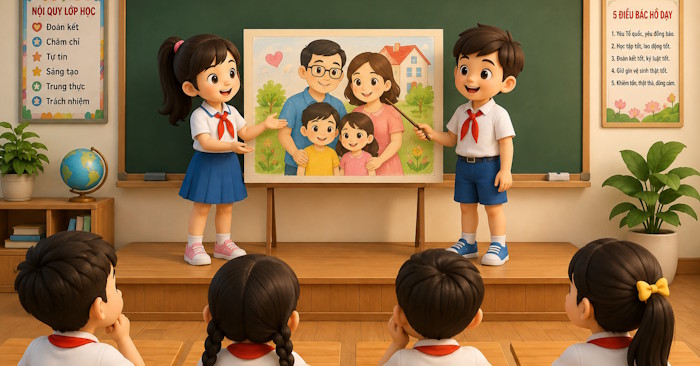
Beyond writing simple dialogue exchanges for your English class, you can now leverage AI tools to create full videos with much richer visuals and dynamic content. What's interesting here is that for lessons focused on picture description, teachers can use AI to generate complete videos that give students realistic models to learn vocabulary, sentence structure, and speaking skills in a natural way.
With just an image and some text content prepared, you can transform your lesson idea into an engaging, visually appealing video that really resonates with students. Here's exactly how to make it happen.
Creating Student Picture Description Videos in English: A Complete Walkthrough
Start by preparing an image showing a student presenting at a podium while describing a picture. You can generate a custom image using AI tools like DALL-E or Midjourney, similar to the example below.
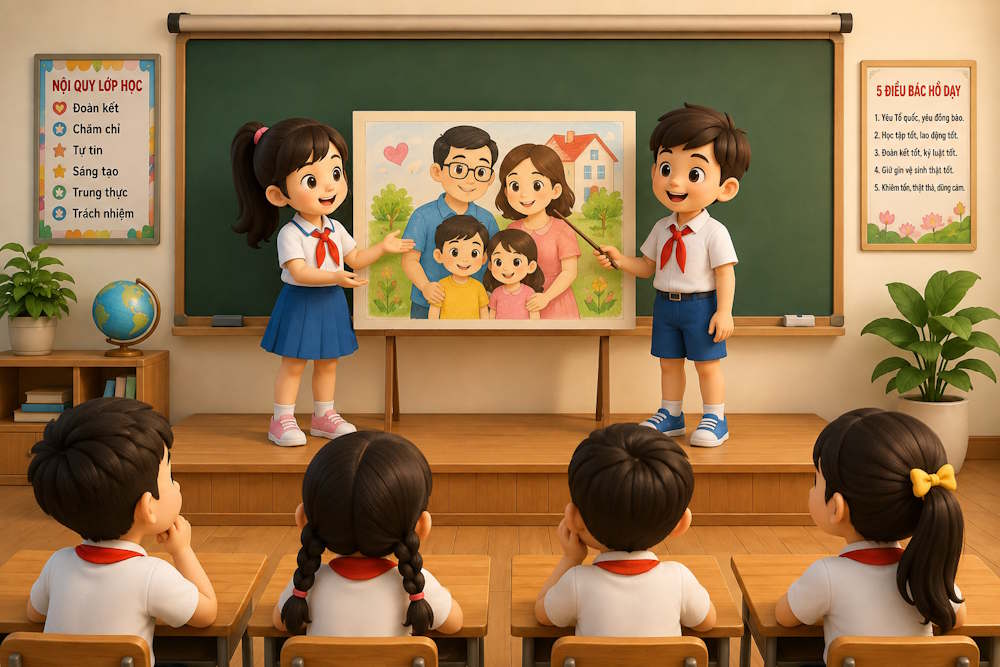
Step 1: Generate the dialogue script
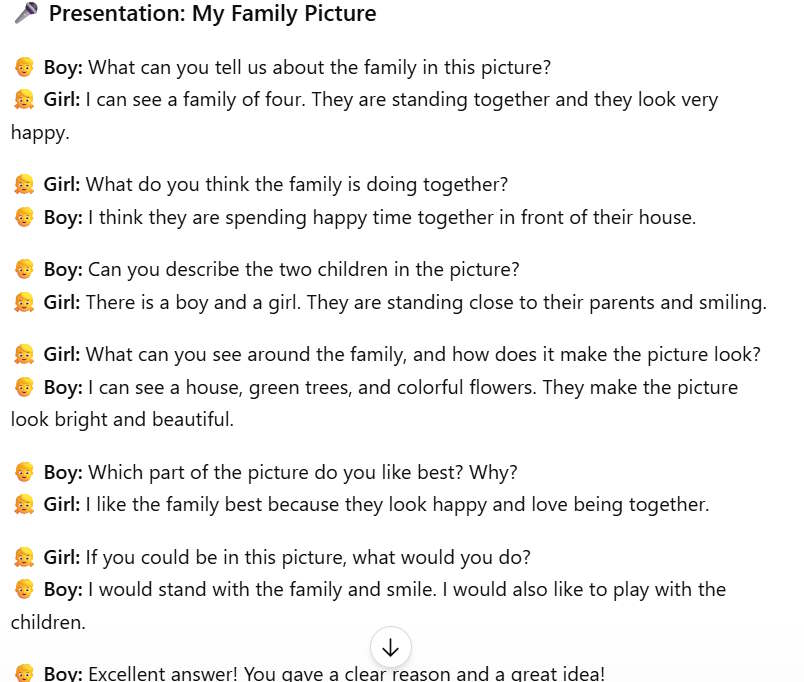
Upload your image to ChatGPT and use a prompt to create a conversational script between two students describing the picture. Tailor the difficulty level to match your students' proficiency. Here's an example prompt you can modify:
Based on this image, create a dialogue script with two students giving a 5-exchange presentation in English to describe the picture on the board. One student asks questions and one answers. Include positive feedback for well-answered questions and responses. Make the questions and answers appropriate for Grade 5 students at the A2 Flyers proficiency level.
ChatGPT will produce a complete two-student dialogue ready to use.
Step 2: Create video prompts for each scene
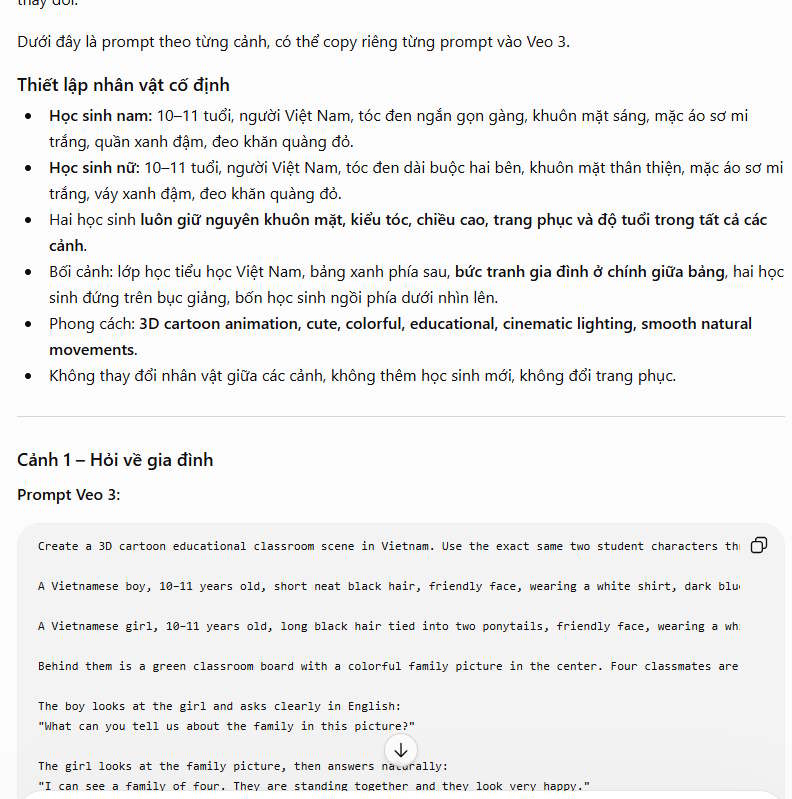
Now ask ChatGPT to write Veo 3 video prompts for each scene in the dialogue.
Based on the dialogue above, write Veo 3 prompts for each scene. Ensure character consistency across all scenes.ChatGPT will break everything down into separate scenes with character descriptions at the top, followed by specific video generation prompts for Veo 3. These are ready to copy and paste directly.
Step 3: Generate videos in Veo 3
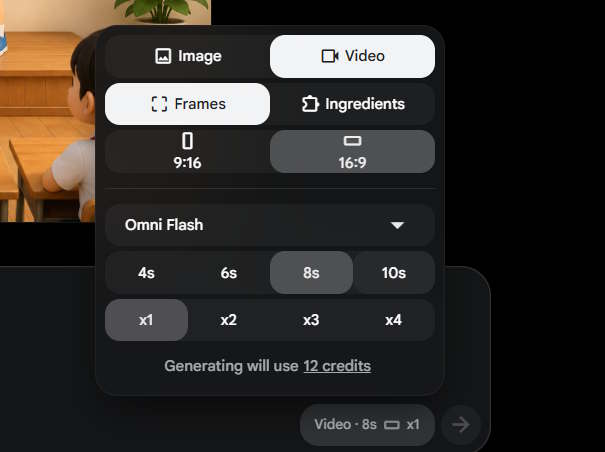
Head over to Veo 3, upload your image, select generate video from frame, choose your tools, and set your desired duration.
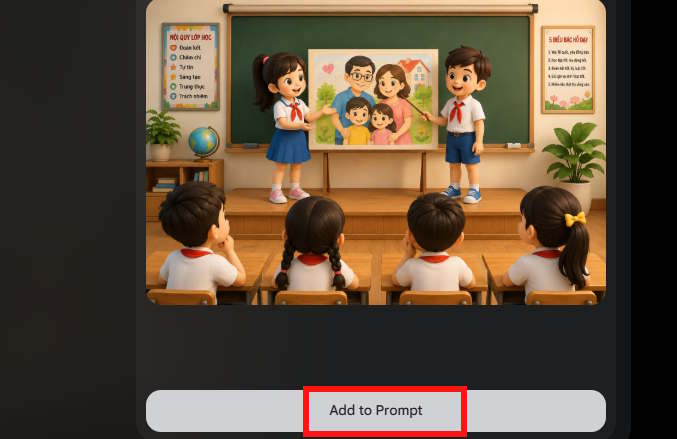
Click on your uploaded image and hit Add to Prompt to attach it to the video generator. Then paste the first scene prompt from ChatGPT.
Click submit to generate the first scene video.
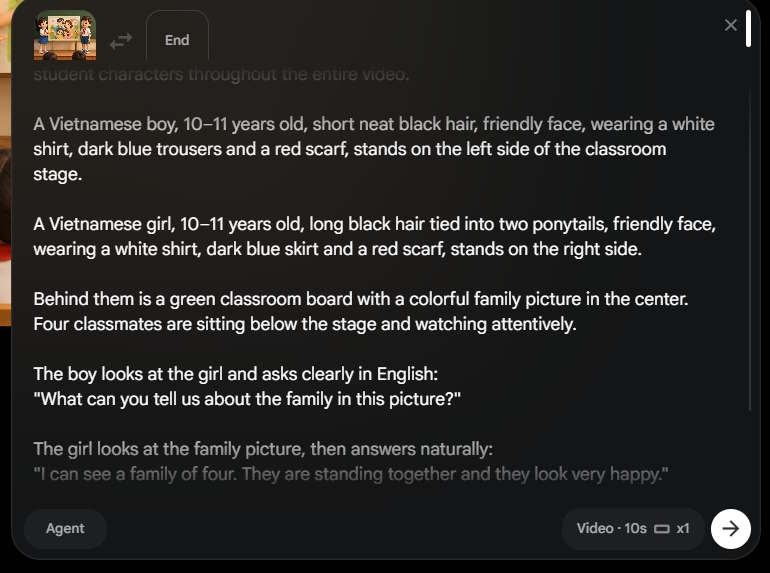
Step 4: Combine all scenes into one complete video
Once you have the first scene video, repeat the process for the remaining scenes. When all your scene videos are ready, it's time to stitch them together. On your first video, click the three-dot menu, select Add to Scene, then choose Create Scene.
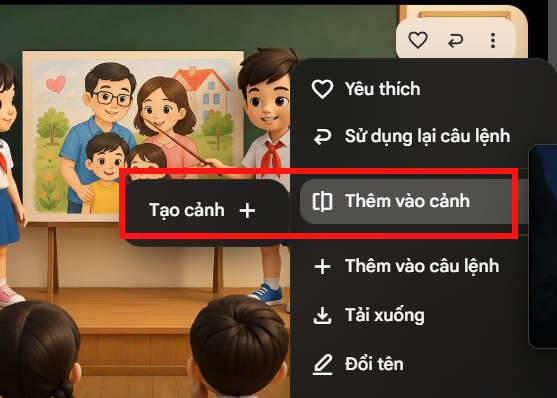
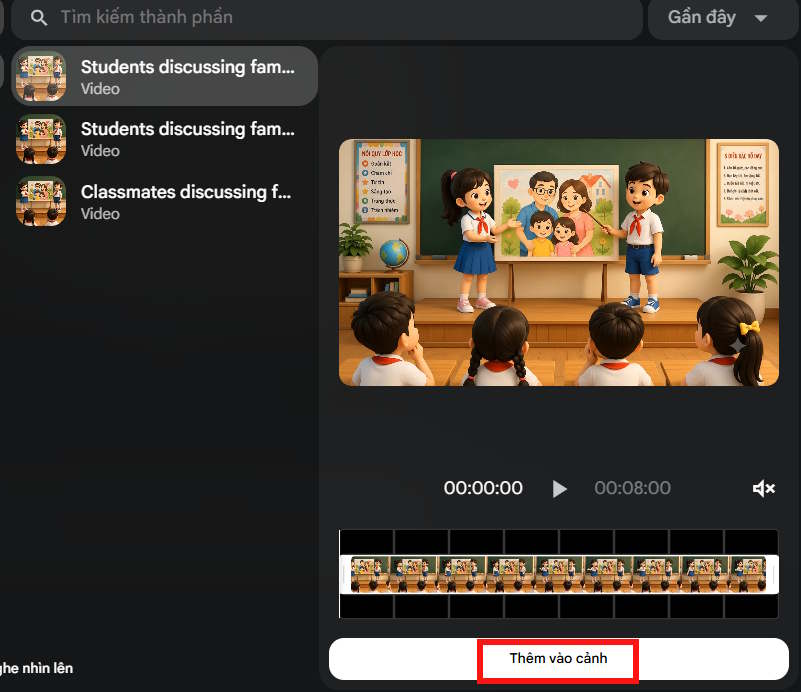
Scene 1 is now the opening clip in your final video. Click on the first scene video, look for the plus icon on the timeline, and select Add Video Clip.
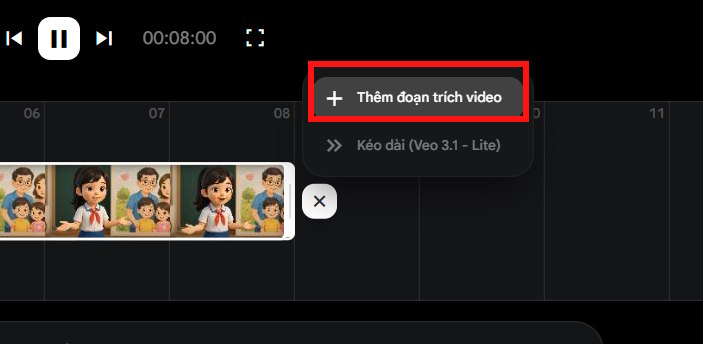
Insert scene 2. Keep repeating this step until all your scenes are spliced together.
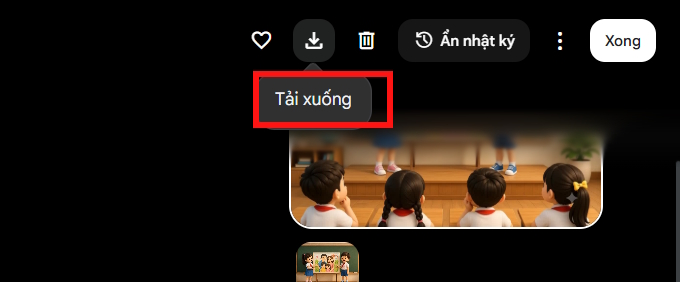
Step 5: Download your finished video
Once your complete video is ready, simply click the download icon to save it to your computer.
Student Picture Description Video in English
Description: Step-by-step guide to generating AI videos of students presenting picture descriptions in English for language learning.
Related Articles
- Beyond Ollama and llama.cpp: Alternative Runtimes for Local LLM Deployment
- Why You Should Downgrade from Copilot and Switch to Claude for Office Work
- How to Generate Automatic Document Summaries in Google Docs
- Installing Google Gemini as a Windows App: Complete Guide
- Google Flow Music: Generate Professional Music Videos with Just a Text Prompt

No Comment to " How to Create Videos of Students Describing Pictures in English Using AI "