How to Turn Documents into Summary Videos with Google Vids

Google Vids now includes a document-to-video feature that automatically transforms your written content into polished video summaries. The platform handles the heavy lifting—it generates a script, breaks it into individual scenes, adds AI voiceover, and compiles everything into a complete video. What's interesting here is that you don't need any video editing experience to get professional results.
The document-to-video function works brilliantly when you're running short on ideas or need to create a quick visual summary of key points. It's one of several approaches worth exploring when you want to repurpose written material into video format. The good news? You maintain full control over the generated script before finalizing anything. Feel free to edit, adjust, or completely rewrite sections to match your vision. Here's everything you need to know about converting documents to video on Google Vids.
Converting Documents to Video on Google Vids
Step 1:
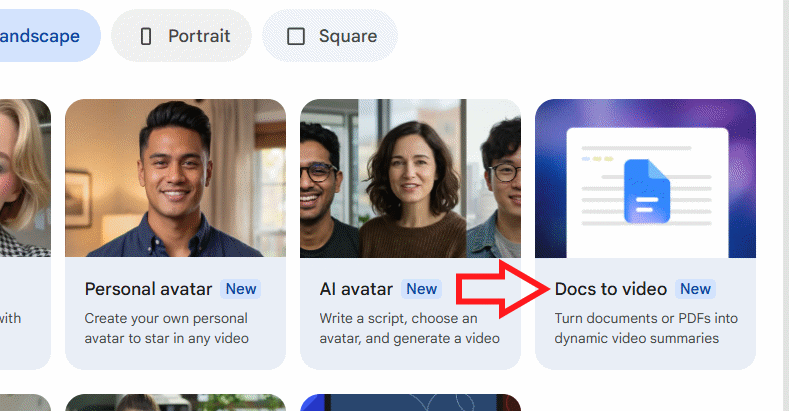
Head to Google Vids and you'll immediately see content creation options. Click on the Docs to video option as shown below. One important note: this feature currently supports English only—Vietnamese language support isn't available yet.
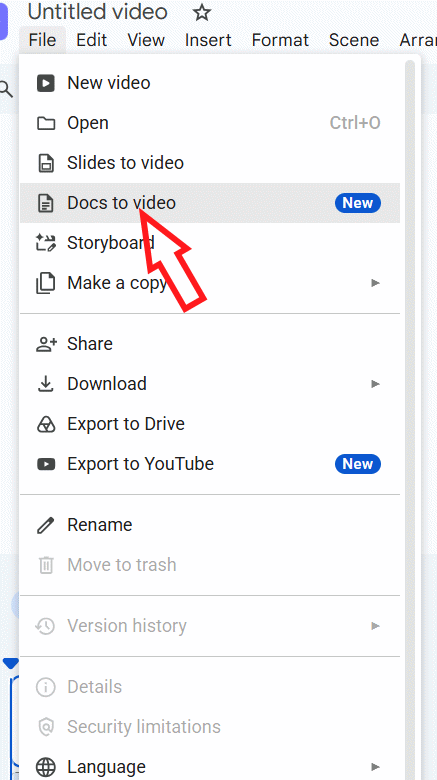
Alternatively, you can select File from the Google Vids interface, then choose Docs to video to begin the conversion process.
Step 2:
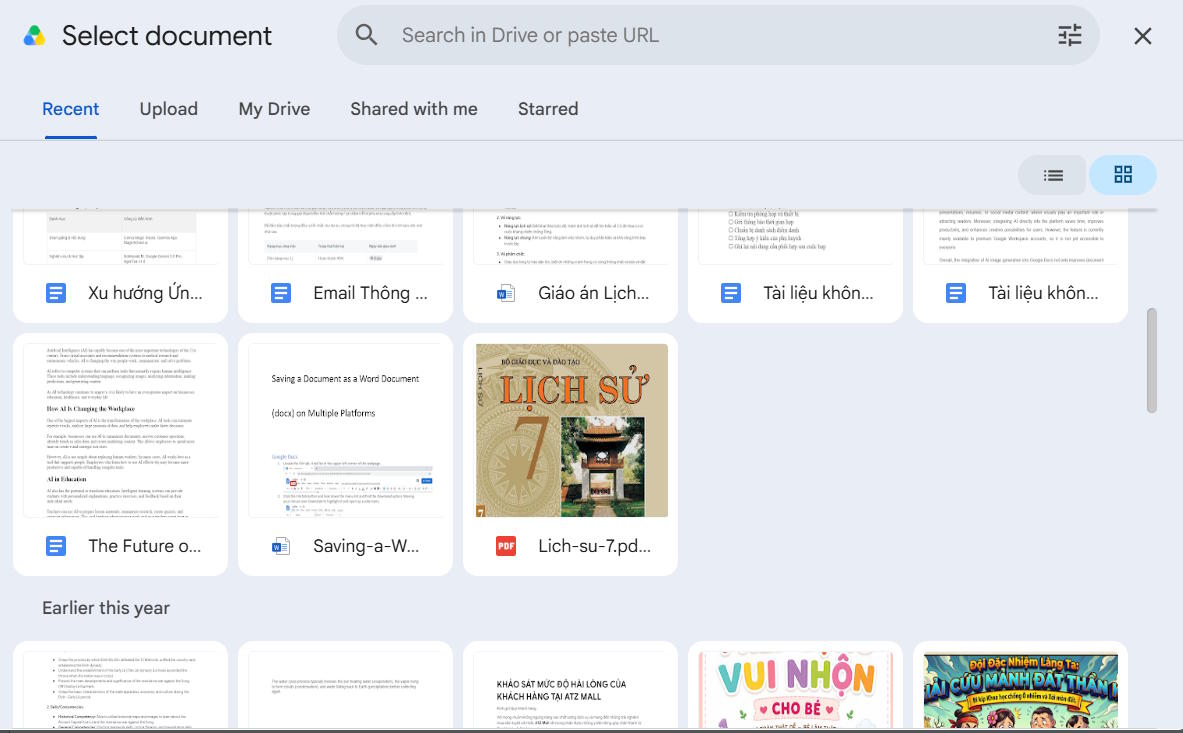
Google Drive's file picker will appear. Select your document in .doc, .docx, or .pdf format. Choose the file you want to convert and hit Next to proceed.
Step 3:
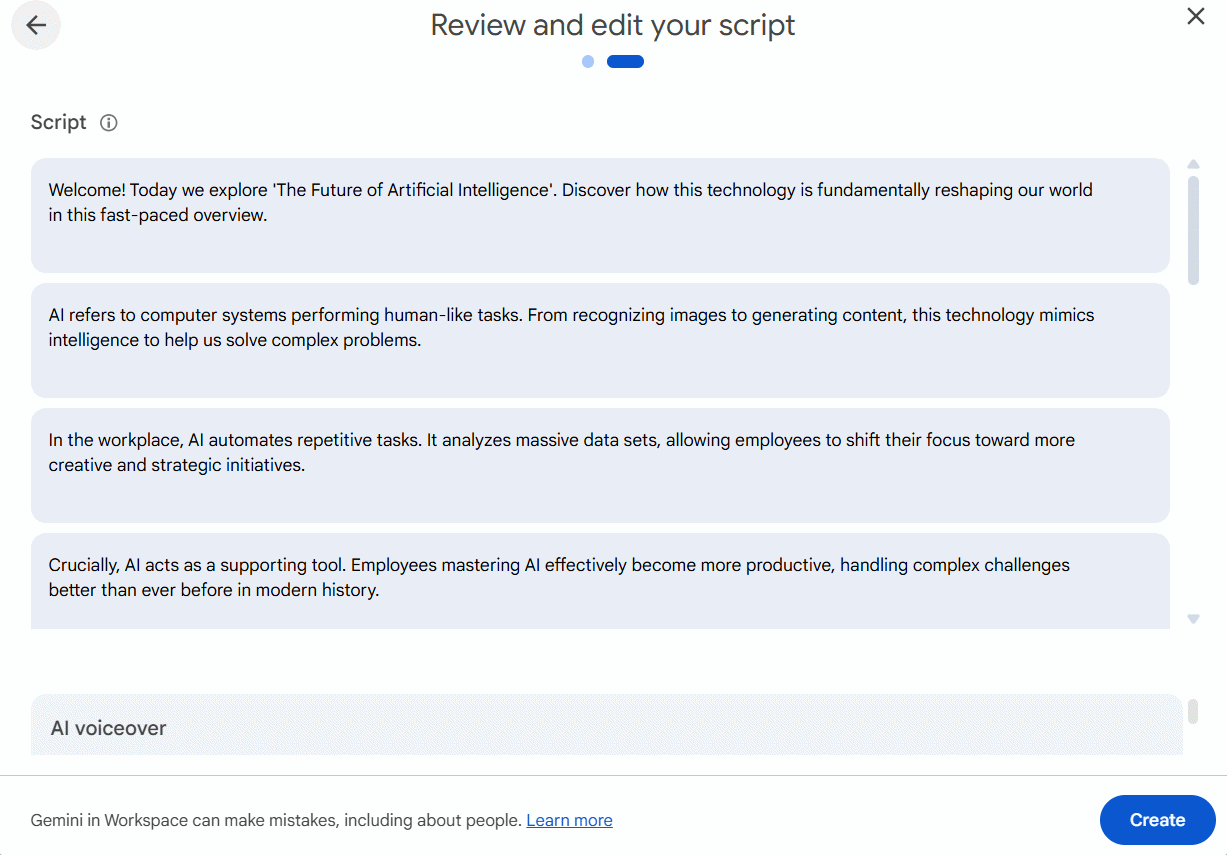
Once Google Vids processes your document, it automatically generates a script based on the content. This script gets divided into separate sections—each one becomes a scene in your video. Review the entire script carefully. If you want to exclude any portion, just click the trash icon to remove it.
Step 4:
Scroll down to adjust the voiceover settings. Don't like the randomly selected voice? You can swap it for a different one.
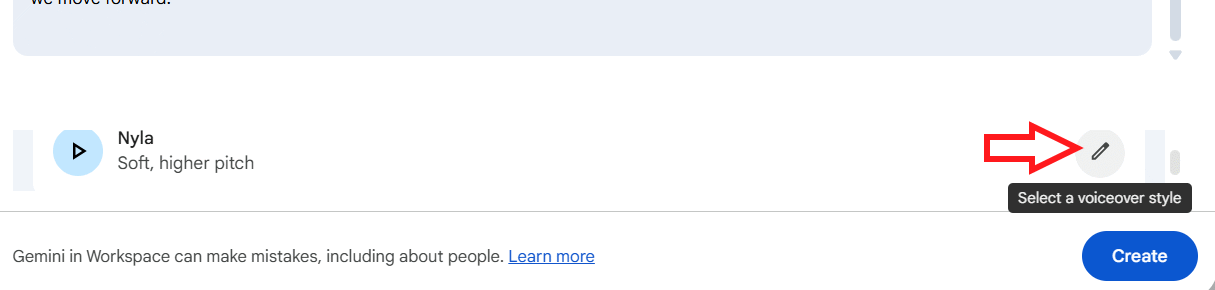
A list of available AI voices appears. Preview each option by listening to the narration, then select your preferred voice and click Use this voiceover.
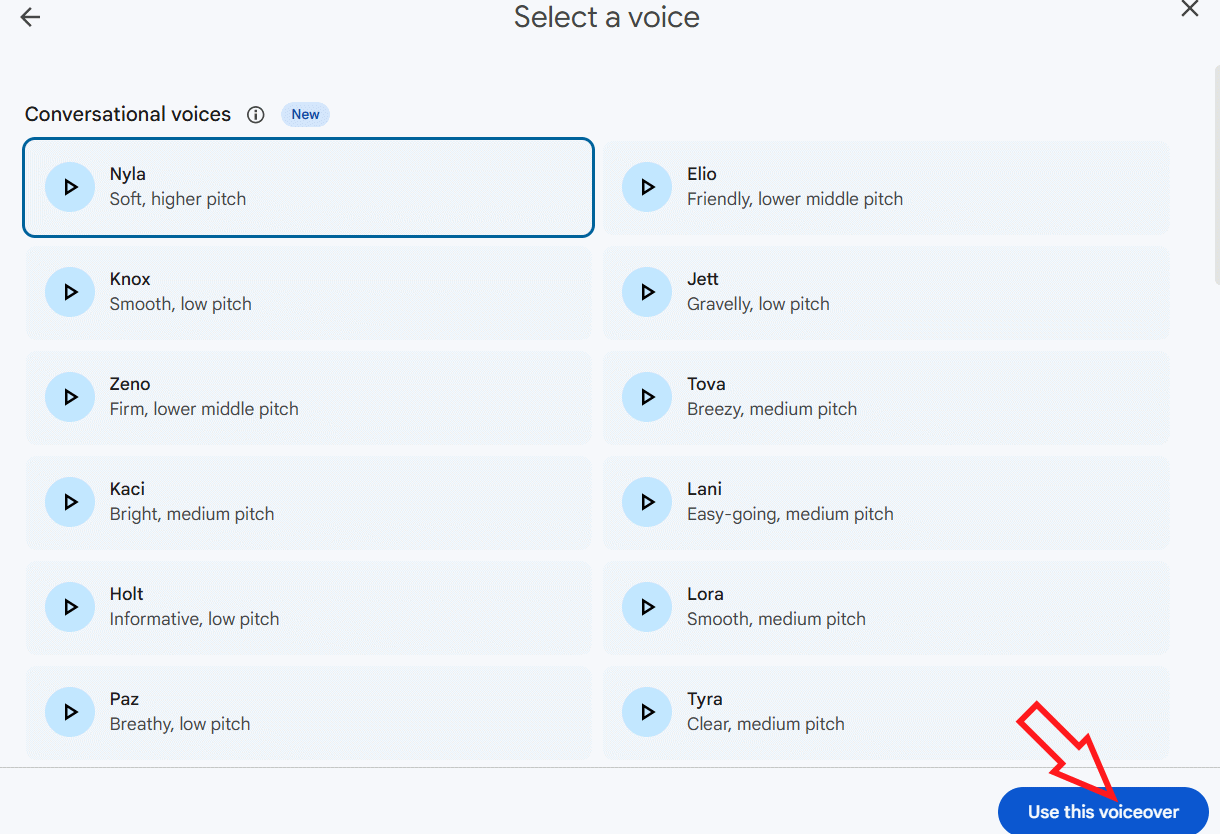
Step 5:
After you've reviewed the script, made necessary adjustments, and selected your preferred voice, click Create to start generating the video. Google Vids immediately begins building your AI-powered summary video.
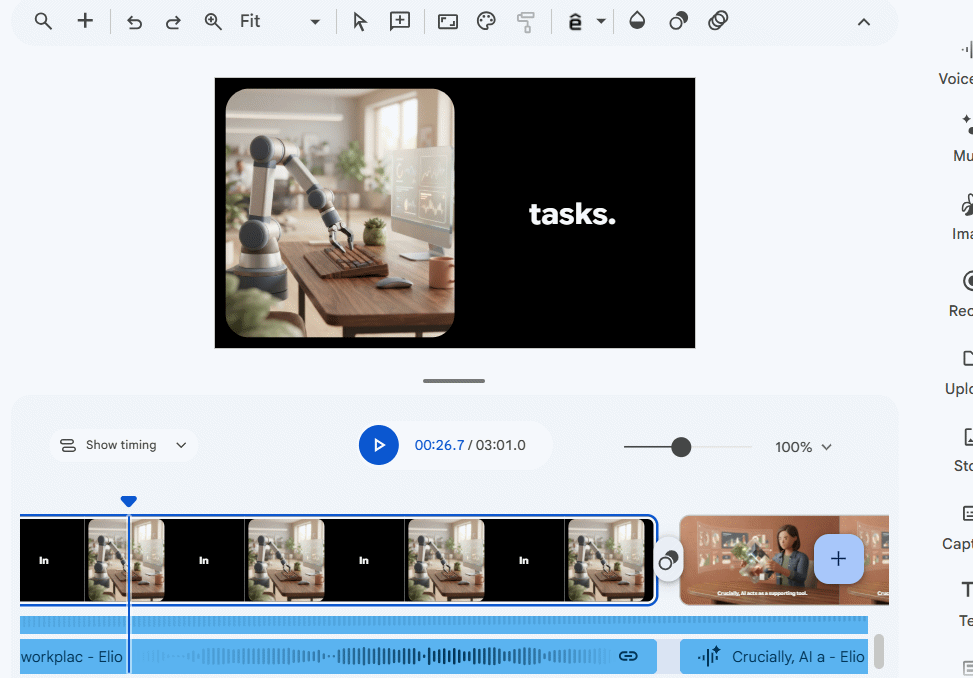
Once the video renders, watch it through completely. Make any fine-tuning adjustments or add additional elements if needed, then download your finished video.
Tips for Creating Quality Summary Videos
Here's the real concern: spend time reviewing the script before hitting create. Since Google Vids generates the script directly from your document content, double-check your source material first. Go through each script section to identify what should stay, what should go, and what needs tweaking.
Also think carefully about which AI voice matches your video's purpose. After the video finishes rendering, give it a full watch-through and make any final edits before sharing or exporting it.
Using AI to Convert Documents to Video on Google Vids
Step 1:
Start by preparing the content you want to transform into video. You can use existing files from Google Drive—think Google Docs, PDFs, or Google Slides.
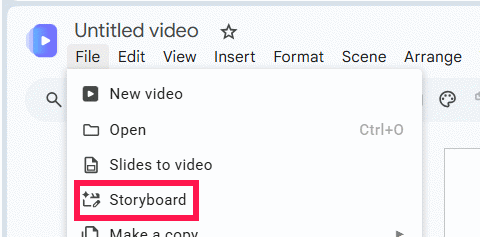
Open Google Vids, select File, then click Storyboard from the dropdown menu. Make sure your interface is set to English first—this option isn't visible in other languages.
Step 2:
Google Vids will prompt Gemini to brainstorm ideas and create a video draft. In the text field below, enter this command and select your document from the list. Then click Next.
Summarize @document name into a short, engaging video. Highlight the key points, use concise narration and visuals, and end with the main takeaway. Keep it clear, accurate, and professional.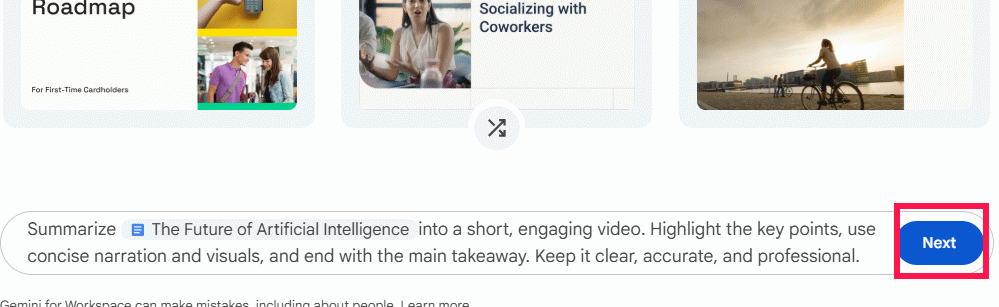
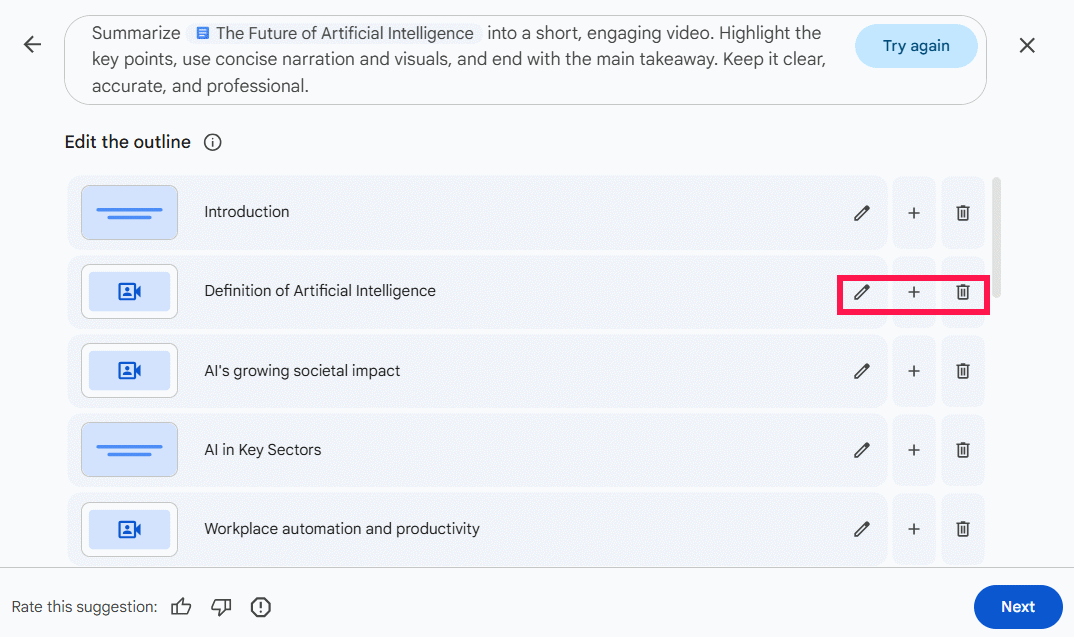
Google Vids will display an outline of your document—automatically pulled from the source material based on your summarization request. You can reorder points, delete sections, or manually add content to refine the summary for your video. Once you're satisfied, click Next to move forward.
Step 3:
Now you'll see several video template options designed for document summary videos. Pick one that fits your needs.
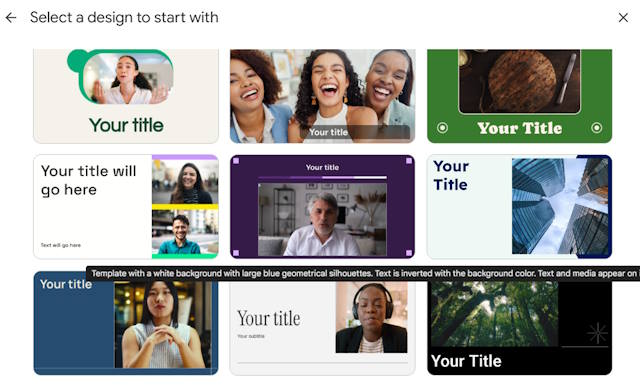
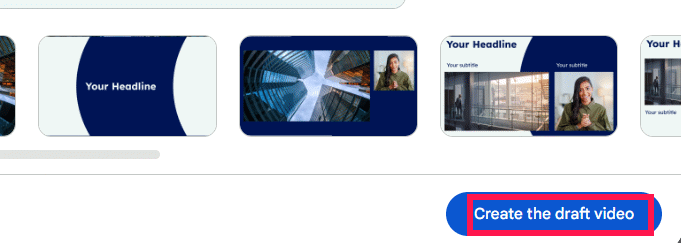
After selecting a template, you'll see a preview of how each scene will look and how the layout will be structured. If it looks good, click Create the draft video to generate your document summary video.
Step 4:
Wait a moment and your complete summary video will be ready. It includes images, effects, video illustrations, AI narration, and background music—all generated without requiring extensive manual work on your part.
Click into individual scenes to edit the text, adjust colors, and customize the appearance to match your preferences.
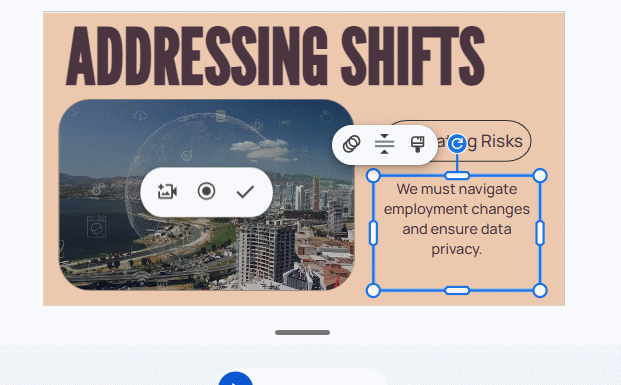
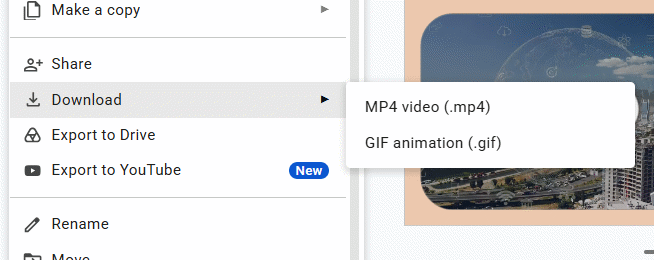
Finally, hit Download and save your video to your device.
Document Summary Video on Google Vids
Description: Learn how to use Google Vids to automatically convert documents into engaging summary videos with AI narration and visuals.

No Comment to " How to Turn Documents into Summary Videos with Google Vids "