Managing Tasks in Gemini Spark: A Complete Guide

Every task you create in Gemini Spark gets automatically saved for easy management. Your task library includes everything you've assigned to Gemini Spark—both one-time jobs and recurring scheduled tasks.
The task management dashboard gives you a complete overview of where things stand. You can see which tasks are finished, in progress, or waiting for your input. What's useful here is that Gemini Spark also lets you pin important tasks, rename them for clarity, and organize everything to fit your workflow. Let's walk through how to find and manage your tasks effectively.
What You Can Do on the Gemini Spark Tasks Page
The Tasks page puts several powerful tools at your fingertips:
- Monitor the progress of all your assignments from a single overview screen.
- Pin, rename, and delete task threads so your most critical work stays front and center.
- Filter task threads to quickly surface the tasks demanding your attention right now.
Finding Your Gemini Spark Tasks
Step 1:
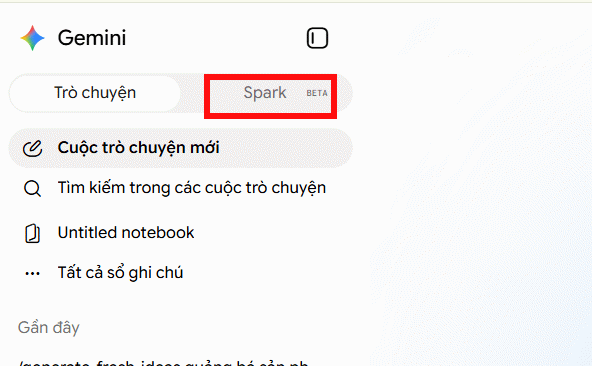
Open Gemini and select the Spark section to view everything you've created with Gemini Spark.
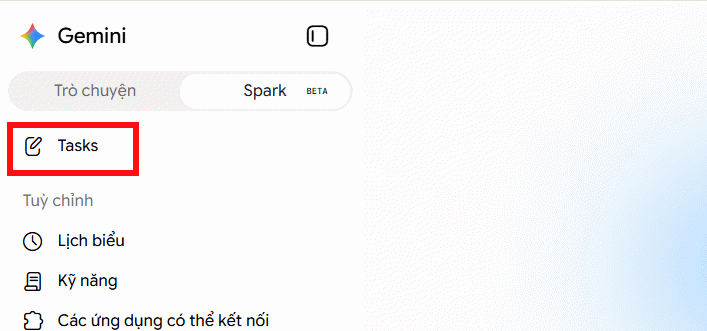
Scroll down and click on Tasks to see your complete task history from Gemini Spark.
Step 2:
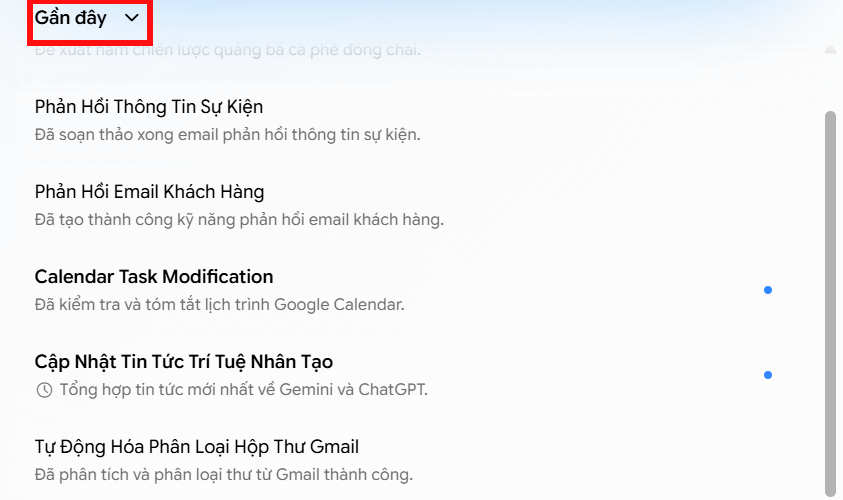
Look at the sidebar on the right and check the Recent section to see your latest Gemini Spark deployments.
Tasks with unread responses from Gemini appear bolded so they catch your eye immediately.
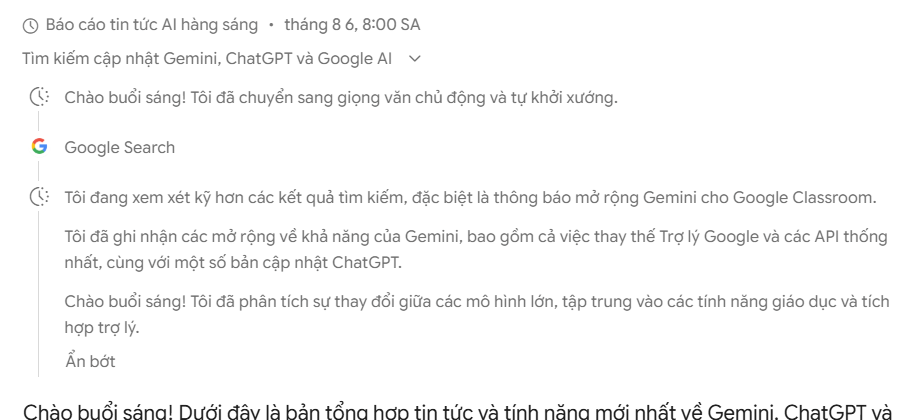
Click on any task to view the full execution details.
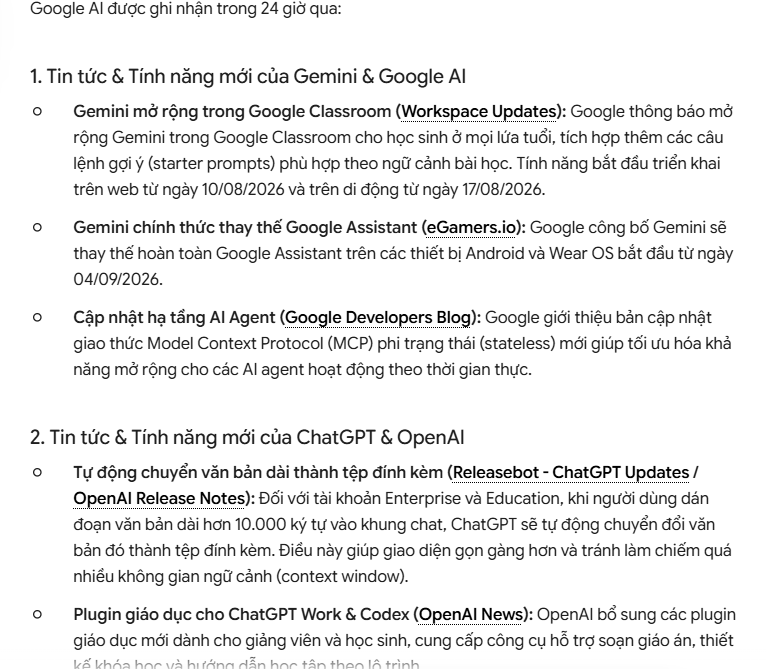
To review the steps Gemini took, click the process icon to expand it within the content view.
Organizing Your Tasks in Gemini Spark
Step 1:
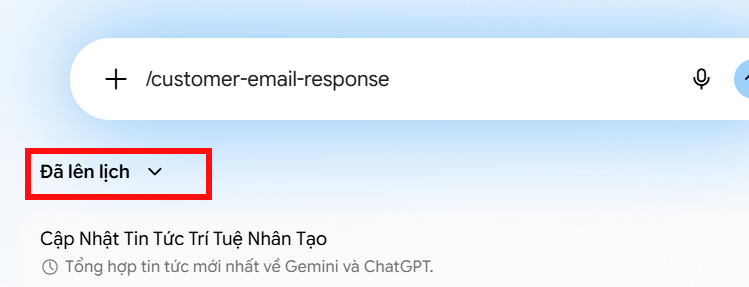
Once you're in the task management interface, you can filter tasks by their current status.
Click on Recent and you'll see the available task status options.
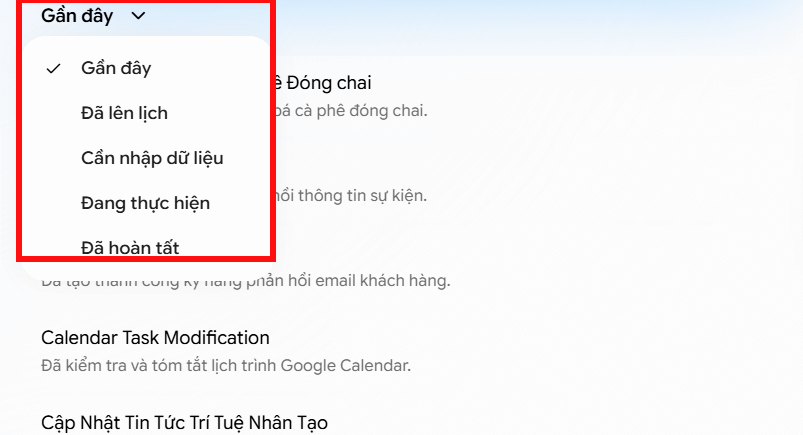
Select a status and the system will display only the tasks matching that status.
Step 2:
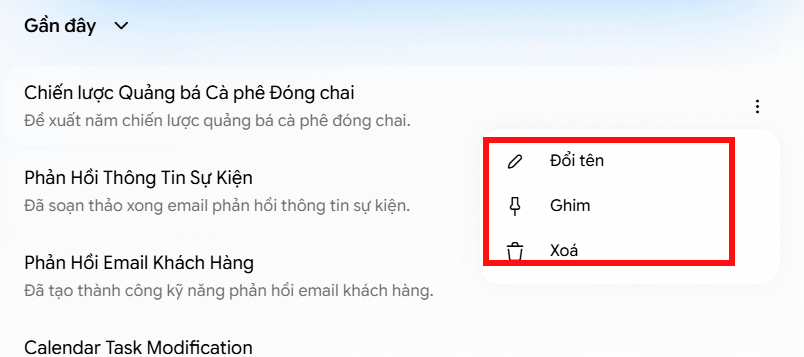
Tap the three-dot menu next to any task to reveal options for renaming, pinning, and deleting.
- Rename: Give your task a clearer name for better organization. This proves invaluable when you're juggling multiple tasks on the same topic or want more descriptive labels.
- Pin: Elevate a task to the top of your Tasks list for quick access. Important tasks or ones you monitor frequently deserve a pin.
- Delete: Permanently remove the task thread from Gemini Spark.
When you delete a task from Gemini Spark, the following gets removed:
- The task execution record itself
- Related activity logged in your Gemini Apps Activity section
- Any automated schedules connected to that deleted task
However, deletion does not remove:
- Files created or modified during execution—such as documents in Google Workspace
- Browser data or remote code execution data from Gemini Spark operations tied to the task
Description: Learn how to organize, filter, and manage your Gemini Spark tasks efficiently with our step-by-step guide.
Related Articles
- Google Flow Music: Generate Professional Music Videos with Just a Text Prompt
- What Is Google's Nano Banana 2? Complete Guide & Usage Tips
- Windsurf vs Cursor: Which AI IDE Should You Choose?
- Enhance Portrait Photos with Google Photos AI: A Complete Guide
- Gemini Now Lets You Create Images by Speaking—No Typing Required

No Comment to " Managing Tasks in Gemini Spark: A Complete Guide "