AI News

  • Loading...

How to Import Google Slides into Google Vids and Create Professional Videos
On
How to Import Google Slides into Google Vids and Create Professional Videos

Already have a presentation sitting in Google Slides? You don't need to rebuild everything from scratch to turn it into a video. Google Vids lets you import your slides directly and transform them into a finished video in minutes. What's interesting here is that you can skip the tedious process of recreating your content—just port it over and let the platform handle the heavy lifting.

Once your slides are imported, you're free to customize layouts, add transitions, insert images and video clips, add voiceovers, or leverage AI features to polish everything. This approach works perfectly for training videos, how-to guides, product demos, or business reports. In this guide, we'll walk you through converting your Google Slides into a professional video using Google Vids, covering all the editing options that'll make your final product stand out.

Step-by-Step Guide: Importing Google Slides into Google Vids

Step 1:

When you open Google Vids, you'll see a video creation prompt like the one below. Click on Convert Slides to get started.
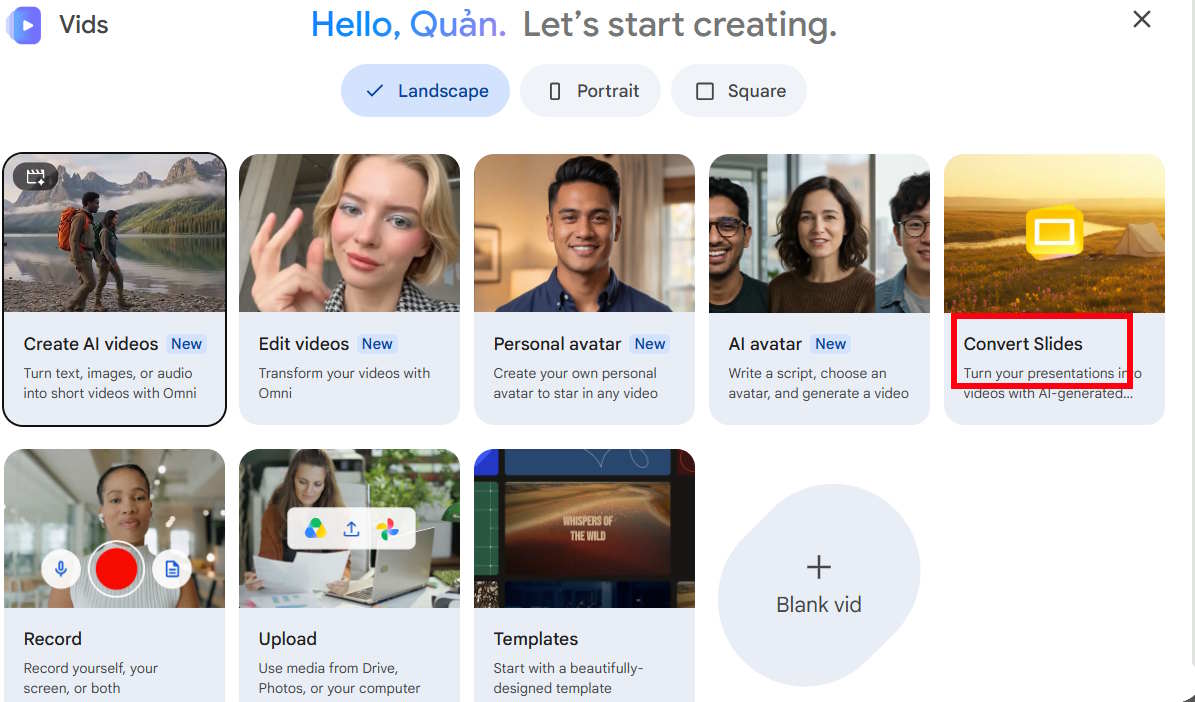
Convert Slides on Google Vids

Google Drive will open, letting you quickly locate the presentation you want to use through the available options below.
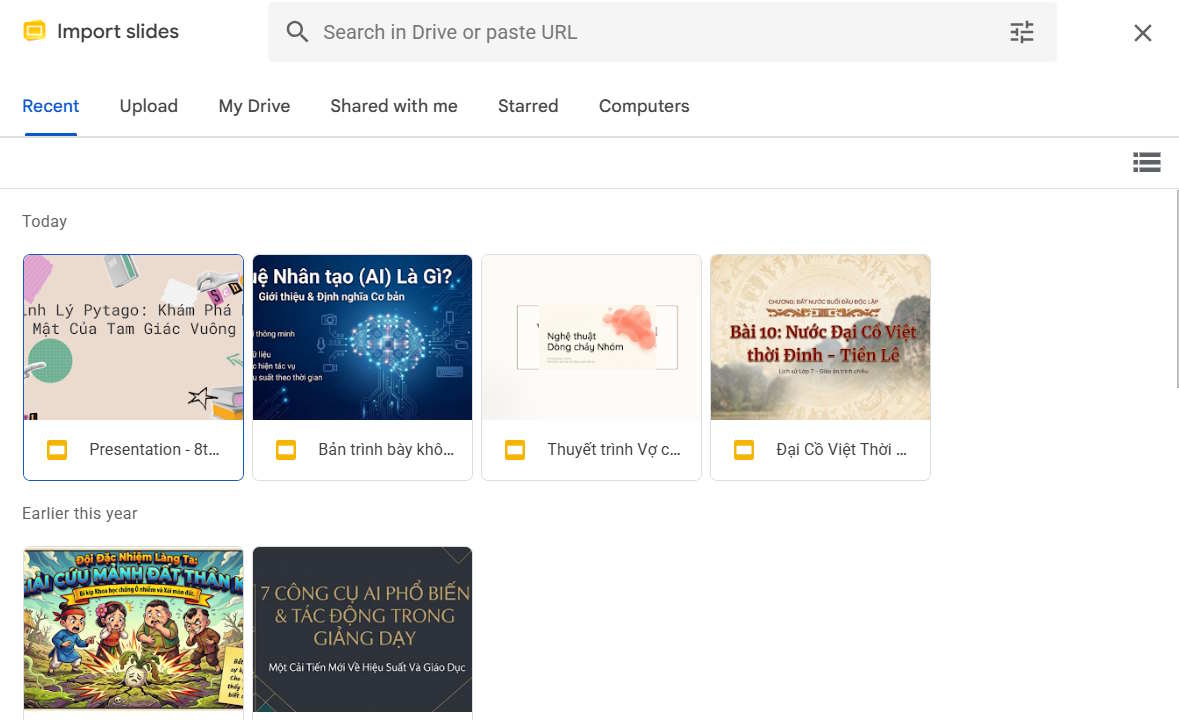
Google Drive interface in Google Vids

Alternatively, you can click Upload to add your slides directly into Google Vids.
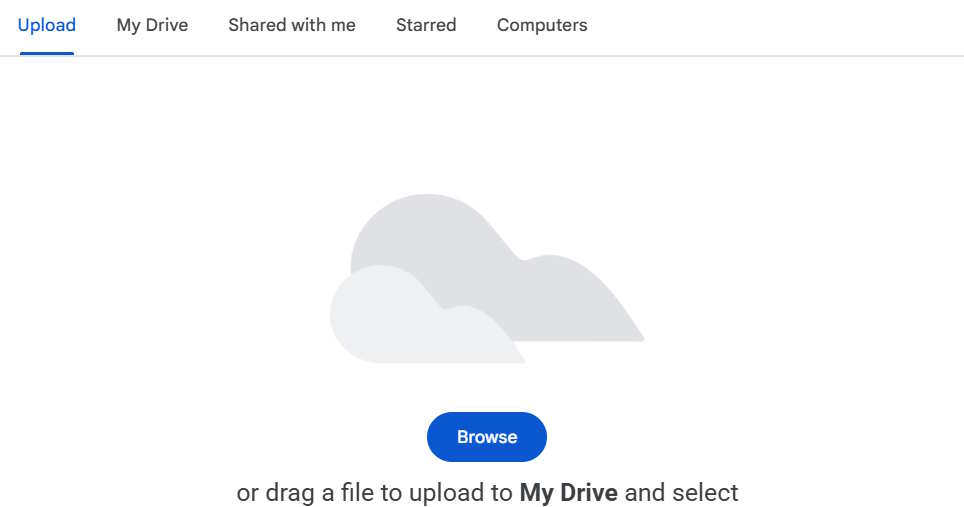
Upload slides directly to Google Vids

Step 2:

After selecting your presentation, you'll see every slide displayed individually. Check the boxes for slides you want to include in your video, uncheck any you want to skip. Once you've made your selections, hit Continue.
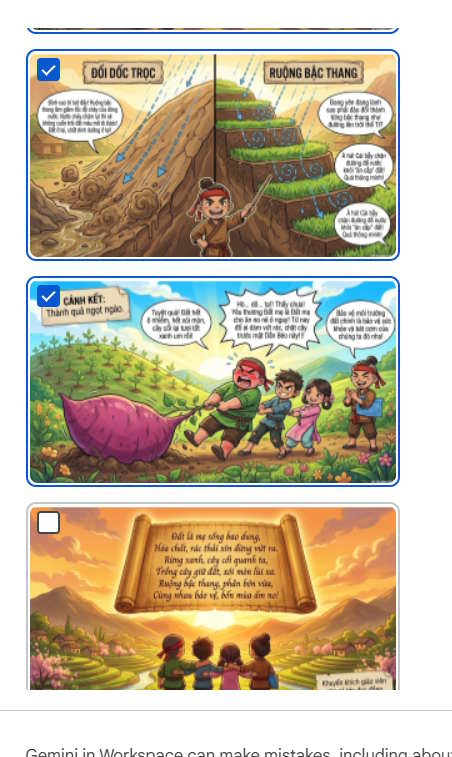
View slides in Google Vids

Step 3:

On the next screen, enable AI narration, auto-generated scripts, background music, and effects. This generates professional content automatically—no extra work needed on your end.

Enable AI narration and script generation in Google Vids

You'll immediately see AI-generated scripts for each slide. If you don't like what Google Vids created, click the X to remove it.
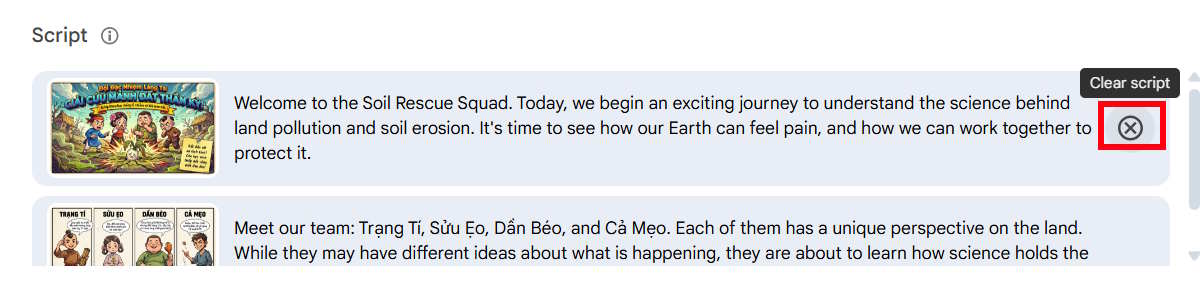
Delete AI-generated narration scripts in Google Vids

You can also write custom narration scripts directly in Google Vids if you prefer.
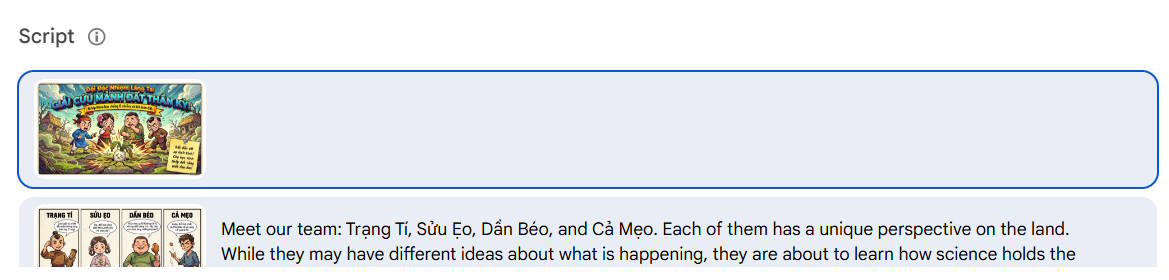
Add custom narration scripts in Google Vids

Step 4:

Scroll down to the Narration section. Here you choose between AI voice-only narration or pairing it with an animated AI avatar. Google Vids selects a default character for you, but you can change it by clicking the pencil icon.
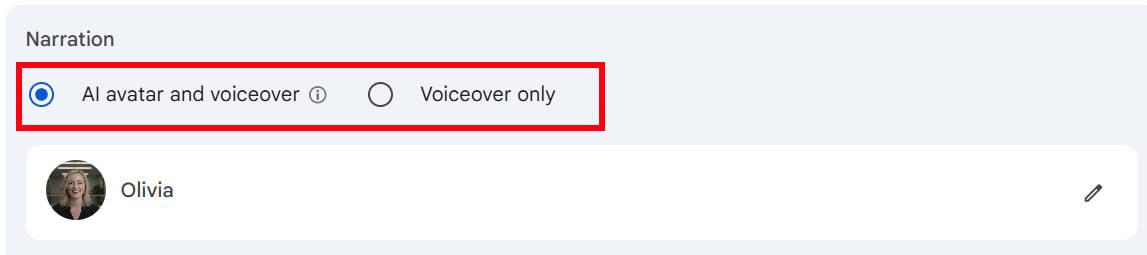
AI narration options in Google Vids

In the character selection window, pick an avatar that matches your video's tone, then click Use this avatar to confirm.
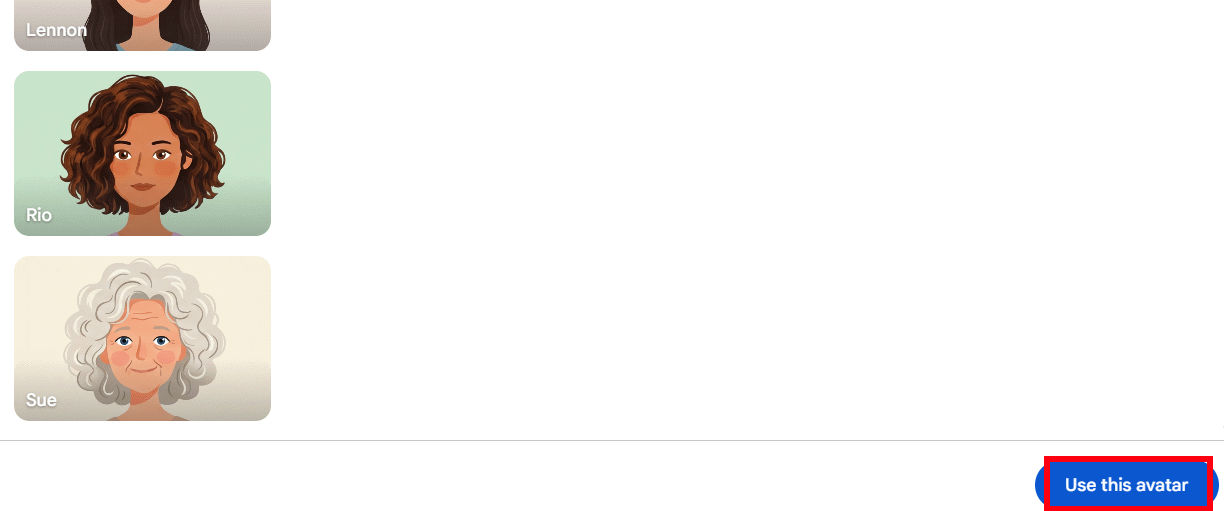
Select a new AI avatar in Google Vids

Enable animation sync under Animations to match the avatar's movements with the narration, then click Create the draft video.
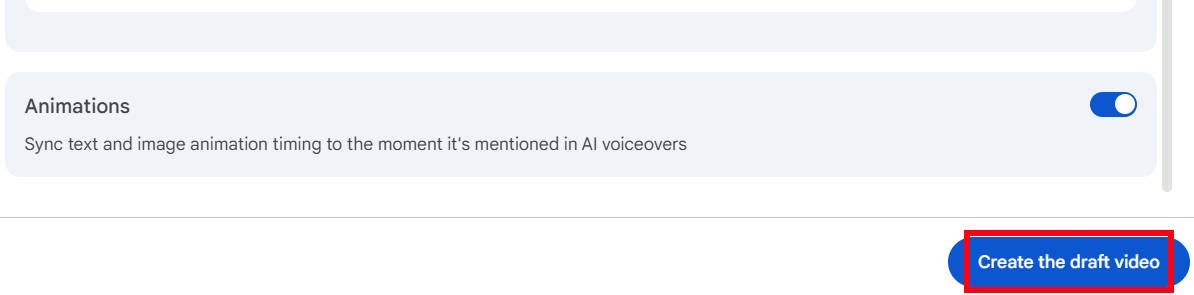
Create video from Google Slides in Google Vids

Step 5:

Wait while Google Vids renders the avatar and generates each scene. This typically takes a few minutes, so be patient. Once it's done, you can adjust transition effects for any scene if the defaults don't suit your style.
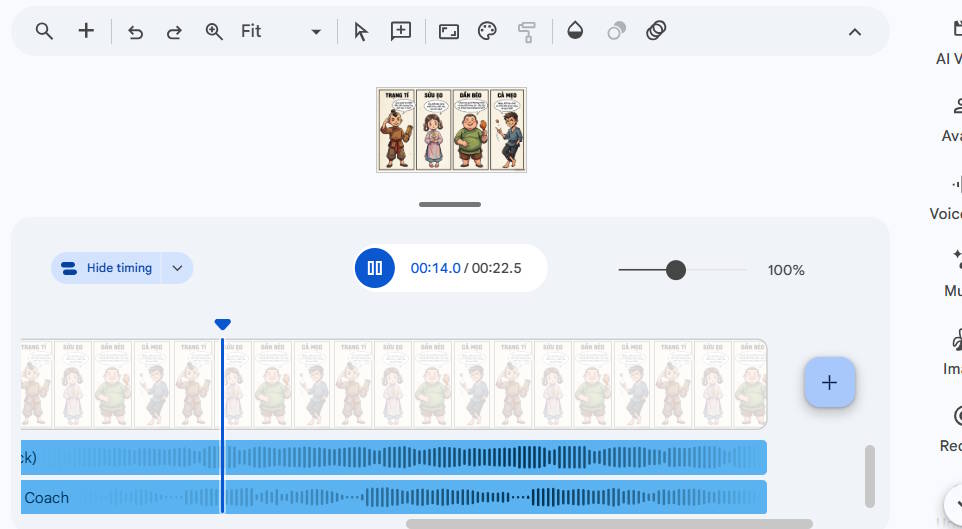
AI video in Google Vids

When your video is complete, go to File and select the download option to export your AI video from Google Vids.
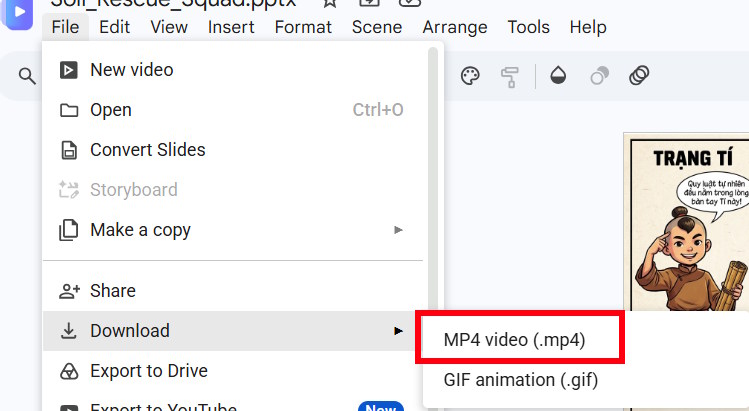
Download AI video from Google Vids

Key Considerations When Importing Google Slides into Google Vids

To ensure a smooth import process and minimize errors, keep these points in mind:

Finalize your Google Slides content before importing. Review text, images, and layout to reduce editing time after everything lands in Google Vids.

Make sure your presentation is saved to Google Drive. Google Vids can only access Google Slides files you have permission to view.

Check file sharing permissions. If you're using a presentation created by someone else, ensure you have viewing or editing access so you can import it into Google Vids.

Review each slide after import. Some elements like transitions, animations, or custom layouts from your original Google Slides may not translate perfectly into Google Vids.

Add multimedia elements after importing. Once your slides are in Google Vids, you can insert additional videos, images, background music, voiceovers, or use AI features to make your video more dynamic and polished.

Preview the entire video before publishing. After finalizing your edits, play through the complete video to verify the layout, content, effects, and ensure every slide displays exactly as intended.


Description: Learn how to convert your Google Slides presentations into polished videos using Google Vids with AI narration, avatars, and effects.

Related Articles

What Can Gemini Do in Gmail? 4 AI-Powered Features Worth Using

On
What Can Gemini Do in Gmail? 4 AI-Powered Features Worth Using

Email remains essential for work, but managing dozens—or even hundreds—of messages daily drains your productivity. Google recognized this problem and integrated Gemini directly into Gmail as an intelligent AI assistant. What's interesting here is that Gemini goes way beyond simple composition. It can summarize lengthy email threads, suggest smart replies, adjust tone and style, search using natural language, and extract key information from your messages. If you're looking to maximize Gmail's AI capabilities, this guide covers the most practical Gemini features you should be using.

How to Use Gemini in Gmail

Important note: You'll need a Google One AI Premium subscription and your Gmail language set to English. If you don't have access yet, alternative AI email assistants can help you draft quick, professional responses.

Writing Emails with Gemini

Use Gemini to draft new messages or generate professional reply emails in seconds.

Step 1:

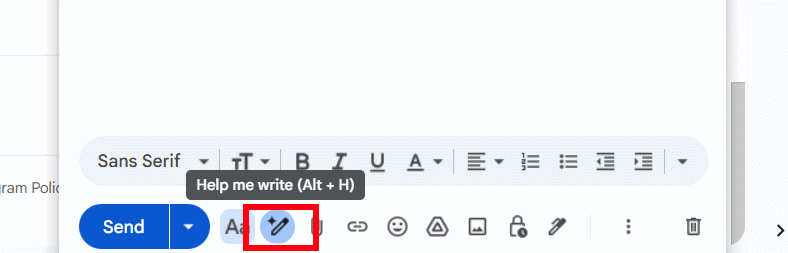
Open the Gmail compose window and click the pen icon to activate Gemini's writing feature.

AI email writing tool in Gmail

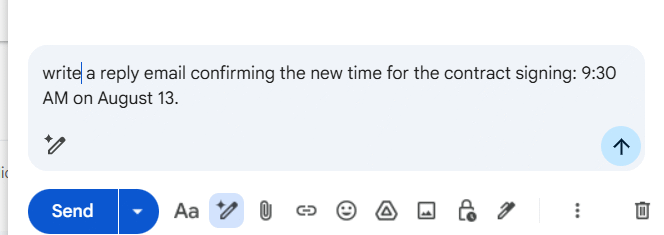
Describe what you want to say, who you're writing to, and what tone to use. Then hit send to generate your draft.

Email command prompt in Gmail

Step 2:

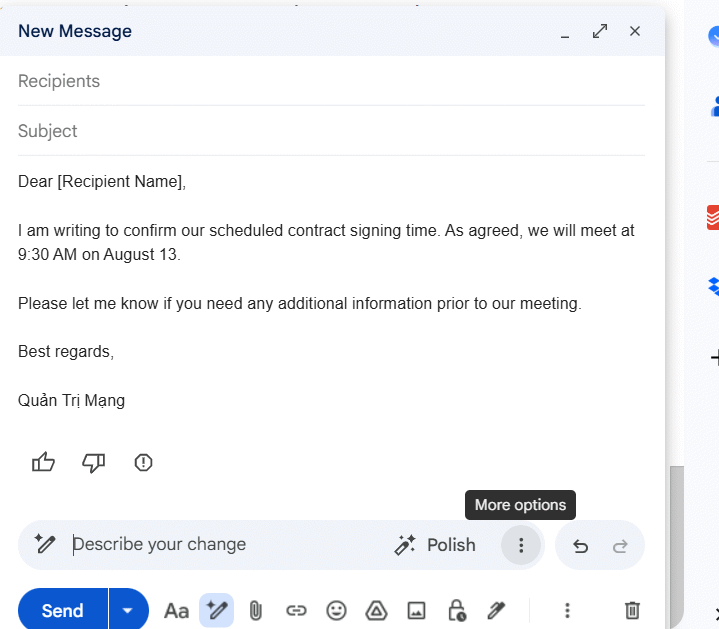
In a moment, Gemini will generate your email draft in the compose box. Click the three-dot menu to access additional options for refining your message.

Customize email in Gmail

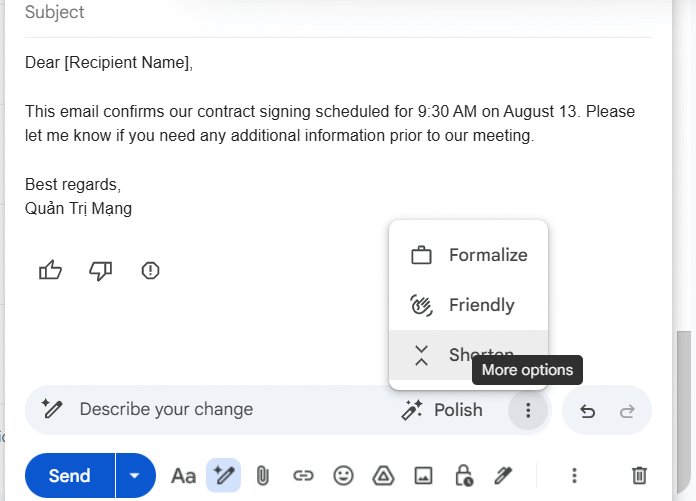
Here you can adjust the writing style, make it more concise, or change the tone. Select "Polish" to regenerate the email with different wording.

Refine email with Gemini in Gmail

Pick the tone and length based on your recipient and message purpose. The real concern is getting the voice right—Gemini handles that well once you've given clear direction.

Summarize Email Threads

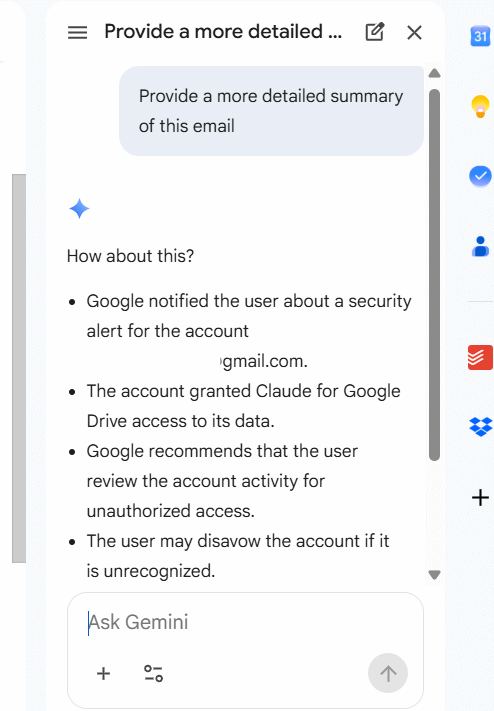
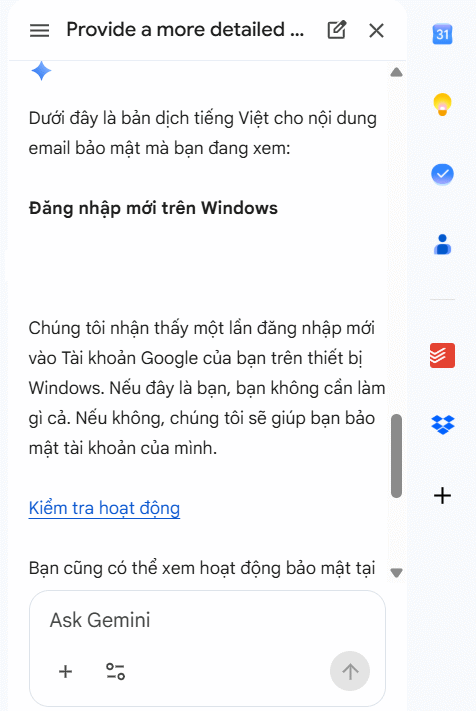
Instead of reading long email chains, Gemini extracts the key points instantly. Open any email and click the Gemini icon to activate the chat panel. Then type this command:

Summarize this email in more detail

Gemini instantly shows you the main points without reading the full text.

Gemini summarize email in Gmail

Smart Email Search with Gemini

Forget typing exact keywords. Gemini understands natural language queries, so you can search by meaning instead of memory. Describe what you're looking for—specific content, attachments, dates—and Gemini finds it.

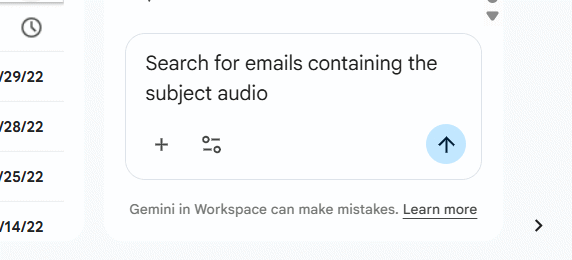
Enter your search request in plain language and send.

Gemini search emails in Gmail

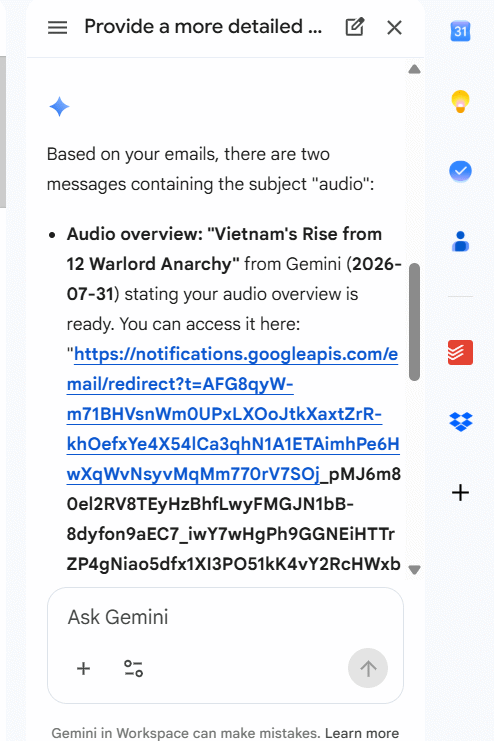
Gmail returns the matching emails instantly based on your description.

Gemini email search results in Gmail

Translate Emails Instantly

Gemini handles email translation, helping you work seamlessly with international clients and partners. It adapts tone and context, not just words—which matters for professional communication.

Request translations into Vietnamese, English, or any other language. You'll understand incoming messages clearly and write more accurate responses.

Gemini translate email in Gmail

Effective Gemini Prompts for Gmail

For better results, write detailed prompts instead of vague one-word commands. Example:

Reply to this email professionally, confirm the meeting on Friday at 10:00 AM, thank the sender, and ask them to share the meeting agenda in advance.

1. Summarize email threads

Summarize this email thread and highlight the key points, decisions, and action items.

2. Compose new emails

Draft a professional email inviting a client to a project meeting next Tuesday at 2:00 PM.

3. Reply to messages

Reply to this email politely, confirm my attendance, and thank the sender for the invitation.

4. Adjust tone and style

Rewrite this email in a more professional and friendly tone.

Or:

Make this email shorter and more formal.

5. Shorten or expand emails

Shorten:

Shorten this email while keeping all important information.

Expand:

Expand this email with more details and a professional tone.

6. Find specific emails

Find the latest email from [name] about the marketing proposal.

Or:

Search for emails containing the subject [name].

7. Summarize multiple emails

Summarize all emails in this conversation and provide the main discussion points.

8. Extract key information

Extract all meeting dates, deadlines, and action items from this email thread.

Or:

List all tasks assigned to me in these emails.

9. Translate emails

Translate this email into Vietnamese while preserving the original meaning and professional tone.

Or:

Translate this email into English.

10. Compose based on attachments

Draft an email based on the attached document and summarize the key information for the recipient.

11. Check your inbox status

What emails require my attention today?

Or:

Summarize my unread emails from this week.
List all emails related to the ABC project.
Which emails contain pending action items?

Description: Discover how Google's Gemini AI transforms Gmail with smart email composition, summarization, search, and translation capabilities.

Related Articles

Best Free AI Image Generators in 2026: Professional Graphics Without the Price Tag

On
Best Free AI Image Generators in 2026: Professional Graphics Without the Price Tag

Gone are the days when eye-catching visuals for presentations, blogs, and mockups required hiring a designer. AI image models have evolved dramatically, letting you generate professional artwork with just a text prompt—completely free.

Here's a breakdown of the leading AI image generators available today, organized by skill level from basic to advanced.

1. Professional AI Image Creators

Modern AI image generators let you create visuals instantly from text descriptions. You can base new images on existing photos and ask the AI to replicate that style, or specify exactly what you want. The results arrive immediately—no waiting around.

Step 1:

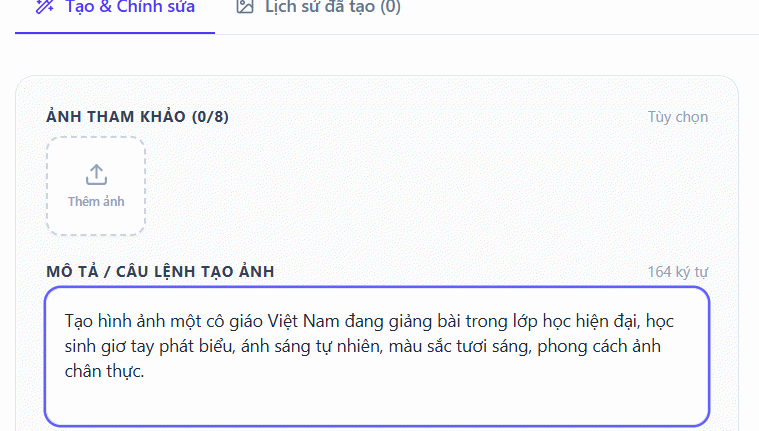
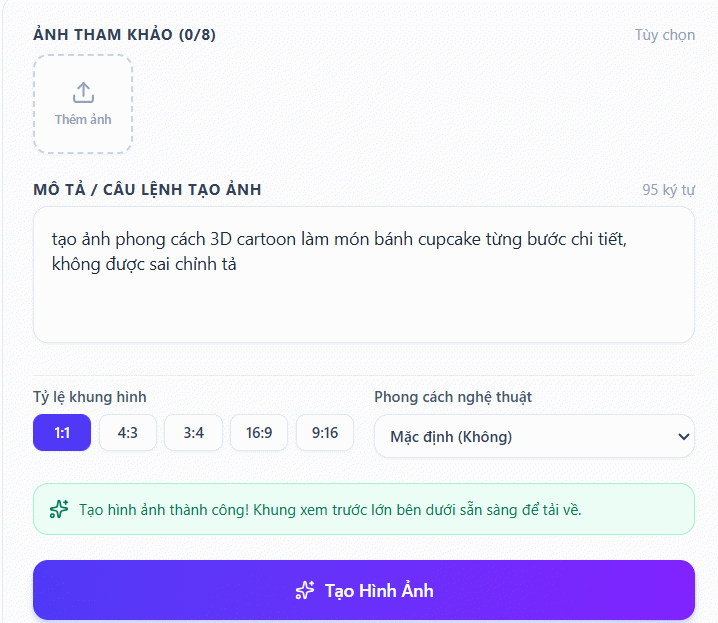
Access the AI image generator tool through the link below.

You can upload a reference character or simply type your image description directly into the interface.

AI image prompt command

Step 2:

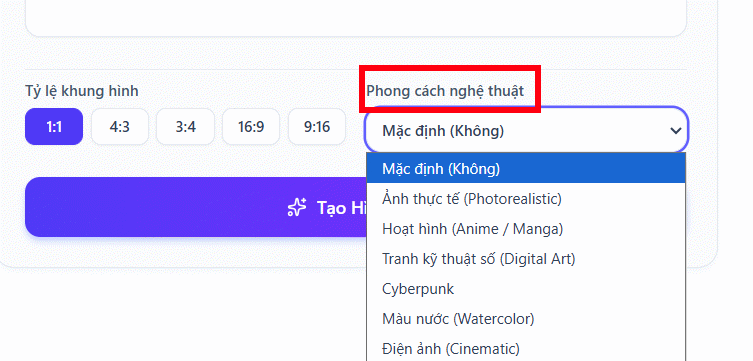
Next, choose an art style from the available options, or skip this if you prefer.

Select AI image style

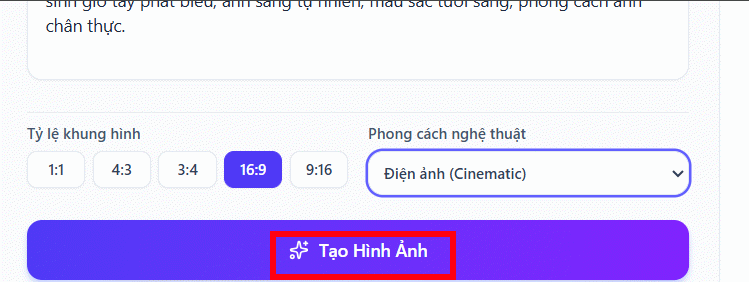
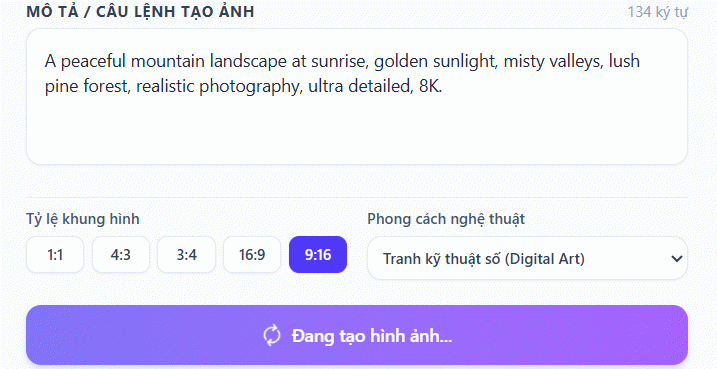
Select your desired image dimensions, then click Generate Image to create your AI artwork.

AI image size settings

Step 3:

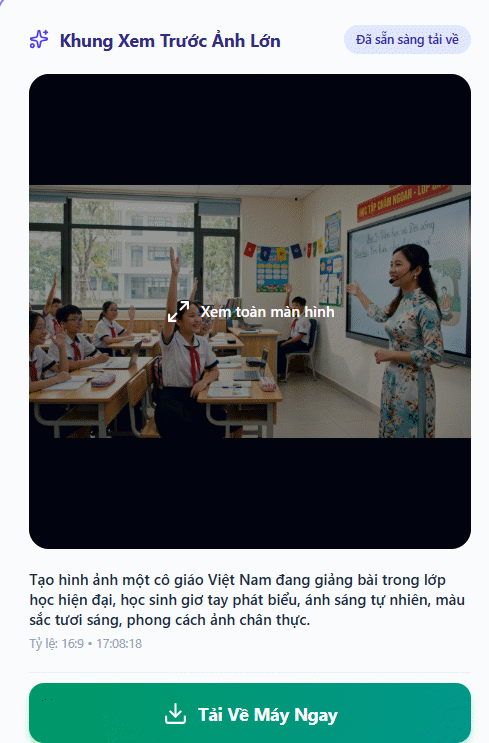
Your AI-generated image appears instantly. Preview it by zooming in before downloading.

AI image result

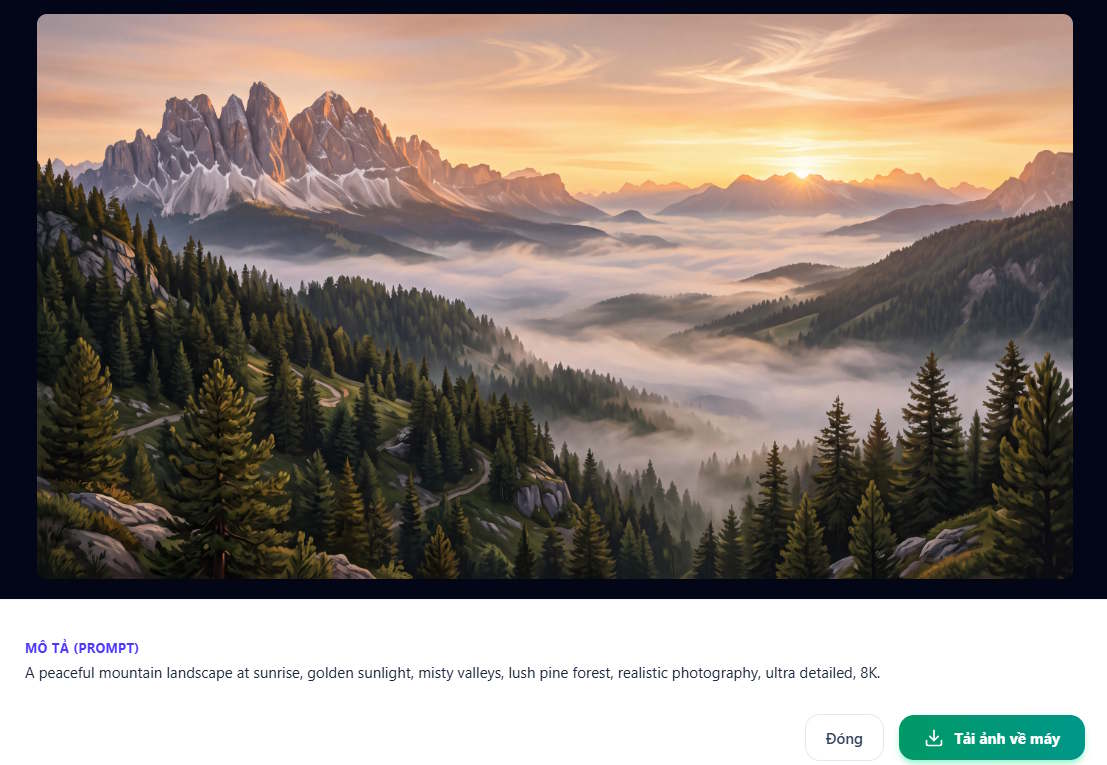
Pro tip: English prompts often produce even higher-quality results.

English prompt AI generation

The process works the same way.

Generated AI image

Step 4:

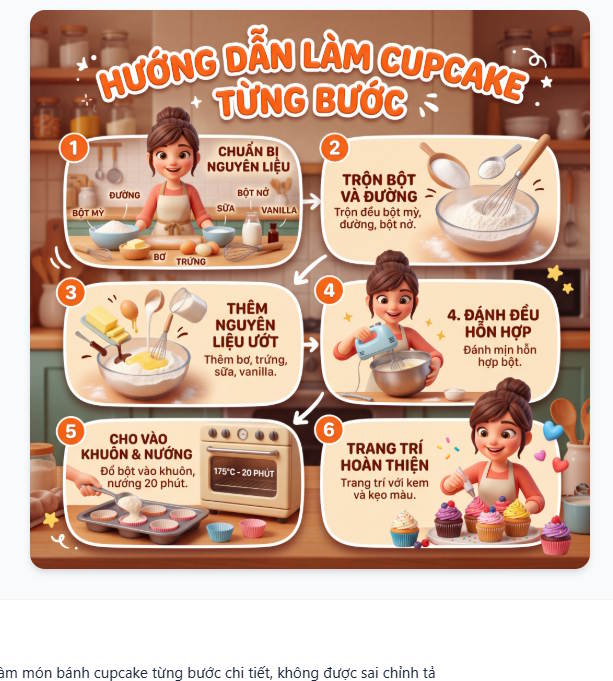
You can also use this tool to create step-by-step process illustrations without writing lengthy descriptions. The AI automatically breaks down the steps and generates numbered visuals.

Create process diagrams

Each step appears numbered and clearly labeled, keeping descriptions concise while retaining essential information.

Process diagram results

Step 5:

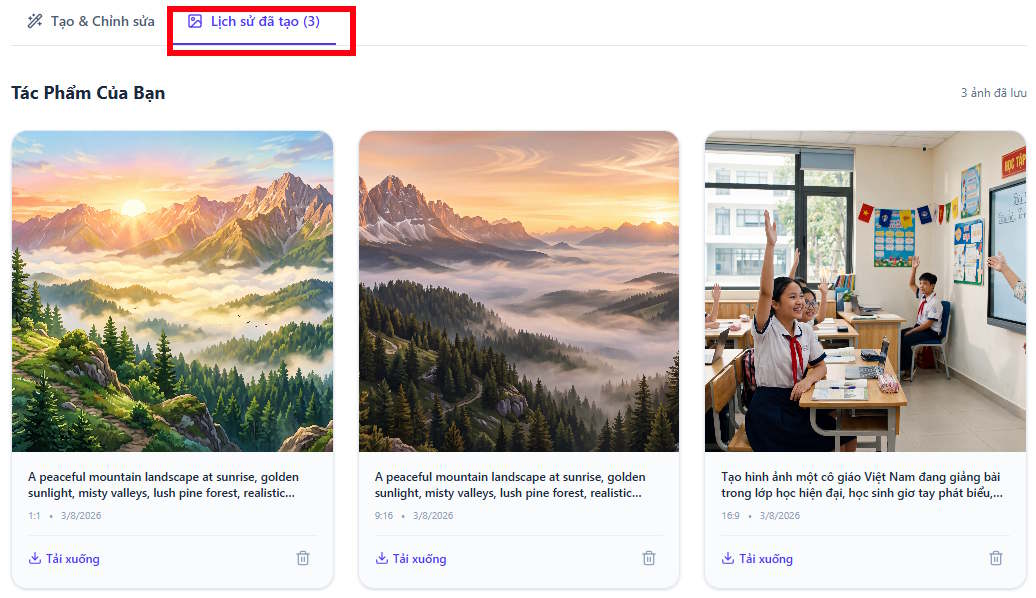
The tool includes a history section so you can easily retrieve previously generated images from past sessions.

AI image history

2. Free Integrated AI Tools (Built into Chatbots)

ranking of free AI image generators

This category includes image generators built directly into conversational AI platforms. It's ideal if you want to create images quickly through natural dialogue without fiddling with sliders or complex settings.

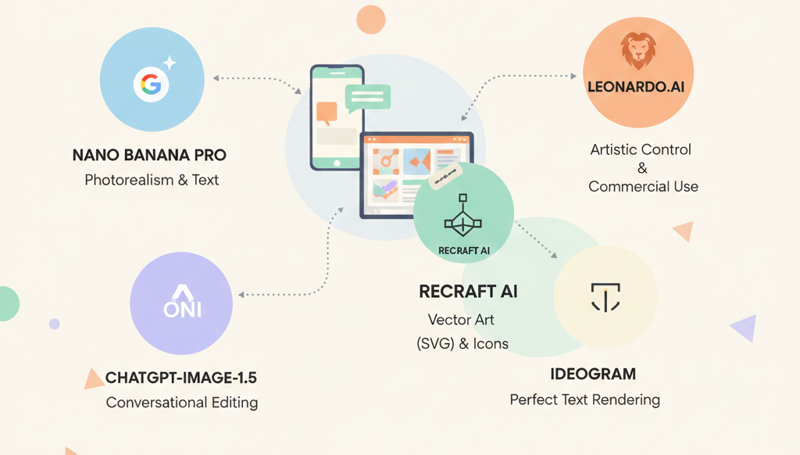
Nano Banana Pro (Google)

ranking of free AI image generators

Widely considered Google's most powerful image model as of early 2026, Nano Banana Pro is a beast when it comes to text rendering within Gemini AI.

  • Strengths: Precise multilingual text placement. What's impressive here is the "translate text in images" feature—it rewrites text to different languages while preserving the original font and style.
  • Drawbacks: Free images typically carry Gemini watermarks and hidden SynthID encoding to mark AI copyright. While removal tools exist, this is a disadvantage compared to other generators.

ChatGPT Image Generation (OpenAI)

OpenAI has given free users access to its GPT-Image-1.5 model. Its killer feature? Conversational editing.

  • Standout capability: You can say "Change that blue chart to purple," and the AI understands context, editing the existing image directly instead of generating from scratch.
  • Limitation: While image quality is solid, ChatGPT tends to be slower than other tools on this list.

Copilot (Microsoft)—Your Windows Companion

ranking of free AI image generators

Copilot harnesses DALL-E's latest version from OpenAI, but Microsoft has optimized it for its entire ecosystem.

  • Defining trait: Completely free and accessible everywhere—Edge browser, Windows, mobile apps.
  • Advantages: Excellent Vietnamese language support. Use natural commands, and the AI generates 4 variations simultaneously. It also suggests quick redesigns on the fly.
  • Limitation: The safety filters run quite strict—sometimes refusing requests that aren't actually problematic.

Grok (xAI by Elon Musk)—Raw and Realistic

Grok (versions 2.0 or 3.0 depending on region) integrates FLUX.1—currently one of the most photorealistic image models available.

  • Overview: Lives on the X (Twitter) platform. Previously Grok required Premium, but xAI has now rolled out limited free trials or restricted access for regular accounts in some regions.
  • Strengths: Freedom. Grok generates highly realistic, less-restricted images compared to Copilot or Gemini. Its portrait and landscape capabilities are considered best-in-class for realism.
  • Weakness: While it produces multiple options, Grok occasionally misses the mark on user requests.

3. Advanced Tools for Professional Designers

When you need deeper control over style, composition, and format, these specialized platforms deliver.

Leonardo.Ai: Maximum Artistic Control

Leonardo.Ai offers features typically locked behind paywalls—like "Image Guidance," which lets you upload a sketch and have AI paint over it.

  • Free tier limit: 150 tokens daily (roughly 30–70 images).
  • Note: Free-tier images become public in the community gallery. However, Leonardo permits commercial use even at the free tier.

Recraft AI: The Vector Designer's Best Friend

If you're in UI/UX or app development, Recraft AI is the only tool right now that generates vector graphics (SVG) for free.

  • What it does: Create icons, logos, and illustrations that scale infinitely without pixelation.
  • Free tier limit: 30 credits daily (~25 images). Important: The free plan is personal-use only—not for commercial projects.

ranking of free AI image generators

Ideogram: Typography Mastery

Ideogram has earned its reputation for flawless text rendering—rarely misspells anything.

  • Magic Prompt feature: Automatically rewrites your basic request into a detailed, artfully crafted prompt for the best possible output.

4. Comparison Table: AI Image Generators 2026

Tool Category Best For Free Limit Core Strength
Nano Banana Pro Integrated chat Realistic images & multilingual text Generous (Gemini) In-image text translation; precise prompt adherence
ChatGPT Image Generation Integrated chat Conversational editing ~2–3 images/day Intelligent iterative editing through dialogue
Leonardo.Ai Advanced platform Fine-tuned artistic control 150 tokens/day (~30–70 images) Commercial rights included; sketch-to-image
Recraft AI Advanced platform Vector graphics & icons 30 credits/day (~25 images) SVG export without pixelation; brand color control
Ideogram Advanced platform Text & typography 10–20 prompts/day 100% accurate text rendering; Magic Prompt

5. Other Popular AI Image Tools Worth Trying

Beyond these heavy hitters, 2026 has seen an explosion of browser and app-based generators:

  1. Adobe Firefly (Web/Photoshop): Famous for "Generative Fill," which expands image regions or adds details using ethically-trained AI (based on Adobe Stock images).
  2. Microsoft Designer (DALL-E 3): Built into Edge and Windows, enabling rapid image creation and poster design in seconds.
  3. Canva Magic Media: Perfect for marketers—create AI images and drop them directly into slide decks or social posts without leaving the platform.

Tips for Writing Better Prompts

To get the most from these tools, follow this formula: [Subject] + [Action/Setting] + [Art Style] + [Lighting/Camera Angle]. The more specific your description, the more accurately the AI will interpret your vision on the first try.


Description: Explore the top free AI image tools for 2026—from integrated chatbots to advanced design platforms. Create stunning visuals instantly.

Related Articles

Connecting YouTube API to n8n: Complete Step-by-Step Guide
On
Connecting YouTube API to n8n: Complete Step-by-Step Guide
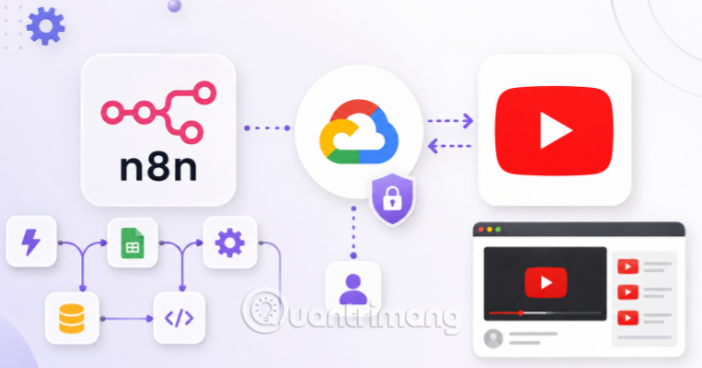
Want n8n to automatically upload videos, update titles, or manage playlists on your behalf? The foundation for all of this starts with connecting YouTube Data API v3 to n8n through Google Cloud Console. This initial setup determines whether every YouTube node in your workflow will actually function.
The process resembles connecting Google Drive or Google Sheets to n8n—they all rely on Google's OAuth 2.0 authentication mechanism. What's interesting here is that YouTube adds several additional steps around data scope declarations that catch newcomers off guard. We'll walk through the exact sequence as it happens in practice.
Connecting YouTube API to n8n: Step-by-Step Instructions

Step 1: Select the Right Project in Google Cloud

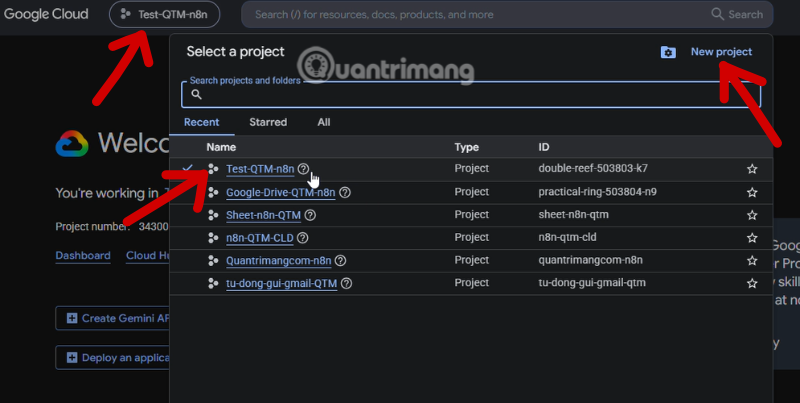
Open Google Cloud Console and click the project name in the upper left corner to open the project selection panel. Choose the project where you want to set up YouTube integration—perhaps an existing project you've used for other n8n connections. No project yet? Create one here.

kết nối YouTube API với n8n

Step 2: Search for and Open YouTube Data API v3

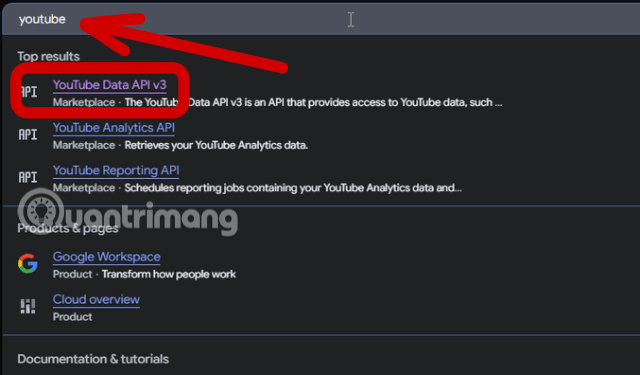
Type "youtube" into the search box at the top of the page. The system displays results—select YouTube Data API v3 from the Top results section. This is the API that grants access to YouTube data including videos, playlists, and channels.

n8n youtube

Step 3: Enable the API

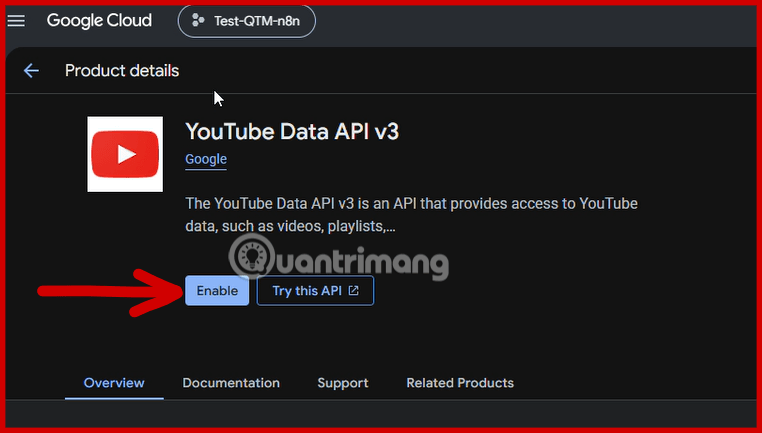
On the YouTube Data API v3 details page, click the Enable button to activate this API for your selected project. Skip this step and n8n won't be able to execute any YouTube operations, regardless of how complete your authentication credentials are.

youtube n8n

Step 4: Begin Creating Credentials

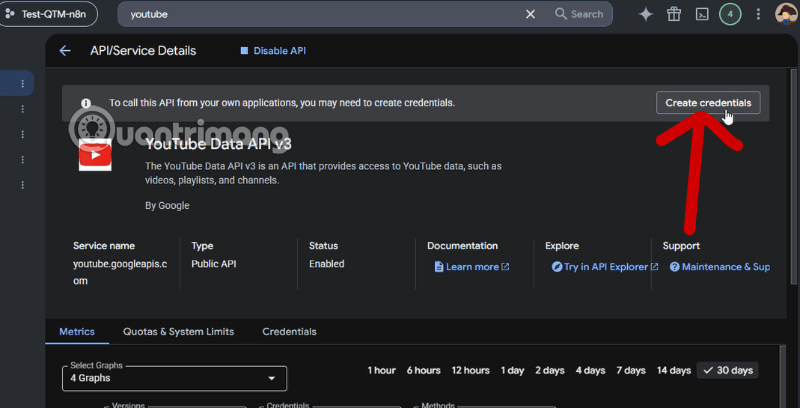
Once the API is enabled, the details page displays a notification prompting you to create credentials so your application can call this API. Click Create credentials to proceed.

YouTube Data API v3

Step 5: Choose API Type and Data Access Scope

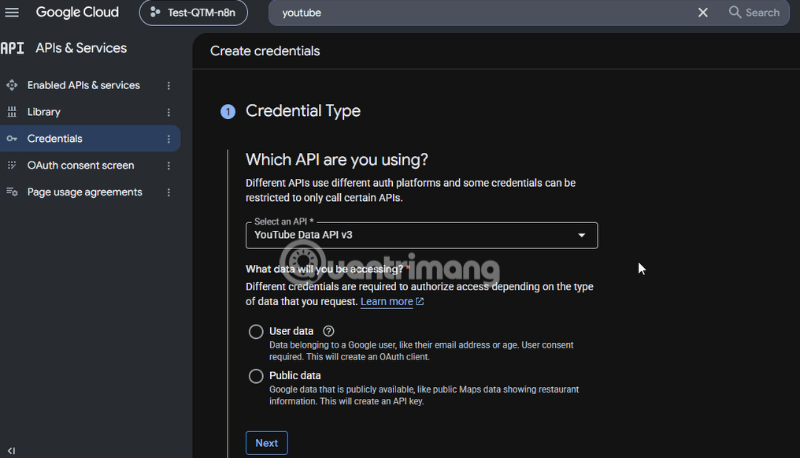
On the Credential Type screen, the "Which API are you using" field is already pre-filled with YouTube Data API v3. Under "What data will you be accessing," select User data. This tells Google that n8n needs to act on your behalf with your personal YouTube account data—uploading videos to your channel, not just reading public information. This choice triggers the creation of an OAuth client instead of a simple API key. Click Next to continue.

tích hợp YouTube n8n

Steps 6 & 7: Review the Scopes Declaration Section

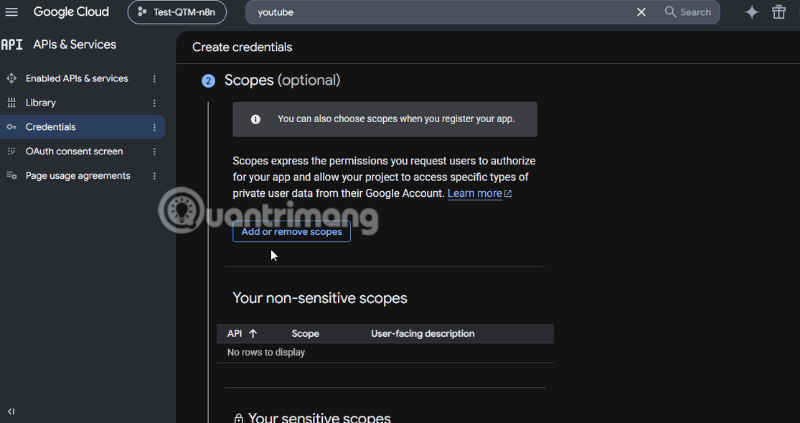
The Scopes step lets you pre-declare which permission ranges your application will request from users. For first-time setup, you can skip this section—both "Your non-sensitive scopes" and "Your restricted scopes" will be empty. The specific permission scopes get requested later during authentication within n8n.

tạo OAuth Google Cloud YouTube

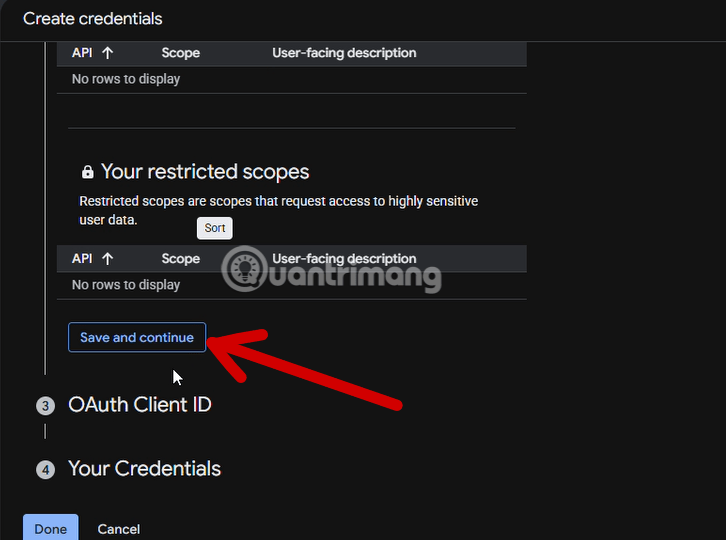
Scroll to the bottom of the Scopes section and click Save and continue to confirm and move on to creating the OAuth Client ID.

cách kết nối youtube api với n8n

Step 8: View Application Type Options

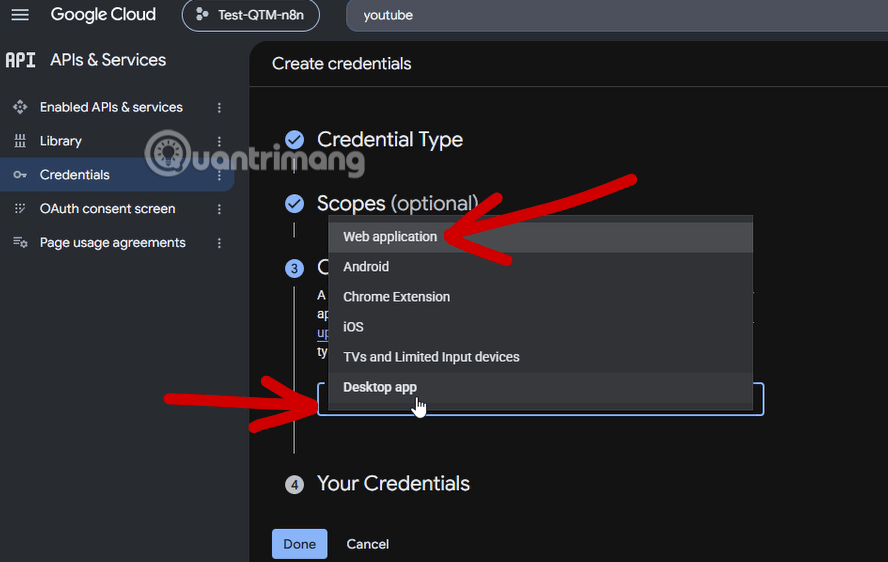
The next screen shows a dropdown menu listing application types for OAuth client creation: Web application, Android, Chrome Extension, iOS, TVs and Limited Input devices, and Desktop app. Since n8n operates as a web application that handles browser-based requests, select Web application.

cách kết nối youtube trên n8n

Step 9: Choose Application Type and Name Your OAuth Client

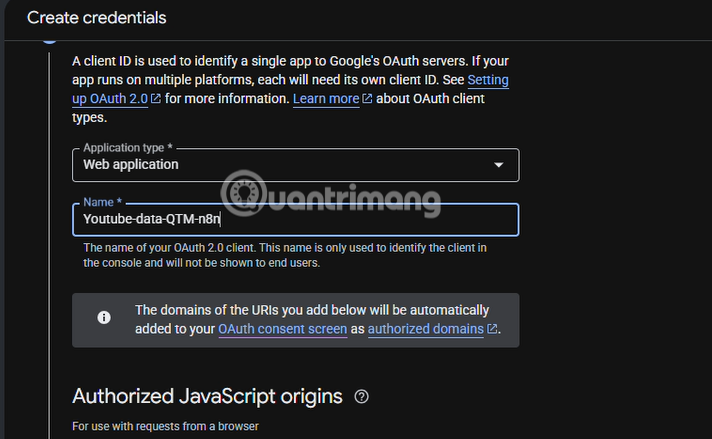
Under Application type, select Web application as determined in the previous step. Then enter a name for your client in the Name field—something like "Youtube-data-QTM-n8n" helps distinguish it if you later create additional clients for other Google services.

kết nối youtube n8n

Step 10: Prepare to Enter Redirect URI Addresses

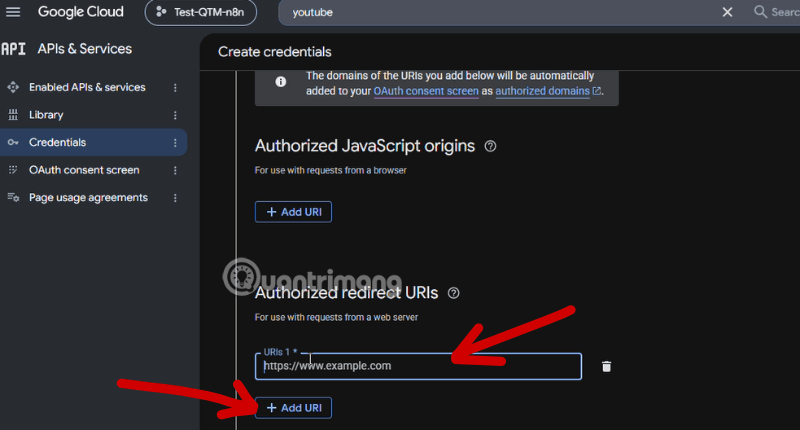
Scroll down to the Authorized redirect URIs section. This is where you specify the address Google will send users back to after successful authentication. The field might show a sample value initially—you'll need to replace it with the actual address from n8n in the next steps, so don't save just yet.

hướng dẫn kết nối youtube trên n8n

Step 11: Confirm Web Application Type Again

Double-check the application type dropdown one more time to ensure Web application is correctly selected. This choice is critical for the redirect URI configuration to work properly.

Step 12: Create YouTube Credentials in n8n

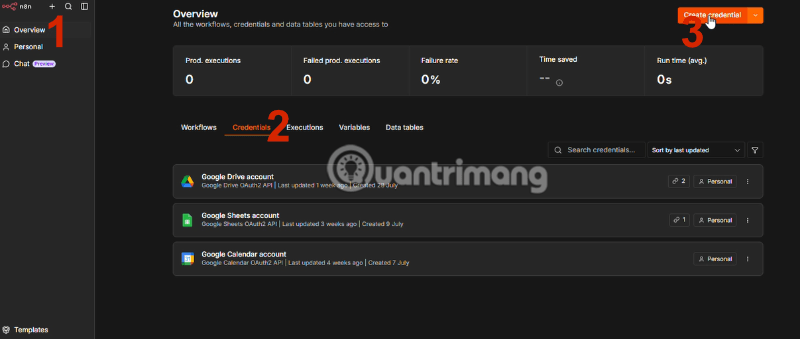
Switch to the n8n interface. From the left menu, navigate to Overview or Personal, select the Credentials tab, then click Create credential in the upper right corner.

hướng dẫn kết nối youtube api trên n8n

Step 13: Search for and Select YouTube OAuth2 API Credential Type

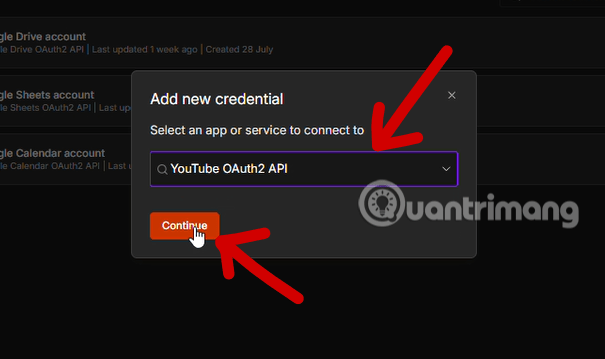
In the Add new credential dialog, search for and select YouTube OAuth2 API from the list of available services. Click Continue to open the detailed setup screen.

kích hoạt YouTube Data API v3

Step 14: Return to Google Cloud to Complete and Download Credentials

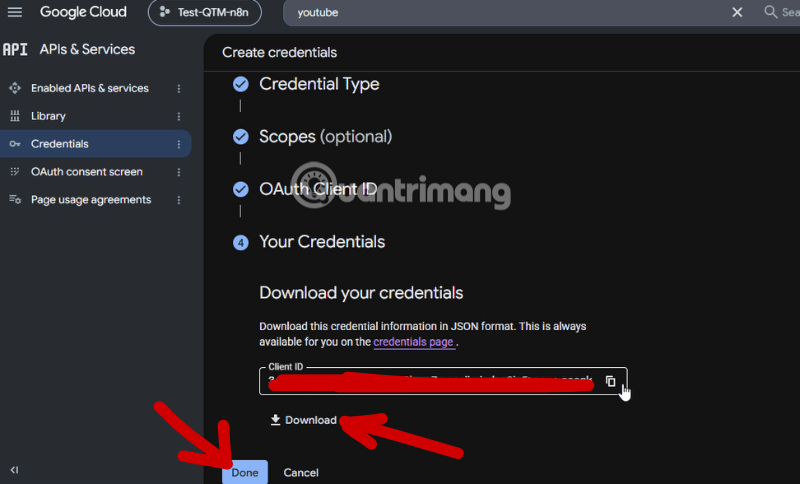
Go back to the Google Cloud tab to finish setting up your OAuth Client ID. On the Your Credentials screen, you can click the copy icon next to Client ID to grab it instantly, or click Download to save all credentials as a JSON file. Click Done to close this window.

tích hợp YouTube với n8n

Step 15: Review Your New OAuth Client in the Clients List

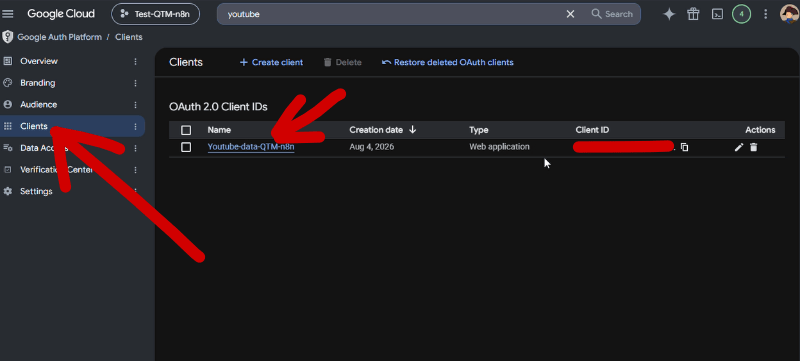
Navigate to Clients in Google Auth Platform and you'll see your newly created OAuth Client listed in the OAuth 2.0 Client IDs table, showing its name, creation date, and application type. Click on the client name to reopen the details page if you need to retrieve information again.

n8n YouTube credential

Step 16: Copy Your Client ID

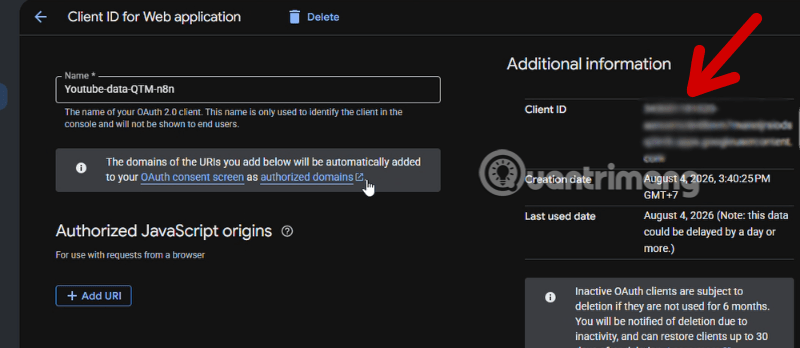
On the Client ID for Web application details page, the Additional information section on the right displays your Client ID. Click it to copy the value—you'll paste this into n8n in the final steps.

tạo YouTube OAuth Client ID

Step 17: Enter the Real Redirect URL and Copy Client Secret

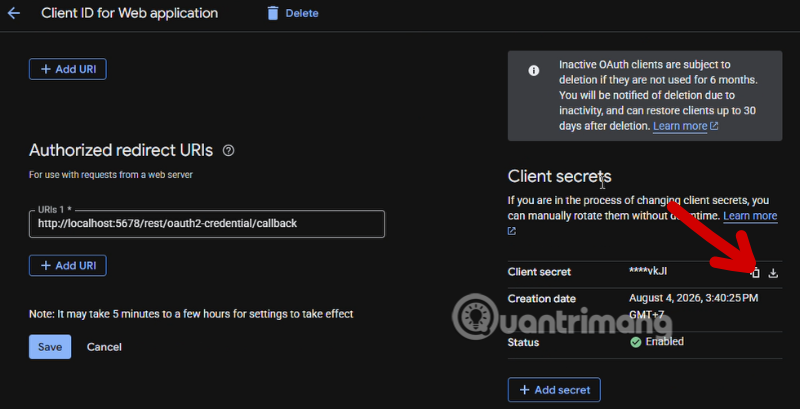
Now you need to return to n8n and grab the exact OAuth Redirect URL shown in the YouTube credential setup screen from Step 13. Paste that address into the Authorized redirect URIs field in Google Cloud, then click Save.

Just below, the Client secrets section displays your generated secret code. Click the copy icon or download option to save this value—it only appears in full at certain moments.

Google Cloud YouTube API

Step 18: Add Your Account to the Test Users List

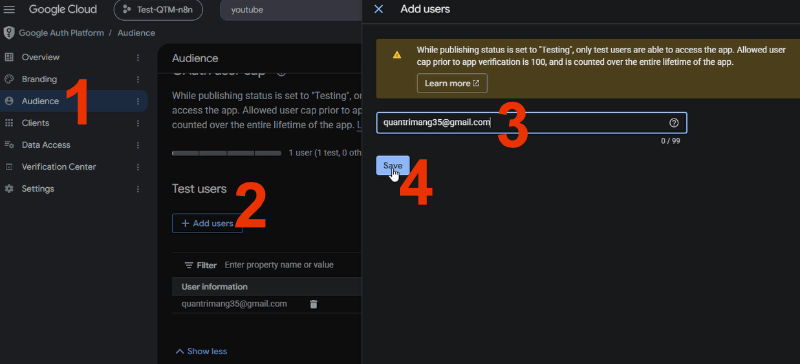
Since your application is in Testing mode, only accounts in the test users list can authenticate successfully. Navigate to Audience in Google Auth Platform, find the Test users section, click Add users, enter your Google email address (the one you'll use to log in), and click Save.

Google Cloud Console YouTube

Step 19: Complete the Connection in n8n

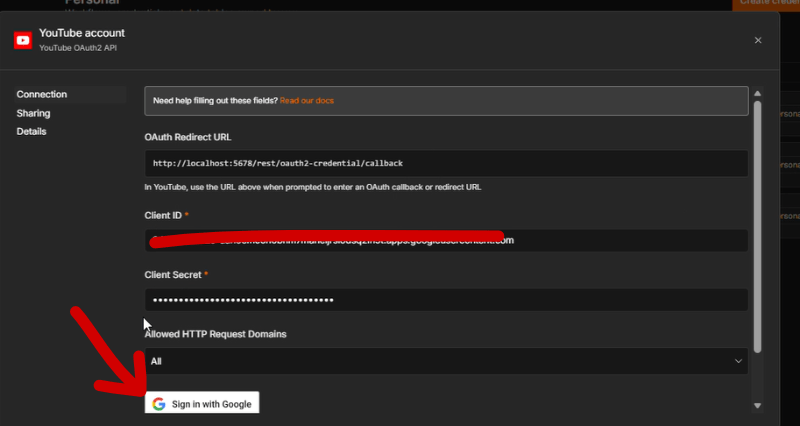
Back in the n8n YouTube account setup screen, paste the Client ID you copied in Step 16 into the Client ID field, and paste the Client Secret from Step 17 into the Client Secret field.

tạo credential YouTube trong n8n

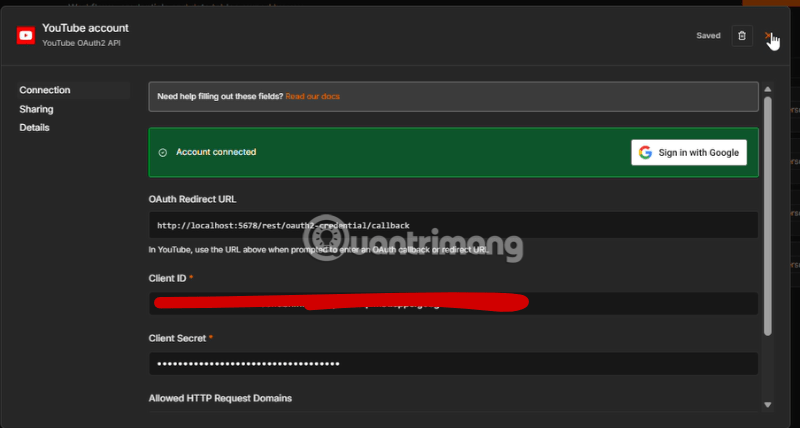
Under Allowed HTTP Request Domains, leave it set to All unless you have specific restrictions. Finally, click Sign in with Google, select the account you added to the test users list, and grant permissions when prompted. If everything is correct, n8n confirms successful YouTube connection.

ket noi youtube voi n8n

What Can You Do With YouTube API Connected to n8n?

Once the connection is set up, the YouTube node in n8n can perform numerous actions within automated workflows—no manual work in YouTube Studio required. You can automatically upload videos with pre-configured titles, descriptions, and visibility settings, update information on existing videos, manage playlists, or extract data about videos and channels for reporting.

The real advantage is chaining YouTube with other data sources in a single workflow. For example, one workflow could automatically fetch videos from Google Drive or Dropbox, validate the format, and publish directly to YouTube without human intervention in between. For channels posting content daily or weekly, this automation saves serious time on repetitive tasks.

Using OAuth 2.0 authentication as outlined above also protects your YouTube account. n8n receives only limited permissions within the declared scopes, and you can revoke access anytime from your Google account settings without affecting other services.

Bottom Line

Connecting YouTube API to n8n involves multiple steps split between Google Cloud Console and n8n—enabling the API, declaring data types, generating an OAuth Client ID, and exchanging redirect URLs and credentials. It's a one-time setup per project. Once complete, you have a stable connection ready for any YouTube automation workflow: uploading videos, updating metadata, or managing your entire playlist library.


Description: Learn how to integrate YouTube Data API v3 with n8n using Google Cloud Console and OAuth 2.0 authentication.

Related Articles

Copyright © 2016 QTitHow All Rights Reserved